
In a gym, content filtering for screens means deciding exactly what every TV, room and playlist is allowed to display, and by whom. Instead of blocking websites on a network, you control the channels, promotions, class information, announcements and music that reach members. The cleanest way to do it is to stop relying on cable boxes and personal logins and run every screen from one managed source with scheduled, approved content.
TL;DR
- Gym screen filtering is about who can put what on which screen, and when, not just blocking bad sites.
- Channel blocking on individual TVs breaks down as screen counts grow. A central dashboard with room-based content is easier to keep consistent.
- Use a simple approval process with named roles, scheduled content and a clear fallback screen.
- Secure the system and check music and video licensing, because unsecured signage can be hijacked and public performance requires licenses.
- Kingdom Signage manages TVs, class timers, announcements and room music from a single dashboard.
Table of Contents
- What content filtering means on a gym floor
- Why channel blocking stops working
- Build the filter around zones, not individual TVs
- Set up approvals so the wrong thing never goes live
- Schedule content by time, class and campaign
- Keep rooms in sync without showing the same thing everywhere
- Technical checks before you roll out across screens
- Security is part of filtering
- Privacy and licensing: two rules to respect
- Updating screens quickly between classes and promotions
- Perspective
- See how it works for your gym
- A practical rollout plan
- FAQ
- Sources
What content filtering means on a gym floor
Search for this phrase and you will mostly find guides to web filtering: firewalls, DNS rules, school networks and parental controls. Those describe restricting access to online content based on predefined rules or risk categories. The idea carries over to a gym, but the problem looks different.
A gym has a dozen or more screens in cardio areas, studios, the lobby and the front desk. Each one can show something you did not intend: a news channel running a distressing story during a beginner class, a rival gym's ad on a cable feed, an out-of-date promotion, a sports game that clashes with a quiet stretching session, or a lyric-heavy music video in a family-friendly area.
So for a gym, filtering screens comes down to four questions:
- Source: Where does content come from (cable, streaming apps, uploaded files, a signage platform)?
- Audience: Which room or zone is each screen serving, and who is in it?
- Timing: What should play during classes, open hours, peak times and after close?
- Authority: Who is allowed to publish, edit or override, and who signs off?
If you can answer those four for every screen, you have filtered your content. If you cannot, the screens are filtering themselves, usually badly.
Why channel blocking stops working
The instinct is to block unwanted channels on each TV with the remote or the cable box's parental controls. It works with two screens. With twelve, every box has its own settings, remotes get lost, staff change channels, and a firmware update resets a lock. We covered why this approach fails at scale in why channel blocking breaks down across 12 screens.
The underlying issue is that channel blocking filters by exclusion. You are chasing everything you do not want. A better model filters by inclusion: each screen shows only what has been published for it. Nothing else can appear because nothing else is connected.

Build the filter around zones, not individual TVs
Start by grouping screens by purpose. A typical boutique studio or club might use:
| Zone | What belongs there | What should stay off |
|---|---|---|
| Lobby and front desk | Welcome message, membership offers, class schedule, announcements | Live TV, anything with unpredictable audio |
| Cardio and strength floor | Approved entertainment, workout demos, promotions | Content unsuitable for a general audience |
| Group fitness studios | Class timers, interval displays, exercise demo videos, synced music | Promotions that distract mid-class, unrelated channels |
| Locker and wellness areas | Minimal informational content, if any | Cameras or audience-detection features (see the privacy section below) |
| Multiple locations | Brand-consistent promotions with local schedules | Content that is correct at one site and wrong at another |
Once zones exist, you assign content to the zone, and every screen in the zone inherits it. Adding a TV to the group means it behaves correctly immediately.
LG's signage documentation describes the same logic in its own tools: a content manager with a player, scheduler, editor and group-management functions, where the scheduler manages what plays at different times. Grouping and scheduling are standard building blocks of any serious signage setup. The question is whether you want to manage them across several separate tools or one.
Set up approvals so the wrong thing never goes live
Filtering is only as good as the process behind it. If anyone with the password can upload anything, you have not filtered anything. Harvard's guidance on digital signage recommends a formal process for content creation, review and approval with clear roles and responsibilities. A gym does not need a committee, but it does need named people.
A workable structure for a small operator:
- Creators: instructors, front desk staff and the marketing lead who draft announcements, class updates and promotions.
- Approver: the general manager or marketing manager who checks tone, accuracy, pricing and dates before anything goes live.
- Publisher: one or two people who actually schedule it to zones.
- Override: a short list of people who can push an urgent notice, such as a weather closure or an equipment outage.
Write down what the approver checks. A short checklist is enough: Is the offer still valid? Is the spelling right? Is the text readable from the distance of the screen? Is the content appropriate for that zone? Does it name a person or member without consent? For a deeper walkthrough, see our gym TV content approvals governance setup.
Use a fallback screen
Decide what a screen shows when nothing is scheduled: a branded loop with your hours, Wi-Fi details and a general welcome. A fallback prevents blank screens and, more importantly, prevents a device from reverting to a TV input or app that you did not choose.
Schedule content by time, class and campaign
Scheduling is the second half of filtering. The same screen can legitimately show different things at 6 a.m., during a noon HIIT class and at closing time. If you schedule by daypart, the right content appears without anyone touching a remote.
A simple weekly pattern:
- Opening hours: class schedule, offers, the day's announcements.
- Class windows: class timer, interval display or demo video in the studio, with the music tied to that room.
- Peak evenings: promotions for personal training, memberships or events.
- After hours: a quiet loop or off, according to your policy.
Pay attention to holidays and exceptions. LG's guidance points to scheduling and holiday settings as things to check when managing content across screens, and a forgotten holiday schedule is the classic source of a "Happy New Year" banner in March or a class listed that no longer runs. Our gym signage content scheduling guide goes further into building a calendar you can maintain.
Keep rooms in sync without showing the same thing everywhere
Synchronization and filtering pull in opposite directions. You want some things identical everywhere, like a closing notice or a brand promotion, and other things unique to a room, like the timer and music for a spin class versus a yoga flow.
The approach that works is layering:
- Global layer: announcements and brand content that every screen can display.
- Room layer: class timers, exercise demonstration videos and music assigned to a specific studio.
- Override layer: urgent notices that interrupt everything for a set period, then release the screens back to their schedules.
When audio and visuals are tied to the same room, an instructor does not need to juggle a music app, a timer app and a TV remote. The screen, the timer and the playlist for Studio B belong to Studio B, and they change together at the start of the class.
Technical checks before you roll out across screens
Multi-screen setups have limits worth knowing before you buy hardware or plan the layout.
- Network: content updates and live changes depend on reliable connectivity at each screen location. Test the weakest corner of the building.
- Inputs and formats: confirm that each display accepts the inputs and video formats you plan to use. If you are working with existing screens, check them first rather than assuming.
- Multi-screen modes: LG notes that its multi-screen mode may flicker or display abnormally on some devices and does not support DisplayPort daisy chaining. If you plan a video wall, read the manufacturer's documentation for your exact model.
- Accessibility: content should use readable fonts and enough color contrast, as Harvard's signage guidance points out. Gym screens are read from a treadmill at a distance and in motion, so large type and strong contrast matter even more. Our WCAG 2.2 guide to bilingual screen messages and the ADA signage audit cover the details.
- Language: if your members speak more than one language, begin with two or three, as outlined in our multilingual signage advice.
Security is part of filtering
A filter is worthless if someone else can change the content. Poorly secured signage systems can be hacked to show inappropriate, false or offensive content, which damages reputation and can cause panic. In a gym lobby, that is a very public embarrassment.
Basic hygiene:
- Use unique, strong credentials and remove accounts when staff leave.
- Limit who can publish, matching the roles above.
- Keep devices and software updated.
- Lock devices into a single purpose so a visitor cannot switch the input or open an app. Our kiosk mode checklist covers this for IT managers.
- Review the whole picture with our digital signage security checklist for gym managers.
Privacy and licensing: two rules to respect
Avoid cameras and audience detection in sensitive areas
Some digital signs use cameras to estimate the age or gender of viewers. The Federal Trade Commission recommends privacy-by-design for such systems, including reasonable security, careful placement, and avoiding sensitive locations such as bathrooms and locker rooms. It also recommends clear notice before consumers encounter signs that detect demographics. This FTC report dates from 2012, but it remains the agency's published guidance on the topic. Filtering what you show does not require watching your members, and for most gyms the simplest policy is not to.
License what you play
Content filtering also means being sure you are allowed to show what you show. According to compliance guidance, federal copyright law requires facilities that rebroadcast or publicly perform entertainment to obtain a license, and this covers DVDs, streaming, cable or satellite, broadcast TV and music. A personal streaming subscription is typically meant for personal use, so a business setting needs its own arrangements. Check the terms of every service connected to your screens and speakers, and ask a licensing professional or attorney about your specific situation.
Updating screens quickly between classes and promotions
The day-to-day test of any setup is how fast a staff member can change something. Aim for these standards:
- A front desk employee can post a same-day announcement in under a minute, without touching a TV.
- An instructor can switch to a different timer or demo video for the next class from one place.
- A manager can replace an expired promotion on every screen in every room at once.
- A franchise or multi-location operator can push brand content to all sites while leaving local schedules intact.
If any of these require walking to a screen with a remote, you still have unfiltered screens. For the front desk specifically, our three front desk signage essentials show what to prioritize.
Perspective
We built Kingdom Signage because we kept seeing the same pattern in gyms: a TV with a cable box in one room, a music app on someone's phone in another, a timer on a tablet, and a promotional slideshow on a USB stick. Every tool had its own login and its own idea of what was playing.
Our view is that content control belongs in one place. When TVs, class timers with demo videos, room-based music and real-time announcements sit in a single dashboard, filtering stops being a chore of blocking things and becomes a matter of choosing what each room shows. That is what we designed the platform to do, and it is why we support multiple rooms and multiple locations from the same dashboard, working with the screens you already own rather than asking you to replace them.
For a boutique studio, that means smoother class transitions and no scrambling for remotes. For a multi-location operator, it means the same brand and the same standards everywhere, with room for local differences. We believe members notice when a gym feels coordinated, and that coordination supports engagement and retention.
Kingdom
See how it works for your gym
Kingdom Signage is a subscription platform for gyms and fitness studios that brings screen content, class scheduling, workout timers with demo videos, room-based music and real-time announcements into one dashboard, across rooms and locations. You can start with a free trial or demo and see how your own screens would be organized.
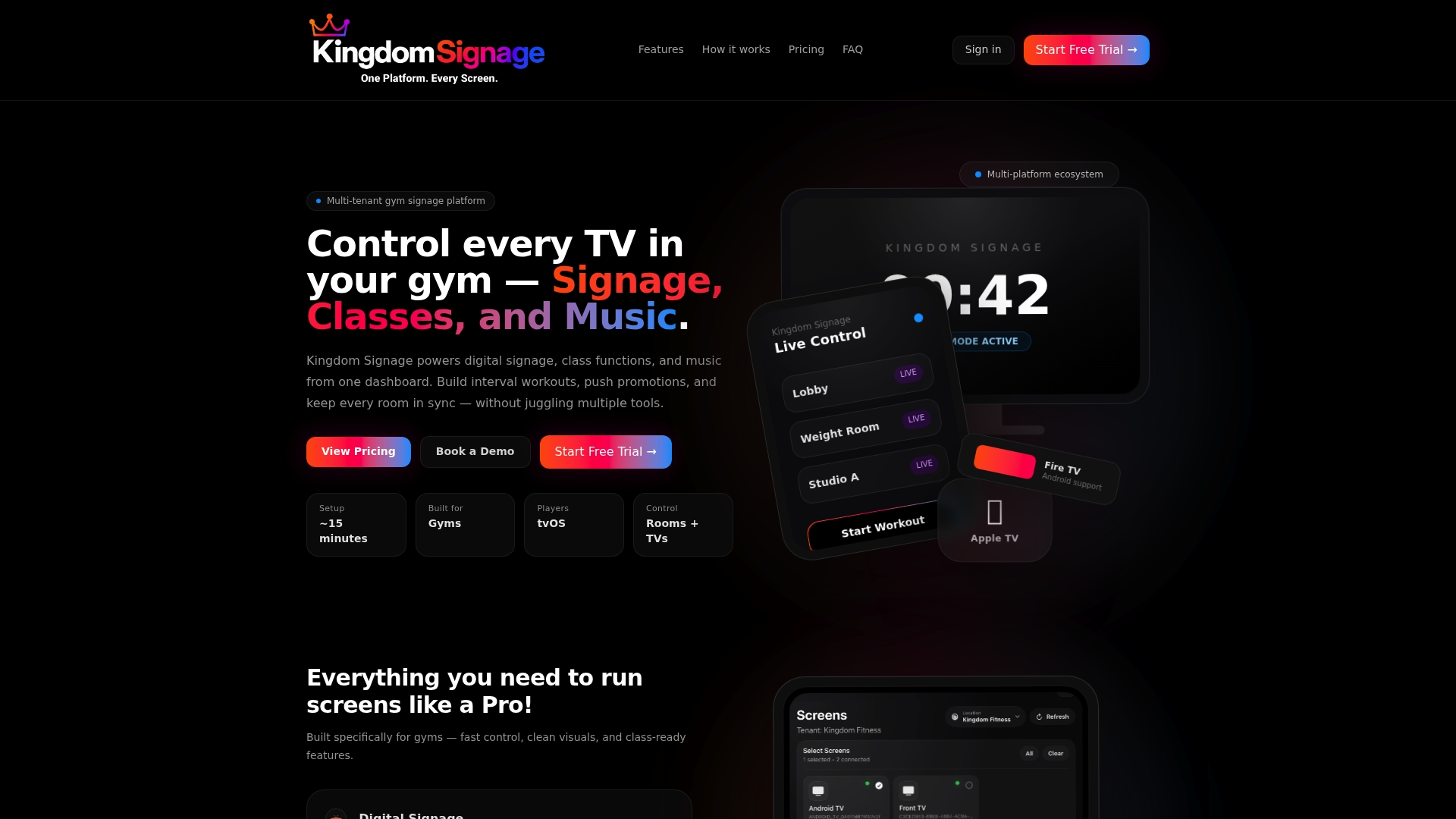
To explore the platform and request a demo, visit Kingdom Signage. If you are planning a refresh, our gym signage upgrade checklist for 2026 is a useful companion.
A practical rollout plan
If you want to move from loose screens to a controlled setup, this order keeps the work manageable:
- Inventory every screen, its location, its input and who uses it.
- Define zones and write one sentence on what each zone should show.
- Name roles for creating, approving, publishing and overriding.
- Build the base layer: a branded fallback, your class schedule and standing announcements.
- Add room layers: timers, demo videos and music for each studio.
- Schedule by daypart, then add holidays and seasonal campaigns.
- Secure accounts and lock devices.
- Review monthly: remove expired content, check readability from the back of the room and ask instructors what slowed them down.
The review in step 8 is what keeps the filter working. Content goes stale, staff change, and offers expire. A short monthly audit is cheaper than a lost member who noticed a promotion for last season on the lobby screen.
FAQ
What does content filtering mean for gym TVs?
It means controlling what each screen is allowed to show, rather than only blocking websites. You decide the sources, the room, the schedule and the people who can publish. The result is that screens show approved class, promotional and informational content and nothing else.
Is blocking channels on each TV enough?
For a couple of screens it can work, but it becomes unreliable as the number of TVs grows, because each box has its own settings and remote. A central system that publishes content to groups of screens is easier to keep consistent. We explain the breakdown in more detail in our article on channel blocking.
Do gyms need a license to play music and video on screens?
In the United States, guidance on copyright compliance says facilities that publicly perform entertainment generally need a license, including for streaming, cable, broadcast TV and music. Personal subscriptions are usually intended for personal use. Check each service's terms and consult a licensing professional for your situation.
How do I stop someone from putting offensive content on my screens?
Combine access control with an approval process. Limit who can publish, use strong unique credentials, keep devices updated and lock them to a single purpose. Poorly secured signage can be hacked to display offensive content, so security and approvals work best together.
Can I use my existing TVs?
Often, yes, provided the displays have compatible inputs and you have checked network and format requirements. Kingdom Signage is designed to work with existing screens so you do not have to replace hardware. Confirm your specific models during a demo.
Sources
- LG Digital Signage documentation (webOS 3.2)
- Best Practices for Digital Signage, Harvard University Information Security and Privacy
- Facing Facts: Best Practices for Common Uses of Facial Recognition Technologies, FTC
- Copyright Compliance for Movies, TV and Music, LeadingAge