
The fastest reliable fix depends on scale: TV parental locks work fine for a single screen, but a gym with more than a couple of TVs needs network-level filtering or an enterprise signage dashboard. Streaming apps like YouTube TV only let you hide channels from the guide, not block playback, so hiding is not a real control. For multi-screen facilities, a centralized dashboard that locks content across every TV is the only staff-proof option.
TL;DR:
- YouTube TV’s hidden networks remain playable through search, recommendations, or direct links, so the guide setting cannot enforce channel restrictions on shared screens.
- TV parental locks can block named channels, while the V chip filters rating categories; set a new PIN and test the locks after reboot.
- Apply DNS or firewall rules to one test device first, verify unrelated apps still work, and remember members can bypass them using cellular data.
- A centralized signage dashboard can lock approved playlists across screen zones, reset displays after reboots, and schedule temporary overrides to revert automatically.
Table of Contents
- TV parental controls, set-top boxes, and the V-chip
- What you can and cannot block on streaming platforms
- Network-level filtering for site-wide enforcement
- Enterprise signage control for facility-wide consistency
- Turning technical controls into a lasting policy
- Syncing channel blocking with your digital signage system
- Keeping multiple screens locked down during live classes
- Handling real-time overrides during promotions and events
- Keeping streams uninterrupted while restrictions stay active
- Why gyms choose policy and a platform over ad hoc blocking
- How Kingdom Signage can help with multi-screen control
- FAQ
- Sources
TV parental controls, set-top boxes, and the V-chip
Every modern television includes a parental controls menu, usually under Settings, Channels, or Parental Controls, where staff can lock specific channels or set a PIN that blocks access until entered. On most sets, the first-time setup prompts you to create a four-digit PIN; change this immediately from any factory default, since a published default PIN defeats the whole point of locking the screen.
The V-chip built into US televisions blocks programming by its content rating rather than by channel. It recognizes the standard TV parental guideline categories, from TV-Y for children's programming through TV-MA for mature content, along with content descriptors like D, L, S, and V for dialogue, language, sex, and violence. That makes it useful for filtering out mature content broadly, but it cannot target a specific news network or sports channel by name, and it depends on broadcasters tagging programs correctly.
A short setup checklist for staff:
- Open the TV or set-top box menu and locate Parental Controls or Channel Lock.
- Set a new PIN immediately and store it in a manager-only reference, not on a sticky note near the screen.
- Lock any channels or rating tiers you want blocked, then test by trying to tune to a locked channel.
- Confirm the lock survives a power cycle, since some boxes reset temporary locks on reboot.
- Record the PIN and settings in a shared document for the next shift.
This approach works for a lobby TV or a single studio screen. It becomes unmanageable once you are tracking PINs across a dozen displays.
What you can and cannot block on streaming platforms
Streaming apps complicate things because "hiding" a channel and "blocking" it are not the same action. YouTube TV's own support documentation explains that you can hide or reorder networks in your Live guide, but hiding does not block playback. A hidden channel can still surface through search, recommendations, or a direct link, and the YouTube TV community guidance confirms that hidden networks can still appear in recommendations and be watched if someone navigates to them directly.
Smart TV apps generally offer a narrower set of controls:
- Account-level PINs that lock purchases or mature-rated content, not specific channels.
- Guest or restricted profiles that limit app access on shared devices.
- Manual sign-out procedures after each use to prevent a personalized account from loading on a public screen.
For a shared gym environment, the realistic mitigations are operational rather than technical: create a dedicated, non-personal account for each TV, clear its watch history regularly so recommendations stay neutral, and restrict which apps staff are allowed to install on the device. Our guide to smart TV gym management covers how to structure these accounts so a member browsing the remote cannot casually land on unwanted content.
Network-level filtering for site-wide enforcement
Blocking at the router or firewall level stops unwanted content before it ever reaches a screen, which makes it more reliable than per-device settings when you have several TVs on the same network. DNS filtering can block entire domains or categories, cutting off access to a streaming app's servers network-wide rather than one device at a time. Firewall rules go further, letting you block specific MAC addresses, ports, or app domains tied to a particular streaming service.
The trade-off is that network blocks are broad by design, so a misconfigured rule can disrupt a legitimate app, a point-of-sale system, or a staff tablet that happens to share a network segment. Test every change before trusting it:
- Apply the DNS or firewall rule to one TV or device first, not the whole network.
- Confirm the targeted app or channel fails to load as expected.
- Verify unrelated apps and devices on the same network still function normally.
- Roll the rule out to the remaining screens once step 2 and step 3 both pass.
- Document the rule set so staff can replicate it on replacement hardware.
Pro Tip: Keep a written log of every DNS and firewall rule with the date it was applied, since gym networks change staff often and an undocumented rule becomes nearly impossible to troubleshoot months later.
Members using personal cellular data or an unsanctioned hotspot can bypass network-level blocks entirely, since those restrictions only apply to the gym-managed network. Our network setup checklist for fitness managers walks through mapping each screen to the network before applying rules.
Enterprise signage control for facility-wide consistency
Once a gym has more than a handful of screens, device-by-device management stops scaling. An enterprise digital signage platform centralizes scheduling, screen locking, and content playlists so a manager sets the rules once and every TV in the building follows them, regardless of what a staff member or member does at the screen itself.
Core capabilities that matter for channel control:
- Centralized scheduling that assigns approved content blocks to specific times, so a locked playlist runs automatically during peak hours.
- Screen-level locking that prevents any individual TV from being switched to an unapproved input or app.
- Multi-room sync, so a class studio, the cardio floor, and the lobby all show consistent, approved content without separate configuration.
- Zone-based playlist assignment, so each display inherits a policy profile rather than being configured one at a time.
This is the structural advantage over per-TV parental locks: a single dashboard update propagates everywhere instead of requiring a staff member to walk to each screen with a remote and a PIN. A reasonable rollout starts with an audit of every screen zone in the facility, a documented playlist policy for each zone, and a short pilot in one area before expanding building-wide.
One practical signal worth tracking during a pilot: the hours staff spend each week manually adjusting TVs, comparing the week before centralized control to the weeks after. A platform that unifies scheduling, locking, and multi-room sync is built to drive that number toward zero, since the whole point is removing manual per-screen intervention. Our guide to managing multiple gym TVs from a dashboard covers the setup steps in more detail.
Turning technical controls into a lasting policy
Technical blocks only hold up when paired with a clear, written policy that staff and members both understand. Keep it short and post it near the front desk or in the digital welcome screen rather than burying it in a membership handbook.
- Write a one-page policy stating which channels and categories are blocked and why, posted at the front desk and included in new-member onboarding.
- Give staff a checklist covering PIN management, a weekly test play on each screen, and a clear escalation path for member complaints.
- Use neutral, non-political language in any member-facing signage, focusing on the facility's content standards rather than any specific network or program.
- Allow personal device or headphone use in designated areas for members who want content the facility doesn't show.
- Review the policy quarterly using member feedback and staff reports of recurring issues.
Our guide on controlling multiple screens effectively includes sample language gyms have used for this kind of posted policy.
Syncing channel blocking with your digital signage system
Channel blocking works best when it is not a separate task from the rest of your signage setup. A gym running class schedules, promotional slides, and workout timers through a signage platform can fold channel restrictions into the same system rather than managing TVs and signage as two unrelated jobs.
In practice, this means the same dashboard that pushes a class schedule to the studio screens also controls which live TV sources, if any, are permitted on cardio-floor displays during open hours. When a screen's playlist policy already defines what plays and when, there is no separate "channel blocking" step to forget, since restricted content was never an option on that screen's approved list in the first place.
This integration matters most when a facility has mixed-use screens, where a TV shows live cable during slow midday hours but needs to switch to a class countdown timer or promotional content at a scheduled time. Handling both through one system avoids the common failure mode where a staff member unlocks a channel for a special event and never relocks it. Our overview of gym TV network architecture explains how zones and playlists work together to keep this consistent across a building.
Keeping multiple screens locked down during live classes
Live classes create a specific enforcement problem: a dozen screens across a studio or cardio floor all need to show the same approved content at the same moment, and a single unlocked TV can undercut the whole setup. The usual failure points are a screen that reverts to its last input after a power blip, a staff member who switches a channel for a client request and forgets to switch back, or a new TV added to the floor without the same lock settings as the rest.
The practical fix is treating every screen in a class zone as a single unit rather than as individual devices. Assign a zone profile so all screens in that area pull from the same locked playlist, and build in an automatic reset so any screen that goes offline or reboots returns to the approved content rather than a default input. Spot-check screens on a schedule rather than only when a member complains, since a quiet drift toward an unlocked channel often goes unnoticed for days.
Multi-TV consistency is also where ad hoc fixes break down fastest. A V-chip setting or a per-device PIN has to be reapplied to every new screen individually, while a zone-based policy in a centralized system extends automatically to any display added to that zone.
Handling real-time overrides during promotions and events
Blocking content is only half the job; a facility also needs a way to turn specific content on temporarily for a sponsored event, a special screening, or a promotional partnership, then revert cleanly afterward. The risk with manual overrides is that someone unlocks a channel for a Saturday event and the lock never gets reapplied, leaving the facility exposed until the next spot check catches it.
A workable process sets a defined start and end time for any override, rather than leaving it open-ended. If your signage platform supports scheduled content swaps, build the override as a timed exception within the existing zone policy so it reverts automatically rather than depending on a staff member remembering to undo it. For a smaller gym without that capability, a written log of every manual override, including who approved it and when it should revert, closes most of the gap.

Promotional content tied to events like a product demo day or a charity drive is a good candidate for this kind of timed exception, since the content is approved and time-bound by nature. A partner coffee program is a common example: some gyms sell branded coffee at the front desk and run a short promotional loop on lobby screens during a launch, which is exactly the kind of scheduled, reverting override a signage policy should support without becoming a permanent change to the default playlist.
Keeping streams uninterrupted while restrictions stay active
Blocking rules only work if they do not break the experience they are supposed to protect. A DNS rule that is too broad can knock out a legitimate streaming app along with the one you meant to restrict, and a firewall rule applied to the wrong port can interrupt a class livestream mid-session.
A few technical habits reduce that risk. Keep bandwidth headroom on the gym network so content restrictions do not compete with video streaming for throughput, especially during peak class hours when multiple screens may be pulling content simultaneously. Apply blocking rules to a test device before pushing them network-wide, since a rule that looks correct in isolation can still conflict with another app sharing the same network segment. Where possible, separate the network segment running class content and signage from the general member Wi-Fi, so a change meant to restrict guest browsing cannot accidentally affect the screens delivering a workout class.
Facilities running a centralized signage platform generally see fewer of these conflicts, since content is served through one managed system rather than through a patchwork of apps and devices each with their own network behavior. That consolidation is also what makes a timed override, like the promotional example above, reliable instead of risky.
Why gyms choose policy and a platform over ad hoc blocking
Chasing down PINs on a dozen TVs is not a real content strategy, it is a maintenance headache that eventually gets skipped during a busy shift. Centralized control removes that variable: one policy, one dashboard, consistent screens every time a member walks in.
The gyms that get this right also tend to see steadier member engagement, because the content on the walls feels intentional rather than whatever happened to be on when someone last touched the remote. If you are weighing a facility-wide fix, run a short pilot in one zone before committing to a full rollout. It tells you more in two weeks than any spec sheet will.
— Kingdom
How Kingdom Signage can help with multi-screen control
We built Kingdom Signage specifically for gyms juggling TVs, class schedules, and music across multiple rooms, so you are not stitching together separate tools for signage, scheduling, and content restrictions.
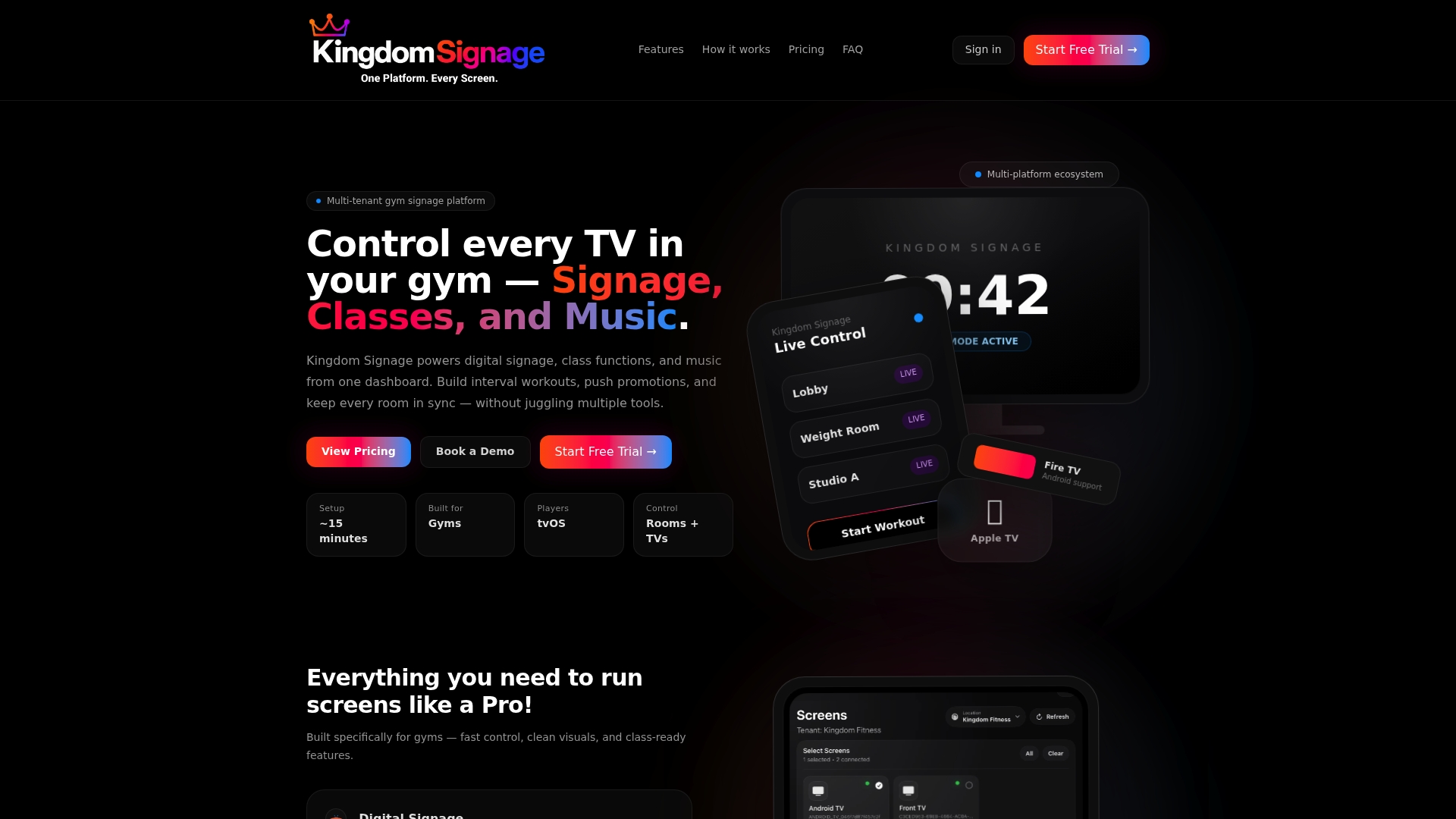
- We centralize screen locking and content playlists across every TV from one dashboard.
- We sync audio and visuals across rooms to help class transitions and promotional content stay consistent.
- We support management of multiple locations from a single account, helping multi-site operators manage facilities more efficiently.
If a pilot in one zone sounds like the right next step, request a demo at Kingdom Signage and we will walk through your current setup together.
FAQ
How do I block TV channels on a gym television?
Use the TV's built-in parental controls or channel lock menu, set a new PIN, and lock the channels you want restricted. For more than a few screens, network-level filtering or a centralized signage dashboard is more reliable than managing each TV by hand.
What is the best TV setup for a home gym or facility gym?
There is no single best brand, but the setup that matters most is a TV with reliable parental controls or a V-chip, paired with a managed account rather than a personal login. For multi-screen facilities, pairing any standard smart TV with a centralized signage platform matters more than the TV model itself.
Why did I suddenly lose certain TV channels?
A sudden loss of channels is usually caused by a provider lineup change, a network or firewall rule applied upstream, or a parental control setting changed by staff. Check the TV's channel lock settings first, then confirm whether a recent network change at the facility affected that device.
How do I block a specific channel instead of just hiding it?
On a traditional TV, use the parental controls menu to lock the specific channel number rather than relying on a streaming app's "hide" feature, since YouTube TV's own guidance confirms hiding a channel does not block playback. For guaranteed enforcement across multiple screens, a network-level block or a centralized signage policy is more dependable than any single app setting.
What does Kingdom Signage cost for a gym to manage multiple screens?
Kingdom Signage runs as a subscription with tiered monthly, per-location fees, with optional premium features such as music integration and additional TV licenses. Contact our team through the Kingdom Signage site for current pricing details for your facility size.
Sources
- Watch shows, sports, events, & movies on YouTube TV - YouTube TV Help
- The V-Chip: Options to Restrict What Your Children Watch on TV | Federal Communications Commission