
A centralized gym TV management system is the most effective way to control every display in your facility from one browser-based dashboard, without walking the floor or touching individual screens. Gym operators running 10, 20, or 50+ screens across multiple rooms face a real operational problem: inconsistent content, missed schedule updates, and wasted staff time. Platforms like Kingdomsignage, CastHub, and Split-Flap TV solve this by letting you manage multiple gym TVs from a single dashboard with real-time scheduling, zone control, and live integrations. This guide covers the hardware, setup steps, content strategy, and troubleshooting every fitness manager needs.
What do you need to manage multiple gym tvs dashboard?
The right hardware and software combination determines whether your multi-display gym solution runs reliably or becomes a daily headache. You need three core components: display hardware, media player devices, and a cloud-based content management system (CMS).
Display hardware
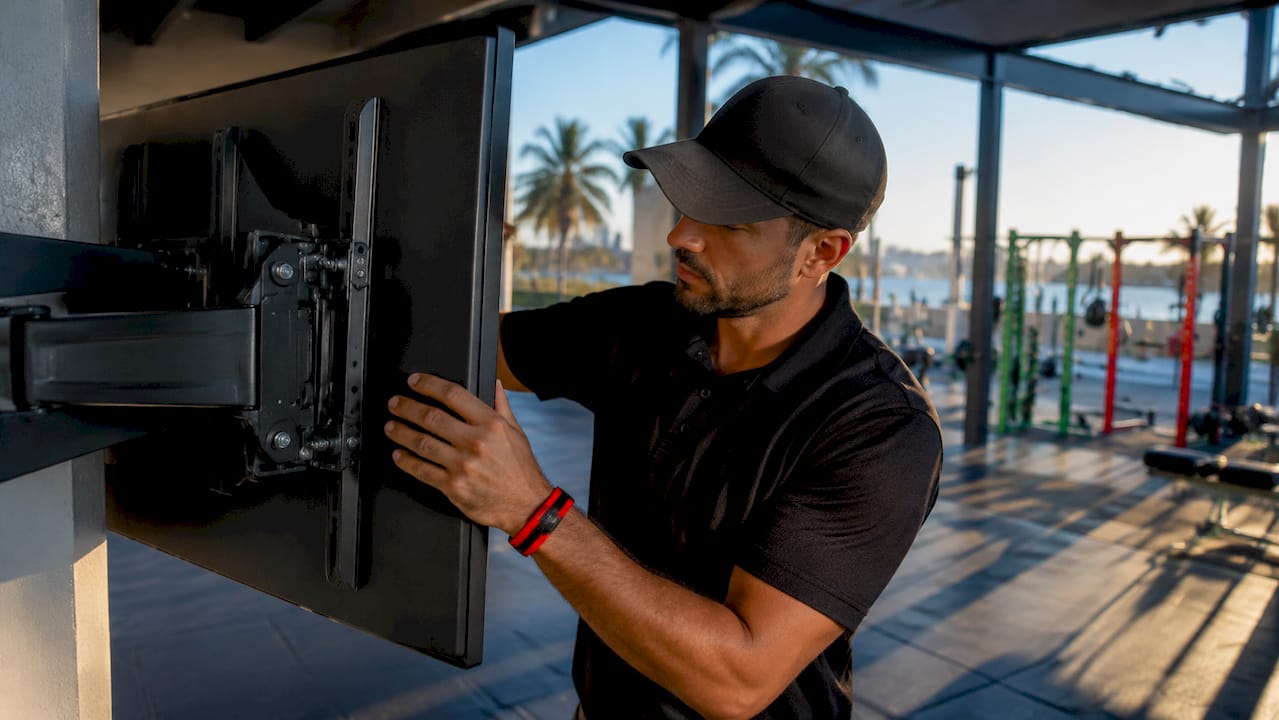
Smart TVs with built-in Wi-Fi work well for most gym zones. Commercial-grade displays from Samsung, LG, or Sony hold up better under extended daily use than consumer models. For high-traffic areas like the main floor or spin studio, a 55-inch or larger commercial display delivers visibility from across the room.
Media player devices
If your TVs are not smart-enabled, you need a media player to run the CMS app. Apple TV, Amazon Fire TV Stick, and Android-based sticks like the BrightSign or Chromecast with Google TV all work with major gym TV control software. Apple TV is the most reliable for stable Wi-Fi environments. Fire TV Stick 4K is the most cost-effective entry point.
CMS platforms for gyms
The CMS is where you actually manage gym entertainment options, schedule content, and push updates. Modern TV management systems allow remote scheduling, device monitoring, and real-time content updates across multiple locations from a cloud dashboard. Kingdomsignage, CastHub, and Split-Flap TV each serve gym environments with purpose-built features.
Here is a comparison of common options:
| Platform | Best For | Starting Price | Key Feature |
|---|---|---|---|
| Kingdomsignage | Gyms needing audio + visual sync | Contact for pricing | Unified AV + signage control |
| CastHub | Multi-location gym networks | ~$25/month | Screen grouping by zone |
| Split-Flap TV | Class schedule boards | $25/month | Mechanical-style digital display |
Pro Tip: Run your media players on a dedicated Wi-Fi network separate from member guest access. This prevents bandwidth competition and keeps your display dashboard for gyms running without lag.
Network requirements
A stable network is non-negotiable. Each media player needs at least 5 Mbps of dedicated bandwidth for smooth video playback. A managed network switch with VLAN support lets you isolate signage traffic from general gym use.
How do you set up a multi-screen gym TV dashboard?
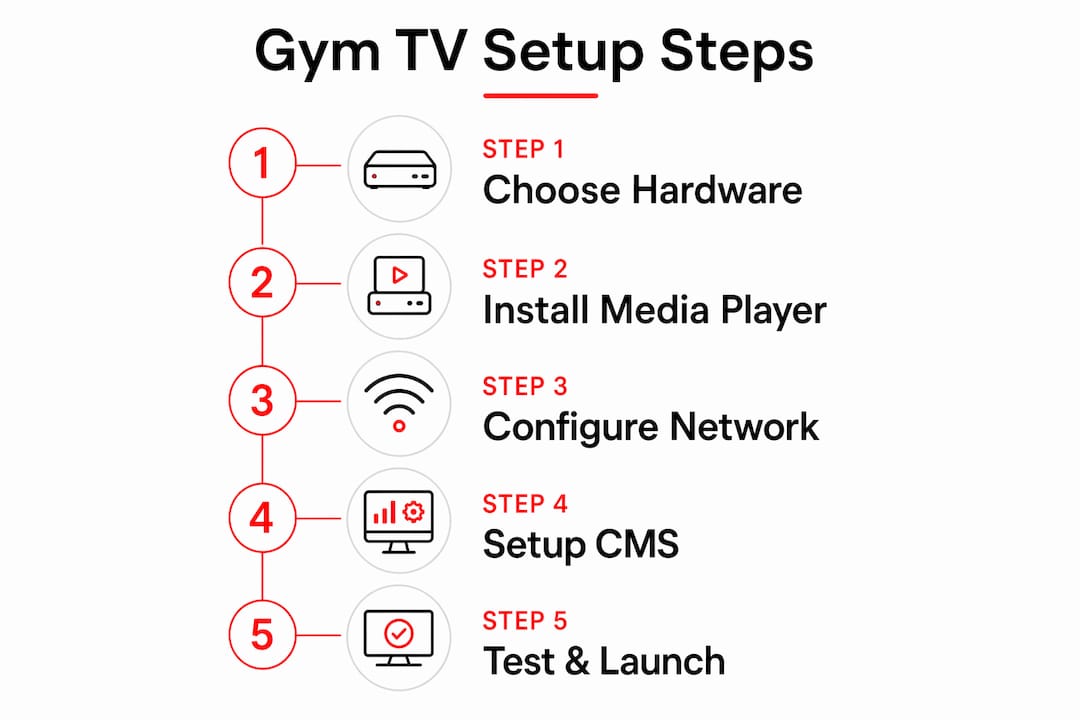
Setting up a digital schedule display typically takes 30–60 minutes on modern signage platforms with gym booking software integration. That timeline assumes your network is already in place and your TVs are mounted.
Follow these steps to get your best gym TV setup running:
- Create your CMS account. Register on your chosen platform, whether Kingdomsignage, CastHub, or another provider. Set up your facility profile with location details.
- Install the app on each media player. Download the CMS app on every Apple TV, Fire TV Stick, or Android device connected to your gym TVs.
- Pair each device to your dashboard. Most platforms generate a pairing code on screen. Enter it in your dashboard to link the device. Repeat for every screen.
- Group screens by zone. Organize displays by area: main floor, cardio zone, group fitness room, lobby, locker rooms. CastHub supports grouping by building, floor, or function, and pushes simultaneous content updates instantly across multiple screens regardless of location.
- Upload your content library. Add class schedule graphics, promotional videos, member announcements, and brand assets. Label each file clearly for easy scheduling later.
- Connect live data integrations. Link your gym management software. Digital signage for gym class schedules integrates natively with Mindbody, ABC Fitness, and Mariana Tek, updating within 30–60 seconds after scheduling changes.
- Schedule content by zone and time. Assign specific content to each screen group. Set peak-hour playlists for 6–9 AM and 5–8 PM, and quieter promotional loops for off-peak times.
- Test every screen. Push a test update from your dashboard and confirm all displays update correctly. Check refresh intervals and verify live data is pulling correctly.
Pro Tip: Before launch day, run a full test during your busiest class time. Network congestion during peak hours is the most common cause of delayed updates that managers miss during off-hours testing.
Common setup mistakes include skipping the network isolation step, using consumer TVs in high-brightness environments where glare kills visibility, and forgetting to set content refresh intervals. Most platforms default to a 60-second refresh. For live class schedules, drop that to 30 seconds.
How do you schedule content across multiple gym tvs?
Effective content scheduling is what separates a gym TV network that drives member engagement from one that just plays random videos on a loop. The dashboard gives you full control over what plays, where, and when.
The core strategy is zone-based scheduling. Your lobby screen should show membership promotions and class highlights. Your cardio floor screens should display motivational content, live class schedules, and performance stats. Your group fitness room needs class-specific content timed to each session. These are three different audiences in the same building, and your display dashboard for gyms should treat them that way.
Content assignments can be scheduled by date, time of day, or recurring intervals with local overrides. That last feature matters most for multi-location operators. A regional manager can push brand-wide promotions while each location manager updates their own class schedule without touching the master template.
Here are the best practices for managing gym entertainment options across multiple screens:
- Use dayparting. Schedule different content blocks for morning, midday, and evening. Morning members respond to energy and class schedules. Evening members respond to recovery content and promotions.
- Automate class schedule updates. Manual updates create errors. A live Mindbody or ABC Fitness integration eliminates the risk of showing a canceled class on screen.
- Limit playlist length. A 10–15 minute content loop is the right length for most gym zones. Longer loops mean members see the same content repeatedly before it cycles.
- Use local overrides for events. When a location runs a special event or promotion, local managers should be able to update their screens without waiting for central approval.
- Keep brand assets consistent. Fonts, colors, and logo placement should match across every screen. Centralized multi-location management avoids content duplication and brand inconsistencies that erode member trust.
For gyms with 10 or more screens, multi-location control built into the platform dramatically reduces operational complexity. Trying to manage that scale with individual device logins is not a system. It is a liability.
How do you troubleshoot a multi-screen gym TV dashboard?
Even a well-configured gym TV network will hit occasional issues. Knowing the most common problems and their fixes saves you from calling support for every minor disruption.
Screen goes offline
A screen showing as offline in your dashboard almost always means a network issue, not a hardware failure. Check the Wi-Fi signal at the TV's location first. If the signal is strong, restart the media player. Most platforms show a last-seen timestamp so you can tell how long the device has been offline.
Content not updating
Delayed content updates point to one of two causes: a slow refresh interval or a bandwidth bottleneck. Lower your refresh interval to 30 seconds for live schedule screens. If the problem persists, check whether your signage network is competing with member Wi-Fi traffic.
Software and security
Keep your CMS app and media player firmware updated. Outdated software is the leading cause of compatibility issues when platforms push new features. Role-based permissions also matter here. Role-based permissions enable local managers to update location-specific content without compromising central brand settings.
Pro Tip: Schedule a monthly 15-minute maintenance check. Confirm all devices are online, all software is current, and all scheduled content is loading correctly. Catching a single offline screen before a busy Monday morning is worth the time.
- Reboot media players monthly to clear memory buildup
- Audit user permissions quarterly to remove former staff access
- Test live integrations after any gym management software update
- Document your network setup so any staff member can troubleshoot basic issues
When issues go beyond basic troubleshooting, contact your platform's support team with the device ID, last-seen timestamp, and a screenshot of the error. That information cuts resolution time significantly.
Key takeaways
A centralized gym TV management system is the only practical way to control multiple screens, maintain brand consistency, and deliver real-time updates across a full facility without adding staff hours.
| Point | Details |
|---|---|
| Hardware requirements | Use commercial displays with Apple TV or Fire TV Stick media players on a dedicated network. |
| Setup time | Most platforms complete full setup in 30–60 minutes with live software integrations included. |
| Zone-based scheduling | Group screens by area and assign different content to lobby, cardio floor, and group fitness rooms. |
| Live integrations | Connect Mindbody or ABC Fitness to auto-update class schedules within 30–60 seconds of changes. |
| Routine maintenance | Run a monthly check on device status, software versions, and user permissions to prevent disruptions. |
What i've learned running gym TV networks at scale
The biggest mistake gym operators make is treating their TV network as a set-it-and-forget-it system. It is not. Content goes stale, schedules drift, and screens go offline without anyone noticing for days. The operators who get the most from their multi-display gym solutions are the ones who treat the dashboard like a living tool, not a one-time installation.
The second thing I have seen consistently: gyms underestimate the value of audio-visual synchronization. Showing a spin class promotion on the lobby screen while a completely different audio track plays in the studio creates a disjointed member experience. Platforms that unify both audio and visual control from one dashboard, the way Kingdomsignage does, solve a problem most gym managers do not realize they have until they experience the alternative.
Cost is also worth addressing directly. Entry-level digital display solutions start at $25/month, while legacy mechanical displays cost upward of $15,000 per unit. The math is not complicated. Digital wins on cost, flexibility, and speed of updates. The only reason to hesitate is choosing the wrong platform for your scale. A solo gym with three screens has different needs than a regional chain with 15 locations. Pick a platform built for where you are going, not just where you are now. You can read more about optimizing multi-room displays to understand how zone-based control scales as your facility grows.
— Kingdom
Why Kingdomsignage is built for gym TV networks
Kingdomsignage is the only platform that combines digital signage control with gym audio management in a single dashboard. That means you can schedule class schedule boards, promotional content, and background music from one place, without switching between tools or devices.
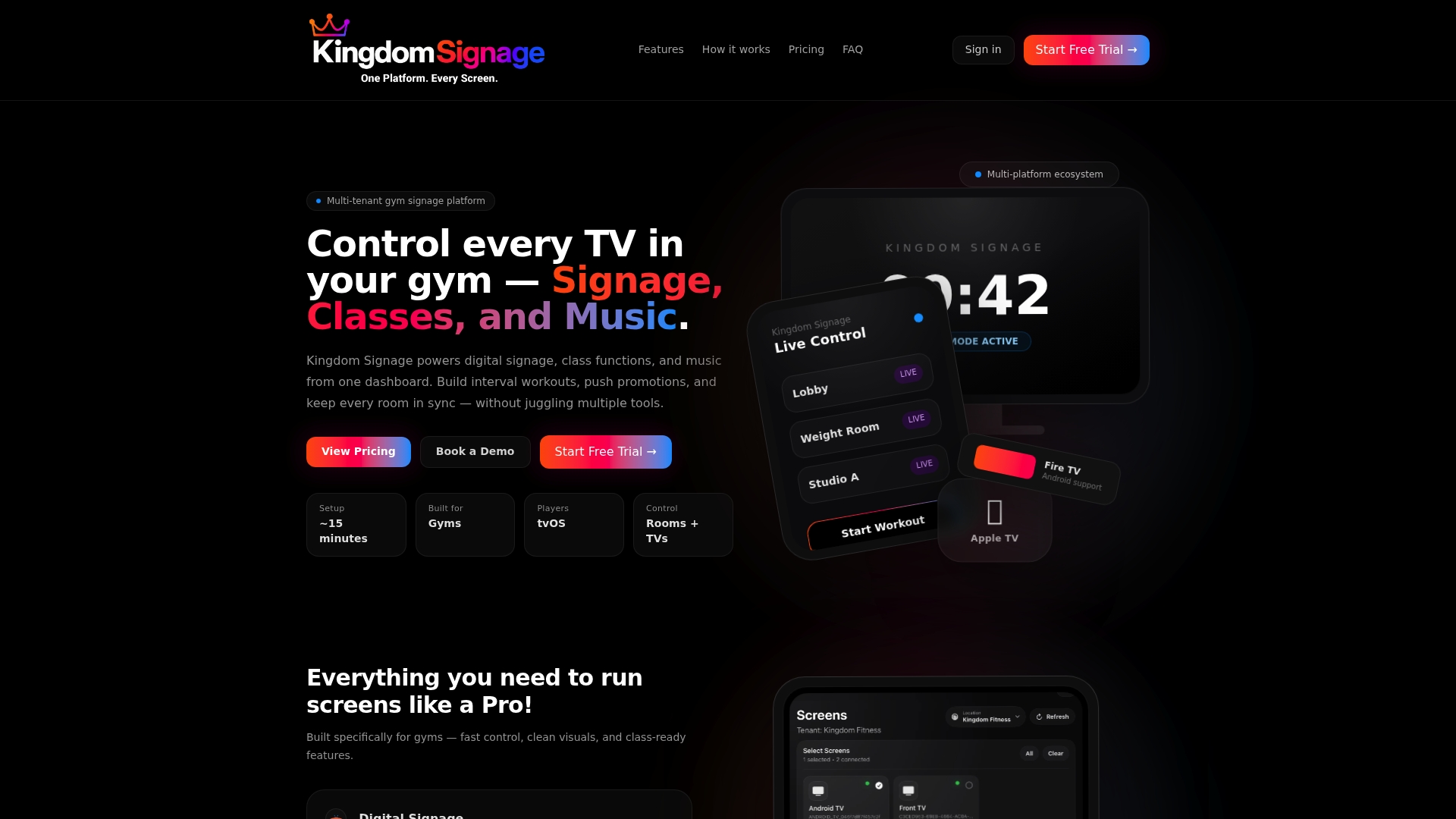
The platform is built specifically for gym operators who need real-time updates, zone-based content control, and synchronized audio-visual delivery across multiple rooms. Flat-rate pricing makes it predictable for multi-screen setups, and the dashboard requires no technical background to operate. If you are ready to take full control of your gym digital signage and stop managing screens one by one, Kingdomsignage is the place to start. Explore the platform and see how it fits your facility's setup.
FAQ
What is a gym TV management system?
A gym TV management system is a cloud-based platform that lets operators control all facility displays from one dashboard. It handles content scheduling, live data updates, and screen grouping without requiring on-site access to individual TVs.
How long does it take to set up multiple gym tvs?
Setup typically takes 30–60 minutes on modern platforms with gym booking software integration. That includes pairing devices, grouping screens by zone, and connecting live schedule integrations like Mindbody or ABC Fitness.
Can i manage gym tvs across multiple locations?
Yes. Platforms like CastHub and Kingdomsignage support managing 5 to 500 screens across multiple locations from any browser. Role-based permissions let local managers update their own screens without affecting the central brand template.
What is the cost of a gym TV display dashboard?
Entry-level gym signage platforms start at $25/month. Multi-location systems with advanced features range higher depending on screen count and integrations. Digital solutions cost far less than legacy mechanical displays, which run $15,000 or more per unit.
How do i keep gym TV content updated automatically?
Connect your CMS to a gym management platform like Mindbody, ABC Fitness, or Mariana Tek. These integrations push live class schedule updates to your screens within 30–60 seconds of any change, removing the need for manual edits.