
Kiosk mode locks a signage device to one app or a limited set of apps so it runs as a secure, single-purpose display. IT teams choose it over standard signage whenever a screen needs to accept user input, like a check-in terminal, self-service catalog, or interactive directory, and can't risk someone backing out to the home screen or a browser tab. The payoff is security and a consistent experience with far less tampering risk than an open device.
TL;DR:
- Only deploy kiosk mode with single-app lockdown for maximum security, since multi-app modes increase the attack surface and management complexity.
- Use OS-specific configuration tools like Microsoft Edge kiosk settings or dedicated kiosk apps to ensure reliable remote management and strict session control.
- Incorporate idle timeouts, automatic refresh, and content restrictions to prevent screens from failing or becoming vulnerable due to stuck pages or hung apps.
- Conduct thorough pre-launch testing of policies and hardware, including power, mounting, and touchscreen ergonomics, to ensure long-term reliability and security.
- Implement dual-layer watchdog systems that monitor both app stability and device health, with centralized logging to detect recurring failures early.
Table of Contents
- What Kiosk Mode Actually Locks Down
- Kiosk Mode Vs. Digital Signage: Which One Do You Need?
- Setting Up Kiosk Mode Across Windows, Android, and Raspberry Pi
- Deployment Checklist for Secure, Reliable Kiosk Signage
- Troubleshooting a Kiosk That Goes Dark
- Kingdom Signage's Take on Kiosk-Mode Signage for Gyms
- A Practical Next Step for Gym Operators
- Sources
What Kiosk Mode Actually Locks Down
Kiosk mode splits into two architectures, and mixing them up leads to the wrong deployment. OS-level lockdown (Windows Assigned Access, Android device owner mode) restricts the entire operating system to one app, hiding the taskbar, blocking app switching, and disabling system gestures. App-level kiosk players, by contrast, run inside a normal OS but use a dedicated browser or player app that fences itself off, hiding navigation bars and intercepting exit attempts.
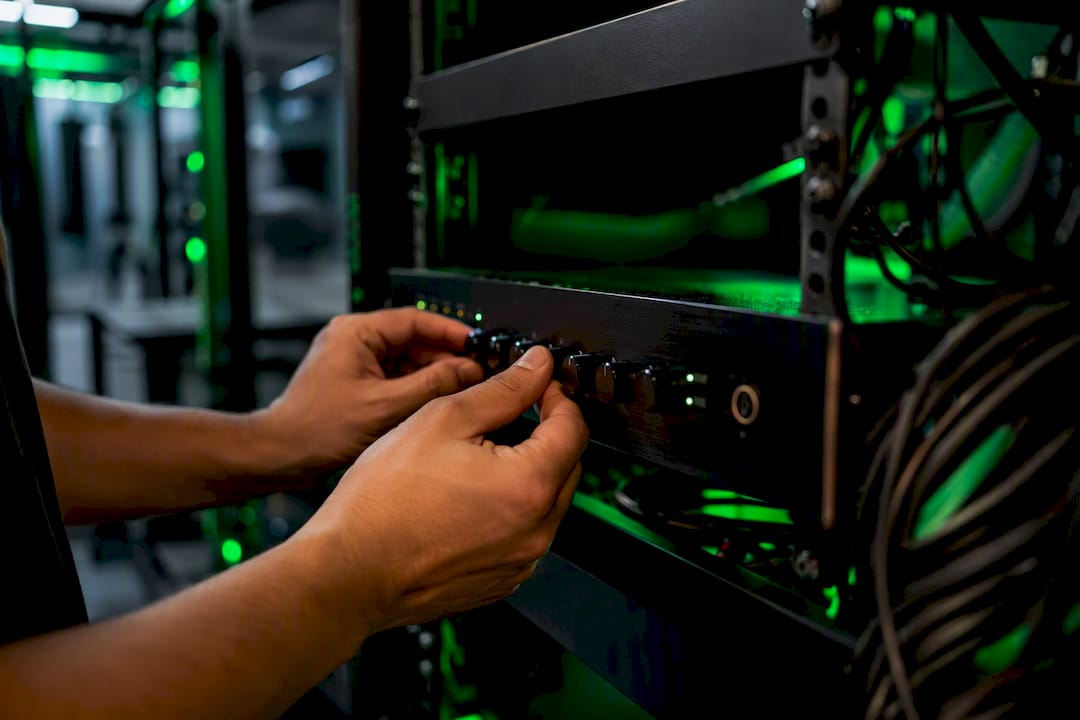
Single-app kiosks are the more secure choice, since there's nothing to escape to. Multi-app kiosks (a small approved set, like a payment app plus a signage viewer) offer flexibility but widen the attack surface. Either way, the lockdown works by blocking specific escape routes: keyboard shortcuts like Alt+Tab or Ctrl+Alt+Delete, right-click context menus, developer tools, and browser address bars.
Content delivery follows one of three patterns:
- Signage CMS push, where a cloud dashboard schedules and updates content remotely.
- Local file caching, where media lives on the device itself for offline resilience.
- Browser-based rendering, where the kiosk points at a hosted URL that updates without touching the device.
Most production deployments blend the last two: cached fallback content plus a live browser session for anything interactive.
Kiosk Mode Vs. Digital Signage: Which One Do You Need?
Passive signage broadcasts a message. Kiosk mode invites a response. That distinction should drive your hardware and security decisions from day one.
Passive signage works when the goal is awareness. Menu boards, class schedules, promotional loops. There's no touch interaction, so the security surface is smaller and the setup is simpler. Kiosk mode becomes necessary the moment a screen needs to do something: accept a card swipe, print a receipt, browse a catalog, or authenticate a user.
Peripheral integration is the clearest tell. If the device needs a card reader, receipt printer, or barcode scanner, you're building a kiosk, not signage. That hardware dependency also changes your management approach:
- Kiosks need tighter session controls, since user input creates more ways to break out of the app.
- Signage players can run on lighter hardware and simpler remote-management tools.
- Kiosks generally need an idle timeout that resets to a default screen after inactivity.
- Signage rarely needs a reset trigger since there's no session to end.
If your audience touches the screen, plan for kiosk mode. If they just glance at it, standard signage is faster to deploy and cheaper to secure.
Setting Up Kiosk Mode Across Windows, Android, and Raspberry Pi
Each platform handles lockdown differently, and the setup steps below reflect what administrators actually configure in production.
- Windows with Microsoft Edge. Edge kiosk mode offers two experiences: digital/interactive signage (a single full-screen URL with no navigation) and public-browsing (a restricted, multi-tab InPrivate session). Launch it directly with a command like
msedge.exe --kiosk https://yoursignage.com --edge-kiosk-type=fullscreen. Through Microsoft Edge's kiosk configuration, you can set a URL allowlist or blocklist, delete downloads on exit, and reset the session after a period of inactivity. Deploying these settings through Intune or another MDM platform lets you set the kiosk account, target URL, fit-to-screen behavior, and video looping remotely, without touching each device by hand. - Android players. Install a dedicated kiosk or browser app, grant it permission to draw over other apps and stay awake, then configure auto-launch on boot so a power cycle doesn't leave the device sitting at a home screen. Android kiosk projects like screenlite demonstrate the pattern well: hide system and navigation bars, run as a foreground service, and require a specific tap sequence to unlock and exit.
- Raspberry Pi and Linux. Autolaunch a browser in kiosk flags on boot using a systemd service or
.xinitrcscript. It's cheap and flexible for pilots and single-screen deployments, but weak on centralized management. Once you're past a handful of screens or need remote monitoring, an enterprise player with built-in MDM support saves more time than it costs.
A kiosk that can't recover from an idle session or a stuck page isn't secure. It's just fragile in a different way. Idle timeout, refresh-on-inactivity, and a defined set of allowed file types belong in every configuration to ensure stability and security.
Deployment Checklist for Secure, Reliable Kiosk Signage
Before any kiosk screen goes live, run through policy hardening, hardware readiness, and recovery planning as three separate checks.
Policy and access:
- Apply OS or browser lockdown policies, then actually try to break them: test Alt+Tab, right-click menus, and keyboard shortcuts during staging, not after launch.
- Block developer tools and restrict navigation to your allowlisted domains.
- Delete downloads on exit so no session data lingers for the next user.
- Roll out policy changes through MDM/UEM tooling with defined maintenance windows and staged rollouts, so a bad push hits ten screens before it hits two hundred.
Hardware and environment:
- Use SSD-based players for faster boot and reload times, and put every screen on continuous, uninterrupted power.
- Mount hardware appropriately for the location, whether that's a wall mount, a no-drill floor stand, or an enclosure rated for a gym floor or outdoor entrance.
- Confirm touchscreen height and angle actually match how people will use it, not just where it looks good.
Reliability:
- Run a watchdog process that force-relaunches a hung app and reboots the device if the app fails repeatedly.
- Schedule reboots during off-hours and keep offline content cached as a fallback if the network drops.
Pro Tip: Build two watchdog layers, not one: an application-level process that restarts a frozen kiosk app, and a device-level check that reboots the whole machine if the app keeps failing. Log both to a central dashboard so a pattern of failures on one screen shows up before a customer complains about it.
Troubleshooting a Kiosk That Goes Dark
Downtime on a kiosk usually traces back to one of a handful of causes, and a fast runbook keeps a bad screen from staying bad for hours.
- Check the basics first. Confirm power, network connectivity, player process status, and the timestamp of the last successful content push from your CMS.
- Attempt remote recovery. Relaunch the app through your MDM tool before sending anyone on-site. A forced restart, cleared cache, and reapplied policy set solve a surprising share of stuck sessions.
- Escalate to a physical visit only after remote steps fail, and log exactly what triggered the failure.
- Fix the pattern, not just the incident. Add a watchdog if there wasn't one, tighten health-check frequency, and schedule a maintenance window to catch the next occurrence before a user does.
Kingdom Signage's Take on Kiosk-Mode Signage for Gyms
Gyms are a tougher kiosk environment than most people expect: sweaty fingers, high foot traffic, and multiple rooms that each need their own schedule, music, and screen behavior. We built Kingdom Signage's dashboard around that reality, syncing class timers, TV content, and room audio from one control point instead of forcing staff to manage each screen separately.
The operational win shows up between classes. A screen that flips instantly from a workout timer to the next class's promo content, without a staff member walking over to touch it, keeps transitions tight and members engaged. That's the same lockdown-and-automate logic covered above, applied to a gym floor instead of a lobby kiosk.
— Kingdom
A Practical Next Step for Gym Operators
Everything above works whether you're deploying a lobby check-in kiosk or a wall of class-schedule screens, but gyms have a specific wrinkle: multiple rooms, multiple screens, and audio that needs to follow the class, not fight with it. Kingdom Signage was built around that exact problem. One dashboard controls your TVs, workout timers, and room-based music together, so a class transition doesn't require someone running between rooms with a remote.
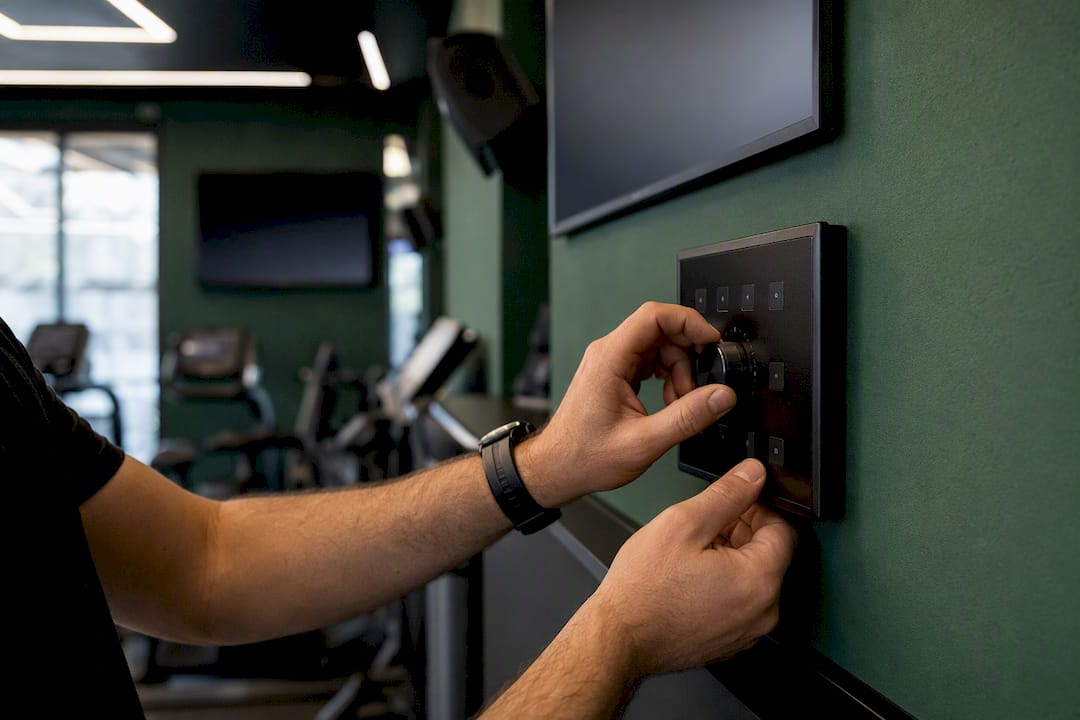
Instead of stitching together a separate signage tool, a separate music system, and a separate scheduling app, gym operators get centralized, remote-manageable control built for exactly this use case. If you're planning kiosk-style screens for check-in, class schedules, or promotional loops across multiple rooms, start a Kingdom Signage trial and see how quickly a multi-room setup goes live.
Sources
- Microsoft Edge — configure kiosk mode
- screenlite / android-web-kiosk — GitHub
- How to set up digital signage — DigitalSignageHub