
Front desk signage should carry three things and nothing more at first: what's happening in the next hour, how to check in, and one offer worth noticing. Pair a commercial-grade display with a centralized content system and a tight, schedule-first loop, and front-desk questions drop, class transitions get smoother, and updates go out in seconds instead of a reprinted flyer. Kingdom Signage is built around exactly that combination, unifying screens, schedules, and room audio from one dashboard.
TL;DR:
- Using commercial-grade displays with schedule-first content loops significantly reduces front-desk questions about classes, directions, and promotions.
- A typical 55-inch screen costs between $1,400 and $2,800 with installation, plus $10 to $30 monthly for a CMS subscription, offering quick ROI through staff time savings.
- Syncing schedules and audio via APIs or MDM profiles ensures real-time updates and reduces mismatched class information or audio playback issues.
- Pilot programs with one to three screens help measure impact on member inquiries before scaling to multiple locations or additional rooms.
- Securing signage through VLAN separation, kiosk mode, and regular content reviews prevents downtime and maintains reliable, safe operation.
Table of Contents
- What Should Front Desk Signage Actually Show?
- Which Displays And Placements Work Best At The Front Desk?
- How Should Content Rotate On The Front Desk Screen?
- How Do You Sync Schedules And Audio Across Rooms?
- What Does A Front Desk Signage Rollout Actually Cost?
- How Do You Keep Signage Secure And Running?
- Why Unified Control Beats Running Separate Systems
- Get Front Desk Signage Running On One Dashboard
- Sources
What Should Front Desk Signage Actually Show?
The mistake most gyms make is treating the lobby screen like a marketing billboard first. Flip that. A front desk display earns its keep by answering the questions members ask at the counter every single day: what's next, where do I go, and what's new here.
Before buying anything, map out what the screen needs to do on day one:
- Commercial display rated for extended daily operation, plus a secure wall or ceiling mount.
- CMS account to push content and schedule changes without touching the hardware.
- Network setup, ideally a dedicated VLAN or mobile device management (MDM) profile, so signage traffic doesn't compete with member Wi-Fi.
- Audio hardware (optional at first) if you want room-by-room sound synced to the same dashboard.
For sizing, a rough rule works well: a 55-inch screen suits an entrance viewing distance of roughly 8 to 15 feet, which covers most front-desk layouts.
Bring in your front-desk lead and whoever manages class scheduling before you buy anything. A pilot on one or two screens can go from decision to live content in two to six weeks, depending on how fast your network team can get a VLAN or MDM profile configured.
Which Displays And Placements Work Best At The Front Desk?
Consumer TVs fail in gyms faster than most owners expect. They're built for four or five hours a day in a living room, not 16 or more hours of daily use in a lobby with direct sun and constant foot traffic. Commercial-grade displays solve that with 16/7 or 24/7 duty ratings, higher brightness, and warranties that actually cover commercial installs, not just home use.
A few placement decisions matter more than the rest:
- Size: 55 inches handles typical front-desk sightlines; go to 65 or 75 inches if members see the screen from across a lobby or from a hallway approach.
- Brightness: shaded entrances do fine with moderate brightness; glass-front lobbies with direct sun need higher brightness to stay readable at midday.
- Mount height: eye level for a standing adult, angled slightly down if the desk sits below the screen.
- Orientation: landscape for schedules and multi-item loops, portrait for a single promo or a narrow entry alcove.
Run cables inside the wall or through a cable channel; a dangling power cord next to the front desk looks unfinished no matter how good the content is. Reception screens work best when placed for immediate wayfinding value, not tucked in a corner where nobody looks up.
How Should Content Rotate On The Front Desk Screen?
A front desk loop dies the moment it turns into a slideshow nobody reads. Members glance at this screen for three to eight seconds on their way to check in, which means every slide needs one job and one job only.
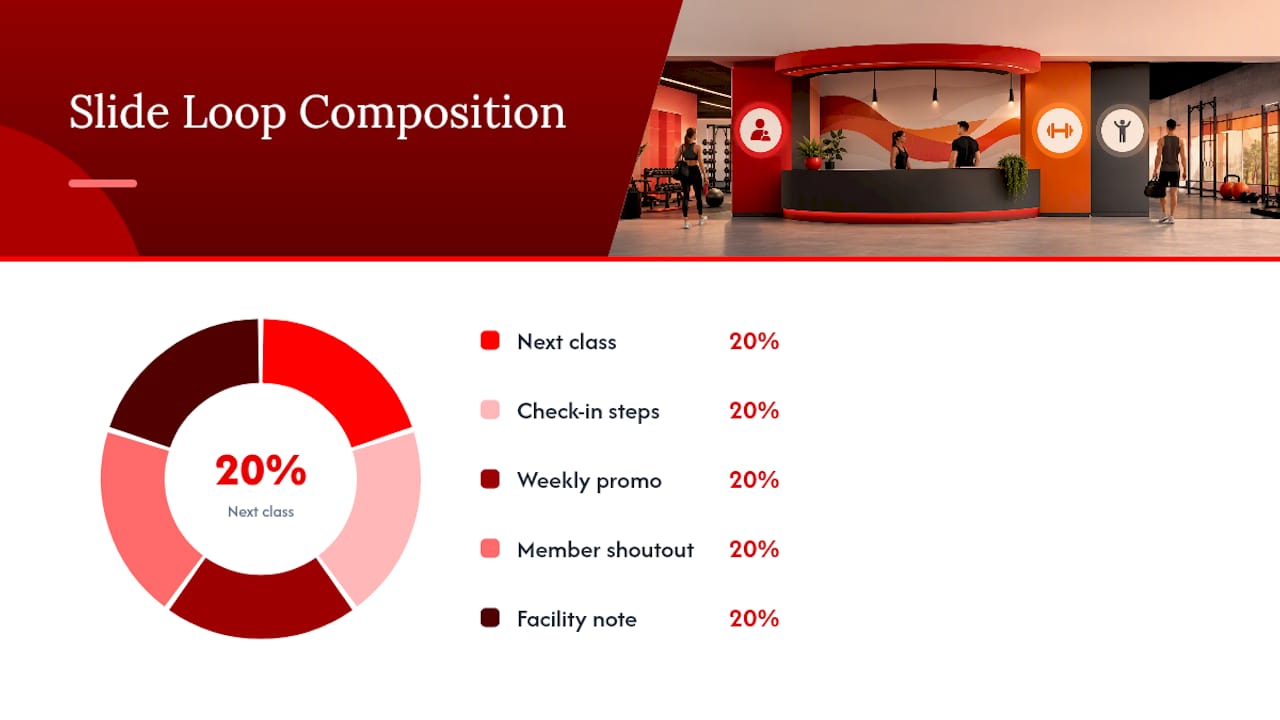
- Next three classes with time, room, and instructor name.
- Check-in instructions for new members or app-based scanning.
- One promo, never more than one running at a time.
- Member shoutout or milestone (renewal streak, PR, referral).
- Facility notes, like a pool closure or a schedule change for the week.
Keep every slide to one headline, one supporting line, and a single call to action if there's a promo. Skip dense paragraphs entirely. A loop of five to seven slides on a 6 to 10 second rotation keeps the content scannable without forcing members to stand and wait for their slide to come back around.
Pro Tip: Pin the next class and check-in slide as the first two in the loop every time. Members decide whether to keep watching within the first two slides, so front-load the utility content before the promo.
A sample five-slide loop: next class, check-in steps, promo, member shoutout, facility note. Swap the promo weekly and leave the other four alone unless the schedule changes.
How Do You Sync Schedules And Audio Across Rooms?
Manual updates are where front desk signage breaks down. If your booking software and your lobby screen aren't talking to each other, someone on staff is retyping the same class list twice a day, and it's only a matter of time before a canceled class stays on the screen for an hour after it's gone.
Booking-system sync solves the real-time problem: capacity changes, instructor swaps, and last-minute cancellations show up on the screen the moment they happen in the scheduling tool, not after someone remembers to update a slide. A dashboard that pulls schedule data and pushes it to the front desk display and the studio screens at the same time can allow a swapped instructor to update everywhere at once instead of on one screen and not the other.
Unified audio and visual control matters more than it sounds like it should. A front desk that shows "Spin starting now" while the studio speaker is still playing the previous class's cool-down track reads as sloppy, even when the visual side is accurate.
- Use APIs or webhooks between your booking platform and the CMS instead of manual CSV exports.
- Put signage devices on a dedicated VLAN or MDM profile for consistent uptime.
- Give front-desk staff a simple override for one-off exceptions, like a last-minute room change, without needing IT involved.
Pro Tip: Assign one staff member as the "signage owner" for exceptions. Without a single point of contact, override requests get ignored until a member complains at the desk.
What Does A Front Desk Signage Rollout Actually Cost?
Start with the pilot phase before committing budget to every room. One or two front-desk screens, live for four to six weeks, gives you real numbers on front-desk queries and member feedback before you spend on a full rollout.
Pilot phase checklist:
- One to three entrance or reception screens, never more at first.
- Baseline your current front-desk interruptions for a week before launch.
- Track the drop in "what class is next" questions after go-live.
Scale phase, once the pilot proves out:
- Additional screens per room, plus audio endpoints where class transitions need sound.
- A content template library so new locations launch with proven layouts, not blank screens.
On cost, a 55-inch commercial display with mount, cabling, and install commonly runs $1,400 to $2,800 all-in, and CMS subscriptions typically add $10 to $30 per screen monthly, more with advanced features like audio sync. For a single-location gym running two screens, that's a modest setup cost against a subscription that usually pays for itself once front-desk staff spend less time answering the same schedule questions all day. Starting with one to three screens before expanding keeps the payback timeline short and the internal case for scaling easy to make.
How Do You Keep Signage Secure And Running?
A signage screen that goes down on a Saturday morning is a screen nobody notices until a member points at a frozen slide. Building maintenance into the plan from day one avoids that.
- Put signage devices on a separate VLAN from guest and staff Wi-Fi, both for bandwidth reliability and security.
- Lock screens into kiosk mode or MDM so a staff member can't accidentally exit to a home screen or browser.
- Give content editors least-privilege access. The front-desk manager needs to update the promo slide, not the network configuration.
- Set up uptime and delivery alerts so you hear about a dropped connection before a member does.
- Schedule a quarterly hardware check and a lightweight content review every month to retire stale promos.
Why Unified Control Beats Running Separate Systems
The gyms that struggle with signage almost always have three disconnected tools: one for the TV, one for class schedules, one for the sound system. Every mismatch between them, wrong class on the screen, wrong track over the speakers, reads to members as the gym not paying attention.
Start with one screen, measure the drop in front-desk interruptions, then expand once you can prove it works.
— Kingdom
Get Front Desk Signage Running On One Dashboard
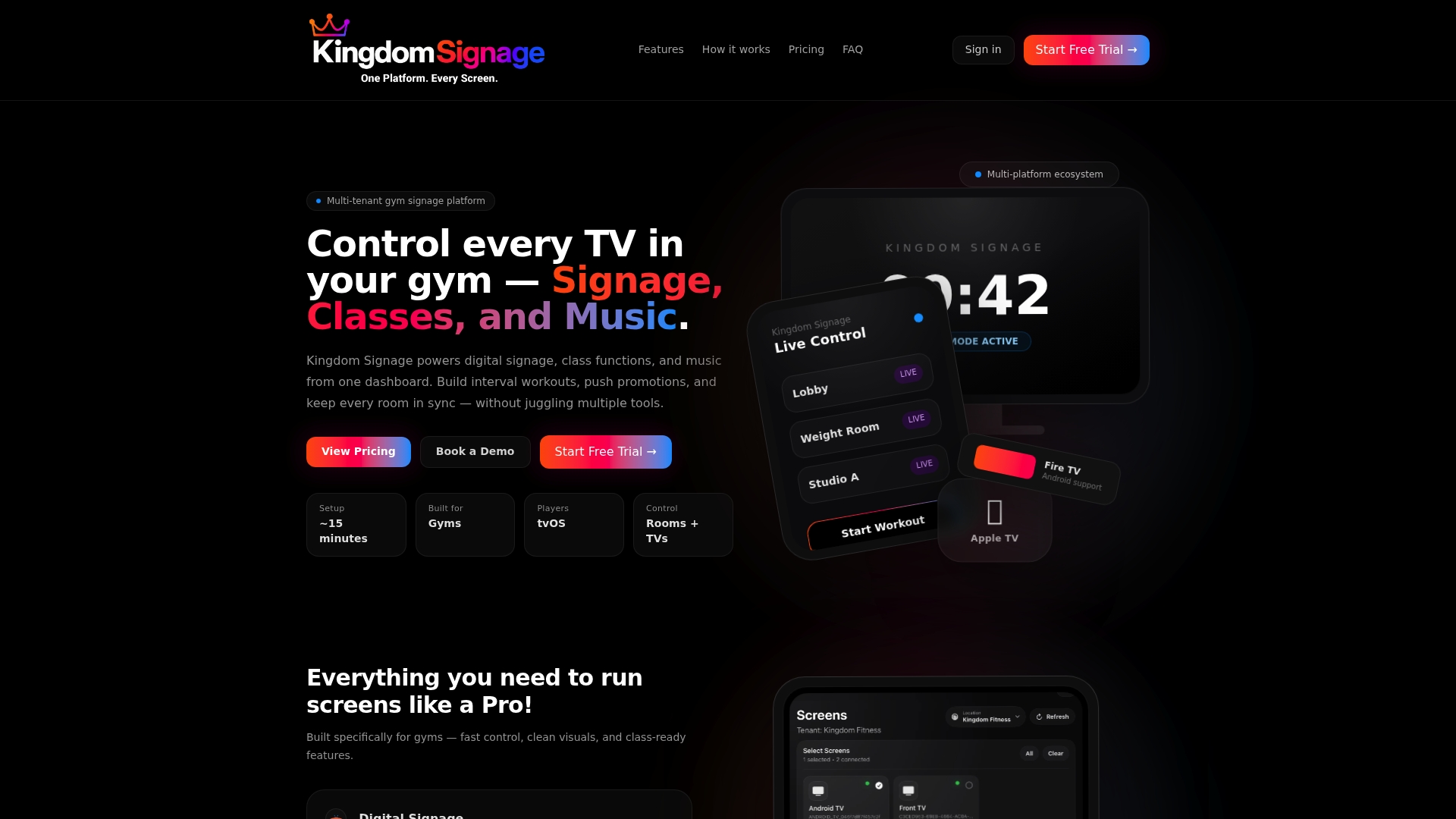
Everything covered here, the schedule sync, the audio coordination across rooms, the promo rotation that doesn't overwhelm the check-in slide, is what a dashboard built to handle scheduling sync, audio coordination across rooms, and promo rotation can replace managing a TV app, a booking system, and a speaker setup as separate tasks. This allows control of front desk displays, studio screens, and room audio from one login, with class changes in the booking platform reflected everywhere at once.
If your front desk still runs on a printed schedule taped to the counter, or three apps that don't talk to each other, start with a pilot on your busiest screen. Book a demo with Kingdom Signage and see how quickly a single dashboard replaces the manual updates eating into your front-desk team's time.
Sources
For a deeper technical walkthrough on getting your first pilot live, see how to set up gym digital signage that works. Locking devices down for reliability is covered in the secure kiosk mode checklist for IT managers. Gyms weighing accessibility across all member touchpoints can borrow workflow ideas from this accessibility guide for guest-facing spaces.
- Digital Signage for Gyms: The Complete 2026 Guide – DisplayDetails
- Digital Signage for Fitness Centers and Gyms: Building Member Engagement and Secondary Revenue – DigitalSignageHub
- Digital Signage for Gyms | Boost Membership Retention — Screen Moove