
Google Drive does not send files to a TV by itself. You get a file onto the screen by casting a Chrome tab or your whole desktop, by opening the file in an app that has a Cast button, by using the TV's own browser, or by plugging in a laptop with an HDMI cable. All four work for a one-time showing. For screens that must run every day in a gym, with class schedules, promotions and music changing by room, a managed signage platform like ours is the better foundation, and the sections below show why.
TL;DR
- Google Drive has no universal built-in Cast button. Android Authority's 2025 guide says it does not natively support casting from the app.
- The fastest route for a PDF, slide deck or web page is Chrome: More > Cast, save, and share > Cast, then pick your TV or Chromecast.
- Casting needs a computer or phone to stay on and connected to the same Wi-Fi as the TV, which is fine for a meeting and fragile for a lobby screen.
- For gym screens that run all day across rooms, Kingdom Signage manages TVs, class schedules, timers, announcements and music from one dashboard.
Table of Contents
- Why Google Drive and your TV don't connect directly
- Show Drive content on gym TVs the managed way
- Cast a PDF, slides or web page from Chrome
- Show a website or web page on a TV
- Play a Drive video on a TV
- Fix it when Google Cast won't find your TV
- Perspective
- Choosing the right method for your gym
- Put Drive content to work with Kingdom Signage
- FAQ
- Sources
Why Google Drive and your TV don't connect directly
Google Drive is a storage and sharing tool. It is not a player built for televisions. LifeWire explains that Drive's website and apps do not support Chromecast directly for photos. Its alternatives are moving media into Google Photos, mirroring a device, opening the TV's web browser, or connecting a computer by HDMI.
That is a product limitation, not something you set up wrong. If you have been hunting for a Cast button in Drive and not finding one, you are not missing a setting. You need a different path from the file to the screen.
The paths differ by what you are showing:
| What you want to show | Best route | Needs a computer or phone running? |
|---|---|---|
| Video in Drive | Chromebook Cast control, or open in Google Photos on mobile | Yes |
| PDF, slides, images | Cast a Chrome tab or the whole screen | Yes |
| Website or web page | Cast a Chrome tab, or the TV's own browser | Yes, unless the TV browser is used |
| Anything, no wireless | Laptop plus HDMI cable | Yes |
| Always-on gym screens | A signage platform managing the screens | No, content is managed from a dashboard |
Show Drive content on gym TVs the managed way
If the screens are in a gym, studio or club, think about the job before the method. A TV in a lobby or on a studio wall is expected to show the right thing at the right time, every day, without someone sitting beside it with a laptop open.
Casting from a personal device ties the picture to that device. When the laptop sleeps, leaves the building or switches networks, the screen goes with it. Kingdom Signage is a multi-platform SaaS for gyms and fitness studios that puts the control of digital signage, TV screens, class scheduling, workout timers with demo video support, room-based music and real-time announcements in a single dashboard. It works with the screens you already have, so you are not buying replacement hardware, and it manages multiple rooms and multiple locations from the same place.
For a gym owner that changes the daily routine. Instead of walking a laptop from room to room, you update the dashboard and the screens follow. A front desk screen, a studio timer and a cardio-floor promotion can each carry the content that belongs to that room. If you are setting up screens from scratch, our guide on how to set up gym digital signage walks through the layout, and the gym TV network setup steps cover the connection side.
Cast a PDF, slides or web page from Chrome
This is the route most people want when they search for a PDF or web page on a TV, and it works with Drive files because Drive opens in a browser tab.
What you need
Google's Chrome casting guide lists a Chromecast, Chromecast with Google TV, Google TV Streamer (4K), Chromecast Ultra, or a TV with Google Cast built in. Your computer needs an updated Chrome and a strong Wi-Fi connection on the same network as the receiver.
On a Mac running macOS 15 or later, Google says Chrome must be granted access in System Settings before casting will work.
Steps for a Drive PDF or document
- Open the file in Google Drive in Chrome, so it fills a tab.
- Select More (the three dots), then Cast, save, and share, then Cast.
- Choose your Chromecast, Google TV Streamer or Google Cast TV from the list.
- Pick a source: a tab shows only that page, while Sources > Cast screen sends your whole desktop.
- When you finish, select the Cast icon and stop casting.
Sony's U.S. support guide describes the same flow for compatible Sony Android TV or Google TV models and adds a third option, Cast file, for local media. It requires current Chrome or Edge and the same network.
Tab or full screen?
Tab casting keeps your other windows private and puts sound on the TV. Google notes that when you cast the whole screen, audio might play on the computer instead. For a slide deck with narration or a video embedded in a page, tab casting is usually the cleaner choice. For switching between several apps, whole-screen casting is easier.
Where this goes wrong in a gym
- Your screen mirrors whatever is on the laptop. A notification or an email can pop up in front of members.
- A Drive PDF shows one page at a time and has no schedule. Someone has to scroll.
- Google says most web content casts well, but some plug-ins, such as Silverlight, QuickTime and VLC, may not.
Show a website or web page on a TV
The same Chrome flow handles web pages. Digital Trends describes it simply: open the page, select the three-dot menu, choose Cast, and select the target device. The page you are looking at is what appears on the TV.
Two other routes exist for web pages:
- The TV's built-in browser. Many smart TVs include one. You type the address with the remote, which is slow, but the TV needs no computer afterward. LifeWire lists a TV web browser as one of the options when Drive does not cast directly.
- HDMI from a laptop. The most reliable connection for a single meeting or event, since it needs no Wi-Fi. The cost is a cable and a laptop tied to the screen.
If you manage gym screens, a web page makes a poor long-term source. Browsers time out, pages reload and screens drift out of date. Our piece on what you can do with a Chromecast covers what the device is good at, and where a signage platform does the repeating work for you.
Play a Drive video on a TV
Video is where Drive's missing Cast button hurts most.
On a Chromebook. Google's Chromebook help documents a direct path: in Files, open My Drive, open the video, select Cast, and choose the Chromecast. It needs a Chromecast or Android TV, current ChromeOS and a TV with an HDMI input. Setup means plugging in the Chromecast, choosing its HDMI input on the TV, and following the on-screen setup.
On a phone. Android Authority's workaround is to open the video in Drive, tap the three-dot menu, choose Open with, select Photos, and then use the Cast button in Photos. It works, but it ties up the phone for the length of the video.
On a laptop. Cast the Chrome tab with the video playing, or use HDMI.
For a class demo video or a looping promo in a gym, a one-time cast from a phone is not a workable plan. Gym screens need playback that restarts on its own after a power cut. Our guide to TV video loops for unattended gym screens shows how to make that happen, and Kingdom Signage's timers with demo video support are built for the class-room case.

Fix it when Google Cast won't find your TV
Most failed casts come down to the network. Google's guidance, in order of effort:
- Same Wi-Fi. The computer or phone and the receiver must share a network. Google says a computer and Chromecast on different networks cannot communicate for casting.
- Local Network access. On iOS 14 or later and macOS 15 or later, enable Local Network access for the app or browser, and update the Cast-enabled app.
- Isolated networks on Android. An Android phone can switch quietly between Wi-Fi networks, which hides the Cast button. Forget the alternate network so the phone stays on the one the TV uses.
- Wait and power-cycle. Check whether the device appears, wait a couple of minutes, then unplug the receiver, wait a few seconds and plug it back in.
- Update Chrome and drop VPNs. Google recommends updating Chrome and disconnecting any VPN or proxy when desktop casting fails.
- Reset the router. If problems continue, unplug the router for at least one minute, then reconnect it.
Gyms add a wrinkle: many run separate guest, staff and equipment networks. A laptop on staff Wi-Fi will not see a Chromecast on guest Wi-Fi. That alone is a reason to keep screen content off personal devices.
Perspective
Every gym we talk to about screens starts with the same problem: the content already exists. The class schedule is in a spreadsheet, the promo is a PDF, the new-member offer is a page on the website. The question is how it reaches six different TVs without someone carrying it there.
Casting answers that question for ten minutes. A screen that is part of the member experience needs an answer for ten months. When the picture depends on one laptop, one Wi-Fi network and one person remembering to press Cast, the screen is only as dependable as that person's day.
That is why we built Kingdom Signage around the gym itself: signage, class timers, announcements and room-based music in one dashboard, working with the screens you already own, across as many rooms and locations as you run. Smoother class transitions and promotions that update in real time are what we design for, and they support the member engagement that keeps people coming back.
Use casting when you need to show something once. When the screens are part of how your gym runs, give them a system.
Kingdom
Choosing the right method for your gym
Match the method to how often the content changes and how many screens you have.
One screen, one occasion. A staff meeting, a vendor demo or a member event: cast a Chrome tab or use HDMI. It takes two minutes and needs no account.
One screen, daily content. A small studio with a single wall TV can cast for a while, but the laptop stays tied to it. This is where owners usually feel the friction first.
Several rooms or locations. Each screen needs its own content, its own schedule and its own recovery after a power or network blip. A platform that manages every screen from one place, with room-level control, becomes the sensible approach. Our digital posters multi-location playbook shows what consistent content across sites looks like.
Front desk and lobby. These screens carry announcements, offers and wayfinding that change through the day. See front desk signage essentials for what to put there.
Watch the details that casting cannot give you:
- Scheduling. Casting shows what is on the sender right now. It does not switch to the class timer at 6:00 a.m.
- Audio by room. Casting sends sound to the TV. A gym needs music handled by zone, which is its own problem; see volume control with zone mapping.
- Hardware. If your screens run on streaming sticks, Fire TV digital signage explains how those players fit into a gym setup.
Put Drive content to work with Kingdom Signage
Your team probably keeps promotions, schedules and announcements in shared files already. Kingdom Signage turns the screens themselves into something you manage: TVs, class scheduling, workout timers with demo video support, room-based music and real-time announcements, from a single dashboard, per location, with unlimited locations supported. Plans are subscription-based and start after a free trial or demo, so you can see your own screens running before you commit.
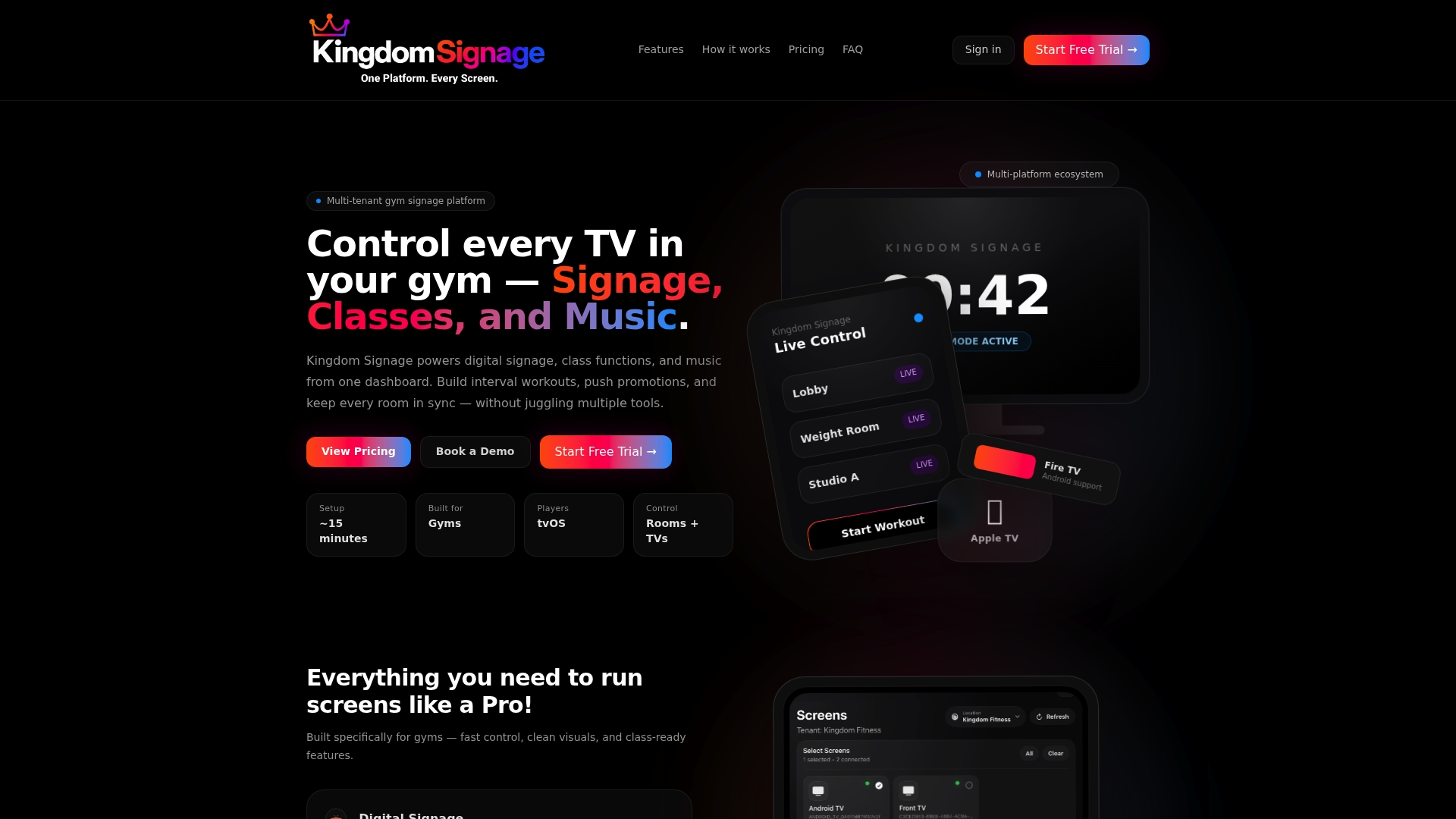
See how it works for your rooms at Kingdom Signage. For the promotion side in particular, read how class promotions display on gym TVs and why real-time offer display matters for membership sales.
FAQ
Can I stream directly from Google Drive to a TV?
Not with a universal built-in Cast button. Drive's apps and website generally lack native Chromecast support. On a Chromebook, Google documents a Cast control for videos in My Drive. Elsewhere, cast a Chrome tab, use Google Photos on a phone, open the TV's browser, or connect a laptop by HDMI.
How do I show a PDF from Google Drive on my TV?
Open the PDF in Drive in Chrome, then choose More > Cast, save, and share > Cast and pick your TV. Select a tab to share just the PDF, or Sources > Cast screen to share the desktop. Both need the computer and the TV on the same Wi-Fi network.
How do I display a web page on my TV?
Open the page in Chrome and use the Cast command from the three-dot menu, then choose your Chromecast, Google TV Streamer or Google Cast TV. You can also type the address into the TV's own browser, or connect a laptop with an HDMI cable.
Why won't Google Cast find my TV?
Usually the devices are on different Wi-Fi networks, or Local Network access is off on an iPhone or a Mac. Google also suggests updating Chrome, turning off VPNs, waiting a couple of minutes, power-cycling the receiver and, if needed, the router.
Is casting enough for gym screens?
For a one-time showing, yes. For screens that run daily across rooms with schedules, timers and music, a managed platform such as Kingdom Signage keeps content in one dashboard instead of on a personal device.
Sources
- Android Authority: How to watch Google Drive movies on your Chromecast
- LifeWire: How to Cast Google Photos Using Chromecast
- Google Streaming Help: Cast from Chrome to your TV
- Google Cast Help: Cast from Chrome to your TV
- Sony: Cast the entire desktop, a browser tab, or media file
- Digital Trends: Google Chromecast tips and tricks
- Chromebook Help: Use Chromecast with your Chromebook
- Google Streaming Help: No Cast destination found