
A simple way to run a video loop on TV is your app's Repeat setting. For unattended screens, put a single MP4 or an Autostart.m3u playlist on a USB drive, or let a streaming device auto-launch its media player. A Raspberry Pi looper is one option for unattended playback. Exact steps vary by TV model and app, so the sections below cover each device.
TL;DR:
- On YouTube TVs and consoles, press down during playback and select Repeat; start a playlist first if you want the whole list repeated.
- For Roku auto start, place Autostart.m3u in the USB root with each filename on its own line, enable player launch, and restart the device.
- Choose a Raspberry Pi looper when playback must resume after interruptions or respond to a button or sensor; it also supports playlists and copied videos.
Table of Contents
- How do you loop a video in a smart TV app?
- How do you set up Autostart.m3u on Roku and similar players?
- How do you loop from a TV's USB port?
- When should you use a Raspberry Pi video looper?
- What should you check when a USB loop will not play?
- Which method fits a gym or small venue?
- Run every gym screen from one dashboard
- FAQ
- Sources
How do you loop a video in a smart TV app?
If the video lives in YouTube, you need no extra hardware. YouTube Help explains that on a TV or game console you press down on the remote while the video plays and select Repeat until it reads "Repeat • Currently playing." For a playlist, select the playlist and toggle Repeat until it reads "Repeat • Playlist."
Menus differ a little by app and TV brand, but the pattern is consistent:
- Single video: open the player controls (usually down on the remote) and cycle Repeat until the label names the current video.
- Playlist: start the playlist first, then switch Repeat to the playlist setting.
- Other apps: look for a loop or repeat icon in the on-screen controls or the Settings menu during playback.
If an app has no repeat option, queue the same video several times in a playlist, which buys you hours of playback. For a screen that must run unattended, move on to a USB or streaming-device method.
How do you set up Autostart.m3u on Roku and similar players?
A streaming device can launch playback on its own when it finds a playlist file on a USB drive. Roku support documents the Autostart.m3u workflow:
- Copy your videos to the USB drive.
- Create a plain text file named Autostart.m3u in the root of the drive.
- List each video's file name on its own line, one per line, in the order you want.
- Insert the drive and set the device to auto-launch its media player (on Roku, check the USB media options under Settings > System).
- Restart the device and confirm playback starts without any remote input.
Format matters. Roku Media Player reads drives formatted as FAT16, FAT32, NTFS, EXT2, EXT3, and HFS+, but many modern drives ship as exFAT, which Roku devices do not support. H.264 MP4 and MKV files are examples of supported video containers, according to Roku's guidance.
Pro Tip: If a file will not play because of its codec, share it from a DLNA server such as Plex, which can transcode on the fly, as Roku's documentation notes.
How do you loop from a TV's USB port?
Some TVs may play files straight from a flash drive, and a playlist file can give you control over order and repeats. Place an .m3u or .m3u8 file in the root of the drive that points to the videos stored beside it. Whether a TV or connected media app starts it automatically depends on the device.
A few practical rules:
- One clip: Some TVs may loop a single file on their own, so a lone MP4 on the drive may be enough.
- Several clips: use a playlist so the order is predictable and you can repeat a favorite more than once.
- Seamless repeats: trim your clip so the last frame flows into the first, then re-encode it as a standard H.264 MP4 to reduce stutter at the loop point.
- Testing: test the loop on the exact TV model before you leave it in a public space.
Plan your content with the room in mind. Short, silent, high-contrast clips suit a lobby, while longer visuals suit a cardio floor. Our guide to front desk signage essentials covers what works near the entrance.
When should you use a Raspberry Pi video looper?
When a screen has to run unattended, a dedicated player may be more suitable than a TV's built-in USB menu. The pi_video_looper project turns a Raspberry Pi into a looping player. It supports playlists, a copy mode that loads videos from the drive, GPIO control, and configuration through a video_looper.ini file.

It also offers filename-based control.
Choose a Pi when:
- the display needs to resume playback after an interruption,
- you want a button or sensor to trigger playback,
- several screens need matching setups,
- TV and streaming-device options are too limited.
What should you check when a USB loop will not play?
Playback problems can involve power, format, or codec. Work through them in this order:
- Drive not recognized: Roku's troubleshooting guide says insufficient USB power is the most common cause. Try a powered USB hub or a drive with its own power supply.
- Wrong filesystem: reformat to FAT32 or NTFS, depending on what your device accepts.
- USB 3.0 trouble: some drives work better in USB 2.0 mode or through an adapter.
- Unsupported codec: convert to H.264 MP4, or serve the file from a DLNA server that transcodes.
- Gap at the loop point: re-encode the clip, or switch to a dedicated player like the Pi looper.
Which method fits a gym or small venue?
My rule of thumb: use app repeat for a quick single-screen loop, USB for a simple unattended loop, and a Raspberry Pi when you need something customizable for extended playback. The honest catch is that every one of these means someone walking a drive to a screen. That works for one lobby TV, and it falls apart across several rooms where class promos change weekly and screens must stay in sync. Hand-carried drives are the weak link of any multi-screen setup, so as you add displays, centralized control may start to pay for itself. Our look at gym screen content scheduling shows the next step.
— Kingdom
Run every gym screen from one dashboard
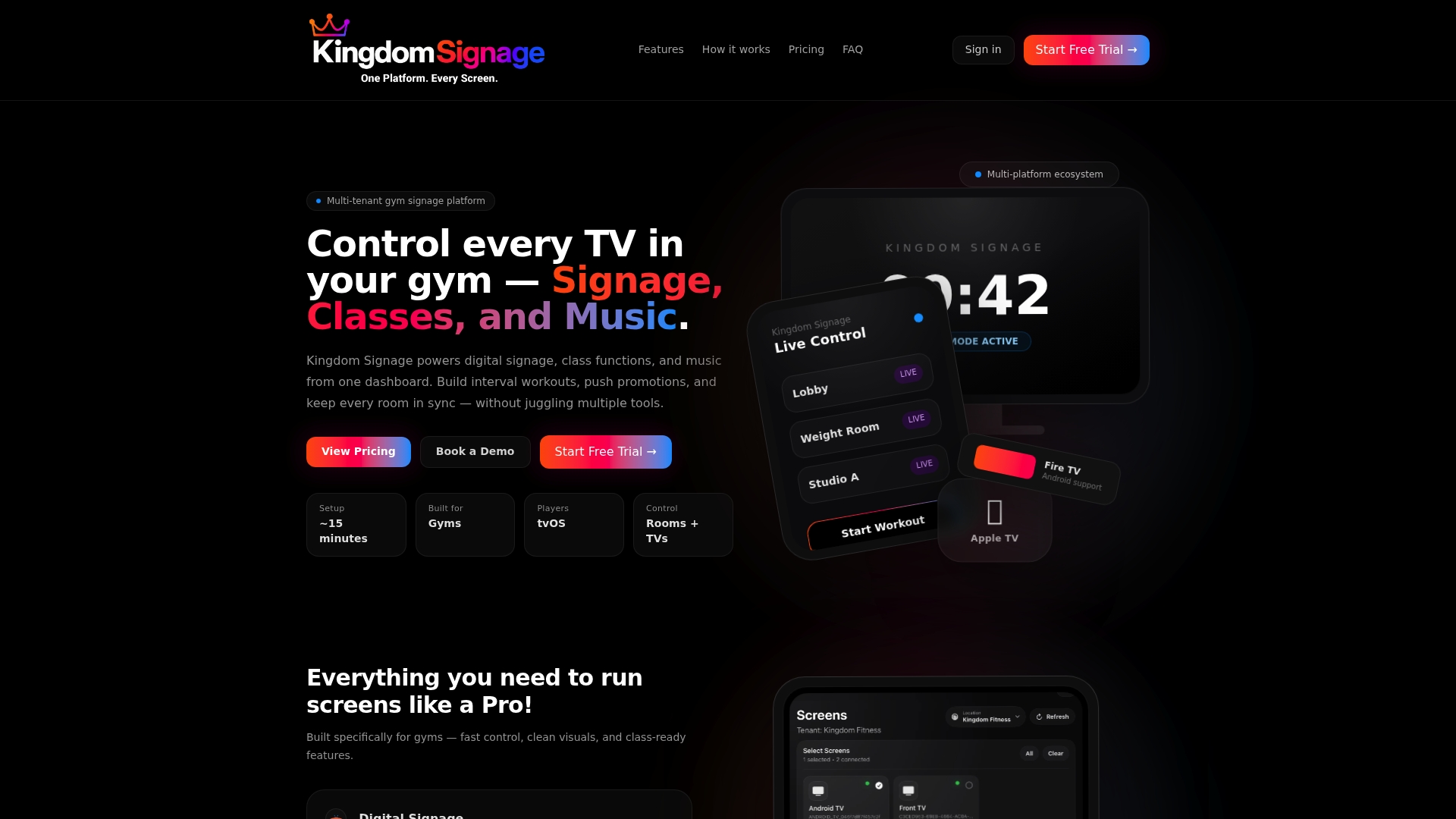
Looping a file is the easy part. Keeping many TVs current is the real chore. With Kingdom Signage, you push playlists, schedule loops, and sync rooms from one place, with no drives to carry. Our guide to managing multiple gym TVs from a dashboard shows how it works. Ready to learn more? Visit Kingdomsignage to see how it works.
FAQ
What does looping a video mean?
Looping means the video restarts automatically the moment it ends, so playback continues until you stop it. You can loop one clip or a whole playlist.
How do you play videos on a loop from a USB flash drive?
Put an MP4 or an Autostart.m3u playlist file in the drive's root and insert it. Whether it repeats on its own depends on the TV or player, so test it first, and use the player's Repeat setting if needed.
How do you make a photo slideshow on USB for a TV?
Copy your images to the drive in a supported format and open them with the TV's media player, which usually offers a slideshow option. For a hands-off result, turn the slideshow into an MP4 on a computer and loop that file instead.
How do you loop a video with audio?
The loop repeats audio along with the picture, so no extra setting is needed. If sound drops out at the loop point, re-encode the file so both tracks end together.
Sources
- Loop videos or playlists on YouTube - Computer - YouTube Help
- How to use Roku Media Player to play your videos, music and photos | Official Roku Support
- adafruit/pi_video_looper