
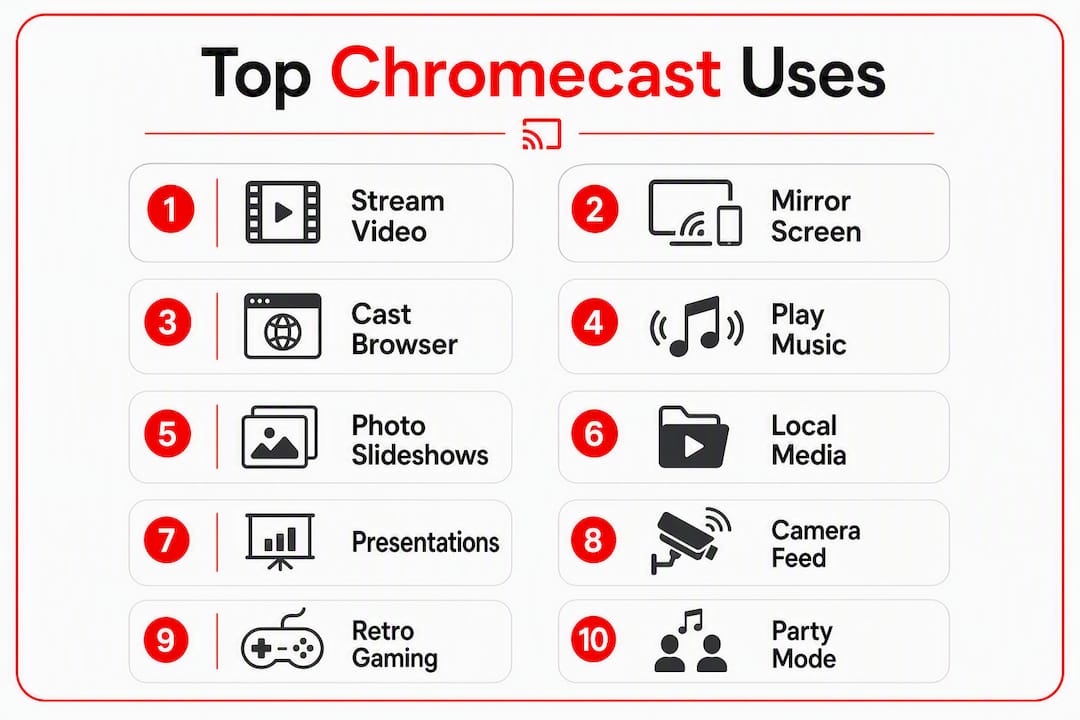
A Chromecast turns any HDMI-equipped TV into a target display for streamed video, audio, photos, and a mirrored screen sent from your phone, tablet, or Chrome browser. The short list: stream apps like Netflix, YouTube, Disney+, and Hulu; mirror your Android screen or Chrome desktop; cast local media through Plex or VLC; play music through a connected soundbar; and pull up Google Nest Cam feeds via Google Home. One caveat worth knowing upfront: not all Chromecasts work the same way. Older models are passive receivers that depend entirely on your phone or laptop to drive them. The Chromecast with Google TV is a standalone streamer with its own remote, app store, and user profiles. That difference shapes almost every use case below.
Primary uses at a glance:
- Stream Netflix, YouTube, Disney+, Hulu, and hundreds of other cast-enabled apps
- Mirror your Android screen or cast a Chrome browser tab to the TV
- Cast local media files through Plex, VLC, or a DLNA-compatible app
- Play music from Spotify, Pandora, or Amazon Music through a soundbar
- View Google Nest Cam feeds on your TV via the Google Home app
- Run photo slideshows, dashboards, or presentation slides
Kingdomsignage publishes this guide to help you get the most from a Chromecast at home and to clarify where a consumer dongle ends and a purpose-built signage platform begins.
Table of Contents
- 1. What you can actually do with a Chromecast every day
- 2. How to cast: step-by-step for Android, iPhone, and Chrome
- 3. Which Chromecast model is right for you?
- 4. Casting from apps and playing local media
- 5. Using Chromecast as part of your smart home
- 6. Fixing the most common Chromecast problems
- 7. Privacy, guest mode, and end-of-life security risks
- 8. When a Chromecast is enough and when gyms need more
- Key Takeaways
- The honest case for and against Chromecast
- Useful sources for further reading
1. What you can actually do with a Chromecast every day
The range of practical Chromecast uses is wider than most people realize. Here are the main ones, with a quick example of each.
1. Stream Netflix, YouTube, Disney+, and Hulu Tap the Cast icon inside any of these apps on your phone or tablet and the content jumps to your TV in seconds. Your phone becomes a remote: pause, skip, adjust volume. Most households use this as their primary reason to own a Chromecast, and it holds up well for that single job.
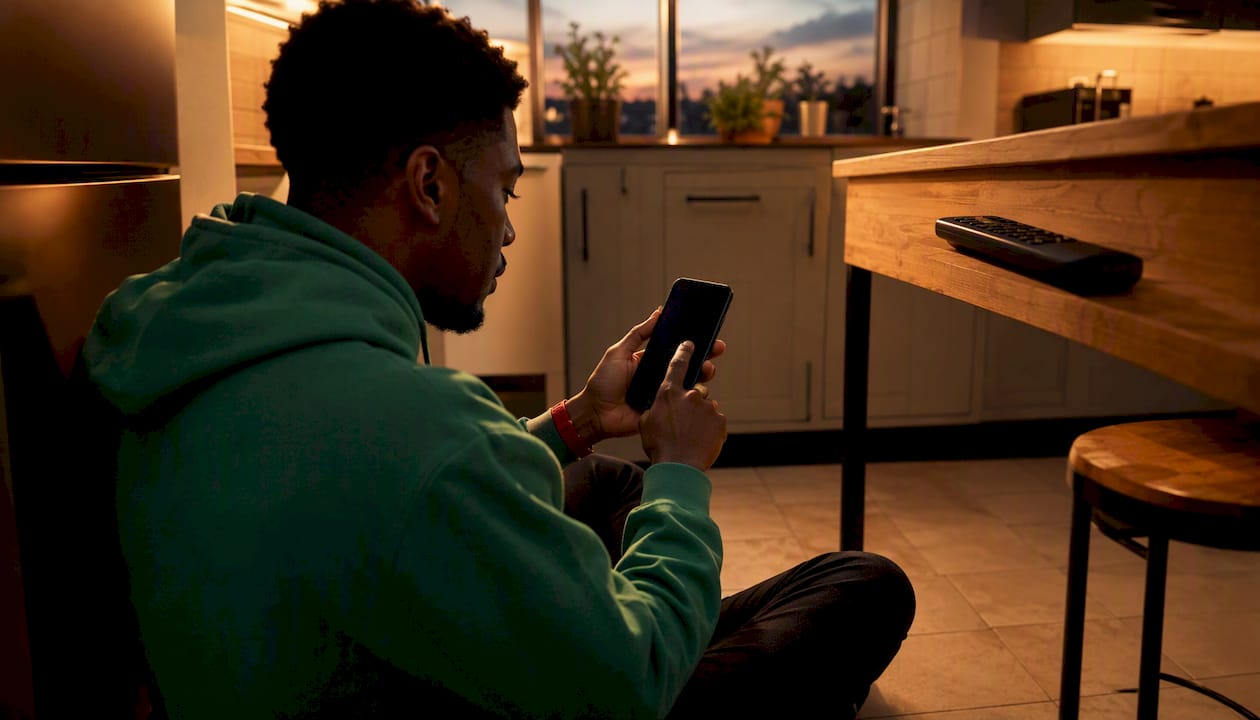
2. Mirror your Android screen Android screen mirroring sends everything on your phone display to the TV, not just a single app. Pull down Quick Settings, tap "Screen cast" or "Cast," and select your Chromecast. Useful for gaming, showing photos, or demoing an app to a group. Performance depends on Wi-Fi signal quality, so a strong 5 GHz connection helps.
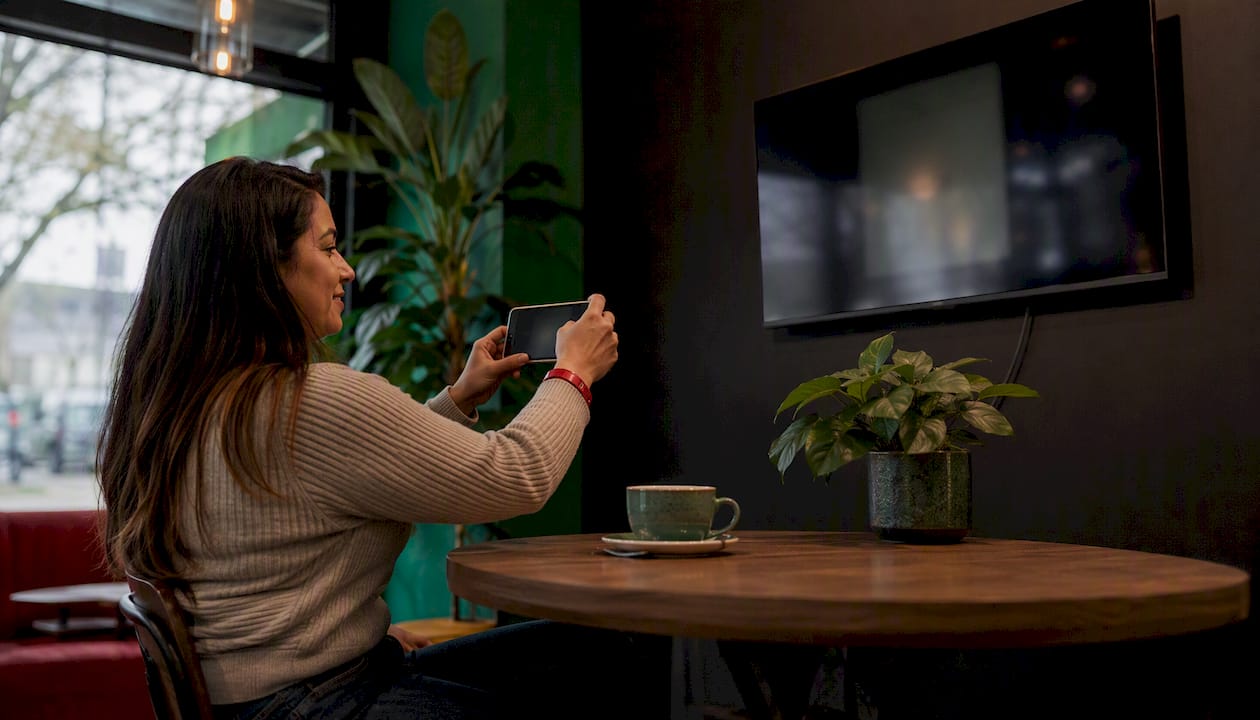
3. Cast a Chrome browser tab or full desktop Open Chrome on a Mac or Windows PC, click the three-dot menu, select "Cast," and choose your Chromecast. You can cast a single tab (great for a YouTube video or Google Slides presentation) or the entire desktop. Casting a full desktop works well for meetings and classrooms where you want to show anything on screen without switching apps.
4. Play music through a soundbar Spotify, Pandora, and Amazon Music all support casting audio directly to a Chromecast. If your TV is connected to a soundbar via HDMI ARC or optical, the audio routes through it automatically. A Chromecast with Google TV also lets you pair Bluetooth headphones for private listening.
5. Run a photo slideshow Google Photos has a built-in Cast button. Tap it, select an album, and your TV becomes a digital photo frame. Families use this constantly for holiday gatherings. You can also cast a shared album from someone else's Google account without logging them in on your TV.
6. Cast local media with Plex or VLC Plex has native Cast support. Add your media library to a Plex server (a spare PC or NAS works), open the Plex app on your phone, tap the Cast icon, and your local movies and TV shows play on the big screen. VLC on desktop can also cast a local file directly to a Chromecast via the "Playback > Renderer" menu.
7. Present Google Slides in a meeting or classroom Google Slides, Chrome's cast feature, and Google Meet can all target a Chromecast-connected display. Cast your browser tab showing the slideshow, and anyone in the room sees it without needing an HDMI cable or adapter.
8. View Google Nest Cam feeds on your TV Open the Google Home app, select a compatible camera, and cast the feed to your Chromecast. It shows up on the TV in a few seconds. This works on most current Chromecast models and is a practical way to check the front door without pulling out your phone.
9. Turn an old Chromecast into a dashboard or photo frame Services like DAKboard let you display a calendar, weather, and news headlines on a TV connected to an older Chromecast. It is a clever repurpose, though connection drops and Ambient Mode timeouts can interrupt the display. Fine for a home office; not reliable enough for a gym or lobby.
10. Use it for retro gaming or sideloaded apps Newer Chromecast with Google TV models support sideloading Android APKs, which opens the door to emulators and apps not in the Google Play Store. Results vary by model and firmware, and some advanced repurposing requires newer Google TV hardware. Treat this as an enthusiast option, not a guaranteed feature.
11. Party mode: playlists and slideshows on shuffle Queue a YouTube Music playlist or a Google Photos album, cast it to the TV, and leave it running. Guests can add songs to a shared YouTube queue using Guest Mode without touching your phone or knowing your Wi-Fi password.
12. Accessibility features Chromecast with Google TV supports closed captions from streaming apps, and caption settings carry over from the app you cast from. The Google TV interface also supports display size adjustments and text scaling. When casting from an Android device, system-level accessibility settings like TalkBack remain active on the phone but do not mirror to the TV.
Pro Tip: On Chromecast with Google TV, go to Settings > Display & Sound > Audio to route audio to a Bluetooth device or set the audio format. If your soundbar supports Dolby Atmos passthrough, selecting "Auto" here lets the device negotiate the best format automatically.
2. How to cast: step-by-step for Android, iPhone, and Chrome
Android
Casting from Android requires Android 6.0 or later. Most apps with Cast support show a Cast icon (a rectangle with Wi-Fi waves) in the top-right corner. Tap it, select your Chromecast from the list, and playback moves to the TV.
For full screen mirroring:
- Swipe down to open Quick Settings.
- Look for "Screen cast," "Cast," or "Smart View" (Samsung).
- Tap your Chromecast's name.
- Confirm the prompt on your phone.
Your entire screen now appears on the TV. To stop, tap the Cast icon again and select "Disconnect."
iPhone and iPad
iOS 12.0 or later is required. Full device mirroring is not available on iOS the way it is on Android. What you can do is cast from individual cast-enabled apps: Netflix, YouTube, Hulu, Disney+, Spotify, and others all show a Cast icon when a Chromecast is on the same network. Tap it, choose your device, and the content plays on the TV while your phone stays free.
Apple's AirPlay does not work with Chromecast. If you need to mirror your iPhone screen to a TV, you need an Apple TV or an AirPlay-compatible display.
Chrome desktop (Mac or Windows)
- Open Google Chrome.
- Click the three-dot menu in the top-right corner.
- Select "Cast."
- Choose "Cast to" and select your Chromecast.
- Under "Sources," pick "Cast tab" for a single browser tab or "Cast desktop" for your full screen.
Casting a tab is more stable and uses less bandwidth. Use desktop casting when you need to show a non-browser app or a local video file.
Quick troubleshooting callouts
- Not seeing your Chromecast? Both devices must be on the same Wi-Fi network, same SSID. A dual-band router that uses one name for both 2.4 GHz and 5 GHz can cause issues if devices land on different bands.
- Casting drops mid-stream? Check for firmware updates in the Google Home app (tap your Chromecast > Settings > Device information > Check for updates).
- Still not working? Unplug the Chromecast for 30 seconds, reboot your router, and try again. A factory reset is the last resort: hold the button on the Chromecast for 25 seconds until the LED flashes.
3. Which Chromecast model is right for you?
The single biggest source of confusion around Chromecast is that "Chromecast" covers two fundamentally different product types.
| Feature | Passive receiver (older dongles) | Chromecast with Google TV |
|---|---|---|
| Standalone UI | No — needs a casting device | Yes — full Google TV interface |
| Remote included | No | Yes — Voice Remote included |
| User profiles | No | Yes — individual watchlists and recommendations |
| Install apps locally | No | Yes — Google Play Store access |
| Best for | Simple casting from phone/laptop | Full streaming device replacement |
Passive receivers (original Chromecast, Chromecast 3rd gen) do nothing on their own. They wait for a Cast command from your phone, tablet, or Chrome browser. No remote, no home screen, no apps installed locally. If your phone dies, the stream stops.
Chromecast with Google TV is a proper streaming device. It has a remote, a home screen that aggregates content from Netflix, YouTube, HBO Max, and others, and supports individual user profiles with separate watchlists and recommendations. You can still cast to it from your phone, but you do not have to.
Who should buy which:
- You already have a smart TV or streaming stick and just want to cast occasionally from your phone: a simple dongle is enough.
- You want to replace a Roku or Fire TV and have one device that handles everything: Chromecast with Google TV is the better fit.
- You are comparing Chromecast vs Roku directly: both are capable streaming platforms; the main difference is ecosystem. Chromecast with Google TV leans into Google and Android apps; Roku has a broader channel store and works more neutrally across services.
A note on legacy models: Google has officially ended support for the 1st-generation Chromecast. Unsupported devices no longer receive firmware or security updates, which creates real risk on business or shared networks. Check your model's support status before deploying an older unit anywhere beyond a personal TV.
4. Casting from apps and playing local media
Supported streaming apps
The core cast-enabled apps most people use: YouTube, Netflix, Disney+, Hulu, Spotify, Pandora, Amazon Music, HBO Max, Apple TV+, Peacock, and Paramount+. All of them require their latest app versions to cast reliably. An outdated Netflix app, for example, may not show the Cast icon at all.
Plex for local media
Plex is the cleanest solution for casting files stored on a home computer or NAS drive.
- Install Plex Media Server on a PC, Mac, or NAS.
- Add your media folders (movies, TV shows, music).
- Open the Plex app on your phone or tablet.
- Tap the Cast icon and select your Chromecast.
Plex handles transcoding on the server side, so even files in formats the Chromecast cannot play natively get converted on the fly. This is the main reason Plex is worth the setup time.
VLC for quick local casting
VLC on desktop can cast a local file without a server. Open VLC, go to Playback > Renderer, select your Chromecast, then open your file. It works for quick one-off plays but lacks the library management Plex provides.
Format compatibility
Chromecast natively supports H.264, H.265, VP8, VP9, and common audio codecs. MKV containers with H.264 video usually play fine. Where things break: older MPEG-2 files, some AVI containers, and audio tracks encoded in formats like DTS or TrueHD. Plex's server-side transcoding solves most of these. Without it, you may need to convert the file first using HandBrake.
Closed captions when casting from apps
Caption behavior depends on the app. Netflix and Disney+ pass captions through to the TV when casting, and you can change caption settings inside the app before or during playback. YouTube respects auto-generated captions. When casting a browser tab from Chrome, captions only appear if the web player itself shows them.
5. Using Chromecast as part of your smart home
Chromecast fits into a Google-centered smart home more naturally than most people expect. The Google Home app is the control center: it handles setup, device management, and the bridge between Chromecast and other smart devices.
What you can do:
- Cast a Google Nest Cam feed to your TV by opening Google Home, selecting the camera, and tapping "Cast to TV."
- Use voice commands via a Google Nest speaker or the Chromecast with Google TV Voice Remote: "Hey Google, play Stranger Things on Netflix on the living room TV."
- Control playback hands-free: pause, skip, adjust volume, and switch inputs without touching your phone.
- Set up routines in Google Home that trigger Chromecast actions, like starting a morning news briefing when you say "Good morning."
How to link devices in Google Home
- Open Google Home and tap the "+" icon.
- Select "Set up device" and follow the prompts for your Chromecast.
- Assign it to a room (Living Room, Bedroom, etc.).
- Compatible cameras and speakers in the same home automatically become available for cross-device commands.
Limitations worth knowing
Chromecast is not designed for always-on monitoring. Casting a camera feed to the TV works well for a quick check, but it is not a reliable 24/7 security display. The connection can drop, the TV may go to sleep, and there is no fallback if the cast session ends. For a gym, lobby, or retail environment where you need a camera feed or content running continuously, a dedicated display solution handles that job better.
6. Fixing the most common Chromecast problems
Most Chromecast failures trace back to one thing: the casting device and the Chromecast are not on the same Wi-Fi network. Fix that first before anything else.
Step-by-step fix checklist
- Confirm same network. On your phone, go to Wi-Fi settings and check the SSID. On the Chromecast, open Google Home, tap the device, and check its network under Settings. They must match exactly.
- Reboot everything. Unplug the Chromecast, restart your phone, and reboot the router. Reconnect in that order.
- Update firmware and apps. In Google Home, tap your Chromecast > Settings > Device information > Check for updates. Update the casting app on your phone too.
- Check for dual-band issues. If your router broadcasts 2.4 GHz and 5 GHz under the same name, your phone may be on 5 GHz while the Chromecast sits on 2.4 GHz. Separate the SSIDs or force both to the same band temporarily.
- Disable AP isolation. Some routers block device-to-device communication on the same network (common on guest networks). AP isolation, also called "client isolation," prevents the Cast discovery protocol from working. Disable it in your router's wireless settings.
- Factory reset as last resort. Hold the physical button on the Chromecast for 25 seconds. The LED will blink, then turn solid white. The device resets to factory defaults.
Router settings to review
- Multicast/IGMP support: — Chromecast uses multicast for device discovery. Routers with IGMP snooping misconfigured can block it.
When Chromecast is not the right tool for the job: If you are managing displays in a gym, lobby, or multi-room venue and network instability keeps causing drops, a consumer casting device is not built for that workload. The reliability bar for business-critical screens is higher than a Chromecast is designed to meet.
7. Privacy, guest mode, and end-of-life security risks
Guest Mode
Guest Mode lets visitors cast to your Chromecast without joining your Wi-Fi network or knowing your password. The Chromecast broadcasts a low-power ultrasonic tone or uses Bluetooth to authenticate nearby devices. Your guest opens a cast-enabled app, sees your Chromecast in the device list, and casts directly.
When to use it: parties, Airbnb rentals, shared office spaces. When it falls short: Guest Mode only works for casting from apps, not for screen mirroring. And the guest's device must be physically nearby (typically within 15–20 feet).
Network isolation for shared deployments
If you are deploying Chromecasts in a business setting, put them on a dedicated SSID or VLAN separate from your main network. This limits exposure if a device is compromised and keeps casting traffic from competing with business-critical data. Disable client isolation on that SSID so devices can discover each other, but block that SSID from reaching your internal servers.
End-of-life models and security risk
Google ended support for the 1st-generation Chromecast, meaning it no longer receives security patches. Running an unsupported device on a business or guest network introduces real vulnerability. Before repurposing any older Chromecast, check its support status on Google's official support page. If it is end-of-life, keep it on an isolated home network or retire it.
8. When a Chromecast is enough and when gyms need more
Chromecast is a capable consumer device. For a single TV in a break room or a one-off presentation, it does the job. The question gym operators and venue managers run into is whether "good enough for home" translates to "reliable enough for a business."
It usually does not.
| Use case | Chromecast | Dedicated signage platform |
|---|---|---|
| Ad-hoc movie or music playback | Works well | Overkill |
| Scheduled promotional content | Manual, unreliable | Automated, time-based |
| Multi-room sync | Not supported | Native feature |
| Remote management | Limited (Google Home app) | Full dashboard control |
| Branded content with templates | Not available | Built-in |
| Audio sync across rooms | Not supported | Supported |
Where Chromecast fits in a gym:
- A single TV in the lounge showing a YouTube playlist
- A one-time presentation cast from a trainer's laptop
- A personal TV in a private training room
Where it falls short:
- Scheduling class promotions to run at specific times on multiple screens
- Syncing workout timers and music across a spin room, weight floor, and reception
- Pushing real-time announcements to every screen from one dashboard
- Maintaining brand consistency across locations
Repurposing older Chromecasts as dashboards is technically possible but prone to connection drops and Ambient Mode timeouts, making it unsuitable for professional fitness-room displays without fallback handling.
Checklist for gym operators evaluating their display needs:
- Do you need content to run on a schedule without manual intervention?
- Do you manage more than two screens or more than one room?
- Do you need audio and visuals to stay in sync across spaces?
- Do you need to push updates remotely without being on-site?
- Do you need branded templates or real-time promotional content?
If you answered yes to two or more of those, a consumer Chromecast is not the right foundation. Kingdomsignage is built specifically for this: a single dashboard that controls TV screens, workout timers, class scheduling, music, and real-time announcements across every room and location. You can explore how multi-room gym displays work or see how gym digital signage gets set up in practice to understand the difference in scope.
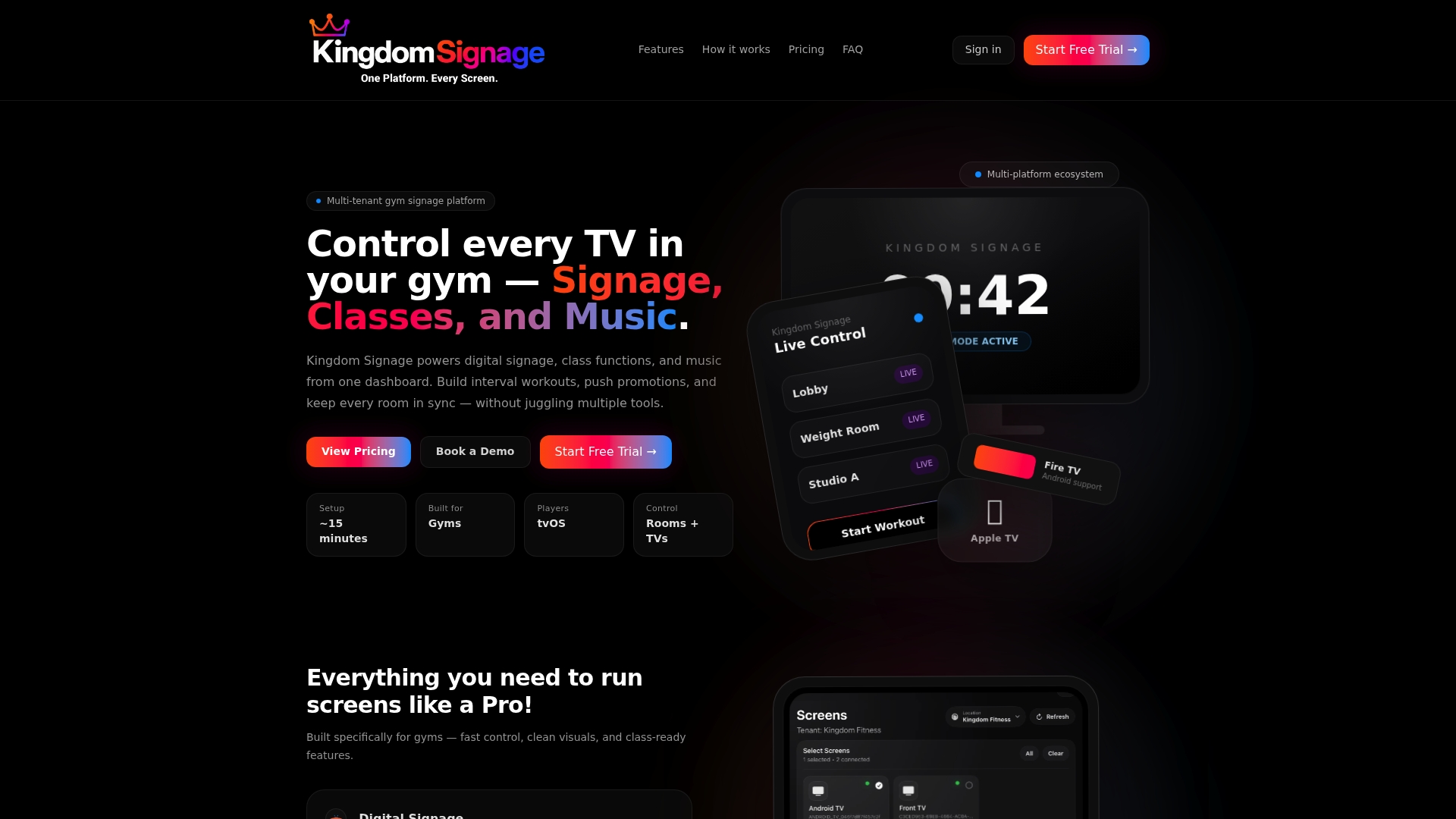
Kingdomsignage offers a free trial for gym operators who want to see what centralized control actually looks like in a fitness environment. Visit kingdomsignage.com to get started.
Key Takeaways
A Chromecast is a capable streaming and casting tool for home use, but its network dependency and lack of scheduling make it a poor fit for multi-screen business deployments.
| Point | Details |
|---|---|
| Two distinct product types | Passive receivers need a phone to drive them; Chromecast with Google TV works standalone with a remote and profiles. |
| Same Wi-Fi is non-negotiable | Both the casting device and Chromecast must share the exact same SSID for casting to work reliably. |
| Legacy models carry security risk | 1st-gen Chromecasts no longer receive security patches and should not run on business or shared networks. |
| Local media needs Plex or VLC | Plex handles server-side transcoding for unsupported formats; VLC works for quick one-off desktop casting. |
| Gyms need more than a dongle | Scheduled content, multi-room sync, and remote management require a dedicated signage platform, not a consumer casting device. |
The honest case for and against Chromecast
Consumer Chromecast gets unfairly dismissed by tech enthusiasts and oversold by casual reviewers. The truth sits in the middle, and it depends almost entirely on what you are trying to do.
For a household, a Chromecast with Google TV is genuinely hard to beat at its price point. It handles Netflix, YouTube, Disney+, and Hulu without friction, the Voice Remote works well, and the Google TV interface surfaces content across services in a way that saves real time. Casting from a phone or laptop still works when you want it. The profile feature means a shared TV does not become a recommendation mess. For movie nights, music through a soundbar, or a photo slideshow at a family gathering, it earns its place.
The professional scenario is different, and this is where the conventional wisdom gets muddled. A lot of gym owners and small venue operators try to stretch Chromecast into a managed display system because the hardware is cheap and familiar. The problem is not the price. It is that Chromecast was never designed for unattended, scheduled, multi-screen operation. It depends on a casting device being active, a stable network connection staying consistent, and someone manually initiating each session. None of those assumptions hold in a gym at 6 AM when the opening staff just wants the screens to turn on and run the right content automatically.
The cost comparison also looks different once you factor in the time spent troubleshooting dropped connections, manually restarting streams, and maintaining consistency across rooms. A purpose-built signage platform costs more per month than a Chromecast dongle, but it removes the operational overhead entirely. For a single-screen home setup, that trade-off does not make sense. For a gym with four rooms, three TVs per room, and a music sync requirement, it absolutely does.
Useful sources for further reading
These are the primary sources used to build this guide. Each one covers a specific aspect of Chromecast setup, use, or troubleshooting in more depth than a single article can.
-
Cast media from Google Cast-enabled apps to your TV or display — Google's official casting documentation. The authoritative reference for OS requirements (Android 6.0+, iOS 12.0+), network requirements, and the Cast protocol itself. Start here for setup questions.
-
Set up Chromecast with Google TV and Voice Remote — Step-by-step official setup guide for the Google TV model, including pairing the Voice Remote and navigating the initial configuration screens.
-
6 creative ways to use Chromecast beyond watching streaming — Android Police's coverage of presentations, mirroring, and less obvious Chromecast use cases. Practical and well-researched.
-
7 ways to repurpose an old Chromecast — How-To Geek's guide to turning older Chromecasts into photo frames, dashboards, and music players. Honest about the limitations of each approach.
-
5 ways to use your Chromecast TV beyond streaming shows — ZDNet's overview of smart home integration, audio routing, and the profile features on Chromecast with Google TV.
-
All the ways you can use an old Chromecast — Lifehacker's take on repurposing older models, including camera feed viewing and creative display ideas.