
You can show an image slideshow on a TV in six ways: cast it from your phone, use the TV's own photo or screen saver mode, plug in a USB drive, connect a laptop by HDMI, add a small player to an older TV, or run a signage platform that manages the screens for you. Which one fits depends on what the TV can do and how long the slideshow has to run without anyone touching it.
This guide goes through each method in plain steps, then covers what changes when the TV is on a gym wall and the slideshow has to run all day, on several screens, without a person standing next to it.
TL;DR
- For a one-off show at home, cast from Google Photos or use the TV's gallery or screen saver mode.
- For a TV with no smart features, use HDMI from a laptop or a small HDMI media player that plays from USB.
- For a screen that must run all day, choose a method that restarts itself after a power cut.
- For several rooms or locations, stop copying files by hand: one dashboard that pushes the same content to every screen saves hours.
- Use landscape images at the TV's native shape, and test the loop for a full cycle before leaving it.
Table of Contents
- First, check what your TV can do
- Method 1: Cast a slideshow from your phone
- Method 2: Use the smart TV's own photo mode
- Method 3: Play from a USB drive
- Method 4: Connect a laptop by HDMI
- Method 5: Add a small player to a non-smart TV
- Method 6: Manage screens with a signage platform
- Slideshows in a gym: what changes
- Our perspective
- Try it on your gym screens
- Troubleshooting a slideshow that will not behave
- FAQ
- Sources
First, check what your TV can do
Before picking a method, look at the back and sides of the TV and open its home menu. Three questions decide everything:
- Is it a smart TV? If it has apps, Wi-Fi settings and a home screen, you have the most options.
- Does it have a USB port? Many TVs can read photos from a flash drive.
- Does it have an HDMI input? Almost every TV made in the last fifteen years does, and HDMI is the universal fallback.
If the answers are yes, yes, yes, pick whichever method below feels easiest. If the TV is basic with only a video input, skip to the HDMI and media player sections.
Method 1: Cast a slideshow from your phone
Casting is the quickest route when you only need to show pictures for an hour or an evening.
On Android, Google explains that you can use Google Photos to cast a photo or album to a Chromecast on the same Wi-Fi network, then swipe between photos. The phone and the casting device must be on the same network, and the phone is the remote control for the show.
On Apple devices, AirPlay does the same job for TVs, Apple TV boxes, Roku devices and Macs that support AirPlay 2. One support guide for a slideshow tool notes that you can send a slideshow to an AirPlay 2-compatible Roku, Apple TV, smart TV or Mac, or use HDMI with a certified Apple USB-to-HDMI adapter.
Best for: parties, meetings, family photos.
Weak spot: the show lives on your phone. If the phone locks, leaves the network or gets a call, the slideshow is not truly independent. That is fine for an evening and a poor fit for a screen that has to run for twelve hours.
Method 2: Use the smart TV's own photo mode
Many smart TVs already include what you need. Many TVs have built-in gallery modes or screen savers, and photo apps can sync images with the same account you use on your phone or computer, as AARP's guide to adding a photo gallery to your TV explains.
TCL describes one version of this on its Google TV models: you can use the screen saver or a photo app, and Google Photos lets you choose how long each picture stays on screen before looping.
Samsung's art-focused models work differently. On The Frame, you can add your own photos from a USB storage device, and multiple imported photos can play as a slideshow.
A typical setup looks like this:
- Create an album with only the images you want shown.
- Open the TV's photo app, ambient mode or screen saver settings.
- Select the album or account that holds the photos.
- Set the time per picture and the order.
- Let it run for a full cycle and watch for stretched, cropped or dark images.
Best for: a living room, a waiting area, a small office where one person updates the pictures.
Weak spot: the settings are different on every brand, so updating five TVs means five trips through five menus.
Method 3: Play from a USB drive
If the TV has a USB port and a media player built in, this is the most hands-off option at home.
- Format the drive as the TV's manual recommends. FAT32 and exFAT are common, but check your model.
- Put the images in one folder, named in the order you want them to play (01, 02, 03).
- Use JPG or PNG files, sized close to the screen's resolution. A 1920 by 1080 image fills a standard HD screen; oversized photos can load slowly.
- Plug the drive in, open the TV's media or USB source, choose the folder and start the slideshow.
Some TVs stop the slideshow when the power goes out and wait for someone with a remote to restart it. If you plan to leave the TV unattended, check that before you rely on it.
Method 4: Connect a laptop by HDMI
When you want a reliable connection and have a laptop handy, a cable is hard to beat. Plug an HDMI cable from the laptop to the TV, choose that HDMI input on the TV, then set the laptop's display to either mirror the screen or extend the desktop.

Then run your slideshow with whatever you already have: Photos on a Mac, the Photos app on Windows, or a presentation app set to loop.
To keep it running smoothly:
- Turn off sleep and screen saver on the laptop.
- Turn off notifications so pop-ups do not appear over your images.
- Plug in the charger.
- Close other apps.
A laptop is fine for a day. As a permanent solution it ties up a computer, and any update or restart can put a login screen on your TV.
Adding music to a photo slideshow
For a show with a soundtrack, build the slideshow on the computer first. On a Mac, you can save a Photos slideshow with its own music and then connect to the TV by HDMI or AirPlay. The audio travels with the show, so the TV speakers or a connected sound system play it. If the TV is a basic one, you can also run an audio cable from the laptop to a speaker and keep the picture on HDMI.
Method 5: Add a small player to a non-smart TV
A TV with no apps and no USB port still works. If it has an HDMI input, you can add a small device that reads a USB drive and sends pictures through HDMI. One example from a foodservice guide is the Micca Speck, which connects to the TV by HDMI to provide USB playback and can restart automatically after a power failure.
That last point matters more than it sounds. A looping player that comes back after a power cut means nobody has to climb a ladder to restart the screen on Monday morning.
The usual steps:
- Plug the player into the TV's HDMI port and power it.
- Load images, or a video exported from your slideshow, on a USB drive.
- Plug the drive into the player.
- Choose the loop or repeat option.
- Unplug and replug the power to confirm the show starts by itself.
Turning the slideshow into a single video file first is a smart habit. Video files play more predictably than a folder of photos on many small players, and you control the timing exactly. If you want a deeper walkthrough, our guide to a TV video loop with autostart steps covers how to keep unattended screens running.
Method 6: Manage screens with a signage platform
Everything above works for one TV. The picture changes once you have several: a front desk screen, a cardio floor, a studio, a second location. Now every update is a repeat job, and screens drift out of date, with last month's promotion still showing in one room.
A digital signage platform solves this by holding the content in one place and sending it to every screen. You change a slide once and every connected TV shows it.
How the six methods compare:
| Method | Needs | Runs unattended | Good for |
|---|---|---|---|
| Cast from phone | Chromecast, AirPlay or similar, same Wi-Fi | No, phone must stay connected | Events, one-off shows |
| Smart TV photo mode | Smart TV, app or screen saver | Often | One TV, simple updates |
| USB drive | USB port on TV | Depends on the model | Single screens |
| Laptop by HDMI | HDMI cable, laptop | Only if sleep and updates are managed | Day-long events |
| HDMI USB player | HDMI input, small player | Yes, if it restarts after power loss | Older TVs |
| Signage platform | Screens plus a dashboard | Yes | Multiple rooms or locations |
Slideshows in a gym: what changes
A gym screen is not a photo frame. It has three jobs: tell members what is happening now, promote what is next, and set the mood. Members glance at it for seconds, from across a room, mid-set.

That shapes how you build the slideshow.
Design for a glance
- One message per slide. A class time, an offer or a challenge, not all three.
- Big type. If it cannot be read from the far end of the floor, it will not be read.
- Short loops. A 90-second loop that repeats is better than a ten-minute one few people see end to end.
- Landscape layouts that fill the screen without black bars. If one TV is mounted vertically, design a separate set for it.
- Contrast. Gym lighting is bright and mixed, so dark text on a pale background or the reverse works better than subtle tones.
Make it run without staff
A screen that needs someone to restart it will, sooner or later, sit black or frozen during a peak hour. When you pick a player or app, ask these questions:
- Does the show start on its own after a power cut?
- Does it keep playing if the internet drops? Our guide to offline signage playback explains how to keep screens running through outages.
- Can the device be locked so members or staff cannot accidentally exit the app? See our checklist for secure kiosk mode on signage.
Checklist for consistent content across several TVs
When the same slideshow must appear in more than one room or at more than one site, run through this list before launch:
- Same resolution and aspect ratio. Export at the same size for screens of the same shape, and build separate versions for odd ones.
- Same player type where you can. A mix of casting sticks, USB drives and smart TV apps means a mix of behaviors and a mix of problems.
- A wired or strong network. Screens that fetch content over weak Wi-Fi are the first to freeze. Our gym TV network setup steps cover this in detail.
- One source of truth. Keep the master content in one place so nobody edits a local copy.
- Naming by room. Label each screen by its room, such as front desk, studio A or cardio, so the right content reaches the right place.
- A restart test. Cut the power to each screen and confirm it returns to the show alone.
- A schedule. Decide which slides run in the morning rush, which run during classes and which run at close.
- An owner. One person is responsible for updates, so old promotions do not linger.
For the full picture, see how to set up gym digital signage that works.
What to put in a gym slideshow
Good slides are specific and time-bound in how they are scheduled, even if the slide itself stays simple:
- Today's class timetable and instructor names
- New member welcome and referral offers
- Personal training or small group program promotions
- Member milestones and community events
- Front desk reminders such as check-in steps and hours; our piece on front desk signage essentials shows what to include
- Posters for programs and seasonal challenges, covered in our digital posters playbook for multi-location gyms
If class promotions are your main goal, read how class promotions display on gym TVs.
Our perspective
Most slideshow advice is written for one TV and one person with a remote. Gyms are different. The screens are on all day, in several rooms, and they have to match the class running underneath them.
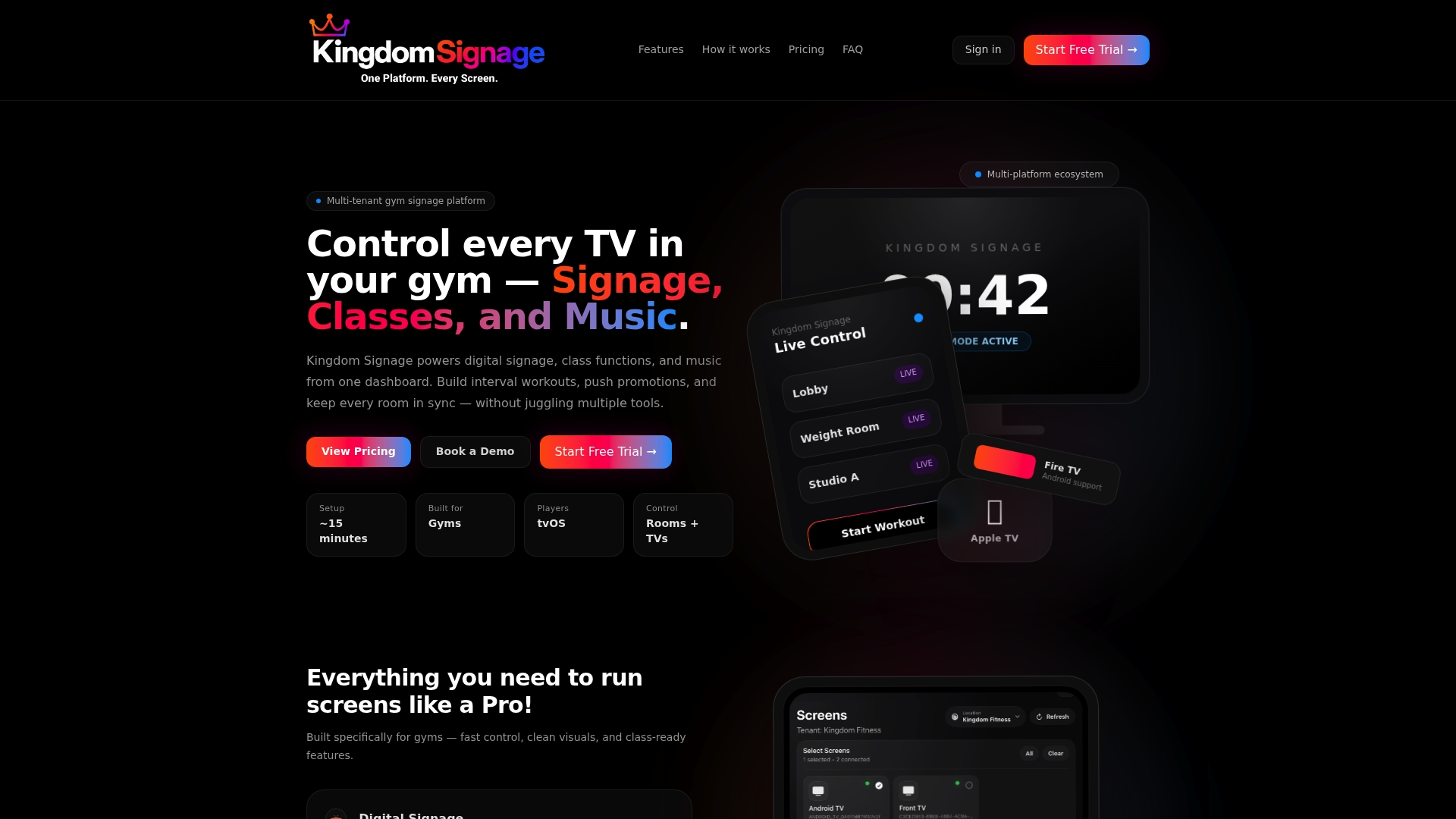
We built Kingdom Signage around that reality. Our platform is designed to put TVs, workout classes and room-based music under one dashboard, so a slide, a class timer or an announcement does not need a separate tool for each job.
We think the best slideshow is the one nobody has to think about. It uses the screens you already own, it updates in real time, and it moves from a promotion to a class timer without a staff member walking across the floor with a remote.
That is why we focus on fitness workflows, multi-room control and integration with existing screens across any number of locations. Smoother transitions between classes and fresher promotional content are what we aim to give operators, and we believe they help members feel the place is well run.
Kingdom
Try it on your gym screens
If you manage more than one TV, you can run slideshows, workout timers with demo videos, class schedules, announcements and room-based music from a single dashboard. Kingdom Signage is a subscription platform with tiered monthly fees per location, and you can start with a free trial or demo to see it on your own screens.
Learn more on the Kingdom Signage website, or read our guide on real-time offer display benefits for gyms to see how live updates support promotions.
Troubleshooting a slideshow that will not behave
Images look stretched or cropped. The image shape does not match the screen. Export at 16:9 for most TVs, or turn off the TV's zoom or overscan setting in its picture menu.
The slideshow stops after a few hours. Look for sleep timers, screen savers or auto power-off settings on the TV and on the source device.
Casting drops out. The phone and the receiver are probably on different networks, or the Wi-Fi signal is weak at the TV.
Nothing shows after a power cut. The player or TV does not resume on its own. Choose a device that restarts automatically, as the HDMI USB player described above does.
Slides advance too fast or too slow. Set a fixed time per slide. Three to eight seconds suits a simple image, and text-heavy slides need longer.
One TV is out of date. This is the signal that manual updates have outgrown their usefulness, and a good moment to centralize the content.
FAQ
How do I show a slideshow on a TV without a USB port?
Use the HDMI input. You can connect a laptop directly, or add a small HDMI player that reads a USB drive and sends the pictures to the screen. Some of these players also restart on their own after a power failure, which helps for unattended screens.
Can I turn a smart TV into a photo frame?
Yes. Many smart TVs include a gallery mode or screen saver, and photo apps can sync with the account you use on your phone. Choose an album, set how long each picture stays and let it loop. Check your model's settings, because the menu names differ by brand.
What is the easiest way to play a slideshow with music?
Build it on a computer first, with the music saved inside the slideshow, then connect the computer to the TV by HDMI or AirPlay. The sound plays through the TV or a connected speaker. For a business space, a system that handles screens and music together avoids juggling two sources.
How do I keep the same slideshow on several TVs?
Use the same resolution, the same type of player and one master copy of the content, then push it to each screen. Manual copying works for two screens and gets slow beyond that. A signage dashboard sends updates to every room at once.
Can a slideshow loop without anyone touching it?
Yes, if the player is set to repeat and starts again by itself after a power loss. Test it by unplugging the power and waiting to see whether the show returns. Turn off sleep and notification settings on any computer in the chain.
Sources
- Show photos on a TV with Chromecast, Google Photos Help
- Slideshow with AirPlay or HDMI to a TV, LumaBooth Support
- 4 Ways You Can Add a Photo Gallery to Your TV, AARP
- Can I use my smart TV as a digital picture frame, TCL
- Get artwork for The Samsung Frame TV, Samsung Support
- Easy DIY Digital Menu Boards, Dennis Foodservice