
Offline signage playback means a screen keeps showing its content after it loses contact with the cloud. The player runs from a copy of your playlists, media and schedule stored on the device, so a dropped connection should not turn your lobby TV into a black screen or an error message. It only works if the content was fully downloaded before the outage, and what you can change during the outage is limited. This guide covers what keeps playing, what stops, how to set screens up for it, and how to test it before a Monday 6 a.m. class finds the gap for you.
TL;DR
- Offline playback relies on a local copy of media, playlists and schedules. If it was synced before the outage, the screen keeps looping.
- Anything that needs the internet stops: live feeds, new uploads, remote edits, streamed music and real-time announcements sent from the dashboard.
- Prepare by syncing fully, setting devices to start on power-up, and keeping the clock and time zone correct.
- Test by unplugging the network at each room's screen for a full day, then restore it and check that updates catch up.
- Troubleshoot in order: power, display input, local network, internet, then the player itself.
Table of Contents
- What offline playback means in a gym
- How a player stores content and how long it keeps going
- Preparing screens for dependable offline playback
- Keeping rooms coordinated when the connection drops
- What may not work during an outage, and what happens on reconnection
- How to test offline playback before you need it
- Troubleshooting a screen that stopped or will not reconnect
- Our perspective: offline is a design choice, not a feature switch
- See it on your own screens
- Frequently asked questions
- Sources
What offline playback means in a gym
A gym is a harsher environment for screens than most businesses. Treadmills, lights, sound systems and guest Wi-Fi all compete for the same router. Staff unplug things to reach an outlet. A storm or an ISP fault takes the whole building offline during the evening rush.
Offline playback is the safety net for those moments. Think of it as three layers:
- Content stored locally. Videos, images and class graphics sit on the player or the smart TV, not only on a server.
- A local schedule. The player decides what to show from its own clock. It does not ask the cloud every few seconds.
- Automatic recovery. When the network returns, the player checks in, pulls what changed and carries on without someone walking over with a remote.
If any one layer is missing, you do not really have offline playback. A player that stores videos but needs a server to tell it what to play next will freeze or loop the last item. A player with a local schedule but no stored media will show blanks.
What keeps playing and what stops
| Function | During an internet outage |
|---|---|
| Looping promo videos and images already synced | Usually keeps playing |
| Scheduled day-parts (morning classes, evening promos) | Keeps running if the schedule and clock are stored locally |
| Workout timers and demo videos already downloaded | Can keep running if the files are local |
| New uploads or edits from the dashboard | Wait until reconnection |
| Real-time announcements pushed from the cloud | Do not arrive |
| Live web pages, social feeds, weather and other widgets | Stop updating or go blank |
| Streamed music | Stops unless the audio source is local |
The pattern is simple: stored and scheduled content survives, anything fetched live does not. Design your screens around that and an outage becomes a non-event.
How a player stores content and how long it keeps going
When you publish a playlist, the player downloads every file in it and keeps them in local storage. From then on it plays from storage. The connection is used mainly to check for changes, report that the screen is alive and fetch new files.
How long can it run offline? In principle, as long as the stored files and local schedule cover the time. A looping playlist can run indefinitely. A schedule that depends on dates, for example a promotion set to start next Friday, only works if that promotion was already downloaded. The practical limit is the content you prepared, not a countdown timer. Be wary of any setup where you cannot say how long it runs offline: find out by testing, which we cover below.
A few things shorten that runway:
- Storage that fills up. Long 4K videos can crowd out the rest of a playlist on a small device.
- Wrong clock. If a device loses power and has no network to correct its time, the schedule can drift or reset to a default date.
- Expiring content. Items with end dates will drop out on schedule, even offline, which is sometimes what you want and sometimes a surprise.
- Content that streams. A video link to a hosted page is not a stored file. If it is not downloaded, it is not offline content.
Preparing screens for dependable offline playback
Most offline failures are set-up failures. Go through this list when you install a screen or add a room.
1. Let the first sync finish
Publish the playlist and leave the screen online until it reports that every file has downloaded. Pulling the plug at 90% is how you end up with a loop that has holes in it. Do this after every large content change, not just on installation.
2. Make the screen start itself
After a power cut, nobody should have to press a button. The player app or autostart script must launch on boot and go straight to full-screen playback. Our guide to TV video loops with autostart steps walks through making unattended gym screens come back on their own. If your IT team locks down devices, the kiosk mode checklist covers keeping the player pinned in the foreground.
3. Turn off sleep and automatic updates at the wrong moment
TV power-saving, screen savers and automatic system updates can interrupt playback regardless of network state. Disable sleep, and schedule system updates for a time when staff are in the building.
4. Set the clock and time zone
Scheduling is only as good as the clock. Confirm the time zone on each device, including in multi-location setups spanning several zones. A Pacific-time gym running a screen set to Eastern will start its 5:30 a.m. class promo three hours early.
5. Keep media light and local
Export videos at a sensible resolution for the display size, keep file sizes reasonable, and avoid embedding live content on a screen that has to survive an outage. Put the web widget on the lobby screen if you wish, but keep your class timers and core promos as stored files.
6. Use a wired connection where you can
Wi-Fi in a gym is crowded and noisy. An Ethernet cable to a fixed player reduces the number of outages you have to survive in the first place. Offline playback is a backup, not a substitute for a decent network.
For a fuller walkthrough of an install, see how to set up gym digital signage that works.
Keeping rooms coordinated when the connection drops
A single lobby screen is easy. The harder case is a gym with a studio, a cycle room, a weight floor and a front desk, all expected to move together.
When the internet fails, each screen falls back on its own local schedule. That works well if the schedules were set up with the same rules and the clocks are right, because every room then reaches its next block at the same moment without talking to the others. It works badly if one room relies on a live trigger, such as an instructor pressing a button in the dashboard to start a class timer.
Three habits keep rooms in step:
- Schedule by the clock, not by hand. Where classes run on a fixed timetable, put them on the schedule so each room starts its own timer or playlist without a remote command.
- Keep audio local. Music streamed from the internet will drop at the same moment your connection does. Rooms with their own local audio source, or a pre-set fallback playlist, keep the energy going. Decide per room what silence-or-fallback looks like and write it down.
- Plan a manual mode. For each room, know what an instructor does if the screen is not showing what it should: a whiteboard, a phone timer, a physical remote. Offline playback keeps screens on, but it cannot read the class schedule that changed this morning.
If you run several sites, the same principle applies across them. Our multi-location playbook for digital posters and the guide to managing multiple gym TVs from a dashboard show how to keep a central message consistent without every screen depending on a live link.
What may not work during an outage, and what happens on reconnection
Be honest with your team about what an outage costs. Typically:
- Edits wait. Anything you change in the dashboard during the outage will not reach the screens until the connection returns. Staff who change a class time at 5 p.m. may find the old time still showing.
- Announcements do not push. A real-time announcement, such as a locker-room closure or a class change, needs a connection. Have a sign or whiteboard for urgent notices.
- Reporting has gaps. Playback records and status checks can be missing for the outage window. If you rely on logs to confirm that a promotion ran, expect a hole or a delayed entry.
- Live widgets blank out. Anything fetched from the web will show an empty area or the last cached view.
On reconnection, a well-behaved player checks in, compares its stored version with the current one, downloads what is new and swaps it in. The key words are swaps it in: a good player finishes the download and then switches, so members never see a half-loaded playlist. Give it a few minutes after the network returns, then confirm on a screen rather than assuming.
To confirm what actually played, use playback records. Our walk-through of audit logs for gym screens shows how to verify playback in 15 to 30 minutes.
How to test offline playback before you need it
Never trust an offline claim you have not seen with your own eyes, on your own hardware. A practical test for a gym:
- Sync and verify. Publish the final playlist. Wait until every screen shows the new content.
- Cut the connection at the source. Unplug the router's internet cable, or disconnect the screen's network, rather than turning off the dashboard. You want to simulate the real fault.
- Run through a full schedule cycle. Watch at least one day-part change and one class block. Offline loops are easy; scheduled transitions are where problems show.
- Power-cycle one screen while offline. Switch it off and on at the wall. It should boot back into playback with the network still down. This is the single most useful test.
- Try the edit. Change something in the dashboard during the outage and confirm it does not appear yet.
- Restore and watch. Reconnect, wait, and confirm the change arrives and that nothing flickers or restarts the wrong playlist.
- Repeat per hardware type. A smart TV app, a small player box and a PC behave differently. Test each model you actually use.
Professionals building signage hardware often run much longer burn-in tests of several days, including repeated power cycles and interrupted downloads. A gym does not need that for every screen, but a day-long test on one screen of each type, then a spot-check on each new install, is a reasonable standard. For quick routines, our content testing site checks fit in 15 to 30 minutes.
Troubleshooting a screen that stopped or will not reconnect
Work from the screen outward. Most problems turn out to be at the first two steps.
- Is the TV on the right input? Someone with a remote can switch an HDMI input in seconds. Check this before anything else.
- Does the player have power? Look for a status light. Power strips and loose plugs cause more outages than software does.
- Is there anything on screen at all? A frozen image means the player is stuck. A black screen with the TV responding means the player is not outputting. A message about connection or activation tells you what it is missing.
- Is the local network up? Check whether other devices on the same Wi-Fi or switch work. A dead switch port affects only that screen.
- Is the internet up? If staff phones on guest Wi-Fi cannot load a page, the problem is your provider. Call them, and leave the screens to keep playing.
- Is something blocking the player? A firewall or proxy change can stop a player from reaching the cloud while everything else works. Ask whoever manages your network what changed recently.
- Restart the player app, then the device. Do the restart last, not first, so you keep any error message that explains the fault.
- Check the clock. If the screen is online but playing the wrong thing, a wrong time or time zone is the usual cause.
Write the result of each outage in a simple log: date, screen, cause, fix. After three or four entries, you will see a pattern, usually one cable, one power strip or one unreliable access point.
Our perspective: offline is a design choice, not a feature switch
We built Kingdom Signage around a gym's actual day: classes starting on the hour, promotions for the front desk, music that changes by room, and staff who are busy coaching, not troubleshooting. From that point of view, offline playback is less about a technical checkbox and more about how you plan.
Our view is that a gym should divide its content into two groups. The first is what must never fail: class timers, workout demos, core promotions and the scheduled loop. Keep that stored and scheduled. The second is what is nice when it works: live feeds, last-minute announcements, and cloud-delivered extras. Accept that it pauses during an outage, and design the screen so the pause is invisible rather than ugly.

We also think the main risk in a multi-room gym is mismatch, not total failure. One room keeps playing while another freezes, and the instructor cannot tell why. That is why we push gyms to manage TVs, class timers, announcements and music from a single dashboard, to use the same scheduling rules in every room, and to run the simple checks in this guide on a regular basis. Screens that you can see and verify from one place are screens you can fix in minutes.
And test on your own hardware. Any vendor, including us, can describe how playback should behave. Only your own day-long test shows how it behaves in your building.
— Kingdom
See it on your own screens
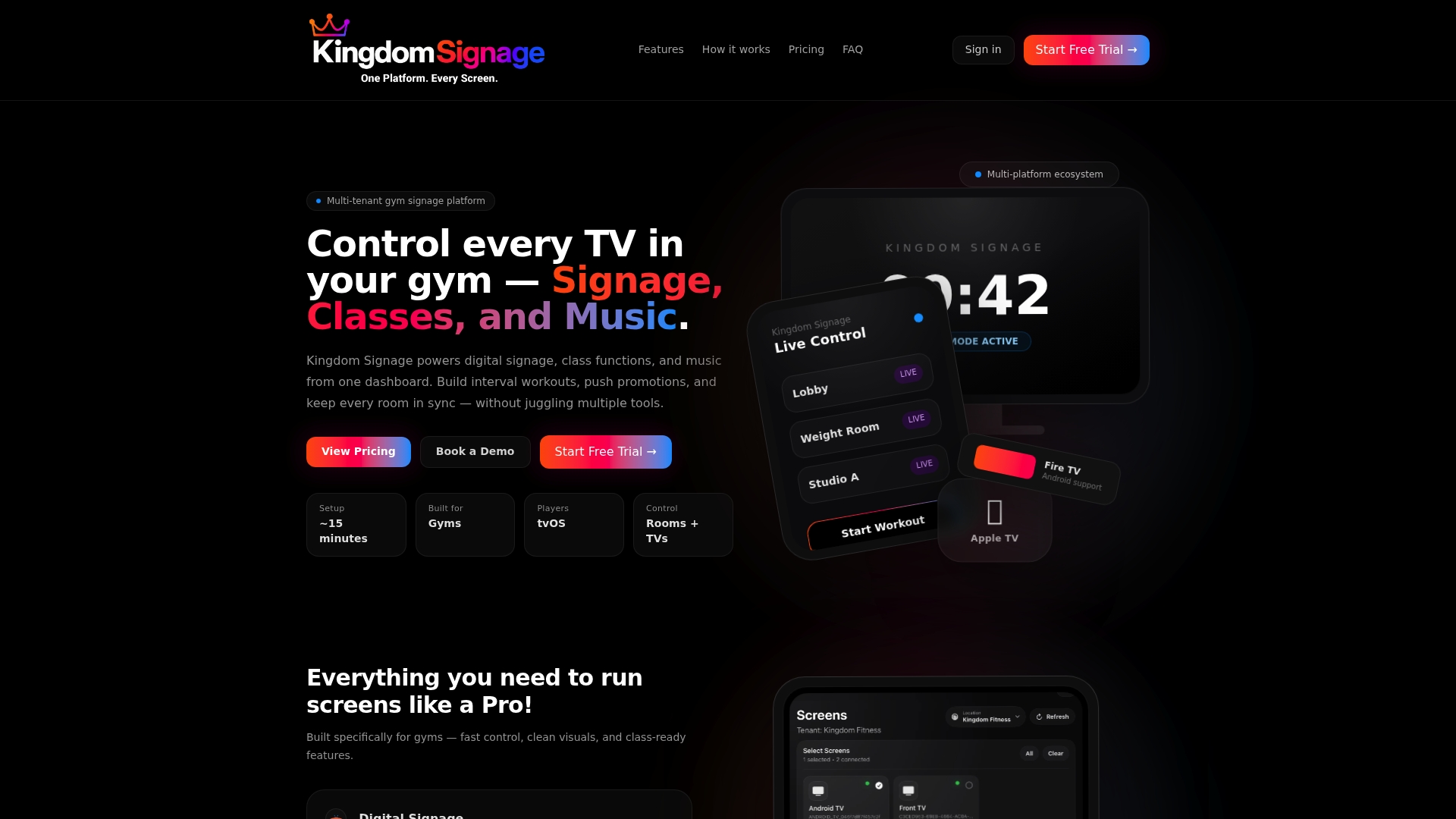
Kingdom Signage gives gym owners and studio operators one dashboard for TV screens, class scheduling, workout timers with demo videos, room-based music and announcements, across one room or many locations. It works with the screens you already have, so you can run the offline test above on real equipment before you commit. Plans are subscription based, billed monthly or annually per location, and you can start with a free trial or demo on Kingdom Signage.
If you have a front desk or lobby display, our guide to front desk signage essentials is a good first screen to put on a stored, scheduled loop.
Frequently asked questions
Will my gym TVs keep playing if the internet goes out?
Usually yes, if the content was fully synced to the player beforehand and the player runs a local schedule. Stored videos, images and scheduled playlists continue. Live feeds, new edits and cloud-pushed announcements will not work until the connection returns.
How long can a screen play offline?
It can run as long as its stored content covers the schedule, which for a simple loop is indefinitely. Limits come from content with end dates, a clock that resets after a power cut, or files that were never downloaded. A day-long test on your own hardware tells you more than any general number.
Can class timers and music stay in sync without internet?
Timers and demo videos that are stored locally and started by the schedule can stay in step across rooms, provided the clocks match. Streamed music will stop, so give each room a local audio source or a backup playlist.
What should I do first when a screen goes black?
Check the TV input and the player's power, then see whether the screen shows any message. Leave the restart for last. If the whole building is offline, call your internet provider and let the screens continue on stored content.
Do I lose my changes if I edit while the gym is offline?
Changes made in the dashboard are not lost, but they do not reach the screens until the connection is back. After reconnection, give the players a few minutes to download and switch, then check one screen in each room.
Sources
This guide draws on the Kingdom Signage guides below.
- TV Video Loops: 5 Autostart.m3u Steps for Unattended Gym Screens
- Secure Kiosk Mode for Signage: MDM Ready Checklist
- How to Set Up Gym Digital Signage That Works
- Audit Logs for Gym Screens: Verify Playback in 15–30 Minutes
- Stop Stale Screens: Gym Content Testing in 15–30 Minute Site Checks