
Digital posters are the screen-based content on your gym's TVs and monitors, managed through a signage CMS instead of a printer or a laminator. Think live class schedules, countdown timers, instructor bios, and promotions that update themselves. The single best first move is to put one to three screens at your entry and reception area, showing the next few sessions and simple wayfinding, before you touch any other zone.
That's the whole starting point. Expand from there once reception is running clean.
- Displays: commercial-grade panels, not consumer TVs
- Software: a cloud CMS you can update from anywhere
- Data: live feeds from your booking system
- Access: role-based permissions so front desk staff can't break corporate templates
Key Takeaways
Utility-first digital posters, deployed first at reception and expanded zone by zone, reduce front-desk friction and drive measurable attendance and promo gains.
| Point | Details |
|---|---|
| Start at reception | Deploy 1 to 3 screens showing live class schedules and wayfinding before expanding to other zones. |
| Match hardware to zone | Use 250 to 700 nit commercial panels rated 16/7 or 24/7 depending on hours and sun exposure. |
| Keep rotations short | Run 5 to 7 slides at 6 to 10 seconds each to avoid missing passing members. |
| Govern centrally, localize scoped edits | Let corporate lock templates while local managers get limited override permissions. |
| Track attendance and inquiries | Measure class attendance lift and front-desk inquiry drops to prove ROI to leadership. |
| Consider a gym-specific platform | Kingdomsignage unifies schedules, timers, audio, and multi-location control in one dashboard. |
Table of Contents
- What Are Digital Posters and Why Gyms Use Them?
- Where Should You Place Screens First in Your Gym?
- What Content Should Run on Each Screen?
- What Hardware and Network Setup Do You Need?
- How Should You Roll Out Screens Across Multiple Locations?
- How Do You Measure Whether Digital Posters Are Working?
- What Does It Cost to Deploy Digital Posters?
- Get a Multi-Location Digital Signage Demo
- Sources
What Are Digital Posters and Why Gyms Use Them?
Utility beats promotion when it comes to grabbing attention. A member walking past a screen glances for one reason: to find out where to go next. A live class list with room numbers and start times earns that glance every time. A static ad for a supplement sale earns it maybe once.
The payoff shows up in daily operations, not just marketing metrics.
- Fewer "what time does the 6pm class start" questions at the front desk
- Better attendance for classes that are actually promoted on-screen, since utility-first signage supported by measurable attendance and booking gains reduces friction between a member and the schedule
- Small but real conversion lift on promotions placed where people already look for information
- Lower ongoing print costs, since schedule changes stop meaning a reprint
Pro Tip: The fastest way to kill a digital poster program is to load it once and walk away. Set a weekly content refresh on your calendar, even if it's just swapping which class gets featured. A screen that never changes becomes wallpaper within a month.
Where Should You Place Screens First in Your Gym?
Not every zone deserves a screen on day one, and not every screen needs the same size or brightness. Start at entry and reception, where foot traffic and decision-making overlap, then work outward as budget allows.
- Entry/reception (priority 1): 50 to 65 inch screen, moderate brightness, shows next sessions and simple directions
- Lobby or juice bar area (priority 2): 65 to 75 inch, since people linger here and can read more content
- Studio doors (priority 3): 43 to 55 inch, tight to the doorway, showing the current or next class
- Cardio floor (priority 3): mid-size screens paced for passive viewing during workouts
- Locker rooms (priority 4): 32 to 43 inch, humidity-rated, lighter content load
- Exits and recovery areas (priority 5): smaller screens, mostly recognition and wellness reminders
Those size recommendations tied to viewing distance hold up whether you run one club or fifty. If your entrance faces west-facing glass, budget for a sun-readable panel with higher brightness. A screen that washes out in afternoon light is worse than no screen at all, since members stop bothering to check it.
What Content Should Run on Each Screen?
Each zone has a job, and the content should match it. Reception isn't a billboard; it's a directory. The studio floor isn't a directory; it's a countdown clock.
Entry and reception: next three sessions with room numbers, a capacity indicator if your booking platform supports it, basic wayfinding, and one promotion at most.
Studio doors: a class countdown timer, the instructor's name and a one-line bio, and the playlist or format for that session. Switch to a movement-demo loop between classes.
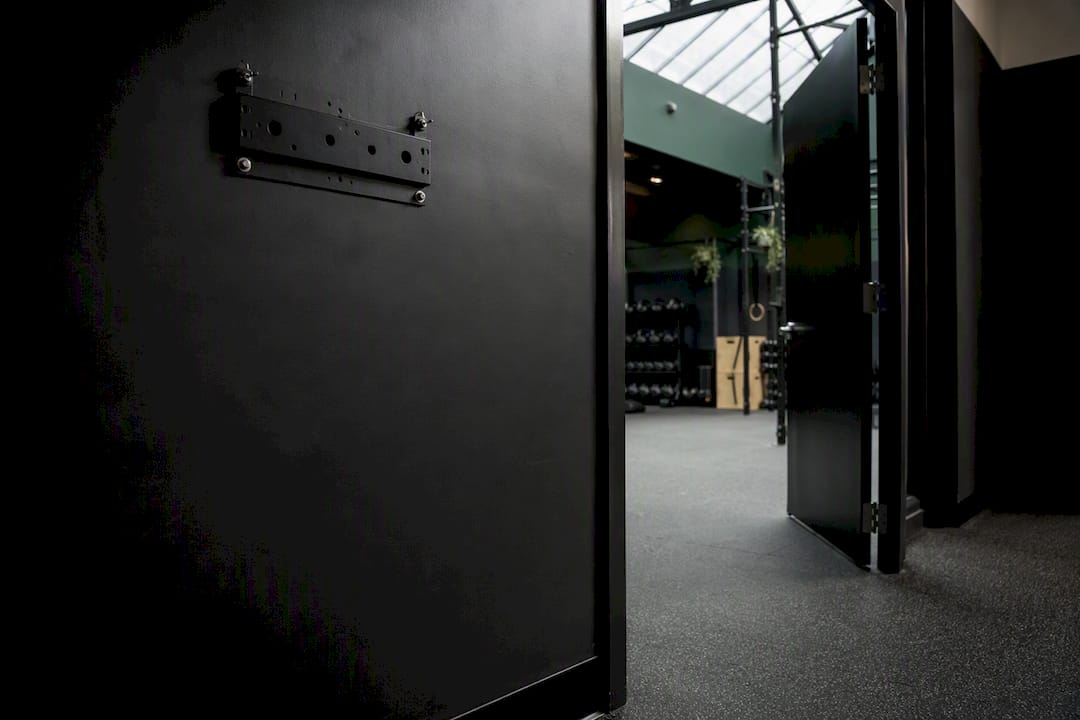
Cardio and workout floor: short form-tip clips, hydration reminders, member shoutouts for milestones, and an ambient brand video that doesn't demand full attention.
Keep rotations tight. A five to seven slide loop at six to ten seconds each is the practical ceiling for busy zones. Longer loops mean a member walks past before their class even appears.
On the mix: aim for roughly 80% utility content (schedules, timers, tips) and no more than 20% promotion, concentrated where members are already deciding what to do next, like near the front desk or a services counter.
What Hardware and Network Setup Do You Need?
Pick commercial-rated panels and a cloud CMS with booking-system integrations, not repurposed consumer TVs and USB sticks. That combination is more reliable for daily use across multiple locations.
- Match the panel rating to hours. A 24-hour club needs a 24/7-rated display; a club that closes overnight can run 16/7 panels and save on hardware cost.
- Set brightness by zone. Shaded lobbies can run around 250 nits; sun-facing entrances need closer to 700 nits, per the brightness and duty-cycle guidance most commercial display makers publish.
- Check IP ratings for locker rooms. Humidity and condensation kill unprotected electronics fast.
- Use dedicated players, not screen-casting. A dedicated media player per screen handles timers and automated class flow more reliably than a phone mirroring to a TV.
- Wire it, don't rely on Wi-Fi. Ethernet-first connectivity with a separate VLAN for signage traffic keeps your player network stable and isolated from guest Wi-Fi congestion.
- Confirm booking-system integration before you buy. Feeds from platforms like MindBody, Zenoti, ClassPass, Glofox, or Wodify let schedules, capacity, and instructor substitutions update automatically instead of manually.
Music licensing matters too if any screen carries audio. Confirm your rights cover in-club playback before you sync sound to visuals.
Pro Tip: Standardize on one player model and one mount type across every location, even if a newer option looks tempting for a single club. When something fails at 6am on a Monday, a manager needs to swap a known part, not troubleshoot a one-off configuration.
How Should You Roll Out Screens Across Multiple Locations?
Multi-location rollouts fail when every club builds its own content from scratch. A phased plan with a governance structure prevents that mess.
- Phase 1: pilot in one high-visibility club and measure results before scaling
- Phase 2: save the templates that worked and lock them centrally
- Phase 3: roll out in waves, club by club, not all at once
- Phase 4: grant scoped local overrides so managers can localize without breaking the brand
That pilot, template, wave rollout pattern is what separates a signage program that scales cleanly from one that turns into fifty different versions of the same idea.
| Role | What They Can Change |
|---|---|
| Corporate content owner | Sets master templates, approves brand campaigns |
| Regional rollout lead | Deploys waves, trains local managers, monitors adoption |
| Local club manager | Edits schedule slots and local promos within approved templates |
A weekly content calendar and a clear approval turnaround for corporate campaigns keep the whole system from drifting into chaos, especially once you're past ten locations.
How Do You Measure Whether Digital Posters Are Working?
Track three numbers before anything else: attendance change for featured classes, the drop in front-desk schedule questions, and the booking uplift tied to specific promotions.
- Attendance change for classes highlighted on-screen versus those that aren't
- Ratio of schedule views to actual bookings, where your platform supports it
- Front-desk inquiry counts, tracked weekly by staff
- Promo booking uplift, tied to a specific campaign window
- Screen uptime and health, since a dark screen generates zero value
To attribute lift honestly, log when a campaign started and compare a simple pre- and post-window rather than guessing. Ask your CMS provider for a monthly dashboard covering these figures, since tracked utility-first campaigns tend to show measurable attendance and booking gains when the reporting is consistent.
Pro Tip: Report these numbers to ownership monthly, not annually. A quarterly gap is too long to catch a screen that's been broken for six weeks.
What Does It Cost to Deploy Digital Posters?
Costs scale with panel quality, player type, install labor, and how many screens you're running per location. Budget for these line items specifically:
- Display hardware, priced by size and brightness rating
- Dedicated media players per screen
- Mounts and professional install labor
- CMS subscription, typically billed per screen or per location
- Network upgrades, including a signage-specific VLAN if you don't already run one
- Music licensing if any screen carries synced audio
Before signing with any vendor, ask about warranty length, whether panels are 16/7 or 24/7 rated, remote monitoring capability, booking-system integrations, and support response times.
- Run a site survey of every zone you plan to cover
- Install one pilot club and let it run for a full month
- Build and lock your master templates from what worked
- Train front-desk and studio staff on local edits
- Set up remote monitoring before you scale to a second location
Most operators recoup costs through reduced printing, a bump in personal-training bookings driven by selling online coaching promoted via on-screen promotion, and better retention from members who simply know what's happening in their club.
An Operator's Note on Starting Small
We piloted three entry screens at one club before touching anything else. Front-desk questions about class times dropped within two weeks, and we didn't need a single flashy promo to see it. The lesson held: get the utility right first, then layer in promotion where it earns its space.
Get a Multi-Location Digital Signage Demo
Kingdomsignage is built for the exact problem this guide walks through: running live schedules, timers, and promotions across multiple clubs without stitching together five separate tools. One dashboard controls TVs, class information, and room-based audio, with role-based templates so corporate can lock the brand while local managers still adjust what's relevant to their club.
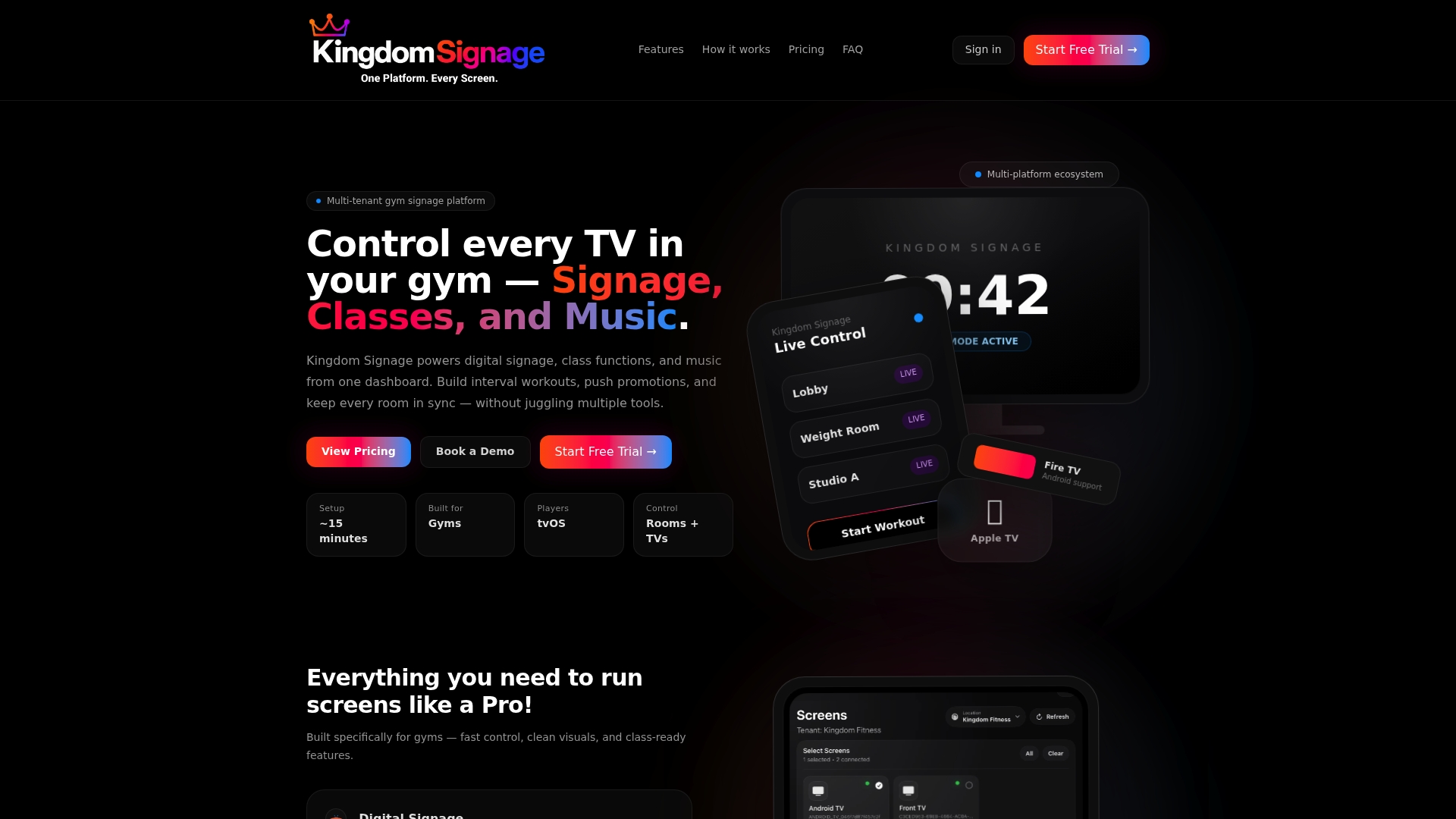
A common pain point solves itself here: a corporate team pushes a new promotional template company-wide, while a single club manager still overrides the studio schedule locally when an instructor calls in sick, all inside the same workflow instead of two disconnected systems. That's the gap most generic signage tools leave open, and it's the one Kingdomsignage was built to close for gym environments specifically.
If you're planning a pilot at one location or scaling templates across a franchise, start with a Kingdomsignage demo and see how the dashboard handles your actual class schedule and screen count before committing to a full rollout.
Sources
- Digital Signage for Gyms: The Complete 2026 Guide – DisplayDetails
- Gym Digital Signage for Multi-Location Fitness Brands | truDigital Blog
- Gym Digital Signage for Fitness Chains | CrownTV
- Digital Signage for Fitness Centers and Gyms: Building Member Engagement and Secondary Revenue