
Start with one screen in your busiest zone: check that the right playlist is live, the class schedule matches reality, and audio isn't bleeding between rooms. If that single check passes, the fix is scaling, not troubleshooting. Before you push anything network-wide, confirm caching works offline and pull remote screenshots and playback logs from at least one other location to prove the setup travels.
TL;DR:
- Testing should include verifying network stability, device firmware consistency, content accuracy, and audio isolation during site visits, especially during peak hours.
- Remote monitoring must track device health metrics, including online status, CPU load, storage, temperature, and firmware, with routine screenshots and proof-of-play logs.
- Multi-room synchronization requires checking for timing drift, ensuring audio privacy, and testing class transitions during peak hours to catch issues only apparent under full load.
- Quick fixes like remote reboots, clearing caches, and swapping hardware help isolate faults, but comprehensive alerts and escalation paths are essential for ongoing troubleshooting.
- Managing digital signage across multiple gyms benefits from an all-in-one platform offering remote control, scheduled rollbacks, and integrated booking system management.
Table of Contents
- How Do You Test Content on Gym Screens During a Site Visit?
- What Should You Test Before Rolling Content Out Network-Wide?
- How Do You Verify Screen Content Remotely Across Locations?
- Testing Multi-Room Sync and Audio Behavior
- What Do You Do When a Screen Test Fails?
- Why Testing Content on Screens Never Really Stops
- How Kingdom Signage Supports Every Step of This Checklist
- Sources
How Do You Test Content on Gym Screens During a Site Visit?
Fifteen to thirty minutes on-site catches most problems before members ever notice them. Run this in order, since each step builds on the last.
- Power and network. Confirm the player is on PoE or a stable AC connection, hardwired to Ethernet rather than Wi-Fi where possible, and showing "online" in your dashboard.
- Player health. Check CPU and storage load, confirm the firmware version matches your fleet standard, and test that a remote reboot command successfully restarts the device.
- Content freshness. Pull up the active playlist and verify it matches the intended schedule window, with no expired or outdated items still looping.
- Legibility from real sightlines. Stand where members actually stand, on a treadmill, at the studio door, and check font size, contrast, and whether motion graphics are too fast to read at a glance.
- Audio behavior. Test what happens when a studio timer plays against ambient lobby music, and listen for bleed between rooms sharing a wall.
- Call-to-action check. Scan any QR code with your own phone and click through booking links to confirm they land on a working page.
If any step fails, don't move to the next zone until you've isolated whether it's a network issue, a device issue, or a content issue. That distinction determines who you call next.
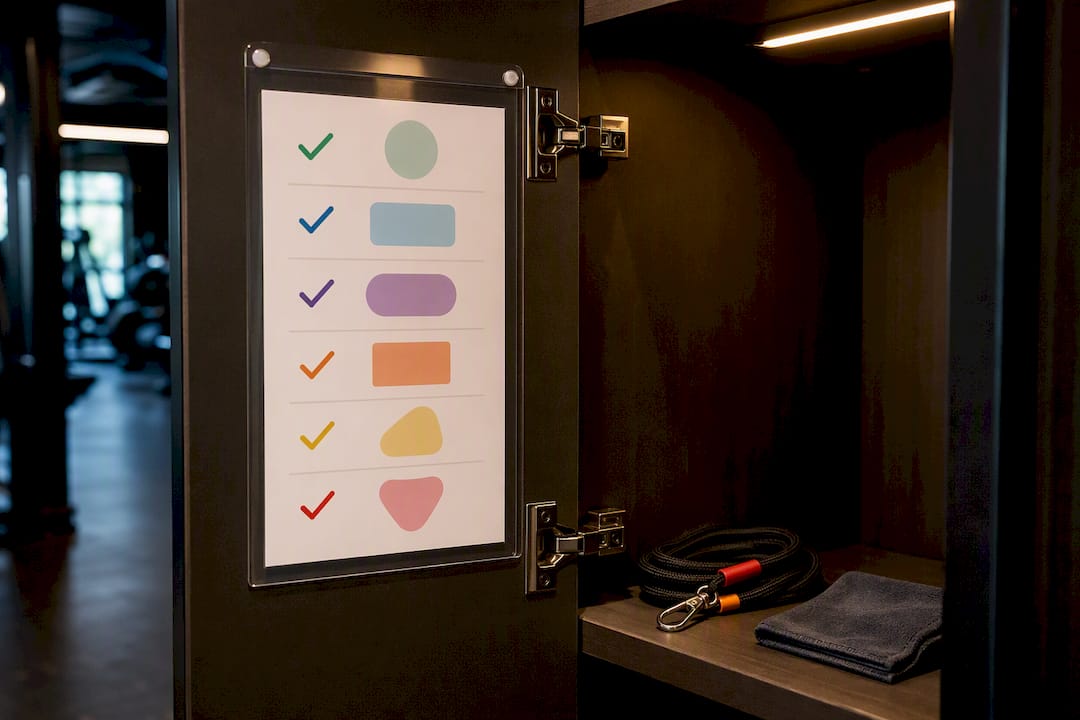
Pro Tip: Keep a laminated card with these six checks taped inside the equipment closet. New staff can run a spot check without waiting for IT.
What Should You Test Before Rolling Content Out Network-Wide?
A single working screen doesn't guarantee 12 locations will behave the same way. Before you push anything past a pilot site, validate these:
- Preview staged playlists at real playback speed and confirm transitions land where you expect, not just that the files are in the right order.
- Check for schedule conflicts. Day-parting rules that overlap will cause one playlist to silently override another, and expired content needs a firm end date, not a "someone will remember to remove it" plan.
- Simulate a network drop and confirm the player falls back to cached content instead of a black screen. Congested gym Wi-Fi is a routine cause of playback failures, which is exactly why local caching and offline playback matter more in a gym than in a quiet office lobby.
- Confirm integration depth matches what you're actually building. A real-time API connection can trigger check-in displays and live capacity counts, while CSV or widget integrations update on a delay, so test the actual latency, not just whether data shows up eventually.
- Set a screenshot sampling cadence, hourly during peak windows is reasonable, and decide how long you'll retain Proof of Play logs before archiving them.
Skipping the network-drop simulation is the most common shortcut operators take, and it's the one that produces the angriest member complaints when Wi-Fi hiccups during a Saturday morning class.
How Do You Verify Screen Content Remotely Across Locations?
You can't drive to every gym every week, so remote verification has to do the work your eyes would otherwise do. Track five metrics for every device: online or offline status, CPU and memory load, storage headroom, temperature, and firmware version. A device quietly overheating in a poorly ventilated equipment closet will fail weeks before anyone notices, unless something is watching.
- Schedule periodic remote screenshots, not just for troubleshooting but as a routine audit habit, and pull ad hoc previews before any promotional push goes live.
- Read your Proof of Play logs like a receipt: what played, on which screen, for how long. Remote screenshots paired with PoP logs are the standard way to confirm content actually ran, not just that it was scheduled to.
- Set automated recovery rules. Auto-restart and watchdog features cut down technician dispatches dramatically, because most freezes resolve with a scheduled restart nobody has to trigger manually.
- Build an escalation path with thresholds. If a device stays offline more than 15 minutes, who gets the alert, and through what channel?
Pro Tip: Review your Proof of Play logs weekly, not just when something breaks. Patterns in failed playback often show up days before a full outage does.
Testing Multi-Room Sync and Audio Behavior
A lobby screen and a studio screen showing the same class countdown a few seconds apart looks unprofessional, even when both are technically "working." Run a simultaneous-play test across rooms and compare timestamps to check for drift or jitter beyond what your platform tolerates.
- Sync verification. Play identical content on two screens at once and time the gap. Anything beyond a second or two is noticeable to members walking between rooms.
- Audio routing. Confirm directional studio speakers stay isolated from facility-wide ambient music, and physically walk the boundary between zones listening for bleed between rooms sharing a wall.
- Class transition simulation. Trigger an instructor substitution alert, a capacity warning, and a countdown timer, and watch how each displays across lobby and studio screens at the same time.
- Load testing. Run every check again during your actual peak hour, not a quiet Tuesday afternoon. Testing during real peak traffic reveals timing and network issues that a calm Wednesday morning simply won't expose.
Peak-hour testing is the step most operators skip, and it's the one that matters most. A network that handles 20 devices fine at 10 a.m. can choke at 6 p.m. when 200 members are streaming class check-ins at once.
What Do You Do When a Screen Test Fails?
Most failures fall into one of three buckets: network, device, or content. Isolating which one you're dealing with saves you from a wasted service call.
- Try the fast fixes first: remote reboot, clear the player cache, re-publish the playlist, or swap the HDMI cable if the picture is glitching but the player shows online.
- If a remote reboot doesn't fix it, run an offline playback test. If cached content plays fine but nothing pulls fresh data, you're looking at a network issue, not a device failure.
- Swap in a spare player at the same drop if you have one. If the new device shows the identical symptom, the fault is upstream, not the hardware.
- Before escalating to your vendor or IT team, gather the device ID, timestamps, a playback screenshot, the relevant PoP log entries, and any network trace you have. Vague reports get vague answers.
- Keep a pre-approved rollback playlist ready. If a promotional push goes out with a broken link or wrong pricing, you want a one-click way to pull it, not a scramble.
Pro Tip: Label your rollback playlist "Emergency Default" and test it once a quarter. A rollback plan nobody has actually triggered isn't a plan, it's a hope.
Why Testing Content on Screens Never Really Stops
Treat testing as a cycle, not a launch checklist. A new promotion or class format deserves a small pilot, a phased rollout to a handful of locations, and then a location-pair test before it hits every screen you manage.
Simple A/B comparisons, one location running the new content, a similar one running the old, tell you more about real impact on class fill or PT consult bookings than any before-and-after guess. Build content expiry dates and an automated freshness check into your publishing approval step. That single habit prevents most of the stale-screen complaints operators deal with long after launch.
— Kingdom
How Kingdom Signage Supports Every Step of This Checklist
Some platforms cut the number of tools you need for this entire process down to one dashboard. Instead of juggling separate apps for screenshots, schedule management, and tracking device health across locations, you can get remote screenshots, Proof of Play logs, multi-room sync, and booking-system integration in one place.
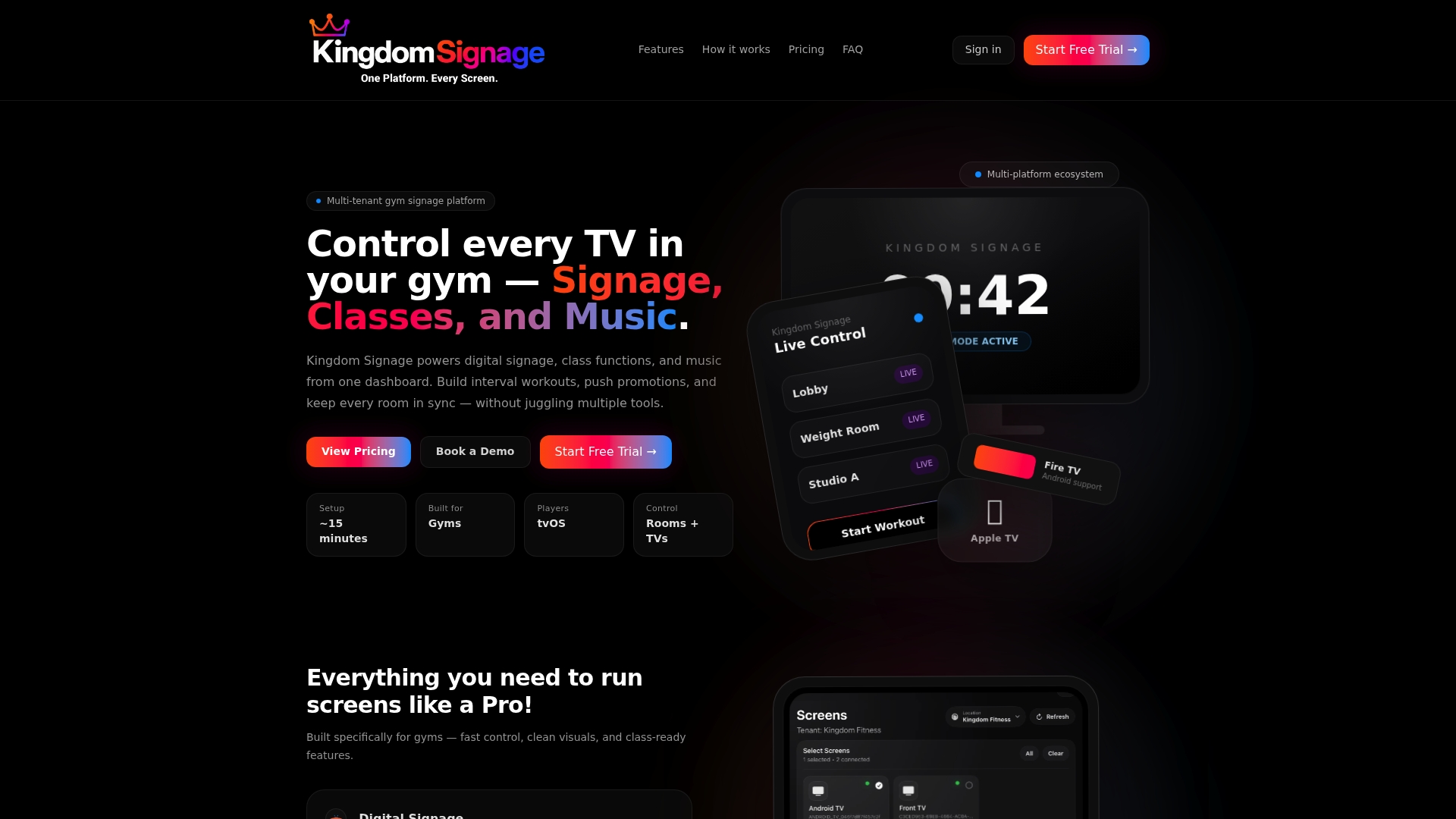
A demo often walks through features like live preview of any screen, remote reboot on demand, scheduled rollback for emergency content pulls, and setup support for running a pilot location before wider rollout. If you're managing signage and audio across more than one gym, coordinating room-based music and class transitions manually gets harder with every location you add. Book a demo of Kingdom Signage and see how a single dashboard handles the testing and monitoring your gyms actually need.
Sources
- Digital Signage for Fitness Centers and Gyms: Building Member Engagement and Secondary Revenue
- Complete Guide to Remote Management and Monitoring for Digital Signage