
Use your signage player or your OS to schedule screen on and off times, and add HDMI CEC or a managed power strip when you need a guaranteed low power state. Three methods cover almost every situation: a signage CMS using HDMI CEC for distributed displays, OS-level scheduling (Windows power settings plus Task Scheduler or scripts) for single workstations, and hardware power control (smart plugs or PDUs) when you need the screen fully off, not just dark.
Pick based on scale and certainty. A CMS handles dozens of screens across rooms with one dashboard. OS scheduling fits a lone monitor at a desk. Hardware control is the fallback when CEC is unreliable or when you need to cut power completely rather than just blank the panel.
- Many distributed displays: signage CMS with HDMI CEC scheduling
- Single workstation: Windows power settings + Task Scheduler
- Guaranteed power-off: smart plug or PDU
One catch trips up almost everyone: a software "screen off" command often leaves the backlight circuit energized. If you want true standby, you need an HDMI signal or mains-level toggle, not just a black screen.
Key Takeaways
Reliable screen power scheduling depends on matching the method to your scale and pairing software timers with a hardware or signal-level toggle whenever true power-off matters.
| Point | Details |
|---|---|
| Match method to scale | Use OS scheduling for one workstation, a CMS for many distributed screens, hardware for guaranteed off. |
| Software off isn't standby | Backlights often stay powered after a software screen-off; use HDMI CEC or mains control for real savings. |
| Sequence boot before power | Delay display power by 60 to 120 seconds so players connect first and avoid no-signal screens. |
| Test the failure case | Run a live test and disconnect the network to confirm the schedule survives, not just that it saved. |
| Gyms need schedule-aware tools | Kingdom Signage ties screen power to class times and room audio from one dashboard, avoiding manual switching. |
Table of Contents
- What You Need Before You Start (Compatibility Checklist)
- How Screen Power Scheduling Actually Works (Signal vs. Software)
- Practical Setup Methods You Can Apply Today
- Hardware Control: Smart Plugs, PDUs, and Wake Sequencing
- Configuration Checklist and Common Troubleshooting Steps
- How a Multi-Screen Gym Platform Approaches Power Scheduling
- The Gap Between "Scheduled" and "Actually Reliable"
- Coordinate Screen Power With Your Class Schedule, Not Against It
- Sources
What You Need Before You Start (Compatibility Checklist)
Before building any schedule, verify the basics. Skipping this step is the most common reason schedules silently fail.
- Confirm HDMI CEC support. Manufacturers rename it constantly, Samsung calls it Anynet+, LG calls it SimpLink, Sony calls it Bravia Sync. Check the display's port list, since CEC often works on only one specific HDMI input.
- Confirm remote management access. Your signage player needs admin rights and a live connection to its CMS, or the schedule never reaches the device. A player sitting offline won't receive or execute a new schedule.
- Check your power hardware ratings. Smart plugs and PDUs carry amperage limits, and pairing them with a UPS can create conflicts if both try to control the same outlet.
- Review OS power policies. Group Policy or a stricter power plan can silently override a scheduled task, so check for conflicting settings before you assume the schedule is broken.
Pro Tip: Test CEC on a single display before rolling out a fleet-wide schedule. Some panels only respond to CEC commands from the exact port label the manufacturer assigned, not the port you plugged into.
How Screen Power Scheduling Actually Works (Signal vs. Software)
There are two very different things happening under the hood, and confusing them is why schedules "work" but don't actually save power.
Software-level screen off (Windows sleep, a CMS "blank screen" command) tells the OS or app to stop sending video output. The GPU and OS may drop into a low-power state, but the monitor's backlight and internal electronics can stay fully powered, waiting for a signal. That's fine for quick idle periods. It's not fine if your goal is actual energy savings overnight.
HDMI CEC lets a connected player send an explicit power-on or power-off command straight to the display over the same cable carrying video, which is how most signage CMS platforms handle weekly schedules. It's more thorough than software blanking, but CEC implementations vary by brand and sometimes just don't respond.
Hardware power control (a smart plug or PDU) cuts mains power outright. It's the only method that guarantees zero draw, but it skips the display's graceful shutdown sequence, which over years of daily cycling can add wear the manufacturer didn't design for.
- Software off: fast, reversible, backlight may stay energized
- CEC: purpose-built for exact this, brand-dependent reliability
- Hardware cutoff: guaranteed off, no graceful shutdown
Adaptive, interaction-aware display strategies that adjust brightness and behavior based on actual usage patterns can outperform fixed timer schedules for pure energy efficiency, though they require more setup than a weekly on/off timer.
Practical Setup Methods You Can Apply Today
For a single Windows workstation:
- Open Settings > System > Power & Battery and set your screen and sleep timers. Windows 11's Energy recommendations tool flags settings with outsized impact and suggests shorter defaults than most people run.
- For a specific schedule (say, monitor off at 6 PM regardless of activity), open Task Scheduler and create a task that runs a small script or a
nircmd/PowerShell command to force the display off at a fixed time. - Remember session limits. A scheduled task tied to a specific user login may not fire if nobody's signed in, so run it as SYSTEM or set "run whether user is logged on or not."
For distributed signage screens:
Most CMS platforms expose weekly recurring schedules right in the player settings, turning HDMI CEC signals on and off at set times without any scripting. The catch: the player itself must be online and powered at the scheduled moment, or the command never reaches the display.
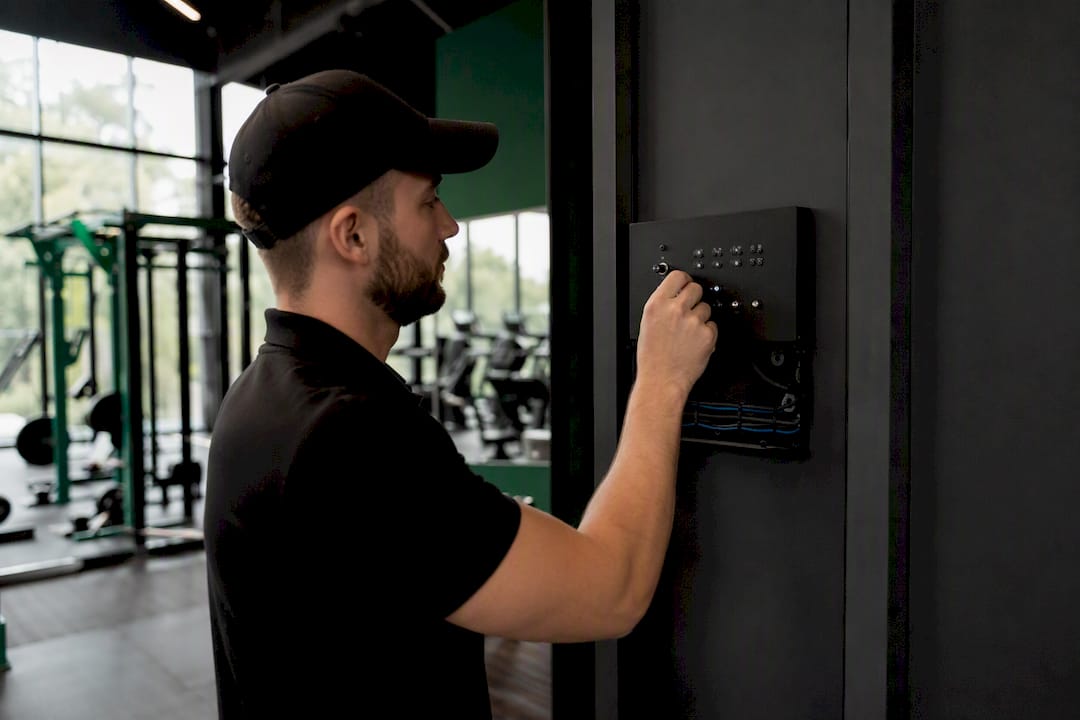
Decision rule: one workstation, use OS scheduling. A dozen screens across rooms, use the CMS. If CEC keeps failing or you need certainty, add hardware control.
Pro Tip: Schedule a test window during low-traffic hours before trusting a new schedule fleet-wide. A five-minute test catches port-mapping errors that would otherwise show up as a dark screen during business hours.
Hardware Control: Smart Plugs, PDUs, and Wake Sequencing
Smart plugs work fine for one or two displays. A managed PDU (power distribution unit) is the better call for an AV rack with multiple players and screens, since it gives you per-outlet control and monitoring instead of one all-or-nothing switch. Check amperage ratings before wiring anything, most residential smart plugs aren't rated for the inrush current of several large panels switching on simultaneously.
Sequencing matters more than most people expect. If the display powers on before the player has booted and connected to its CMS, you get a "no signal" screen sitting there until someone notices. Build in a delay, typically 60 to 120 seconds, so players come up first and register with the management channel before the display power stage triggers.
- Smart plugs: fine for one or two screens, budget-friendly
- Managed PDUs: per-outlet control, better for racks with multiple devices
- Boot delay: stagger player power before display power to avoid no-signal screens
A few safety notes worth flagging: check manufacturer guidance on power-cycling frequency, since some panels aren't designed for daily hard cutoffs. Watch for conflicts if a UPS is already managing the same outlet, and keep the rack ventilated if you're adding relay hardware that generates its own heat.
Configuration Checklist and Common Troubleshooting Steps
Run through this before declaring a schedule "done":
- CEC enabled on the display, and confirmed on the exact HDMI port you're using
- Player or PC confirmed online in the management dashboard, not just plugged in
- Timezone and daylight saving settings correct, since a schedule that's off by an hour is the top cause of confused support tickets
- A live test run during a low-impact window, not just a saved schedule you assume works
If a schedule fails: check the device logs first, then confirm the CEC device name mapping matches what the CMS expects. Test one device in isolation before blaming the whole fleet. If CEC simply won't cooperate on a stubborn panel, fall back to hardware control rather than fighting the display firmware.
Pro Tip: Keep a one-page log of which HDMI port and CEC name each display actually uses. Six months later, nobody remembers, and that log saves a service call.
Escalate to vendor documentation or AV support if a specific panel model keeps refusing CEC commands after a firmware check, some models simply have buggy implementations.
How a Multi-Screen Gym Platform Approaches Power Scheduling
Coordinating screens in a gym is harder than a typical office because the schedule has to track class times, not just a fixed clock. A screen that goes dark mid-spin-class because a timer fired early is a bigger problem than a dark monitor at an empty desk.
Kingdom Signage ties screen power state to the actual class schedule and audio zone, so a room's display comes on ahead of the first class and powers down after the last one, without a staff member remembering to flip a switch.
The operational payoff shows up in two places: lower energy draw across rooms that sit unused for hours between classes, and fewer front-desk interruptions from a screen that didn't turn on. You can see how the dashboard coordinates multiple rooms in practice.
The Gap Between "Scheduled" and "Actually Reliable"
Most guides treat screen power scheduling as a solved problem: set a timer, walk away. That's the conventional advice, and it's exactly why so many facilities end up with a screen showing "no signal" during the first ten minutes of a class, or a monitor that never actually enters standby despite a schedule that claims it did.
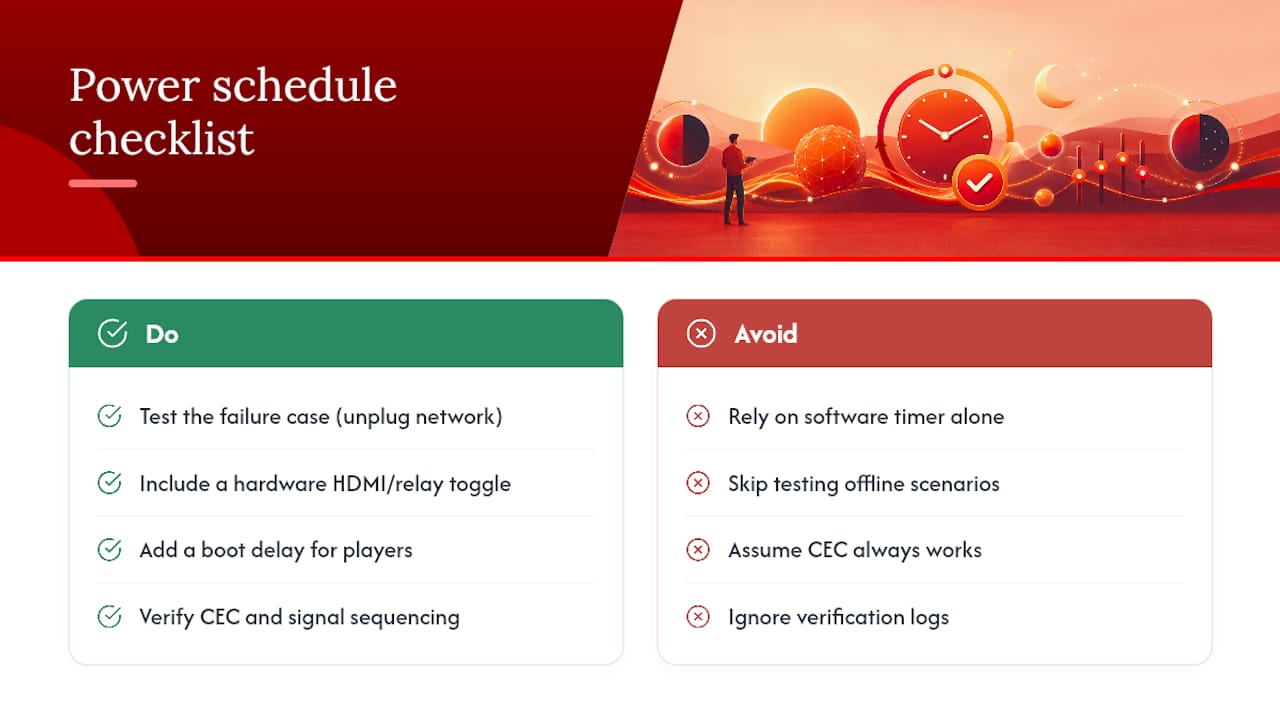
The real work isn't the schedule itself, it's the sequencing and the verification. Software screen-off without a hardware or HDMI signal toggle is a half-measure that looks done but isn't. A CEC schedule without a boot delay for the player is a schedule that fails exactly when someone's watching. Neither failure shows up until you're standing in front of a dark screen wondering why the automation didn't work.
If you take one thing from this guide, prioritize testing the failure case, not the success case. Run the schedule once, then unplug the network cable and see what happens. That's the scenario that actually breaks deployments, not the happy path everyone tests by default.
Coordinate Screen Power With Your Class Schedule, Not Against It
Generic screen scheduling tools handle on and off times fine. What they don't handle is knowing that Room B has spin at 6 AM and yoga at 7 PM, and that the screen, the audio, and the promotional content all need to shift together without a staff member touching anything.
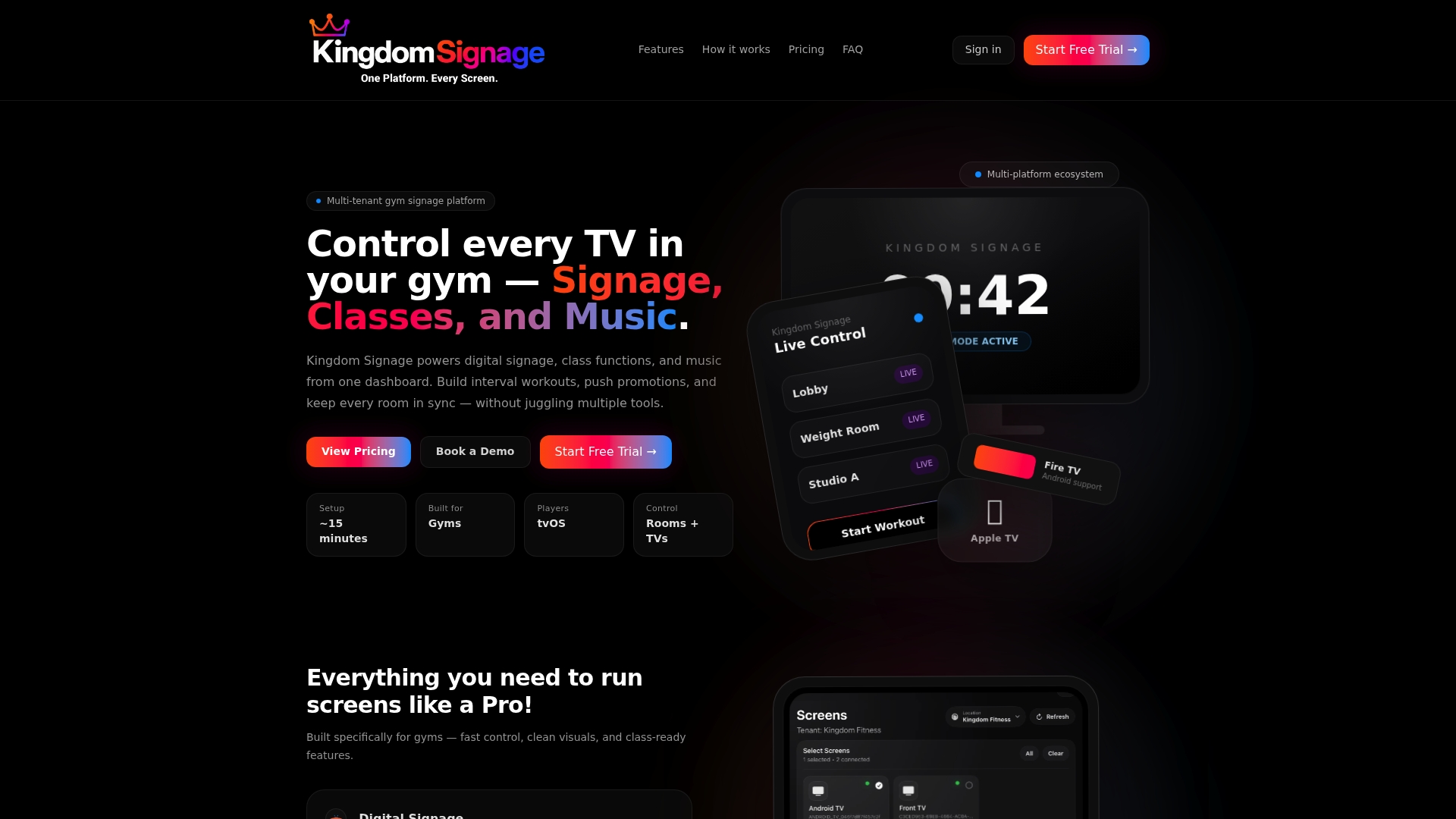
Kingdom Signage was built for exactly that gap. It syncs screen power, class content, and room audio from a single dashboard, so a display wakes up before the first class of the day and powers down after the last one across every room you manage. Gym operators running multiple screens and multiple rooms get one schedule instead of juggling separate CEC settings, separate audio zones, and separate promo rotations for each space. If you're managing more than a couple of screens, check the Kingdom Signage dashboard and book a demo to see how your specific room layout would map onto it.
Sources
- Power settings in Windows 11 | Microsoft Support
- Display energy optimization research — MDPI Energies
- How to use scheduling to turn the screen on, off, and restart. — Advantech WISE Learning Hub