
Yes, an Amazon Fire TV device can run digital signage. You plug it into a TV's HDMI port, install a signage app that has a Fire OS version, and manage the content from a cloud dashboard. For one lobby screen that is a fast, low-cost start. For a gym with several rooms, classes, timers and music, the question shifts from "can the stick play a slideshow?" to "how do I run every screen and speaker without juggling tools?" This guide covers both.
TL;DR
- Fire TV devices can run signage, but only through software that has a Fire OS build. A generic streaming app is not a signage system.
- Amazon sells a purpose-made Signage Stick for $100, $40 more than the Fire TV Stick 4K Max, and it works with a long list of signage platforms.
- The player is only half the job. Schedules, playlists, remote updates and multi-room control come from the software you pair it with.
- Gyms need class timers, promotions and room-by-room music, so plan for a platform built around those workflows.
- Plan for always-on use: stable Wi-Fi, a proper power adapter, and a routine for restarts and updates.
Table of Contents
- Can a Fire TV run digital signage?
- Fire TV Stick or Amazon Signage Stick?
- How to set up signage on a Fire TV
- What content should gym screens show?
- Planning for an always-on screen
- Running several screens and rooms
- Can Fire TV sync audio and visuals across rooms?
- When a Fire TV alone is enough, and when to add a platform
- One dashboard for screens, classes and music
- A practical rollout plan
- FAQ
- Sources
Can a Fire TV run digital signage?
A Fire TV Stick is a small Android-based media player. Fire OS is Amazon's version of Android, so signage vendors can build apps for it and list them in the Amazon Appstore. Once the app is installed, the stick behaves like a dedicated player: it pulls your playlist from the cloud and displays it full screen.
Three things decide whether a given Fire TV device will work for you:
- The software has a Fire OS app. If the signage vendor does not publish one, the stick cannot run it, however good the hardware is.
- The model is current enough. Newer sticks have more memory and faster processors, which matters for HD video loops and animated class schedules. Before buying, check that the vendor's app lists your exact model, because Amazon has been moving some newer devices to a different operating system.
- The screen has an available HDMI port and a place to hide the stick and its power cable.
If you already own Fire TV Sticks or have Fire TV built-in TVs, you have a head start. If you are buying new, compare the standard stick with Amazon's dedicated signage hardware.
Fire TV Stick or Amazon Signage Stick?
Amazon launched the Signage Stick in December 2024 as a version of Fire TV hardware aimed at businesses. According to Pocket-Lint's report, it costs $100 in the US, which is $40 more than the Fire TV Stick 4K Max, and it integrates with more than 25 signage providers, including ScreenCloud, AbleSign, NoviSign, Rise Vision and Yodeck.
Here is how the decision usually breaks down for a gym:
| Situation | Better fit |
|---|---|
| One or two screens, tight budget, testing the idea | Standard Fire TV Stick you already own or can buy cheaply |
| Many screens, screens on all day, staff who will not troubleshoot | Hardware designed for signage |
| Screens across several rooms or locations | Either, as long as the software manages every device from one place |
| Screens that already have a built-in player or smart-TV apps | Software that works on the screens you have, so you avoid buying hardware |
Notice what the table leaves out: the stick is rarely the expensive part. Over a year, the software plan, replacement screens and staff time usually outweigh a $60 or $100 player. Our breakdown of first-year gym signage costs walks through those numbers.
How to set up signage on a Fire TV
The exact screens differ by vendor, but the sequence is the same.
- Choose your software first. Confirm it has a Fire OS app and that it supports the features you need: scheduling, playlists, remote updates and multiple screens.
- Connect the stick. Plug it into the HDMI port and power it with the wall adapter that comes with it, not the TV's USB port, which can be unreliable for screens that run all day.
- Join Wi-Fi. Use the strongest network you have. If the screen is far from the router, consider a wired adapter or a mesh node nearby.
- Install the signage app from the Amazon Appstore and open it. It will show a pairing code or screen ID.
- Pair the screen in the web dashboard by entering that code. Name the screen after its room, such as "Studio A" or "Front desk", so you can find it later.
- Build and publish a playlist. Upload images and video, set how long each item shows, then assign the playlist to the screen.
- Set the orientation and overscan so nothing is cut off, especially for portrait posters.
- Walk the floor. Stand where members stand and check that text is readable from the treadmills, the squat racks and the lobby.
Our guide to setting up gym digital signage that works covers placement and content choices in more depth.
What content should gym screens show?
A player only displays what you feed it. In a gym, the content that earns its screen time is specific:
- Class schedules that update when an instructor swaps or a class is cancelled.
- Workout timers with demo videos, so a class sees the movement while the clock runs.
- Promotions for personal training, memberships, retail and referral drives.
- Announcements for closures, new equipment and community events.
- Front desk and lobby messages that answer the questions staff keep repeating. See our notes on front desk signage essentials.
Most general signage apps handle the first and third items well, since a schedule and a promo are just images or slides. Timers synced to a class, and content that changes by room, are where general tools start to require workarounds.
Planning for an always-on screen
A living-room stick is used a few hours a day. A gym screen runs from opening to close, often 15 to 18 hours. Plan for that:
- Power. Use the supplied adapter and a surge-protected outlet.
- Heat. Sticks tucked behind a TV can run warm. Leave airflow and use the short HDMI extender if the ports are cramped.
- Wi-Fi. Gym floors have a lot of metal and many phones. Put an access point near the screens or use wired connections where possible.
- Screen on/off. A stick may not switch the TV on and off by itself, so set the TV's own sleep timer or a smart plug schedule to avoid screens glowing all night.
- Updates. Streaming devices can show update prompts or restart on their own. Check each screen weekly, and keep a note of which stick sits behind which TV.
- Offline fallback. Choose software that caches the playlist locally, so a Wi-Fi drop does not turn a screen black.
- Security. Use a strong account password, turn on two-step sign-in where offered, and limit who can publish to screens.
Running several screens and rooms
One screen is a hobby. Five screens in three rooms is an operation. Here is what changes as you grow.
Naming and grouping. Group screens by room or purpose (lobby, cardio, studio, locker area) so one upload reaches the right set.
Different content per room. The studio should show the class timer, the cardio area a schedule and a promo loop, the lobby a welcome message. If your software cannot assign content by group, you will end up maintaining separate accounts.
Multiple locations. Franchise and multi-site owners need one login that can push a brand-wide promotion everywhere and still allow each club its own schedule. Our multi-location poster playbook shows how teams organize that.

Roles. Front desk staff may update announcements. Marketing manages promotions. Instructors control timers. Make sure the platform can separate these.
Can Fire TV sync audio and visuals across rooms?
This is the question most Fire TV guides skip. A Fire TV stick outputs video and audio to the TV it is plugged into. It is not a multi-room audio system. Syncing a class video to the studio speakers while the cardio floor plays a different playlist means you need a layer above the player: software that treats each room as a zone and sends the right audio and visuals to it.
In practice that requires:
- A zone for each room in the software, with its own screen group and its own audio source.
- Audio hardware in each room, such as an amplifier or powered speakers that accept the audio feed. The TV's built-in speakers rarely fill a studio.
- Licensed music. Gyms playing music publicly need the appropriate licensing in the US. Check with your music provider and the performing rights organizations, and confirm what your music service covers before you play it in a business.
- One place to control it all, so an instructor does not need three remotes and two apps to start a class.
The point is that signage and sound are one experience for members. Treating them as separate tools is what creates mismatched screens and the awkward moment when a class starts and the wrong playlist is still running.
Our perspective
We built Kingdom Signage because we kept seeing the same pattern in gyms: one tool for the TVs, another for the class timers, a third for music, and a front desk employee who knows how to operate none of them. Each tool is fine on its own. Together they cost time, and time is what a studio owner has least of.
A Fire TV stick is a good way to get pixels onto a screen. But a gym does not need pixels, it needs the right content, in the right room, at the right minute, with the right sound under it. That is why we designed our platform around the gym day: class schedules, workout timers with demo videos, room-based music, real-time announcements and promotions, all managed from a single dashboard.
We also designed it to work with the screens you already have, across as many locations as you run, so growth does not mean replacing hardware or adding another subscription. When members see a smooth class transition and a clear promotion on the way out, they notice. Our aim is for that experience to support engagement and, over time, retention.
Kingdom
When a Fire TV alone is enough, and when to add a platform
A stick plus a basic signage app can be enough when you have one or two screens, mostly static content, and nobody needs music or timers tied to the same system. Many small studios begin there, and it is a sensible way to learn what content your members respond to.
A gym-specific platform starts paying off when any of these are true:
- You manage more than two rooms or any second location.
- Instructors run timed classes and need demo videos on screen.
- You want music zones that match the screens in each room.
- Several people update content and you want a single, simple dashboard.
- You need announcements to appear in real time, not at the next playlist refresh.
If you are comparing options, our explainer on what cloud-based gym signage is shows how a cloud dashboard replaces USB drives and per-device setup. For promotional content specifically, see how class promotions display on gym TVs.
One dashboard for screens, classes and music

Kingdom Signage is a subscription platform for gyms and fitness studios. It brings TV screens, class scheduling, workout timers with demo video support, room-based music and real-time announcements into one dashboard, with multi-room and multi-location management built in. It works with existing screens, so you can start without replacing hardware.
It is billed per location, monthly or annually, and you can begin with a free trial or demo. See how it fits your floor plan on the Kingdom Signage site.
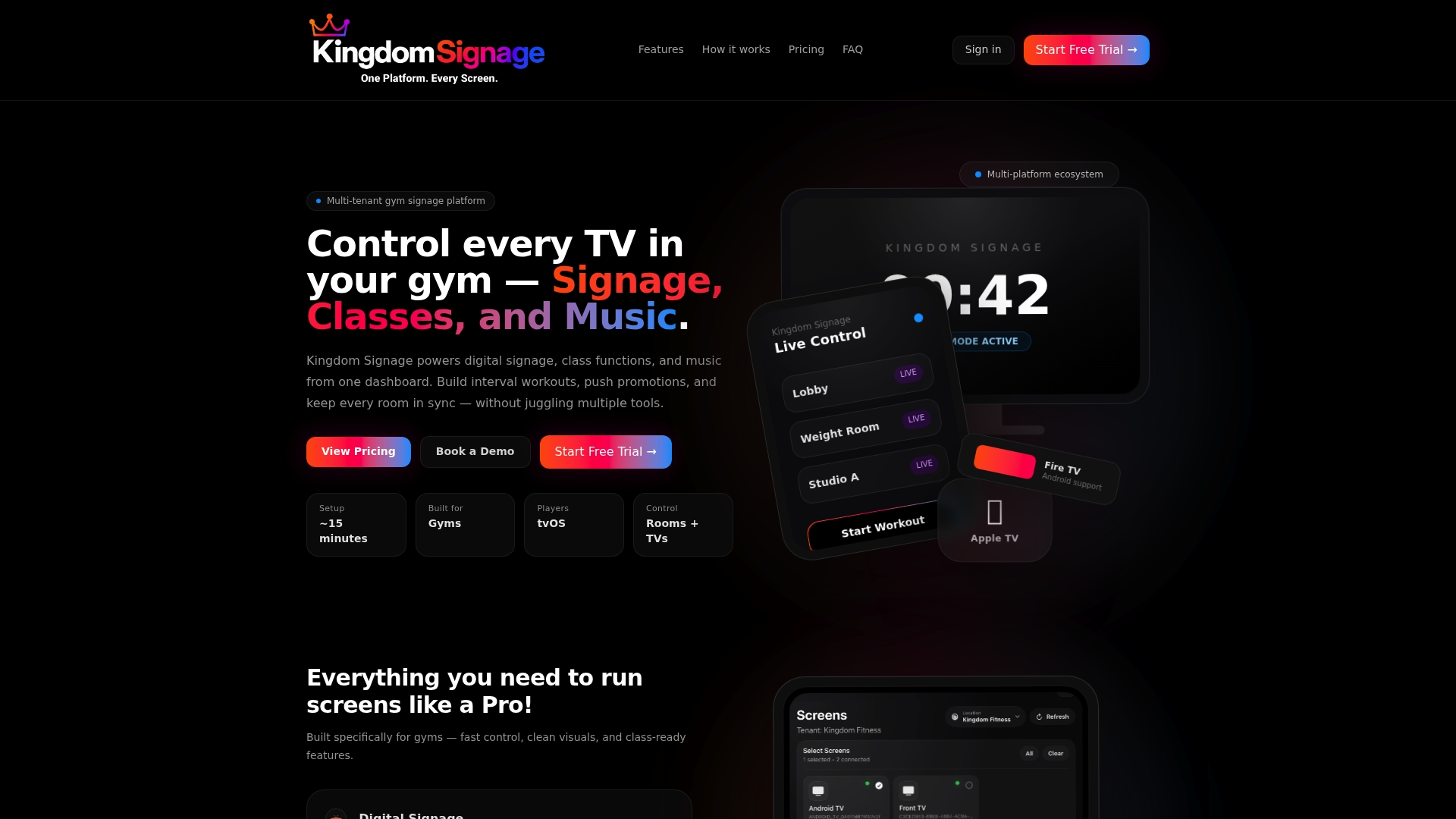
If you manage a small boutique studio, a single gym or a franchise, the same dashboard scales from one room to every location you run.
A practical rollout plan
Whether you go with Fire TV hardware or not, this order avoids rework:
- Map your rooms. List every screen and speaker, who uses it and what it should show.
- Define your content calendar. Weekly class schedule, monthly promotion, standing announcements.
- Pilot in one room. Run it for two weeks, and ask instructors and front desk what they would change.
- Roll out by zone. Add rooms in the order that gets the most member attention first, usually the lobby and main studio.
- Assign owners. Decide who updates what, and how often.
- Review monthly. Look at which promotions drove sign-ups and which screens nobody reads.
FAQ
Can I use any Fire TV Stick for digital signage?
Only if your signage software publishes an app for your stick's operating system. Most vendors support Fire OS devices, but newer Amazon devices may run a different operating system, so check your exact model against the vendor's compatibility list before buying.
How much does Fire TV digital signage cost?
Hardware is the smaller part. Amazon's Signage Stick is $100 in the US, $40 above the Fire TV Stick 4K Max. Then add the software plan, which is usually priced per screen or per location, plus any music or extra-screen options.
Can Fire TV play different content on different screens?
Yes, when each stick is paired to a signage account and the software lets you assign playlists per screen or group. The stick itself has no say in this: the dashboard decides what each screen shows.
Does Fire TV handle music for my gym?
A stick sends audio to the TV it is connected to, but it does not manage rooms or zones. For different music in each room, use software that supports room-based music and speakers or amplifiers in each space, and confirm your music licensing covers business use.
Do I need to replace my existing TVs?
No. Any TV with an HDMI port can show signage, and a platform that works with your existing screens avoids new hardware costs.