
Yes, you can use a Roku as a digital sign. Plug a Roku player into a TV, install a signage app from the Roku Channel Store, then upload images and videos from a web dashboard and pair the screen with an on-screen code. It takes under an hour and the player costs little. For a gym or studio, the real question is what happens when one screen becomes four, then twelve across two locations. This guide covers the setup, the hardware, the costs and how to run many screens without walking between them.
TL;DR
- A Roku player plus a signage app from the Roku Channel Store turns a TV into a sign. You pair it with a code and manage content from a browser.
- A Roku Ultra is the sensible pick for business use because it has an Ethernet port, which gives a steadier connection than Wi-Fi.
- Roku was built for streaming, not for 24/7 display. It has no native remote reboot or central dashboard for many screens.
- Gyms get the most from screens that mix class schedules, promotions and community content, and that update from one place.
- If you run several rooms or locations, a platform that controls screens, class timers and room music together saves the most time.
Table of Contents
- Can a Roku really work as a digital sign?
- What you need before you start
- How to set up digital signage on Roku, step by step
- What should the screens show in a gym?
- Where Roku starts to struggle
- How to manage many screens remotely
- Roku, Fire TV, Android or a smart TV?
- Locking down the screens
- Perspective: why gyms need more than a channel on a stick
- Run every screen from one dashboard
- Tips that apply on any player
- FAQ
- Sources
Can a Roku really work as a digital sign?
It can. The Roku Channel Store carries several signage apps that let you upload images, videos and playlists and show them on any TV connected to a Roku device. One industry overview calls it one of the most budget-friendly ways to get custom content on a business screen.
The model is simple. The Roku runs a small app. The app asks a cloud service what to show. You change the content in a web dashboard, and the screen follows. You do not need a media server or a PC behind the TV.
That is why a Roku suits a front desk menu board, a single lobby screen or a small studio with one wall display. It is also where the limits start to show, which we cover below.

What you need before you start
Keep the shopping list short:
- A TV with an HDMI port. Any modern TV works, and a Roku TV has the software built in.
- A Roku player. Express, Streaming Stick or Ultra all run channels.
- A network connection. Wi-Fi works. Wired is better for a screen that must never go blank.
- A free Roku account. You need it to add channels.
- A signage app and its web account. This is where you build and schedule content.
The overview of Roku signage setups recommends the Roku Ultra for business use because of its Ethernet port. A wired link means a Wi-Fi hiccup in a busy room will not blank your promotion mid-class.
What the hardware costs
Roku hardware is cheap, and sale prices are lower still. During a sale reported in February 2025, the Roku Express HD was $18, the Streaming Stick 4K was $39 and the Roku Ultra was $78. Regular prices differ, so check Roku's own store before you buy.
The player is the smaller part of the bill. Signage software is usually billed per screen per month, and a gym with eight screens feels that more than the $18 stick.
Power matters more than you think
Roku suggests using a wall outlet instead of the TV's USB port if the player shows a low-power warning or restarts by itself. TV USB ports often cannot supply enough current, and an underpowered player behaves like a slow one. In a gym, where screens run all day, use the included power adapter from the start.
How to set up digital signage on Roku, step by step
- Connect the player. Plug the Roku into an HDMI port. Connect it to power with the wall adapter, and to your network by Ethernet or Wi-Fi.
- Sign in. Follow the on-screen prompts and log in with your Roku account.
- Install a signage app. From the Roku home screen, go to Streaming Channels, then Search Channels, type the name of your signage app and add it. This is the route described in this setup walkthrough.
- Open the app and note the code. A pairing or activation code appears on the TV.
- Log in to the web dashboard from a computer. Upload images or videos, arrange them into a playlist and set the schedule.
- Enter the code. The dashboard links the screen to your account and the content appears.
- Check it at viewing distance. Stand where members stand. Text that looks fine on a laptop is often too small from the treadmills.
To keep a screen from interrupting itself, turn off screensavers and any sleep timers in the Roku and TV settings. Set the TV to power on and return to the right input after an outage.
What should the screens show in a gym?
A looping slideshow of the same five images gets ignored within a week. Gyms get more from a mix of three kinds of content: operational information such as class timetables and notices, commercial content such as memberships and personal training offers, and community content such as milestones and challenges.
Here is how that plays out by location in the building:
| Screen location | Best content | Update pattern |
|---|---|---|
| Entrance and front desk | Today's classes, hours, new member offers | Daily |
| Cardio and weights floor | Workout of the day, form tips, promotions | Weekly |
| Studio or class room | Workout timer, demo videos, interval cues | Per class |
| Café or lounge | Events, retail products, referral offers | Weekly |
Our guides on front desk signage essentials and setting up gym digital signage that works go deeper on what to put where.
A realistic week of content
On Monday, the entrance screen shows the week's class schedule and a short new-member offer. On Thursday evening, it switches to a challenge leaderboard. The floor screens rotate between a short exercise demo, a personal training package and a reminder about the weekend schedule. The studio screen runs the timer for each class, with a demo video for the next movement.

The point is that scheduling does the work. You set the pattern once, and screens change by time of day without anyone standing on a chair with a remote.
Where Roku starts to struggle
A Roku is a streaming player. It was designed for people who watch things for a few hours a day, not for a screen that runs from open to close, every day. The limitations are worth knowing before you buy ten of them:
- Limited background app management. The device is not built for always-on business display.
- No native remote reboot. When a screen freezes, someone walks over and fixes it.
- No central dashboard across devices. Each Roku is managed through whichever signage app it runs, not through Roku itself.
- Content restrictions. Some apps do not support every media format or live data feed.
These points come from the same overview of Roku signage, which concludes that Roku works well for light single-screen setups, while multi-screen or high-uptime deployments often need a different kind of player.
If a Roku does freeze, restart it properly. A real restart means removing power for at least 10 seconds, not pressing a power button, as this troubleshooting guide explains. Note the same guide says the newer Roku home screen is heavier than the one it replaced, so older, cheaper players may feel slower over time.
How to manage many screens remotely
This is the question that matters once you have more than two TVs. A signage app on each Roku lets you update that one screen from the web. It does not give you one view of the whole building, and it does not know what a class is.
What a multi-screen gym needs is:
- One dashboard for every screen. You change a promotion once and it appears everywhere you choose.
- Groups. Floor screens, studio screens and front desk screens each follow their own playlist.
- Scheduling. Morning class promotion, evening challenge, closed-hours message.
- Roles. The marketing manager edits promotions. The instructor controls the class timer. Neither can break the lobby screen.
- Multi-location control. Brand consistency across sites without emailing PDFs to each manager.
We cover this in depth in how gym owners control multiple screens effectively and in the dashboard guide for managing multiple gym TVs. For the cloud side of it, see what cloud-based gym signage is.
Rooms, not just screens
A gym is not a restaurant. The studio needs a timer and demo videos that match the class. The same room needs the right music at the right moment. The lobby needs a different message than the weight room. When screens, timers and audio live in separate tools, someone ends up juggling three apps at 5:45 a.m.
That is the gap we built Kingdom Signage to close. More on that below.
Roku, Fire TV, Android or a smart TV?
You do not have to pick one device for everything. Compare the types on what matters to a gym:
| Player type | Strength | Watch for |
|---|---|---|
| Roku stick or box | Low cost, simple setup, familiar remote | No native device management, built for streaming |
| Roku Ultra | Ethernet port, steadier connection | Still one device per screen to manage |
| Dedicated Android media player | Built for always-on use | Another device type to buy and learn |
| Amazon Fire TV device | Wide app support | Consumer-focused software on some models |
| Smart TV with built-in app | No extra box | Tied to the TV brand and its age |
The Roku signage overview suggests a dedicated Android media player or a Fire TV Cube is often a better fit for multi-screen or high-uptime deployments. The right answer for you is the one that lets a single person run every room.
Locking down the screens
Members touch things. Kids press buttons. A screen that drops into a streaming menu looks careless. Whatever player you use, set the TV to return to the signage app after a power cut, disable the sleep timer and hide the remote at the front desk. For IT managers running larger rollouts, our kiosk mode checklist covers the locked-down setup in detail.
Perspective: why gyms need more than a channel on a stick
We built Kingdom Signage because gyms do not run on slides alone. A gym runs on timing: the class starts at 6:00, the timer needs to be up, the music needs to change, the promotion for the next session should be on the front desk screen before the members arrive.
A single-screen signage app can show a picture. It cannot coordinate a building. When owners tell us about their setup, the story is usually the same: one tool for the TVs, another for the music, a third for the class timers, and a staff member who knows how they all fit together. When that person is off, the screens go stale.
Our view is that the screens you already own should be controlled from one dashboard, across rooms and across locations. That is why we focus on unified control of signage, class schedules, workout timers with demo videos, room-based music and real-time announcements, without replacing hardware you have already paid for.
Consistent, current screens do a quiet job. Members see what is on today, they see what is on offer, and they feel the place is looked after. We think that is what supports engagement and, over time, retention.
Kingdom
Run every screen from one dashboard
If you are setting up a Roku today, you can treat it as a starting point. When you are ready to manage classes, promotions and music across rooms or locations, Kingdom Signage is a subscription platform for gyms and fitness studios, billed per location, with a free trial or demo to begin.
With it you can update content for multiple TVs, run workout timers with demo video support, sync room-based music and push real-time announcements from one place. It is designed to work with the screens you already have, across as many locations as you run.
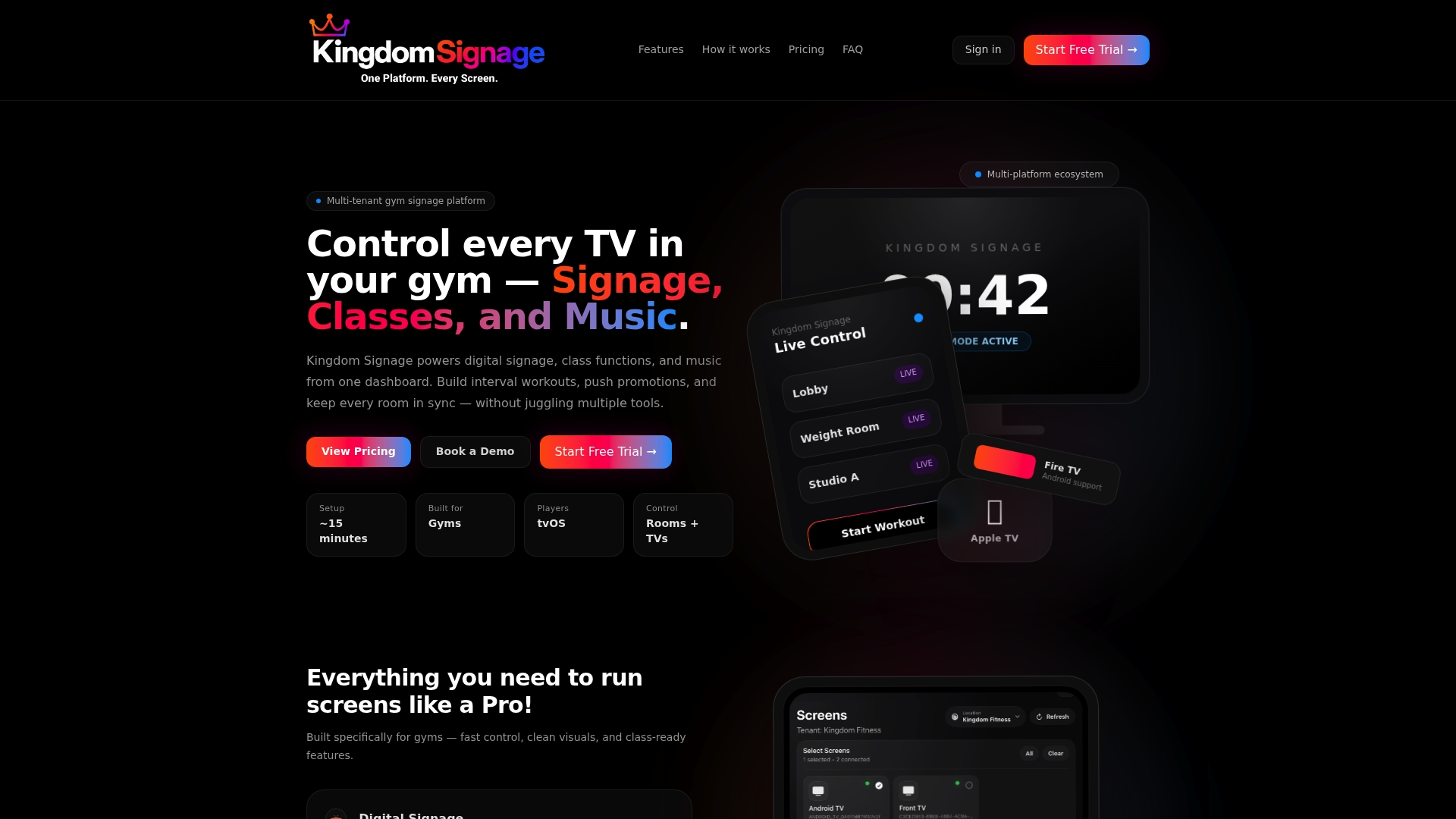
See how Kingdom Signage works at kingdomsignage.com and start with a demo. If you want to know how remote control works in practice, read our guide to remote gym display management.
Tips that apply on any player
- Design for distance. Use large type, short lines and high contrast. Two lines beat a paragraph.
- Use motion sparingly. A short exercise demo catches the eye. A constant carousel does not.
- Match content to the moment. Show the class that starts next, not a list of every class this week.
- Keep branding consistent. Colors, fonts and tone should match across screens. Our brand consistency guide shows how.
- Let instructors help. A class timer the instructor can control keeps sessions on time. See instructor remote control of gym screens.
- Think in posters. For short campaigns, digital posters across locations are quicker than reprinting.
- Audit weekly. Walk the floor once a week and look for stale content, a blank screen or a wrong input.
FAQ
Can any Roku TV be used for digital signage?
Most Roku devices and Roku TVs can run signage apps from the Roku Channel Store. You install the app, pair it with a code and manage content from a web dashboard. For a business, a Roku Ultra with a wired connection is the steadier choice.
Do I need a special Roku for business use?
No special model is required. A cheaper Express or Streaming Stick will run signage apps, but the Roku Ultra adds an Ethernet port for a stable connection. Use the wall power adapter rather than the TV's USB port to avoid restarts.
How do I update several Roku screens at once?
Roku has no built-in central dashboard, so updates happen through whichever signage platform you use. Pick one that groups screens and schedules content, so one change reaches every room. A gym-focused dashboard also lets you control timers and music from the same place.
Is Roku good enough for a gym with many screens?
For a single lobby screen, it works well. For many screens that run all day, you want remote control, scheduling and grouping in one dashboard. That is the job Kingdom Signage is built for, using the screens you already own.
Sources
- Digital Signage on Roku: Apps, Setup, and Limitations
- Roku Slashes Pricing on Its Best Streaming Devices
- Roku Running Slow? 7 Fixes That Actually Work in 2026