
There are two ways to get a countdown on top of video. You can burn it into the file in an editor, so it plays the same way every time. Or you can run it live on the screen, so the number follows a clock you control. For a promo clip, a social reel or a recorded workout, the editor route is right. For a gym floor, where classes start late, rounds change and three rooms need to agree, a live timer managed from one dashboard is the better answer, and that is what Kingdom Signage is built around.
Below you will find both methods in full: the editor steps for DaVinci Resolve, Premiere Pro and CapCut, the screen-recording shortcut, and how to get a timer onto a TV that stays readable and in sync.
TL;DR
- A countdown burned into a video file is fixed: same length, same font, same start every time. Build it with a transparent timer clip on a track above your footage.
- On a phone, transparent video is not supported in most apps, so you use a green-screen timer and key it out (CapCut: Overlay, then Remove background, then Chroma key).
- For already-shot video, screen-record a timer fullscreen and layer that clip over your footage.
- For live classes, a countdown on a gym TV should be driven by a clock you can start, pause and change in real time, not a video file that has to be re-exported.
- Kingdom Signage gives gyms workout timers with demo video support, room-based music and multi-room control from one dashboard, using the screens you already have.
Table of Contents
- Two jobs that share one phrase
- Method 1: a transparent timer clip in your editor
- Method 2: record the timer, then layer it
- Method 3: burn it in while recording
- Putting a promo video with a countdown to work
- Why a burned-in timer stops working on a gym floor
- Method 4: a live countdown on a gym TV
- Kingdom Signage: the timer, the demo and the room in one place
- Choosing the right method
- Perspective
- Run your gym's timers and screens from one dashboard
- FAQ
- Sources
Two jobs that share one phrase
People search "countdown overlay on video" for two different reasons, and the right tool differs.
Job one: a finished video with a timer in it. A 60-second challenge for Instagram, a "doors open in 10 seconds" opener, a workout video with a clock in the corner. The timer is part of the file. Nobody can pause it, and changing it means editing and exporting again.
Job two: a timer on a screen, over or beside video, while people are in the room. A 45-second work interval on the wall TV, a demo video of the next movement, a class that starts when the instructor says so. The timer has to be live, and it has to be correct on every screen.
Most of what ranks for this keyword covers job one. Gym operators usually need job two, and often both: a promo reel for the front desk TVs and a timer for the studio. We cover both, starting with the editor methods.

Method 1: a transparent timer clip in your editor
The cleanest result comes from a timer that has no background, placed on a track above your footage.
A free generator, TimerOverlay, lets you pick countdown or count-up, set the length, choose font, size and colour (including a switch to red for the last 10 seconds), match the canvas to your project and download a transparent WebM, a green-screen MP4 or a PNG sequence. It encodes in your browser, so nothing is uploaded.
DaVinci Resolve and Premiere Pro
- Generate the timer at the length you need and your project's resolution. Choose the PNG sequence ZIP for desktop editors.
- Import the sequence as a single clip. If it was exported at 1 frame per second, set the clip's frame rate to 1 so the seconds tick at real speed.
- Place it on track V2, above your footage.
- Scale and position it. Keep it out of the area where your demo or instructor sits.
That is the published workflow, and it avoids the soft edges and colour spill you get from pulling a green-screen timer off a video site and keying it.
Where it goes wrong: frame rate mismatches. If the timer clip plays at the wrong rate, 60 seconds becomes 2 seconds or 10 minutes. Always check the clip's duration against the countdown after import.
Building the countdown inside the editor
If you would rather not use an external asset, DaVinci Resolve can generate one. MakeUseOf's walkthrough for Resolve 18 has you drag the Text+ effect from Effects, Titles onto the timeline, right-click the Custom Title box in the Inspector, choose TimeCode, then position it with Transform. Set the timer where you want the countdown to begin and drag its end to where it should stop. Starting the adjustment from the beginning of the clip makes the timer run into negative numbers, which is the most common surprise.
In Premiere Pro the logic is the same but fiddlier: a transparent video item at your sequence frame rate, a Timecode effect, a nested sequence and reversed speed so the numbers fall instead of rise. Unless you already live in Premiere, the generated clip above saves time.
CapCut
On CapCut desktop, drag a transparent WebM onto a track above your video. On iPhone or Android, video apps generally do not support transparent files, so you use the green-screen route: download the green-screen MP4, add it with Overlay, Add overlay, then choose Remove background, Chroma key and pick the green. TimerOverlay's CapCut instructions also note that a light-text-on-black MP4 works with Blend set to Screen.
Method 2: record the timer, then layer it
For video that is already shot, there is a faster way. MaestroTimer's guide suggests screen-recording a timer fullscreen for as long as you need, importing that recording into your editor (DaVinci Resolve, Premiere, Final Cut or CapCut) on a track above your footage, and trimming it so the countdown lands exactly where the edit needs it. A 60-second challenge that should start at 01:00 is a matter of trimming the first frame of the recording to that point.
The same guide covers a case that matters for fitness content: many challenges need a stopwatch rather than a countdown. Switching the timer to count-up mode uses the same capture methods.
Where it goes wrong: the recorded timer has a solid background, so it covers your footage. Use a blend mode such as Screen to drop the black, or crop it down to just the digits.

Method 3: burn it in while recording
If you film or stream from a computer, you can skip the edit. MaestroTimer notes you can add the timer's viewer link as a browser source in OBS Studio, scale it into a corner and control it from another device, so a retake restarts the countdown without anyone touching the recording machine. For a coach filming a class demo, that means one person can run the clock while another runs the camera.
Putting a promo video with a countdown to work
A countdown works as a hook in promotions: "Membership special ends in 10, 9, 8..." or an opener that builds to a class start. The same transparent-timer assets and editor workflow apply to a hotel, restaurant or venue promo, and an event vendor that films with a 360 video booth can layer the same kind of timer over guest footage.
For your own gym, the finished clip then needs to reach screens. Our guide to digital posters across multiple locations shows how promotional content moves from one clip to every screen, and image slideshow on TV covers simpler content.
Why a burned-in timer stops working on a gym floor
A file with a timer in it has three limits that matter in a gym:
- It cannot wait. A class starts when the instructor is ready, not when a video begins. A baked timer keeps counting.
- It cannot change. Switching from 40 seconds on, 20 off to 45 on, 15 off means a new export.
- It cannot coordinate. Two rooms playing two files drift apart the moment someone presses play a second late.
The fix is a live timer: one clock, many screens, controlled by a person.
Method 4: a live countdown on a gym TV
A web-based timer can run on any TV that has a browser. Remote Timers' help center lists the options: open the timer's public URL in the TV's built-in browser (Samsung, LG, Sony and most Android TVs), use a browser app on Fire TV, or connect a laptop or mini PC over HDMI. Apple TV and Roku lack a general web browser, so an HDMI-connected device is the route there. Whichever you choose, switch off the TV's sleep timer and the device's screen saver, or the screen goes dark mid-class.
Those are useful basics for any screen. What they do not give you is a gym system: a timer on one TV is one more thing to set up, one more screen to walk to and one more tab to keep alive.
What to check on any gym timer screen
- Legibility. A common signage rule of thumb is about 3 mm of digit height per metre of viewing distance, so a screen read from six metres needs digits around 18 mm tall, roughly 70 pixels on a 1080p display, according to Clockhub's design notes. Test from the farthest treadmill or mat.
- Staying awake. Browsers throttle timers in hidden tabs, and operating system sleep settings can override a page's request to stay awake. Run the display fullscreen, in kiosk style, with the OS screensaver off. Our kiosk mode checklist goes through the settings, and screen power scheduling covers turning screens on and off with opening hours.
- Static digits on OLED. The same Clockhub guidance suggests rotating faces or lowering brightness on OLED panels to avoid burn-in from fixed digits.
- Sync across rooms. Timers that run from a server clock rather than each device's own clock keep every screen on the same number, even after a refresh or a Wi-Fi blip. That is the property to look for whenever a timer must appear in more than one room.
Kingdom Signage: the timer, the demo and the room in one place
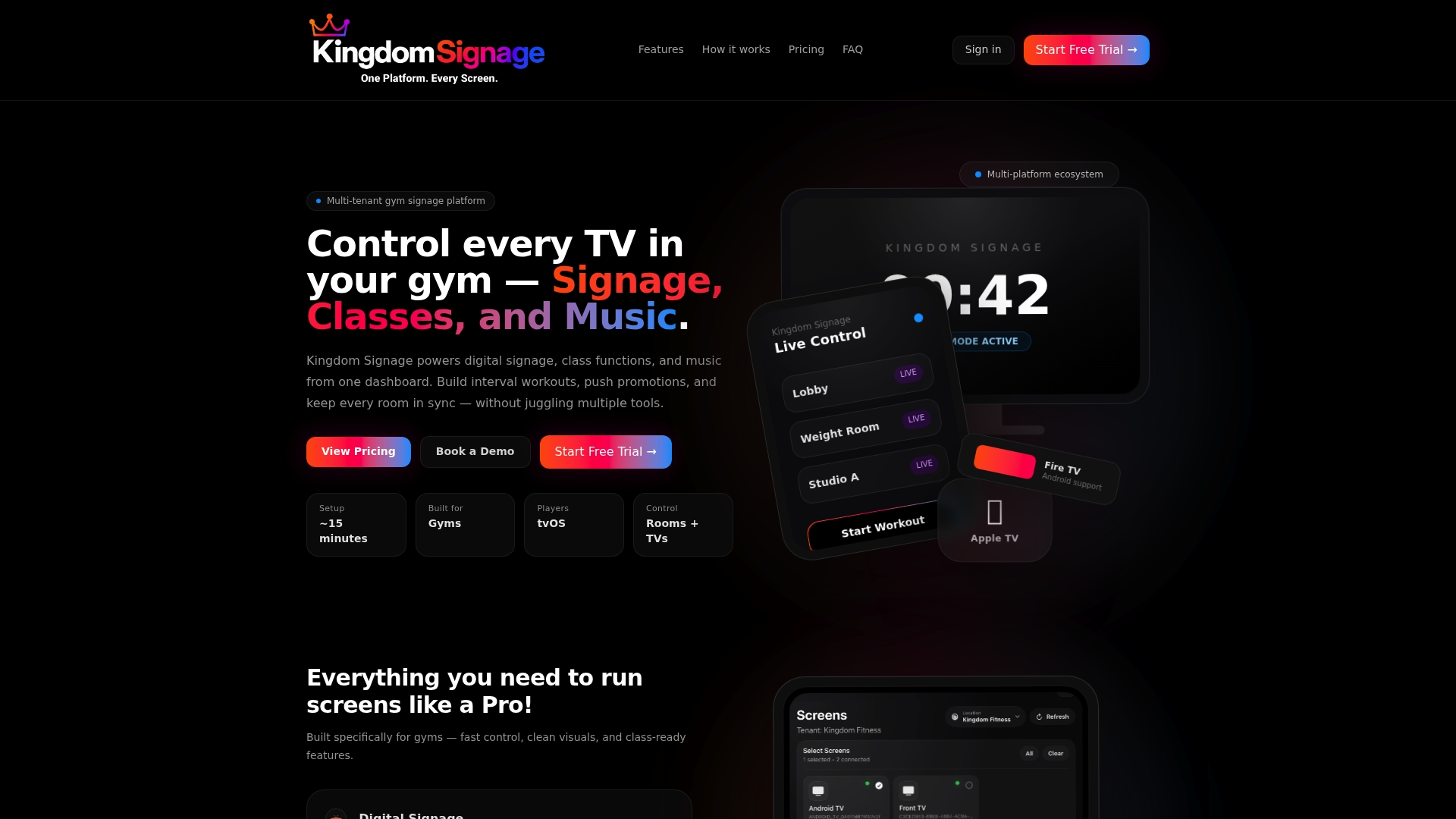
A gym does not only need a countdown. It needs the countdown, the movement demo, the class schedule, the music and the announcement, and it needs them to change per room. Kingdom Signage is a subscription platform for gyms and fitness studios that unifies those through one dashboard: digital signage, TV screens, class scheduling, workout timers with demo video support, room-based music and real-time announcements, across one room or many locations.
It integrates with your existing screens, so there are no hardware replacements to budget for. For a boutique studio, that is the difference between a single dashboard and a drawer of remotes. For a multi-location operator, it means the same timer styles and promotions across every site.
If you are choosing hardware, Android TV digital signage for gyms covers what to buy, and how to set up gym digital signage walks through the rollout. For class-facing content, see studio class schedule display examples and room booking displays.
Choosing the right method
| Your goal | Best approach |
|---|---|
| Promo reel or social clip with a countdown | Transparent timer clip on a track above the footage |
| Phone-only editing in CapCut | Green-screen MP4 with Chroma key |
| Existing footage, quick job | Screen-record a timer and layer it |
| Recording a class demo with a clock | Timer as an OBS browser source |
| Live classes, intervals, several rooms | Live timer managed from the Kingdom Signage dashboard |
Perspective
We see the countdown as a symptom of a bigger problem. Most gyms end up with a timer on one screen, music from another source, a schedule on a third and a promo loop that someone updates by hand. Each tool works alone, and none of them knows what the room next door is doing.
Our view is that a gym should control screens, timers, demo videos and music from one dashboard, by room, and that it should work with the TVs already on the wall. A countdown that lives in the same place as your class schedule and your announcements is a countdown you can change in seconds, in the middle of a class, without an export.
Editors are the right place for a polished video. The gym floor is where the clock has to be live, and that is the problem we built Kingdom Signage to solve.
Kingdom
Run your gym's timers and screens from one dashboard
Kingdom Signage is a subscription platform billed per gym location, and you can start with a free trial or demo. It brings workout timers with demo video, class schedules, announcements and room-based music together for one studio or many locations.
See how it fits your rooms at kingdomsignage.com.
FAQ
How do I overlay a timer in CapCut?
On desktop, drag a transparent WebM timer onto a track above your video. On iPhone or Android, add a green-screen timer MP4 with Overlay, Add overlay, then use Remove background and Chroma key to select the green. Mobile video apps do not support transparent files, which is why the green-screen route is needed.
How do I put a countdown on a video I have already shot?
Generate or record a timer, import it into DaVinci Resolve, Premiere, Final Cut or CapCut on a track above your footage, then scale, position and trim it so the countdown ends where you want it. Check the clip's frame rate so the seconds tick at real speed.
How do I show a web timer on a TV?
Open the timer's link in the TV's built-in browser, or connect a laptop or mini PC over HDMI and run the page fullscreen. Turn off the TV's sleep timer and the device's screen saver so the display stays on. Apple TV and Roku need an HDMI-connected device because they have no general browser.
Can the same countdown run on TVs in different gym rooms?
Yes, when the timer follows a single server clock rather than each device's clock, every screen shows the same number at the same time. Kingdom Signage manages multi-room and multi-location screens from one dashboard, so your timers, demo videos and music are set per room in one place.
Sources
- TimerOverlay: free timer and countdown overlay maker
- TimerOverlay: transparent timer overlay in DaVinci Resolve and Premiere
- MakeUseOf: how to create a countdown timer in DaVinci Resolve 18
- MaestroTimer: timer for videos
- Remote Timers: how to put a countdown timer on a TV
- Clockhub: fullscreen digital clock design notes