
Android TV digital signage means an Android-based TV or box, a screen and signage software that tells the screen what to play. It works well in a gym when the software, not the TV, carries the load: it should keep content cached, restart on its own after a power cut and let you change every room's screens from one place. That last part is what we built Kingdom Signage for. It controls TVs, class schedules, workout timers, music and announcements from one dashboard and works with the screens you already own.
TL;DR
- Android TV is a fine, low-cost way to run gym screens, but the Android label matters less than three behaviors: auto-start after power loss, cached offline playback and remote management.
- Consumer TVs are built for a few hours of daily use and their warranties often limit commercial use, so plan for a gym's long operating hours.
- A gym needs more than a playlist: class timers, schedules, promotions and room-based music should be managed together.
- Choose software first, then hardware. Compatibility with your existing screens and per-location pricing decide your real cost.
- Kingdom Signage unifies screens, timers and music in one dashboard, with a free trial or demo before you subscribe.
Table of Contents
- What Android TV digital signage is and how it works
- Why gyms use Android TV for signage
- Smart TV, Android box or commercial display: what fits a gym
- The four features that make Android signage reliable
- What a gym needs beyond a content playlist
- How to set up Android TV signage in your gym
- Coordinating screens, classes and audio across rooms
- What to check before you commit to a setup
- Our perspective
- Try it in one room
- FAQ
- Sources
What Android TV digital signage is and how it works
Android TV is Google's adaptation of Android for set-top boxes and for software built into smart TVs. It runs apps from Google Play, as Android's own TV overview describes. Digital signage turns that into a display system: you install a signage app on the TV or box, pair the screen with an online account, and the app plays whatever you schedule from a dashboard.
Three parts make up every setup:
- A screen. Either a TV with Android TV built in or any HDMI display with a box plugged in.
- A player. The Android device that runs the signage app. On a built-in TV, the TV is the player.
- Signage software. The cloud dashboard where you upload videos, build playlists, schedule classes and push announcements.
The player downloads content over Wi-Fi or Ethernet, stores it locally and plays it full screen. You never touch the screen again unless something breaks, which is why the reliability details below matter more than the brand on the bezel.
Why gyms use Android TV for signage
Gyms have an unusual mix of screen jobs. One TV shows a class schedule at the front desk. Another counts down intervals in a studio. A third runs a promotion for a new membership tier near the juice bar. Android TV suits that variety for a few practical reasons:
- Low entry cost. Many TVs already in your gym run Android TV or can be upgraded with an inexpensive box.
- App ecosystem. Signage and timer apps install like any other Android app.
- Remote control of the screen. Once paired, you manage content from a browser instead of walking the floor with a USB stick.
- Easy replacement. If a box fails, a new one pairs to the same account and picks up the same content.
The tradeoffs are about durability and scale, and they are the reason to choose carefully.
Smart TV, Android box or commercial display: what fits a gym
A smart TV with built-in Android TV is the simplest option: fewer cables, fewer failure points. The platform is then tied to that display's processing power, according to BDOOH's hardware guide. The same guide notes that commercial displays are designed for 16/7 or 24/7 operation, while consumer TVs are rated for roughly 4 to 6 hours a day. A gym that opens at 5 a.m. and closes at 10 p.m. sits far beyond that rating.

Warranty is the other thing to read before you mount anything. AVIXA's guidance says that using a consumer smart TV in a business setting will, in most cases, void or limit the manufacturer warranty. Check the terms on the specific model.
TechRadar's comparison frames the scale question well: smart TVs suit smaller setups with one or two screens showing simple content, while dedicated players suit larger networks, live data, synchronized 4K video and centralized device management. Most gyms land in between. A boutique studio with two rooms can start on smart TVs. A club with a lobby, a cardio floor, a free-weight area and three studios benefits from a managed approach.
| Option | Best for | Strength | Watch for |
|---|---|---|---|
| Smart TV with Android TV built in | One or two screens, simple content | Fewest cables and parts | Consumer duty rating, warranty terms, platform tied to the TV |
| Android TV box on any HDMI screen | Mixed screens, easy swaps | Replace the box without replacing the display | Cheap boxes vary widely in reliability |
| Commercial display | Long daily hours, brightness | Built for 16/7 or 24/7 use | Higher purchase price |
The four features that make Android signage reliable
BDOOH's guidance makes a point worth repeating: resilience matters more than the Android label. A player should cache content, recover after power and network interruptions and report back after reconnecting. For a gym, that translates into four checks.
Auto-start after power loss
Gyms lose power in small ways all the time: a breaker trips, a cleaner unplugs a strip, a storm cuts the building. The signage app should launch by itself when the device boots and go straight to full-screen playback. If it drops you on the Android home screen, members see a menu of streaming apps instead of your class schedule.

Offline playback
Wi-Fi in a gym is rarely perfect. Thick walls, mirrors and hundreds of phones all compete for the signal. Content should download in full and play from local storage, so a dropped connection does not blank a studio mid-class. We cover this in more depth in our guide to offline signage playback.
Remote management
You should be able to change a screen without standing in front of it. That includes swapping a promotion, updating a schedule after an instructor change and sending a same-day announcement. If your process involves a USB drive, it will be skipped within a month.
Enough storage and processing for your content
Short looping video, schedule graphics and countdown timers are light. Long 4K video with live data feeds is not. Match the device to the heaviest content you plan to run, then add margin.
What a gym needs beyond a content playlist
Generic signage tools are designed around a loop of images and videos. A gym floor has a calendar. The content that members actually look at is tied to time and room:
- Class schedules that change by day and by room.
- Workout timers with demo video, so members see the movement while the clock runs.
- Promotions for memberships, personal training or retail, rotated on the screens where members wait.
- Real-time announcements such as a room change, a cancelled class or a closing time.
- Music that fits each room and stays in step with what the screen shows.
When those live in separate tools, a class transition means touching a TV remote, a music app and a timer. Staff skip steps, and members notice. Unified control is the answer, and that is the case for choosing signage software built for fitness rather than a general-purpose playlist app. For a wider view of how screens, timers and members' needs fit together, see our guide to smart TV gym management systems.
How to set up Android TV signage in your gym
Here is the routine, step by step, with the point where each step usually goes wrong.
1. Map your screens and rooms
List every screen, its room and its job: lobby promotion, cardio-floor schedule, studio timer. Note which already run Android TV and which are plain displays. The common mistake is buying hardware before this map exists, then discovering a room needs a different screen size or a longer cable.
2. Pick the signage software first
Choose the software before you buy boxes. It decides which devices work, how many rooms you can manage and what each location costs. Kingdom Signage is built to integrate with existing screens, so you are not forced into hardware replacement, and it manages multiple rooms and locations from a single dashboard.
3. Prepare each device
Update the device, connect it to your network and keep it on a wired connection where you can, since Ethernet is steadier than Wi-Fi in a crowded gym. Developer options are sometimes needed on Android TV devices. On many of them you find the build number under Settings, then Device Preferences, then About, which is how the developer menu unlocks. Most people never need that step if the signage app installs normally.
4. Install the app and pair the screen
Install the signage app, open it and pair the screen with your account using the code it displays. Name each screen by its room, such as "Studio B" or "Front desk", so you can find it later. Unnamed screens become a guessing game once you have six.
5. Set auto-start and power behavior
Confirm that the app opens on boot. Then pull the power and restart it as a test. Also check that the TV's own settings do not switch inputs or show a home screen after a wake. This single test prevents most morning surprises.
6. Build content around the clock
Set up the class schedule, the timers with demo videos and the promotion rotation. Keep text large enough to read from the treadmill. Schedule promotions for the hours members are on the floor, not around the clock.
7. Add music by room
Assign music to rooms so a spin class and a stretching area never share a playlist. With Kingdom Signage, room-based music integration is part of the same dashboard as the screens, and it is an optional premium feature.
8. Roll out and review
Start with one room, watch it for a week, then add the rest. For a longer walkthrough of the network side, our gym TV network setup steps and guide to setting up gym digital signage go deeper.
Coordinating screens, classes and audio across rooms
One room is easy. Three rooms with different classes, a lobby and a second location is where the work multiplies. The issues are consistent:
- Timing drift. A timer in one room starts a minute late and the music cue misses.
- Stale content. The desk screen still lists a class that moved.
- Inconsistent branding. Each TV looks like it came from a different gym.
- Staff workload. Someone has to remember which remote controls which room.
A single dashboard fixes these by making the room the unit of control. You schedule once, assign by room and update everything at once. Multi-location owners get one view across sites instead of a login per club.
What to check before you commit to a setup
Use this list when you compare any Android TV signage approach.
- Compatibility. Does it run on the TVs and boxes you already own? Replacing working screens is the biggest hidden cost.
- Boot and recovery behavior. Does it return to playback by itself after power loss?
- Offline behavior. Does it keep playing when the network drops?
- Gym-specific features. Timers, schedules, demo video, room-based music.
- Management across rooms and locations. One dashboard or several?
- Pricing model. Per-location monthly fees are easier to forecast than per-screen add-ons. Our digital signage pricing guide puts first-year gym costs between $686 and $2,800.
- Display duty rating and warranty. Especially for screens that run most of the day.
If you are also weighing streaming-stick options, our Fire TV signage guide covers that platform, and the comparison of IPTV and digital signage for gyms explains when each fits a floor.
Our perspective
We hear the same question from gym owners: which box should I buy? We think it is the second question. The first is what each screen needs to do at 6 a.m. on a Monday, when the front desk is busy and nobody has time to fix a blank TV.
Android TV can be a good foundation. What turns it into a working gym system is software that treats the room as the unit: the schedule, the timer, the demo video, the promotion and the music all follow the room and change from one dashboard.
That is why we built Kingdom Signage to work with the screens you already have, across as many locations as you run, rather than asking you to replace hardware or juggle separate tools for video and sound. Smoother class transitions and current content are what members notice, and they are what keeps a gym feeling well run.
Kingdom
Try it in one room
Kingdom Signage is a subscription platform for gyms and fitness studios, billed monthly or annually per location, with a free trial or demo to start. It brings digital signage, TV screens, class scheduling, workout timers with demo videos, room-based music and real-time announcements into one dashboard, and it manages multiple rooms and locations.
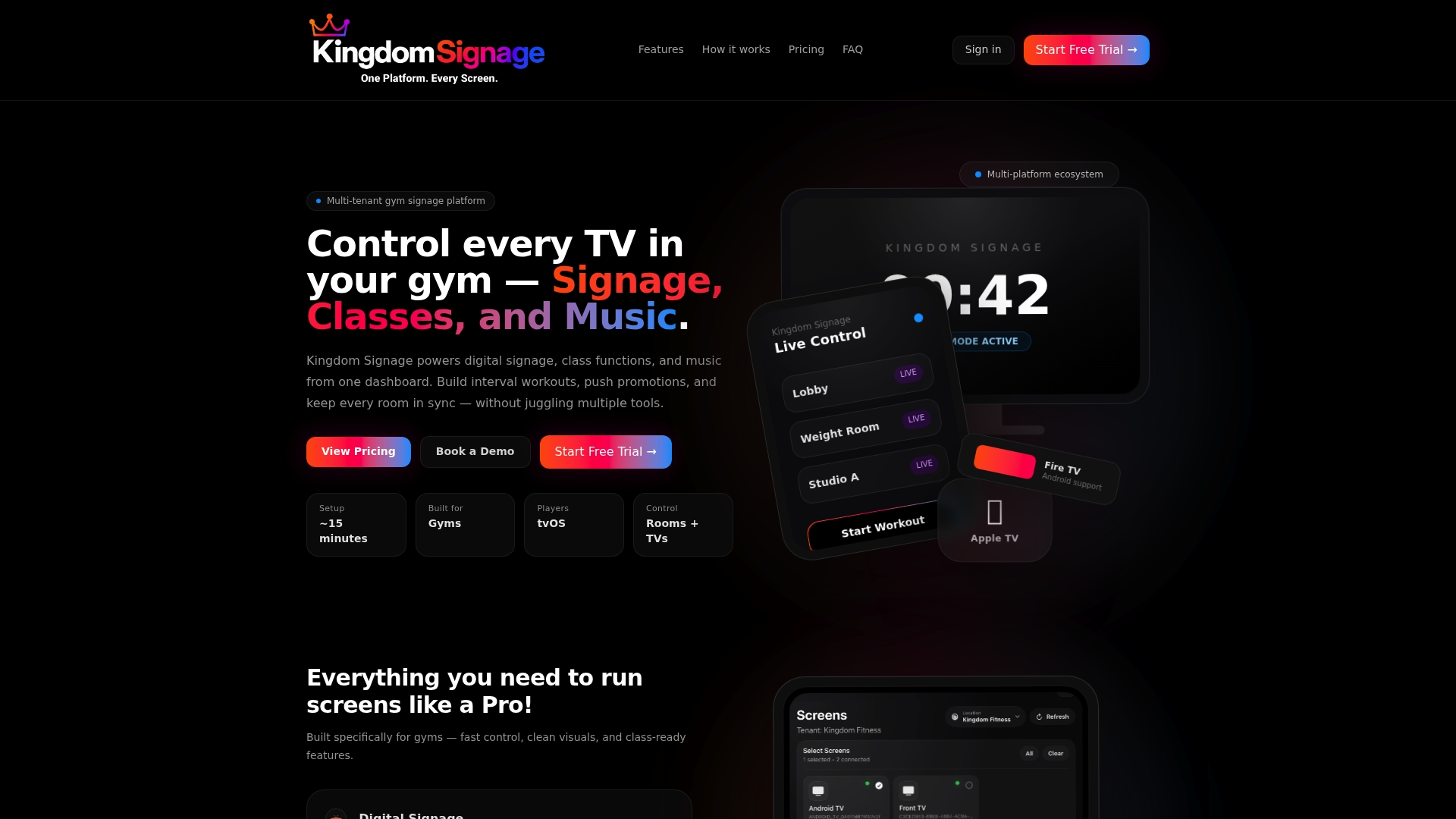
Start with the room that causes you the most manual work, see it running on your own screens and add the rest from there. You can begin at kingdomsignage.com.
FAQ
Can any Android TV be used for digital signage?
Most Android TV devices can run a signage app, but not all run it well all day. Look for auto-start on boot, local storage for cached content and stable network behavior. Consumer TVs are also rated for fewer daily hours than commercial displays, as noted in BDOOH's guidance.
Do I need an Android TV box if my TV already runs Android TV?
Not necessarily. A TV with Android TV built in has fewer cables and failure points, and it can run the signage app directly. A box is useful when a screen has no smart platform or when you want to swap the player without replacing the display.
Will signage keep playing if the internet goes down?
It should, if the software downloads content to the device and plays it locally. That is why offline playback is on our checklist. Test it by unplugging the network on one screen before you roll out the rest.
Can one dashboard control screens and music in different rooms?
Yes, with Kingdom Signage. It unifies TVs, workout classes and room-based music in a single dashboard and supports multi-room and multi-location management. Music integration is an optional premium feature.
Sources
- Android TV overview, Android Developers
- Media players and screen hardware, BDOOH
- Smart TV vs Dedicated Media Player for digital signage, TechRadar
- Smart TVs vs. Commercial Displays, AVIXA