
For gym signage, the iOS vs Android choice rarely comes down to which operating system is "better." It comes down to which one fits the job: the screen player behind each TV, the tablet or phone your staff use to control it, or both. Android gives you more hardware choice and lower entry costs. Apple gives you a tightly controlled, uniform device fleet. The right pick is the one your team can manage across every room without surprises.
This guide breaks down what the question means in a gym, how the two platforms differ in practice, and how to decide without locking yourself into one hardware path.
TL;DR
- "iOS vs Android" can mean two different things in a gym: the player that drives each TV, and the device staff use to control content. Decide each separately.
- Android offers wider hardware variety and flexibility. Apple offers a uniform, predictable device line. Both need proper device management at scale.
- The hardware matters less than the display, the network and the management layer. Commercial displays, segmented networks and offline playback protect uptime.
- A platform that works with the screens you already own lets you avoid committing your whole gym to one operating system.
- Compare total cost across players, displays, device management and software, not just the sticker price of the player.
Table of Contents
- What "iOS vs Android" means for gym signage
- Android signage: where it fits a gym
- iOS and Apple hardware: where it fits a gym
- Side-by-side: how the two compare for gym use
- The decisions that matter more than the OS
- Keeping screens, visuals and audio in sync across rooms
- Managing content: updates, promotions and ease of use for staff
- Costs to compare before you buy
- How to choose: a short decision path
- Try a unified setup in your gym
- FAQ
- Sources
What "iOS vs Android" means for gym signage
Search results for this phrase are mostly about phones: keyboards, notifications, app stores. A gym operator is asking something different. There are three places where the operating system shows up in a signage setup.
- The media player. The small box or built-in system-on-chip that sits behind or inside each TV and plays your content. Android-based players are common in commercial signage. Apple TV and iPad hardware are the Apple-side options.
- The control device. The phone or tablet a front desk manager, class coordinator or instructor uses to change a playlist, post an announcement or start a workout timer.
- The management layer. The software that enrolls, locks down, updates and monitors the devices, which is where most of the real work sits.
Most gyms end up with a mix. A manager may carry an iPhone, the front desk may use an Android tablet, and the TVs may run on whatever players were cheapest or already installed. A signage platform that is managed from a browser dashboard lets all of those coexist, because the control device only needs to open the dashboard.
The hardware question is also less final than it looks. Industry guidance on signage hardware makes the point that the choice among Android, Windows, Linux and Apple should depend on how well a configuration meets the workload and the operational requirements, not on brand preference (Hexnode's platform guide).
Android signage: where it fits a gym

Android is an open operating system that many manufacturers build on. That shows up in signage in a few ways.
Hardware variety. Players range from compact boxes to displays with the player built in. A gym can match a device to each room: a basic player for a hallway poster screen, a stronger one for a main-floor wall running video and live timers.
Customization. Android can be configured to launch a single app at boot, hide system menus and recover after a power cut. For signage, that is the behavior you want: power on, open the content, keep playing.
Price range. Because many vendors compete, entry points are often lower than Apple hardware. For a boutique studio outfitting a few rooms, that matters.
The management caveat. The same openness means device quality and update behavior vary by maker. One industry perspective is blunt on this: organizations running Android should budget for a unified endpoint management tool from day one (Hexnode's kiosk OS comparison). In practice, that means planning how you will enroll, lock and update every player before you buy fifty of them.
iOS and Apple hardware: where it fits a gym
Apple's operating systems run only on Apple devices. For signage, that has its own set of strengths.
Uniformity. There are only so many models to support. Your front desk iPad, your studio's Apple TV and the manager's iPhone all behave in broadly the same way, which simplifies training and troubleshooting.
Smooth interface for staff. If your coaches and managers already use iPhones, a control app or dashboard bookmark on that device means no learning curve.
Predictable updates. Software updates come from a single vendor on a single schedule, which makes planning easier, though you still want to control when updates install so they do not land during peak hours.

The trade-offs to plan for. Apple hardware is typically a higher purchase price per room, and there is a narrower range of form factors. A player is not a display, so you still need a commercial screen behind it. Apple devices also still need to be managed centrally if they are going to run a fixed signage app in every room.
Side-by-side: how the two compare for gym use
| Factor | Android-based | Apple-based |
|---|---|---|
| Hardware choice | Wide: boxes, built-in displays, many makers | Narrower: a small set of Apple devices |
| Entry cost per room | Often lower | Often higher |
| Consistency across a fleet | Varies by maker and model | High, since one vendor controls hardware and software |
| Lock-down to a single app | Flexible, configurable | Supported through device management |
| Central management | Plan a management tool from the start | Plan a management tool from the start |
| Staff control device | Phones and tablets from many brands | iPhone and iPad |
| Best fit | Many rooms, mixed budgets, custom setups | Smaller deployments, Apple-heavy teams |
Notice what is the same: both need centralized management, both need a commercial-quality display, and both depend on the network. That is why the operating system is only one of the decisions.
The decisions that matter more than the OS
Display quality and run time
Gyms are harsh on electronics. They run for long hours, and sweat and humidity raise failure rates. One 2026 gym guide recommends commercial-grade displays over consumer TVs because gyms may run 16 to 24 hours a day, and consumer TVs typically void their warranty in commercial use. It suggests specific commercial lines, with a lower-brightness tier for 16-hour operation and brighter, 24/7-rated models for 24-hour clubs (Display Details' gym guide).
That advice applies regardless of whether the player behind the screen is Android or Apple. A well-chosen player cannot rescue a screen that is not built for the job.
Player processing power
The player decides what your content can do. Processing power determines the type of content a signage screen can run, so a player that handles a static poster may struggle with full-motion video plus a live timer overlay (ViewSonic's scalable signage guide). Match the player to the heaviest thing that room will show, usually the main training floor or a group-class studio.
Network setup and security
Signage devices are network devices, and they should be treated like it. Guidance on scalable setups notes that they may need VLAN segmentation to isolate their traffic and should follow access-control rules (ViewSonic). Keep them off the network that handles member payments and front desk systems. Our digital signage security checklist for gym managers walks through the steps in order.
If you are locking devices to a single app, the kiosk mode checklist for IT managers covers what to configure so members cannot reach system menus.
Staying up when the internet drops
A gym cannot have blank screens in the middle of a class. Local caching lets content keep playing through temporary network interruptions (ViewSonic). This works on either platform, provided the software stores content on the device. See offline signage playback for gyms for how to set it up and what to test.
Keeping screens, visuals and audio in sync across rooms
Synchronization is where gym signage differs from retail or restaurant signage. A class screen needs to show the right timer, the right exercise demo and the right music at the same moment, and another room may be doing something different.
Three things determine whether that works:
- Central scheduling. If each room is set up separately on its own device, drift is almost guaranteed. One schedule, controlled in one place, keeps rooms aligned with the class timetable.
- Player capability. Each player needs enough processing power to run the video, timer and overlays without stuttering (see above).
- Local storage. Content stored on the device plays on time even if the connection hiccups, so a timer does not freeze mid-interval.
None of those depend on whether the player runs Android or Apple software. They depend on how the software layer is designed. That is why we build around a single dashboard rather than around a specific device type.
Managing content: updates, promotions and ease of use for staff
Your staff do not care about the operating system. They care about whether they can change a screen in under a minute.
A few practical tests for any setup:
- Can the front desk post a same-day announcement, such as a class cancellation, without calling anyone?
- Can marketing push a membership promotion to every location at once?
- Can an instructor start a workout timer with a demo video from a phone or tablet?
- Can you change one room without touching the others?
If the answer depends on which phone the person owns, the setup is too tied to devices. A browser-based dashboard removes that: iPhone, Android tablet or laptop, it is the same screen. For ideas on what to display, see our multi-location playbook for digital posters and our guide to front desk signage essentials.
If you also deal with member-facing TVs showing cable channels, our piece on why channel blocking breaks down across many screens explains why a managed content approach scales better.
Costs to compare before you buy
The player price is the smallest part of the picture. Build a simple cost sheet per room and per location:
| Cost line | What to count |
|---|---|
| Display | Commercial-grade screen, mount, and cabling |
| Player | Box, stick or built-in player, plus a spare |
| Device management | Tool to enroll, lock down and update players |
| Signage software | Subscription per location and any add-ons |
| Audio | Speakers, amplifier and any music licensing |
| Network | Switches, VLAN setup, Wi-Fi or wired runs |
| Staff time | Initial setup and ongoing content updates |
| Replacement cycle | Expected lifespan in a sweaty, always-on environment |
Two patterns show up often. Android players can lower the hardware line, but you may spend more on management and on standardizing models. Apple hardware raises the player line but may cut troubleshooting time. Neither is automatically cheaper over three years, so price the full table for your own room count.
Also weigh the cost of replacing hardware you already own. A platform that works with the screens already on your walls avoids that expense entirely.
How to choose: a short decision path
- List your rooms and what each one shows. Hallway posters, class timers, music, front desk announcements.
- Pick a display standard first. Commercial-grade, rated for your operating hours.
- Choose the player to match the heaviest content. Do not buy the most powerful player for a poster screen.
- Decide who controls content and from what. If staff use mixed phones, choose browser-based control.
- Plan management and security up front. Enrollment, kiosk lock-down, network segmentation.
- Test offline behavior and class transitions before rolling out to every room.
- Choose software that does not force the hardware decision. Keep the option to mix platforms as you grow.
Our perspective
We think gyms spend too much energy on the operating system and too little on the workflow. Members never see whether a screen runs on Android or Apple software. They see whether the timer matches the class, whether the music fits the room and whether the promotion on the wall is current.
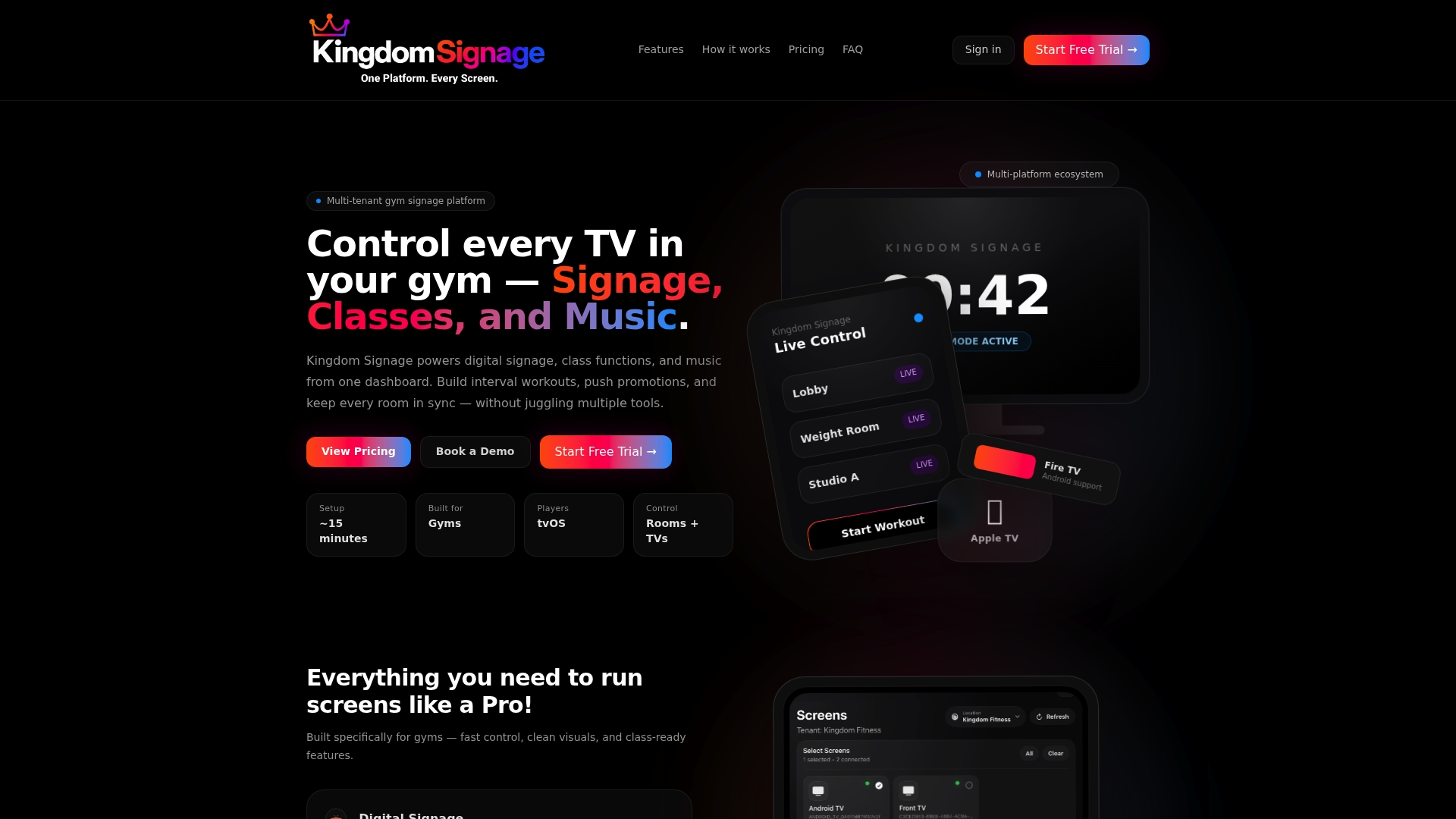
That is why Kingdom Signage is built as one dashboard for TVs, class schedules, workout timers with demo videos, room-based music and real-time announcements. Our platform is designed to work with the screens a gym already has, across any number of locations, so you are not pushed into replacing hardware to get a unified setup.
For operators, the benefit is control: one place to schedule a class transition, send an announcement or update a promotion across rooms. For instructors, it is a smoother class. For owners, it is a better member experience, which supports retention.
Kingdom
Try a unified setup in your gym
Kingdom Signage is a subscription platform for gyms and fitness studios, billed per location, that brings digital signage, TV screens, class schedules, workout timers, room-based music and announcements into a single dashboard. It is designed to work with existing screens, so you can decide on hardware at your own pace instead of deciding on it first.
You can see how it fits your rooms at kingdomsignage.com, where you can start with a free trial or demo.
FAQ
Is Android or iOS better for gym digital signage?
Neither wins outright. Android offers more hardware choices and often lower entry prices, while Apple offers a uniform, predictable fleet. The better choice depends on how many rooms you run, who manages them and what your staff already use. Choose the display and the management approach first, then the player.
Can I control gym signage from an iPhone if my players run Android?
Yes, when the signage software is managed through a browser-based dashboard. The control device only needs to open the dashboard, so an iPhone, an Android tablet or a laptop all work the same way. That also lets staff keep the phones they already own.
Do I need device management software for signage players?
For more than a handful of screens, yes. Industry guidance says to budget for a unified endpoint management tool from day one with Android, and Apple devices also benefit from central enrollment and lock-down (Hexnode). It lets you enroll players, lock them to the signage app and push updates without visiting each room.
Do I have to replace my existing TVs to switch signage platforms?
Not with Kingdom Signage, which is designed to integrate with the screens you already use. If your current TVs are consumer models running long hours, consider moving to commercial-grade displays over time, since consumer sets typically void their warranty in commercial use.
What happens to my screens if the internet goes down?
If the software caches content on the player, screens keep playing through temporary outages. Local caching is a standard way signage handles short network interruptions. Test this before launch by unplugging the network in one room.
Sources
- Best Digital Signage Hardware in 2026: Platform Guide
- Best Kiosk OS in 2026: Android, iOS, Windows & More
- How to Build a Scalable Digital Signage Solution
- Digital Signage for Gyms: The Complete 2026 Guide