
A room booking display is a screen at a room's door that shows whether the space is free, what is booked and until when. In a gym, that room is a studio, a cycling room, a small-group training area or a private suite. The best setup ties the screen to your class schedule, so the door always tells members the truth without a staff member walking over to check.
Most pages ranking for this term are written for conference rooms. The idea carries over to fitness almost unchanged, but the details differ: classes start on the minute, instructors need timers and music, and members arrive in a rush. This guide covers what the display should show, how it stays in sync, what you need to install it and what to watch for.
TL;DR
- A room booking display is a touchscreen or signage panel outside a room that shows live status, the current session and what comes next. Some models also let people reserve or end a booking at the door.
- In a gym, the display should read from the same schedule as your class listings, so a change made once appears on every screen.
- Hardware can be as simple as one tablet on a single power-over-Ethernet cable. Software and network reliability matter more than the screen itself.
- Plan for accessibility, readable contrast and a lockdown mode so members cannot change the screen.
- If you already own TVs, you may not need new panels at all. Kingdom Signage runs room schedules on existing screens.
Table of Contents
- What a room booking display is
- Where gyms use room booking displays
- What the display should show
- How the display stays in sync with your schedule
- Hardware and network setup
- Integrations to check before you buy
- Accessibility, privacy and reliability
- What it costs
- A simple rollout plan
- Our perspective
- See it in your own rooms
- FAQ
- Sources
What a room booking display is
In offices, a room booking display is a purpose-built touchscreen panel, usually mounted beside the door, that shows real-time room status and lets people book, check in or end a meeting at the door. The core idea is simple: the room itself reports its status, so nobody has to open an app, message a colleague or peek through the glass.
Universities have used the idea for years. Yale's room signage app, for example, shows color-coded availability and the current booking's time, and lets users reserve a room or end a booking on the tablet. To end a booking early, the person who made it has to sign in, which stops strangers from cancelling someone else's session.
For a gym, think of two levels:
- Status only. The screen shows what is happening in the room now and what is next. Nobody books at the door. This is the right fit for most group-fitness studios, where the schedule is set by the club.
- Status plus booking. The screen also lets staff or members claim open time, which suits rentable studios, private training rooms, recovery rooms or a multipurpose room shared by instructors.
Many gyms only need the first level, and it is the easier one to roll out.
Where gyms use room booking displays
Gym floors have more bookable space than owners tend to count. Each of these rooms benefits from a door display:
- Group fitness studios. Show the current class, instructor and end time, then the next class. Members who arrive early know whether to wait or head elsewhere.
- Cycling and boutique rooms. Capacity is tight and classes sell out. A door screen can show the next session and cut the questions put to the front desk.
- Personal training and consultation rooms. A red or green status tells trainers and clients whether the room is occupied.
- Multipurpose rooms. Birthday parties, workshops, youth programs and corporate wellness sessions all share one space. A display prevents double-use.
- Childcare and kids' rooms. Posting hours and the current session at the door reduces repeated questions.
- Meeting and back-office rooms. Sales and membership teams book these like any office.
If the question is about occupancy rather than booking, see our guide to the room occupancy display, which covers status signals in more depth.
What the display should show
The office versions of this product show a name and a time. A gym screen has more to do, because members, instructors and staff all glance at it with different questions in mind.
For members
- Room name and a clear status: open, in session, starting soon.
- The current class name, instructor and end time.
- The next class and its start time.
- A short note for changes, such as a substitute instructor or a room swap.
Keep text large. People read these screens from several feet away, often while carrying a bag and a water bottle.
For instructors
- Start and end times matching the schedule.
- A workout timer and, where relevant, demo videos for the movements in the session.
- Music tied to that room, so the playlist changes when the class does.
For staff
- Whether a class is running late, so the next group is not sent in too early.
- Announcements that apply to one room or the whole club.
- Where bookings came from, if the room is rentable.
The common mistake is cramming everything onto one panel. Decide the single most important thing a member needs at the door, which is almost always "what is happening here and when does it end", and make that the largest element. Our guide to studio class schedule displays shows layouts that put this into practice.
How the display stays in sync with your schedule
A door display is only as good as its data. If staff edit the class schedule in one tool and the screen reads from another, the display will be wrong, and a wrong display is worse than none.
The pattern that works is a single source of truth that every screen reads from. Temple University's conference room panels illustrate it: they use green and red lights for available and in use, and advance bookings sync automatically with the panel display. The panel does not hold its own calendar. It reflects the booking system.
In fitness, LG's lookbook for the sector describes the same approach: small signage displays that integrate with popular scheduling programs and update when changes are made. That is the behavior you want to buy: edit once, update everywhere.
When you evaluate any solution, ask these questions:
- Where does the schedule live, and who edits it?
- How quickly does a change reach the door screen?
- What happens to a last-minute substitution or a cancelled class?
- Can one change reach every room and every location, or only one screen at a time?
Our walkthrough on updating class schedule displays covers the day-to-day routine in detail.
Hardware and network setup
The hardware side is simpler than most owners expect. A useful reference point comes from the University of Nebraska, whose standard is a 10-inch Android tablet with a touch display and LED side availability lights. It needs one PoE-enabled network port that provides both power and connectivity. That means one cable, no nearby outlet and a clean install on the wall.
That is one design. A gym has three realistic hardware paths:
| Option | What it is | Best for |
|---|---|---|
| Dedicated door panel | A small touchscreen with status lights, mounted beside the door | Rentable rooms where people book at the door |
| Tablet in a wall mount | A commercial tablet in a locked enclosure | Studios that want a compact, touch-friendly screen |
| Existing TV or signage screen | A screen you already have, fed by a media player | Class schedule display with no new panels |
The third option is the one gym owners most often overlook. If a studio already has a screen in or near the room, it can usually carry the room's status as well. Kingdom Signage is built around integration with existing screens, so owners do not need to replace hardware to get a room schedule at the door.
Network checklist
- Power and data. Decide early whether each location will use PoE or a nearby outlet. Running cable later costs more than planning it during a build-out.
- Dedicated network segment. Keep signage devices separate from member Wi-Fi and payment systems. Ask your IT contact or installer about the right setup for your network.
- Wired where possible. Studios full of phones, wearables and speakers are crowded wireless environments. A wired connection avoids many problems.
- Mounting height and angle. Place the screen where people can read it from the approach to the door, and avoid glare from windows or studio lights.
We cover the wider rollout in how to set up gym digital signage that works.
Integrations to check before you buy
Before choosing a platform, list every system the display needs to talk to. In most gyms that is:
- Class scheduling or booking software, where classes and capacities are set.
- Calendar systems, if rooms are also shared with corporate clients or staff meetings.
- Audio, if music should change with the room and class.
- Digital signage content, so the same screens that show the room status can also run promotions.
- Door access, if you want rental rooms to unlock only for booked time. Confirm this directly with the vendor, because support varies widely.
A unified platform removes much of this checklist. If screens, music and announcements share one dashboard, there is no need to pass information between three tools. That is the reasoning behind Kingdom Signage: one place to control TVs, workout timers, room music and announcements across rooms and locations.
Accessibility, privacy and reliability
A door display is a public screen, so treat it like one.
Accessibility. If the screen is touch-enabled, think about physical usability as well as the design. Controls should be at a reachable height with clear floor space in front, text should have strong contrast against the background and buttons should be large enough to hit easily. Offer an alternative to touch-only interaction, such as a front desk that can make the same change. Review current federal guidance on accessible design at your location, and ask your architect or an accessibility consultant about what applies to your building.
Privacy. Show what members need and nothing more. A class name and instructor are fine. Avoid displaying the names of private training clients or any health-related detail on a door screen. For rentable rooms, show "Reserved" rather than the renter's name unless they agree otherwise.
Reliability. Public screens get touched, unplugged and occasionally hit with a water bottle. Look for lockdown or kiosk mode, so members cannot exit the app or change settings, along with automatic recovery after a crash and a fallback display if the network drops. Our secure kiosk mode checklist is written for the IT managers who handle this.
If you let people end bookings at the door, require sign-in. Yale's app does this: the booking owner has to authenticate to end a session early, so a stranger cannot cancel it.

What it costs
Prices vary too much by vendor, screen size and location count for a single figure to be honest. Instead, here is how the cost breaks down so you can request quotes that compare cleanly:
| Cost item | What to ask |
|---|---|
| Screens or panels | Per-room cost, and whether you can reuse TVs you already own |
| Mounts and enclosures | Whether locked enclosures are needed for high-traffic areas |
| Cabling and power | PoE switch capacity, cable runs and any electrician time |
| Software subscription | Billing per room, per screen or per location, monthly or annual |
| Premium add-ons | Music, extra screens and other modules priced separately |
| Installation and training | Who mounts, configures and trains your staff |
Two habits keep the total down. First, start with the rooms where confusion costs you the most, usually the busiest studio and the lobby. Second, favor subscriptions priced per location with no hardware lock-in, so adding a room does not mean adding a new device type.
A simple rollout plan
- Map your rooms. List every room, who uses it and whether it needs status only or booking.
- Pick the source of truth. Decide which schedule feeds the screens and who is allowed to edit it.
- Choose hardware per room. Reuse existing screens where you can and add dedicated panels only where you need touch.
- Design one clear layout. Current session large, next session below, short change notes at the bottom.
- Pilot in two rooms. Run it for a few weeks, watch what members ask the front desk and adjust.
- Roll out and train. Show instructors and front desk staff how to make a last-minute change in under a minute.
The front desk benefits first. When the door tells the truth, staff spend less time answering where a class is. Our guide to front desk signage essentials explains how the lobby and door screens work together.
Our perspective
Most room booking displays were designed for meeting rooms, so they treat a room as a calendar slot. A gym room is more than that. It is a class with an instructor, a timer, a playlist and a crowd arriving at once.
We built Kingdom Signage around that difference. Screens, workout timers with demo videos, room-based music and live announcements all sit in one dashboard, so a change to the schedule reaches the door, the TV and the speakers together.
We also believe gyms should not have to replace hardware to get there. Our platform is designed to work with the screens you already have, across as many rooms and locations as you run. That keeps the cost of starting small and the effort of changing things lower.
The aim is simple: members always know what is happening and where, instructors can focus on the class, and owners stop juggling tools.
Kingdom
See it in your own rooms
Kingdom Signage gives gym owners and studio operators one dashboard for TVs, class schedules, workout timers, room music and announcements, with multi-room and multi-location control. It is a subscription priced per location, and you start with a free trial or demo.
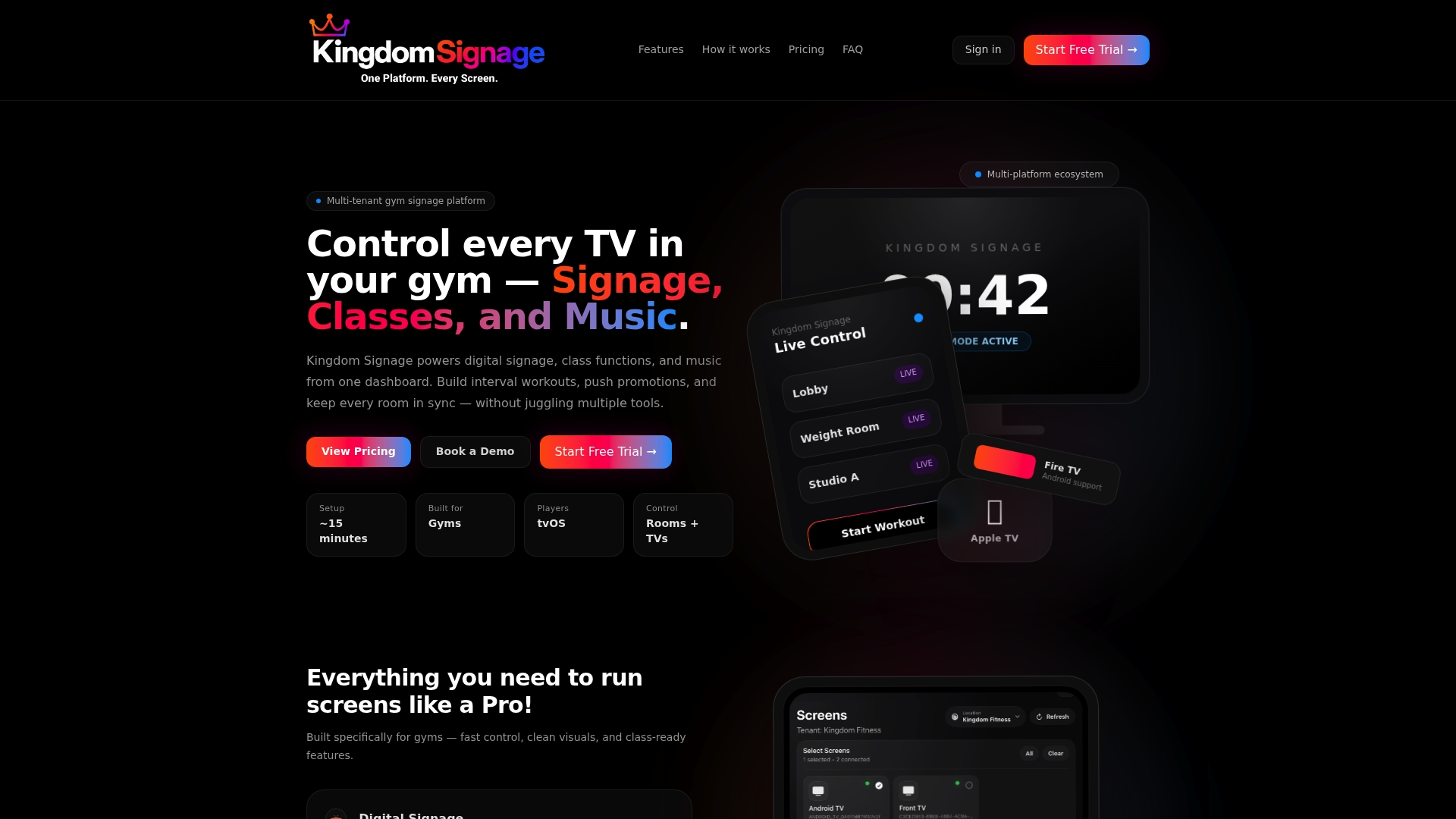
If you want your studio doors to show the right class at the right time, start with Kingdom Signage and set up your first room.
For a deeper look at how screens support your programming, read how gym screens support class enrollment drives.
FAQ
Do I need a touchscreen for a room booking display?
Not necessarily. If your classes are set by the club, a non-touch screen showing the current and next session is enough. Touch matters when members or staff need to reserve or end a booking at the door, and in that case require sign-in.
Can I use TVs I already own?
Often, yes. A TV with a media player can show room status and the class schedule. Dedicated panels with status lights add value mainly for rooms people book at the door. Kingdom Signage is designed to integrate with existing screens.
How do I keep the display from showing wrong information?
Make sure the screen reads from the same schedule your team already edits, rather than keeping a separate copy. Then test how fast a cancellation or substitution reaches the door, and train staff to make changes in one place.
What should the display show when the network drops?
It should fall back to a safe state, such as the last known schedule or a simple room name, rather than an error message. Ask any vendor about offline behavior and automatic recovery before you buy.
Which rooms should get a display first?
Start with the busiest studio and any room shared by several groups. These are where members ask the most questions and where double-booking causes the most friction.
Sources
- Room Signage, Yale Room Reservation Service Resources
- What Is a Room Booking Display?, Yealink
- Scheduling Panels, Temple CPH Wiki
- Fitness lookbook, LG Business
- Room Schedule Digital Signs, University of Nebraska