
A room occupancy display is a small screen, usually a tablet or compact TV, mounted by a room's entrance. It shows whether the space is free, in use or about to be, and what is scheduled next. In an office that room is a conference room. In a gym it is a studio, a cycling room, a turf zone or a private training suite. This guide explains what these displays show, how they know a room's status, what you need to install one, and how to run them across several rooms without adding work for your front desk.
TL;DR
- A room occupancy display shows live status (available, occupied, starting soon), the current booking and what comes next, usually with color coding you can read from across a hallway.
- Status comes from a booking calendar or schedule, from occupancy or people-counting sensors, or from both.
- A basic install needs a screen, power, a network connection, a wall mount and software that pairs the screen to a named room.
- In a gym, the same screen can also show the class name, instructor, start time and demo content, which cuts "is this my class?" questions at the door.
- Kingdom Signage lets you manage room screens, schedules, announcements and music from one dashboard, per location.
Table of Contents
- What a room occupancy display actually shows
- How the display knows a room is occupied
- What you need to set up a room occupancy display
- Setting up displays across multiple gym rooms
- Connecting the display to schedules and bookings
- Privacy, accessibility and reliability
- What affects the cost of a room occupancy display system
- Our perspective: the door screen is part of the whole room
- Put room status on every door with Kingdom Signage
- A simple rollout plan
- FAQ
- Sources
What a room occupancy display actually shows
The core job is simple: answer "can I go in?" without anyone opening a door or asking a staff member. Most displays do that with a color. A common convention is green for available, orange for becoming busy soon and red for occupied. Beyond color, a typical screen includes:
- The room name and, optionally, its facilities or capacity.
- The current status, in words as well as color, so it stays readable for people who are color blind.
- The current booking: a title, an organizer, how many people are attending and a countdown to the end.
- The next booking or the rest of the day's schedule.
- A walk-up booking button, if the system allows booking on the spot when a room is free.
Some systems go further. When compatible sensors are installed, the display can add a live people count and readings such as temperature, humidity and air quality, which turns the screen into a room conditions panel as well as a status sign. For a hot yoga room or a crowded spin studio, that extra layer is worth knowing about, though most gyms start with status and schedule only.
How a gym version differs from an office version
Office displays are built around meetings: a title, an organizer, a calendar invite. A gym studio has a different rhythm. Rooms turn over every 45 to 60 minutes, the people outside are members checking whether they are in the right place, and instructors need to see the next format, timer or demo video before they start. So a gym room display works best when it shows:
- Class name, instructor and start and end time in large type.
- A clear "in session, doors closed" or "open, come in" state, so late arrivals do not interrupt a class.
- What is next in the room, so members warming up know what to expect.
- Private-room availability for personal training, recovery rooms or rentable studios.
If you already run class schedule screens in your lobby, the room-door screen is the same data in a smaller frame. Our guide with examples of studio class schedule displays shows layouts that translate well to a door-side screen.
How the display knows a room is occupied
There are three ways a display decides what to show, and the right mix depends on how strict you need to be about accuracy.
1. Schedule-driven status
The display reads a calendar or class schedule and treats the room as occupied whenever something is booked. This is the cheapest approach and the one most gyms start with, because your class schedule already exists. The weakness is obvious: if an instructor ends early or a booked private session no-shows, the screen still says occupied.
2. Sensor-driven status
Occupancy or people-counting sensors tell the display whether anyone is actually in the room. Crestron's documentation describes the states a room indicator can report: occupied, vacant, offline or not reporting. Where the device counts people, it can add an occupant total, with counts of 100 or more shown as "99+". The "offline" and "not reporting" states matter: a well-designed display admits when it has lost its data source instead of showing a stale green light.
3. A blend of both
The most reliable setups use the schedule as the default and a sensor as the check. The screen shows a class as booked, but flips a room to available if the sensor sees nobody ten minutes after the start time, or flags a room as in use when someone is training in an unbooked space. For most boutique studios the schedule alone is enough. For open-booking spaces such as a private training room or a rentable studio, the sensor layer earns its keep.
What you need to set up a room occupancy display
A basic install is lighter than most owners expect. In a typical setup you need:
- A screen. A tablet or a touchscreen mini PC works for interactive booking. A small TV or a monitor with a media player works if the screen is display only.
- Power. A nearby outlet, or power over Ethernet (PoE) if you want a single cable for power and data.
- A network connection. Wi-Fi or wired Ethernet. A stable connection matters more than speed, since the screen only needs to receive small status updates.
- A wall mount. Position it beside the door at roughly eye level, on the handle side so people see it as they approach.
- Software. A platform that pairs the screen to a specific room and pulls in your schedule.
Pairing is usually quick. The common pattern is to open the display page on the device, get a short code, enter that code in the admin dashboard and assign the screen to a named room. After that, changes you make to the schedule appear on the door without anyone touching the hardware.
If you already have screens
Many gyms already own TVs in studios and lobbies. Rather than buying new hardware for every room, you can often reuse existing screens with a small media player. That is the approach we built Kingdom Signage around: it works with the screens you have, so adding room status is a software change, not a hardware replacement project.
Setting up displays across multiple gym rooms
One display is a gadget. Six displays across three locations is an operations question. These steps keep it manageable.
- List every room that needs a status. Group studios, private training rooms, the childcare room and any rentable space. Skip rooms that are always open.
- Name rooms the way members say them. If members call it "the cycle room," do not label it "Studio B2." The screen is for members first.
- Decide the status source per room. Schedule only for group studios, schedule plus sensor for bookable or high-turnover rooms.
- Standardize the layout. Same colors, same type size, same position of the class name on every door. Members learn it once.
- Mount and pair one room first. Test it for a week, watch how members react and fix the layout before you roll out the rest.
- Assign owners. One person owns schedule accuracy, another owns hardware. Most "the screen is wrong" complaints are schedule errors, not technical faults.
If you manage several rooms at once, our manager's guide to how multi-room gym displays work walks through the structure in more detail, and our live class updates steps show how to keep screens and bookings in sync when a class is moved or cancelled.
Connecting the display to schedules and bookings
A display is only as good as the data behind it. There are three common sources:
- Your class schedule. The simplest source for a group-fitness studio. Update the schedule once and every door screen, lobby screen and in-room timer follows.
- A booking system or calendar. For private rooms, calendar integration shows real-time availability and upcoming bookings, and some systems also let a member or staff person book a free room from the screen itself.
- Manual override. Front desk staff need a way to change a room's state in seconds: "closed for cleaning," "running late," "class full."
The override matters more than most buyers expect. Real days are messy. A screen that can only reflect the plan, and not what is happening right now, loses members' trust within a week. Our piece on how to update gym class schedule displays covers update routines that keep this under control.
Privacy, accessibility and reliability
Privacy
A gym is a place where members expect discretion. A status display should show a class name and a time, not a member's name. For private training rooms, show "Reserved" and a time slot rather than the client's name.

If you add sensors, check how they handle data. Some vendors state that their sensors process occupancy data on the device and keep no identifiable information. XY Sense, for example, says its sensors process data locally and capture no personally identifiable information, and that raw sightings are destroyed after processing, leaving anonymous coordinates. Whatever sensor you pick, ask for the same level of detail in writing and share it with members in your privacy notice. If you operate in a state with biometric or privacy rules, have your attorney review the setup before you install.
Accessibility
- Use high contrast and large type, readable from several feet away.
- Pair color with a word. "Available" and "In session" should be spelled out, not just green and red.
- Mount screens at a height that works for wheelchair users as well as standing members.
- Keep animation minimal on door screens. A calm, static status reads faster than a rotating slideshow.
The Americans with Disabilities Act sets design standards for some signage, and a digital status screen may or may not fall under them depending on how it is used. Ask your architect or an accessibility consultant if you are building or renovating.
Reliability
- Plan what the screen shows when the network drops. A "status unavailable, ask the front desk" message beats a stale green light.
- Use PoE or a dedicated outlet so a cleaner does not unplug the screen.
- Set screens to restart automatically after a power cut.
- Check every screen once a week during the first month, then monthly.
What affects the cost of a room occupancy display system
Published pricing varies a lot and depends on how you build the system, so treat any single number with caution. These are the factors that move the total:
- Hardware per room. A tablet with a mount costs a different amount than a wall-mounted touchscreen PC or a plain TV and media player. Reusing screens you own is the biggest saver.
- Software subscription. Most platforms charge monthly, often per location or per screen. Check whether features like booking, sensors or music are priced separately.
- Sensors. Optional, and priced per room or per device. They add installation time as well.
- Installation and cabling. Wi-Fi is cheap to set up. PoE runs cost more up front but are more stable.
- Number of locations. Per-location pricing favors operators who consolidate tools. Compare the total cost of your current mix of apps, not one line item.
- Support and onboarding. Some vendors include setup help, others charge for it.
When you ask any vendor for a quote, ask for the monthly total for your exact room count, what is included, and whether adding a location changes the rate. For Kingdom Signage, pricing is a tiered monthly fee per location, with premium features such as music integration and additional TV licenses available as options. See the details on our site below.
Our perspective: the door screen is part of the whole room
Most room occupancy products come from the office world, and it shows. They are built for meetings, one room at a time, and they stop at the door. A gym room is different: the door screen, the in-room screen, the timer, the music and the lobby announcement all describe the same class at the same moment.
We built Kingdom Signage on that idea. Instead of running a booking panel from one tool, a TV schedule from another and music from a third, you manage all of it from one dashboard. When an instructor swaps a class, the door screen, the in-room display and the lobby board change together. When you want a promotion on the lobby TV during a lull between classes, you schedule it in the same place. Because it works with the screens you already own and supports multiple rooms and locations, adding a room status display is a configuration task, not a hardware project.
That is also why we think status should go beyond "occupied" or "free." Members want to know which class is on, who is teaching and what is next. Operators want fewer interruptions at the studio door and fewer questions at the desk. A single source of truth for the room serves both, and supports the thing that matters most to a gym's bottom line: members who find it easy to show up and have a good class.
— Kingdom
Put room status on every door with Kingdom Signage
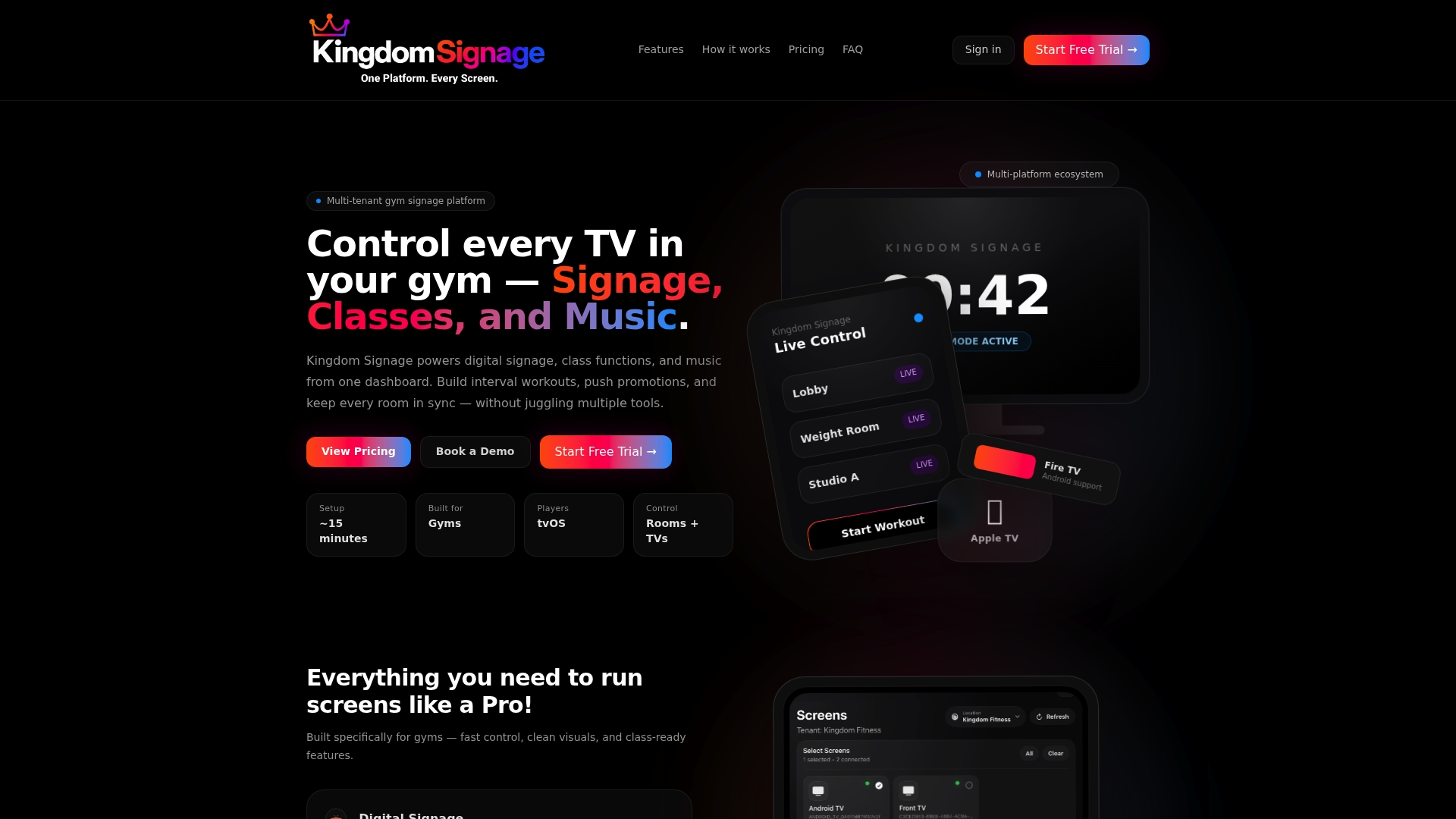
Kingdom Signage is a subscription platform for gyms and fitness studios that brings room screens, class schedules, workout timers with demo video, room-based music and real-time announcements into one dashboard. You can manage several rooms and locations from the same account, and start with a free trial or demo to see it on your own screens. Explore the platform at Kingdom Signage.
If you are planning the audio side of the same rooms, read our rollout plan for multi-room audio control. For the lobby, our front desk signage essentials cover what members should see before they reach the studio door.
A simple rollout plan
Week 1: audit. Walk the building and list rooms, power outlets, network coverage and any screens you already have. Note where members hesitate or ask questions today.
Week 2: pilot. Install one door screen in your busiest studio. Show class name, instructor, time and status. Ask the instructors what is missing.
Week 3: adjust. Tune the type size, the wording and the override process. Decide whether any room needs a sensor.
Week 4: expand. Roll out to the remaining rooms using the same layout, then add announcements and lobby content. Review front desk questions again after a month to see what changed.
For gyms that also want to push timely messages to every room, our guide to live gym announcements includes templates you can adapt.
FAQ
What is a room occupancy display?
It is a screen mounted at a room's entrance that shows whether the space is available, occupied or about to be booked. It usually adds the current booking and the schedule for the rest of the day. Some versions also show a people count or air quality when sensors are installed.
Do I need sensors for a room occupancy display?
No. Many gyms run on the class schedule alone, which is enough for group studios with fixed timetables. Sensors help in rooms that are booked ad hoc or where classes often start late or end early, because they confirm whether anyone is actually inside.
Can I use the TVs I already have?
In most cases yes. A TV or monitor paired with a small media player can show room status, and with Kingdom Signage you manage those screens from the same dashboard as your schedules and announcements. A touchscreen is only needed if you want walk-up booking at the door.
How long does installation take?
Mounting and powering a screen is typically a short job per room, and pairing it in software takes minutes with a code. Plan more time for cabling if you want PoE, and for testing the schedule data before you go live in every room.
Should a door screen show member names?
We recommend not. Show the class name or "Reserved" and the time slot. That protects member privacy and still answers the only question the person at the door has.