
Updating gym class schedule displays means connecting your booking platform to a digital signage content management system so that every class change, cancellation, or instructor swap appears on screen within seconds. This is the standard industry term: digital signage integration for fitness class timetables. Gym owners who set up this integration correctly report that members stop asking front desk staff about schedule changes. The result is fewer interruptions, cleaner operations, and members who show up to the right class at the right time.
What tools do you need to update gym class schedule displays?
Three categories of tools make this work: a booking platform, a digital signage CMS, and the right screen hardware. Without all three, you get a patchwork system that breaks under pressure.
Booking platforms are the source of truth for your fitness class timetable. The most widely used options in the fitness industry are Mindbody, ABC Fitness, and Mariana Tek. Each offers API access that a digital signage CMS can query to pull live class data including times, instructors, room assignments, and availability status.

Digital signage CMS platforms sit between your booking software and your screens. Their job is to format schedule data into readable layouts and push that content to displays. The CMS handles widget configuration, refresh intervals, and content scheduling. Without a CMS, you have no way to control what your screens show or when they update.
Mobile Device Management (MDM) tools are the third layer. MDM platforms like Moki handle fleet-level updates, meaning you can push new content to every screen in your gym from one place. They also manage offline screens by holding updates in a queue and delivering them when the device reconnects.
Here is a quick overview of what each tool category does:
| Tool Category | Primary Function | Example Platforms |
|---|---|---|
| Booking platform | Stores and manages class schedule data | Mindbody, ABC Fitness, Mariana Tek |
| Digital signage CMS | Formats and delivers content to screens | Varies by vendor |
| MDM platform | Manages screen fleets and update delivery | Moki |
| Screen hardware | Displays content to members | Commercial TVs, dedicated signage players |
Screen hardware matters more than most gym owners expect. Consumer TVs are not built for 12-hour daily operation. Commercial displays with built-in media players and reliable network connectivity hold up far better in a gym environment.
- Use commercial-grade screens rated for continuous operation
- Connect screens via ethernet where possible for stable data delivery
- Confirm your CMS supports the operating system on your media player
- Verify your booking platform offers API or webhook access before purchasing a CMS
How to connect and configure your signage for live schedule updates
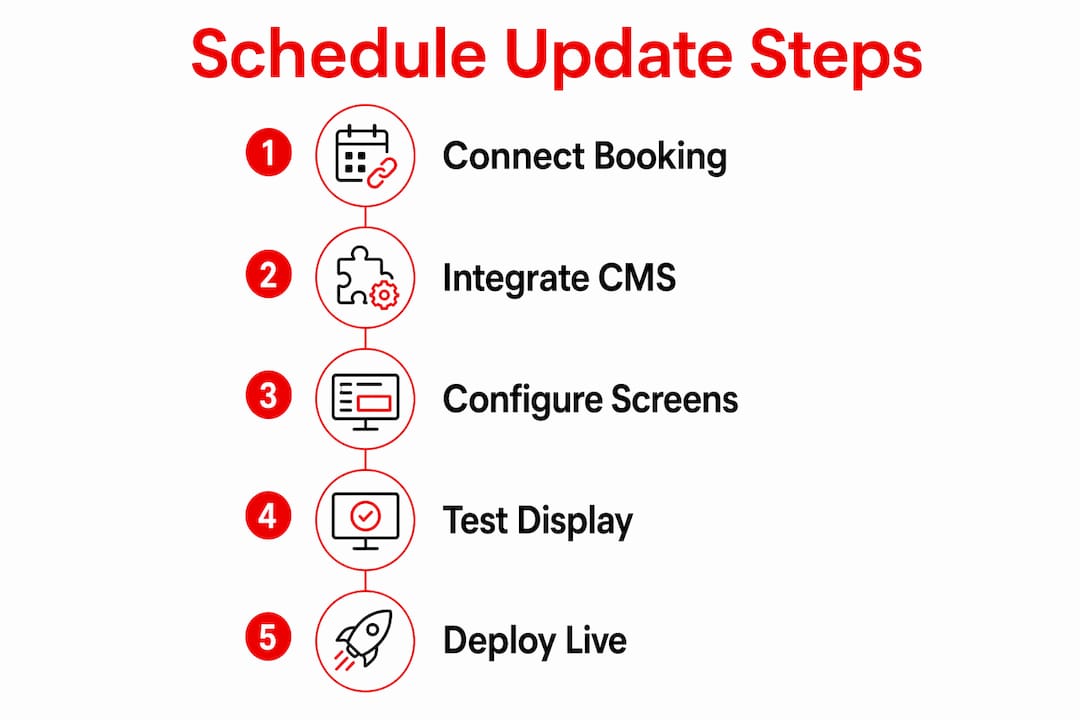
Connecting your booking platform to a digital signage CMS typically takes 30–60 minutes for initial configuration. That setup time covers authentication, widget configuration, and a first test push to your screens. Here is how the process works step by step.
-
Authenticate your booking platform inside the CMS. Log into your digital signage CMS and locate the integrations or data sources section. Select your booking platform (Mindbody, ABC Fitness, or Mariana Tek) and enter your API credentials. The CMS will verify the connection and pull a sample of your class data.
-
Configure your schedule widget. Once connected, build the display widget. Set which data fields appear on screen: class name, start time, instructor name, room or studio, and enrollment status. Most CMS platforms let you apply your gym's brand colors and fonts at this stage.
-
Set your refresh interval. This is the most important technical decision you will make. Live API integrations show cancellations and instructor changes on displays within 30–60 seconds. Polling-based refresh intervals typically run 5–15 minutes, which is only suitable for static schedules, not same-day changes. If your gym runs frequent last-minute updates, live API is the only reliable choice.
-
Publish to your screens and verify. Push the schedule widget to your target displays. Walk to each screen and confirm the data matches your booking platform. Check that class times, instructor names, and room assignments are accurate.
-
Simulate a change and watch the update. Cancel a test class or change an instructor in your booking platform. Time how long it takes for the screen to reflect the change. This tells you your actual latency, not the vendor's estimate.
Pro Tip: Set up a dedicated test screen in your back office before going live on lobby displays. You can push changes and verify them without members seeing a broken layout during configuration.
How to manage schedule updates across multiple gym locations
Managing a revised gym schedule across multiple locations requires treating every update as a single logical event, not a series of individual screen pushes. Centralized management dashboards allow remote scheduling and consistent branding across multiple gym locations. That means one change in your dashboard fans out to every screen in your network simultaneously.
The practical difference is significant. Without centralization, a staff member at each location manually updates their screens. One location runs an outdated weekly gym class display for three days before anyone notices. With a central dashboard, that scenario disappears.
MDM platforms add another layer of reliability. Scheduling content updates overnight via MDM minimizes disruption and maximizes reliability, especially for multi-location gyms. You define an update window, say 2:00 a.m. to 4:00 a.m., and the MDM pushes the new weekly schedule to every screen during that window. Members arrive in the morning to accurate, current information.
Handling offline screens is where many gym operators get caught off guard. Offline or powered-down screens during updates require MDM's queue-and-retry system. When a screen powers back on, it receives the queued update automatically. The risk is that a screen stays off for days and nobody notices. Spot-checking after every major push is the fix.
Here is how centralized versus decentralized management compares:
| Management Approach | Update Speed | Staff Required | Risk of Inconsistency |
|---|---|---|---|
| Centralized dashboard | Immediate, network-wide | One operator | Low |
| Decentralized, per-location | Manual, varies by site | One per location | High |
| MDM overnight scheduling | Defined window, automated | Minimal oversight | Low with spot-checks |
Local overrides are a feature worth using carefully. Most central dashboards let individual locations push location-specific messaging without breaking the network-wide schedule. This is useful for a single location running a special class or a temporary instructor change. The key is setting clear rules about who can override and what they can change.
- Assign one staff member per location as the display owner
- Require all overrides to be logged in the CMS for audit purposes
- Set override expiration times so local content does not persist past its relevance
Pro Tip: After any major schedule push, check the first screen in each location within one hour. First-hour spot-checking after a push catches missed deliveries before members see stale data.
Troubleshooting common issues with gym class schedule displays
Most update failures fall into two categories: connectivity problems and timing mismatches. Knowing which one you are dealing with cuts your resolution time in half.
Connectivity failures happen when a screen loses its network connection during a scheduled push. The screen keeps showing the last cached content. Members read an outdated fitness class timetable and show up to a canceled class. The fix is MDM's queue-and-retry behavior, which holds the update and delivers it when the screen reconnects. Manual validation after reconnection confirms delivery.
Timing mismatches happen when your refresh interval does not match your operational reality. Polling-based refresh intervals of 5–15 minutes cause lags in showing last-minute changes compared to live API updates. If your gym cancels classes within an hour of start time, a 15-minute polling delay means members could arrive for a class that was canceled 10 minutes ago.
"Build your update workflow around a latency budget. Live API integration handles urgent changes within 30–60 seconds. Polling handles static weekly schedules. Use both, and assign each type of content to the right method."
Additional issues to watch for:
- Stale credentials: API keys expire. Set a calendar reminder to rotate credentials before they lapse and break the integration.
- Widget layout breaks: A class name that is unusually long can push other fields off screen. Test edge cases in your CMS before going live.
- Time zone mismatches: If your CMS server is in a different time zone than your gym, class times will display incorrectly. Confirm time zone settings during initial setup.
- Partial updates on multi-screen layouts: Multi-screen layouts should treat updates as single logical events to avoid inconsistent schedule views across locations. If one screen in a lobby cluster updates and another does not, members see conflicting information.
The best maintenance habit is a weekly review of every screen in your network. Walk the floor, confirm the current week's schedule is accurate, and check that no screen is showing content from a previous period. This takes 10 minutes and prevents the most common member complaints.
Key Takeaways
Connecting your booking platform to a digital signage CMS with live API integration is the most reliable way to keep gym class schedule displays accurate and current.
| Point | Details |
|---|---|
| Live API beats polling | Live API updates displays within 30–60 seconds; polling delays run 5–15 minutes and miss same-day changes. |
| Setup takes under an hour | Initial configuration of booking platform to CMS integration typically takes 30–60 minutes. |
| MDM handles offline screens | Queue-and-retry delivery ensures screens receive updates when they reconnect after being offline. |
| Centralize multi-location updates | A single dashboard push reaches all locations simultaneously and reduces inconsistency risk. |
| Spot-check after every push | Checking the first screen at each location within one hour catches missed deliveries before members notice. |
What I have learned managing gym schedule displays at scale
The gyms that struggle most with digital schedule displays are not the ones with bad technology. They are the ones with no clear owner for the process. A CMS can push updates automatically, but someone still needs to verify that the integration is working, that credentials have not expired, and that the screens in the back studio are not showing last month's timetable.
The second thing I have seen consistently: gym operators underestimate how much members rely on lobby displays. A member who walks in and sees a canceled class still showing as active does not just feel mildly inconvenient. They lose trust in the gym's communication. That trust is hard to rebuild, and it shows up in retention numbers over time.
The real-time content update capability is not a luxury feature. It is the baseline expectation for any gym that runs a dynamic schedule. The technology to do it right exists and is not expensive relative to what a single membership cancellation costs.
Multi-location operators face a different challenge: consistency. I have walked into gyms where two locations 10 miles apart are running different versions of the same weekly schedule on their displays. That happens when there is no centralized control and no accountability for what each screen shows. A multi-screen management guide solves the workflow problem, but the cultural piece, making sure staff treat display accuracy as a real responsibility, is what makes it stick.
— Kingdom
Kingdomsignage: gym schedule display management in one place
Gym owners who want accurate, real-time fitness class timetables on every screen without managing five separate tools have a direct solution in Kingdomsignage.
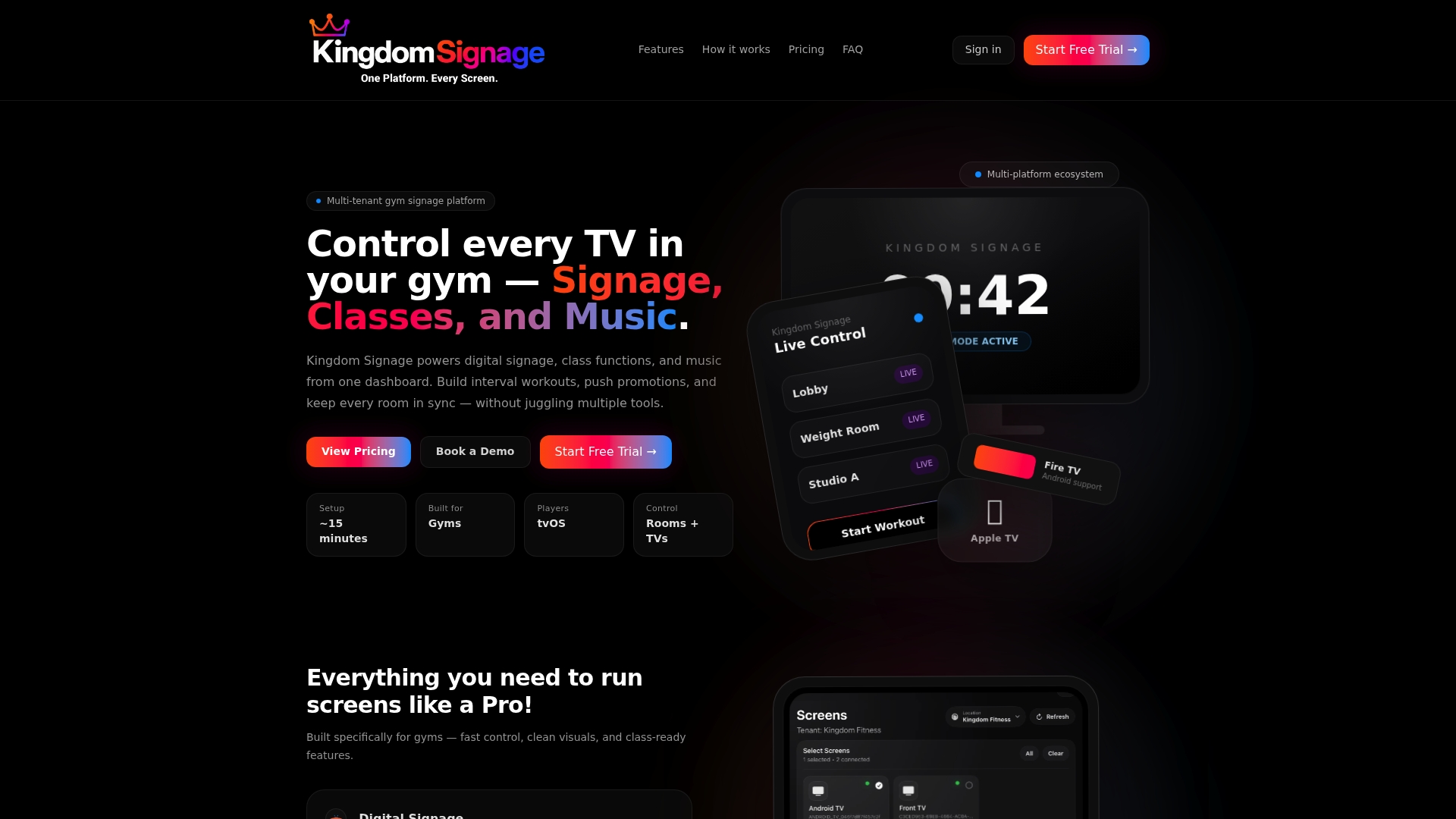
Kingdomsignage unifies TV control, class schedule displays, and audio across your entire gym through a single dashboard. You can push a revised gym schedule to every screen in your network instantly, set overnight update windows through MDM integration, and apply local overrides for individual locations without losing network-wide consistency. There is no need to log into multiple platforms or manually update each display. The Kingdomsignage platform is built specifically for gym environments, so the workflows match how fitness facilities actually operate.
FAQ
How long does it take to set up gym schedule displays?
Initial configuration connecting a booking platform like Mindbody or ABC Fitness to a digital signage CMS takes 30–60 minutes. That includes authentication, widget setup, and a first test push to your screens.
What is the difference between live API and polling for schedule updates?
Live API integration updates displays within 30–60 seconds of a change. Polling checks for updates every 5–15 minutes, which creates delays that make it unsuitable for same-day cancellations or instructor changes.
How do I update gym class schedule displays across multiple locations?
Use a centralized dashboard to push updates as a single logical event across all locations simultaneously. MDM platforms handle overnight scheduling and queue updates for any screens that are offline during the push.
What happens if a screen is offline when a schedule update is pushed?
MDM platforms use queue-and-retry delivery. The screen receives the update automatically when it reconnects to the network. Manual spot-checking after reconnection confirms the content delivered correctly.
How often should I check that my gym displays are showing accurate schedules?
A weekly walkthrough of every screen in your network takes about 10 minutes and catches the most common errors. After any major schedule push, check the first screen at each location within one hour.