
Live class updates should be a two-channel operation: an on-site screen announcement for everyone, plus a targeted email or text to affected registrants. Both messages need the class name, scheduled date and time, instructor, and location. Publish the screen message first, then send the templated email or SMS as soon as the schedule change is saved.
TL;DR:
- Choose the narrowest cancellation scope and preview roster impact before confirming; changing an entire series can remove future sessions that should stay scheduled.
- Send screens a brief class name, start time, and direction, while targeted email or text gives the date, time zone, instructor, location, and next action.
- Decide credits and waitlist releases before messaging; early cancellations usually carry no penalty, while late cancellations may deduct sessions or trigger fees.
- Keep screen messages visible for 5 to 7 seconds, use strong contrast, and send urgent updates by email or text as well.
Table of Contents
- Quick checklist: the 6 things to do the moment a class changes
- Channels and templates: what to show on screens vs. what to send by email or text
- Booking workflows: tying updates to cancellations, waitlists, credits, and no-shows
- Designing accessible, readable on-screen messages
- Syncing audio and visuals across rooms for class transitions
- Testing and verification checklist before and after publishing an update
- Handling internet or network interruptions to maintain update reliability
- User roles and permission settings to control who can publish live updates
- Analytics and reporting on member engagement with live class update signage
- Integration possibilities with gym management software platforms
- Techniques for real-time audio and video sync during live class updates
- Best practices for synchronizing live updates across multiple digital signage devices simultaneously
- Short perspective: why operational clarity beats flashy messages
- How Kingdom Signage helps deliver reliable live class updates
- FAQ
- Sources
Quick checklist: the 6 things to do the moment a class changes
Every schedule change follows the same sequence, whether it's a single cancellation or a permanent time shift. Working through these steps in order keeps front-desk staff from sending conflicting messages or missing a registrant.
- Identify the change type first: a one-off cancellation, a date-range cancellation, or a full series termination each affect different future sessions, so choosing the correct scope matters before you touch the schedule.
- Fill a message template using dynamic fields for class, date, time, instructor, and location rather than typing details by hand.
- Publish to venue screens and send the templated email or SMS to registered members and anyone on the waitlist.
- Update the booking state: mark an early cancellation, a late cancellation, release the waitlist, issue a credit, or record a no-show.
- Notify the instructor and reassign the room or equipment if the session is moving rather than closing.
- Verify and log: confirm the message resolved correctly on-screen and in the inbox, then note who was notified and when.
Skipping step one is the most common mistake. A cancellation applied to an entire recurring series instead of a single date removes sessions nobody intended to touch.
Channels and templates: what to show on screens vs. what to send by email or text
Screens and direct messages serve different audiences and need different levels of detail. A screen reaches everyone in the building right now, including people who never booked the class. A direct message reaches only the people whose plans are actually affected, so it can carry more detail.
- On-site screens need a short, high-contrast message with an immediate direction: class name plus start time, and a one-line instruction such as "moved to Studio B."
- Email and SMS need the full picture: class name, date with time zone, start and end time, instructor, exact room or location, and the next action (rebook, join waitlist, or expect a credit).
- Use scheduling-platform macros so messages pull structured data straight from the system. Zenoti's cancellation notification templates support macros that insert class, date, time, instructor, and center fields automatically, which cuts out manual retyping and the errors that come with it.
- Decide the booking consequence before you send anything. If the change triggers a refund, a credit, or a waitlist release, settle that first so the message tells members what already happened rather than what might happen later.
Pro Tip: Build one template per change type (cancellation, time shift, room change) instead of editing a single generic message each time; it cuts the chance of leaving in the wrong instructor or room number.
For ideas on what a screen message should actually look like in a lobby or studio hallway, our front desk signage essentials breaks down layout choices that hold up at a glance.
Booking workflows: tying updates to cancellations, waitlists, credits, and no-shows
A message is only half the job. The scheduling system also needs to reflect what actually happened to each member's booking, and that depends on how the platform you use defines the event.
- Scope matters first. Platforms distinguish a single-instance cancellation from a date-range cancellation or an end-of-series termination, and picking the wrong scope can cancel sessions you meant to keep.
- Early cancellations typically carry no penalty, while late cancellations and no-shows often deduct a session or trigger a fee, so the booking record needs to match the real timing of the change.
- Release waitlisted members promptly once a spot opens, and send that group a separate, shorter notification since their situation differs from someone who already held a confirmed spot.
- Log who was notified, through which channel, and what follow-up is required, whether that's processing a credit or confirming an instructor's reassigned pay.
Getting this sequence right keeps the front desk from fielding the same question from five different members an hour after a change goes live.
Designing accessible, readable on-screen messages
A correct message that nobody can read in time is still a failed message. Screen design rules exist because gym lobbies are bright, crowded, and full of people glancing at a screen for two seconds on their way to a locker room.
- Use sans-serif fonts and strong contrast, sized for the actual viewing distance in your space, not for a monitor on a desk six feet away.
- Leave each short slide on screen for at least 5 to 7 seconds. University of Northern Iowa's digital signage accessibility guidance recommends this minimum for readability and warns against auto-advancing content too fast to read.
- Avoid color-only cues and rapid scrolling, and provide an equivalent channel, such as the SMS or email, for anything time-sensitive rather than relying on the screen alone.
- Consider audio alternatives and assistive technology. The Access Board's guidance on signs covers remote-audible options like RIAS for members who need more than a visual cue.
- Check your emergency alarm policies. Visual signage should never compete with or obscure a building's emergency visual alarm signals.
That 5 to 7 second minimum isn't arbitrary. University of Northern Iowa's guidance ties it directly to reading comfort for short messages, which matters most in a space where people are moving, not standing still reading a monitor.
Syncing audio and visuals across rooms for class transitions
Room changes and schedule shifts create a second problem beyond the message itself: the room still looks and sounds like the old class is happening. A unified dashboard lets us update the screen banner, the room's music, and any instructor prompt together instead of walking to three different systems.
- One dashboard, one change. Updating a TV banner, the room's audio, and a posted instructor note from a single screen avoids the gap where the display says one thing and the speakers play another.
- Example: a room-change banner appears on the affected TV at the same moment the transition music starts, signaling the move to anyone standing nearby before they walk into the wrong room.
- Operational wins include fewer manual front-desk steps, a consistent experience across every room, and simpler coordination when a gym runs more than one location.
Pro Tip: Pair every room-change banner with a short transition audio cue, even a few seconds of music, so members notice the change by ear as well as by sight.
Our guide to multi-location digital posters walks through how this looks when you're coordinating screens across more than one site.
Testing and verification checklist before and after publishing an update
A wrong cancellation message creates more confusion than no message at all. A short testing pass before publishing catches most mistakes.
- Preview the roster impact in the scheduling system before confirming the change, especially for date-range or series-ending edits.
- Send a staff test notification by email and SMS to confirm the macros resolve to the correct class, date, time, instructor, and location rather than a placeholder.
- Check the screen at normal viewing distance and lighting, and confirm audio sync if the update includes a transition cue.
- Log the action and assign follow-ups, including any refund, credit, or instructor pay adjustment tied to the change.
Our walkthrough on updating gym class schedule displays effectively covers this same verification habit in more detail for teams running it daily.
Handling internet or network interruptions to maintain update reliability
A dropped connection shouldn't mean a stale screen. The practical fix is a local cache: screens should hold the last confirmed schedule and display it correctly even when the network briefly goes down, rather than freezing on a half-loaded update or going blank.
Build in a few habits around this. First, confirm that any update sent while the connection is unstable actually reaches the screen once connectivity returns, rather than assuming it published. Second, keep a manual fallback: a printed sign or a staff member who can verbally confirm a change at the front desk covers the gap while a screen reconnects. Third, stagger your check-ins so a single staff member glances at each room's display at the start of a shift, which catches a screen that silently failed to update overnight.
Network interruptions are more common in gyms than in offices, given the number of screens, routers, and sometimes shared building Wi-Fi involved. Treat connectivity as something that will fail occasionally rather than something to be surprised by, and build the fallback into your opening routine instead of treating it as an emergency procedure. A five-minute morning check across all screens catches most problems before members notice them.
User roles and permission settings to control who can publish live updates
Not every staff member should be able to cancel a class or push a screen update. Limiting who can publish prevents both accidental changes and a confusing trail of edits made by multiple people at once.
A workable setup usually has three tiers. Front-desk staff can push pre-approved templates, like a short delay notice, but can't edit the underlying schedule. Studio managers can cancel or reschedule classes and trigger the full notification workflow, including waitlist releases and credits. Admins or multi-location managers control which templates exist, which rooms and screens are linked, and who holds the manager-level permission at each site.
This tiering matters most during a busy morning when more than one staff member might try to fix the same problem. Without clear roles, two people can end up editing the same class record, which risks the kind of scope mistake described earlier, like a single-session cancellation accidentally applied to an entire series. Review permission settings whenever staff turnover happens, since a departing manager's access should be removed the same day, not left active for convenience.

Analytics and reporting on member engagement with live class update signage
Knowing whether members actually see and act on an update matters as much as sending it. Basic reporting worth tracking includes how often a screen update coincides with a drop in no-shows for the affected class, and whether waitlisted members who received a release notification actually rebooked within a reasonable window.
Email and SMS platforms typically report open rates and click-through on any rebooking link included in the message, which gives a rough sense of how many affected members actually saw the notice before class time. Screens don't offer that same direct feedback, but pairing a screen message with a trackable link or QR code for more details gives a proxy signal.
Over time, this data helps answer a more useful question than "did we send it": did the message reach people in time to change their plans. A pattern of high no-show rates on classes with last-minute changes often points to a channel or timing problem worth fixing, rather than a one-off fluke.
Integration possibilities with gym management software platforms
Live updates work best when the signage layer and the scheduling platform share the same data instead of requiring someone to retype a cancellation into two separate systems. When a class is cancelled or moved inside the booking platform, that change should be able to flow directly to the screens and notification templates without a manual handoff.

This kind of integration reduces the exact error this guide keeps circling back to: a mismatch between what the schedule says and what the screen or message says. Zenoti's notification templates and similar platform features exist specifically to pull from the live schedule rather than a manually maintained list.
For gyms running more than one location, integration also means a single schedule change can update screens across every linked site at once, rather than requiring a separate login and edit at each location. That's a meaningful time save for any multi-location operator managing dozens of weekly class changes across several buildings.
Techniques for real-time audio and video sync during live class updates
Audio and visual cues work best when they land at the same moment, not seconds apart. A banner announcing a room change loses some of its effect if the transition music starts thirty seconds later, after people have already started walking.
The most reliable approach ties both triggers to the same action: confirming the schedule change in the dashboard fires the screen update and the audio cue together, rather than treating them as two separate manual steps. This matters most in rooms where music is already playing for an ongoing class, since the audio shift needs to be noticeable without jarring members mid-session.
A short cue, a few seconds of a distinct sound rather than a full song change, tends to work better than a long audio transition, since it signals a change without disrupting whatever is happening in the room. Testing this with the volume at its normal in-class level, not a quiet back-office setting, catches whether the cue is actually audible over regular class noise.
Best practices for synchronizing live updates across multiple digital signage devices simultaneously
Running updates across several screens at once introduces a timing risk: one screen refreshes before another, and for a few seconds the lobby shows two different schedules. The fix starts with publishing from a single source rather than editing each screen's content separately, so every device pulls the same update at the same moment.
A few habits reduce the gap further. Group screens by room or zone so a single publish action updates everything in that area together, rather than relying on staff to repeat the same edit across multiple devices. Build a short buffer into your testing routine, checking two or three screens in different rooms within a minute of publishing to confirm they all show the same message. And keep a visible log of the last published update time somewhere staff can check, so a screen that fails to refresh is noticeable quickly rather than days later.
Our guide to gym screen content scheduling covers the scheduling cadence side of this in more detail, including how to avoid conflicts between a live update and a pre-scheduled promotional rotation running on the same screens.
Short perspective: why operational clarity beats flashy messages
The gyms with the fewest front-desk complaints aren't the ones with the fanciest screens. They're the ones where a cancellation message is accurate, readable, and sent through the right channel every time. Design and synchronization genuinely help, but only after the underlying rules, templates, and testing habits are solid. Build the operation first.
— Kingdom
How Kingdom Signage helps deliver reliable live class updates
Running screens, music, and class notifications through separate tools is where most of the errors in this guide come from: a banner that doesn't match the booking system, a room playing the wrong track, a message typed by hand instead of pulled from the schedule. A unified dashboard puts TV screens, room-based audio, and class updates in one place, so a single confirmed schedule change updates the banner and the transition music together across every room, and across all linked locations.
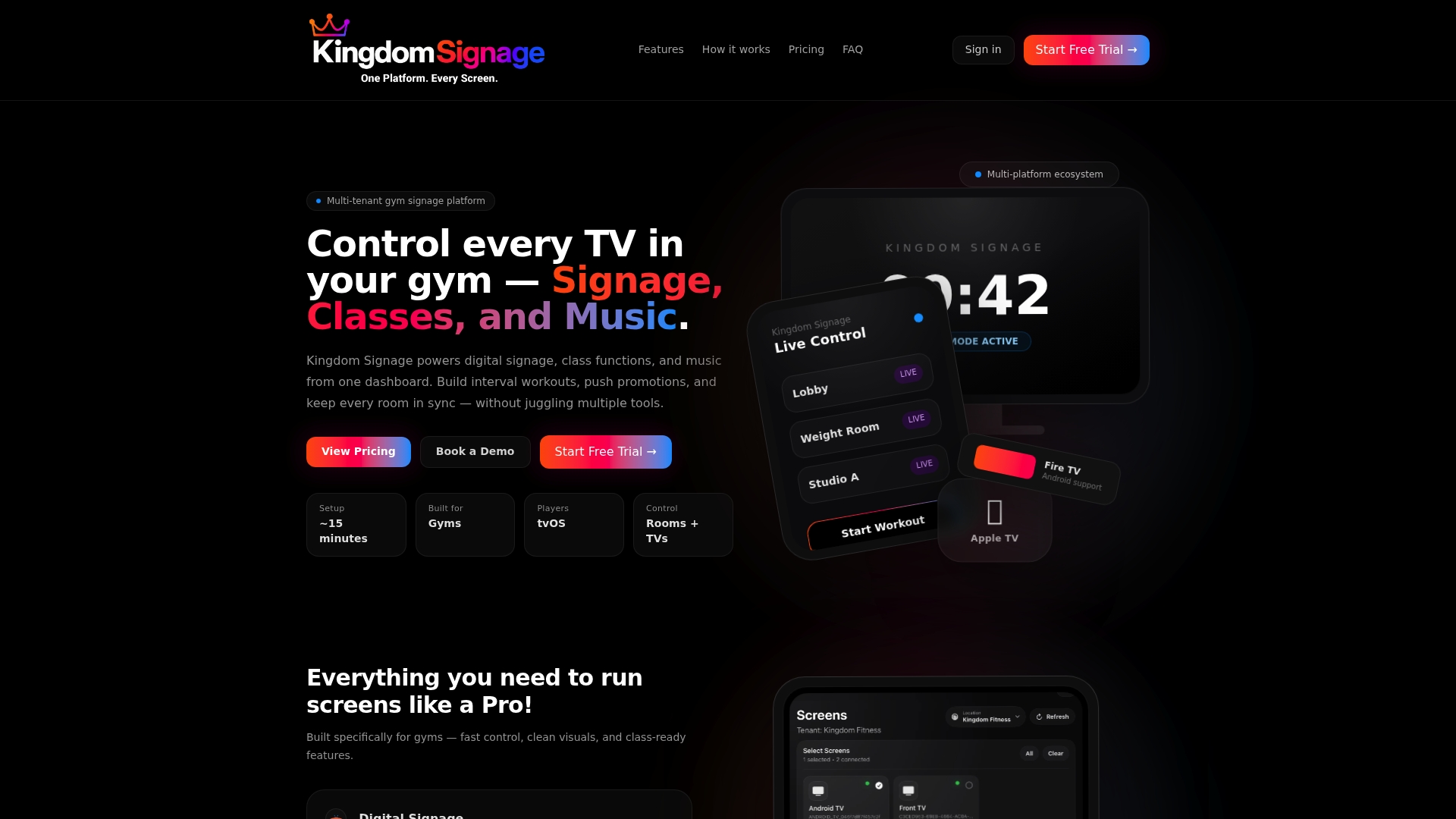
This reduces manual steps for front-desk staff during busy times, and ensures a consistent experience whether a member is checking the lobby screen or standing in the studio when a room changes. If you want to see how this looks running in an actual gym, visit the Kingdom Signage site to view examples and request a demo for your location.
FAQ
What should a live class update message always include?
A live class update should include the class name, scheduled date and time, instructor, and exact room or location, whether it's shown on a screen or sent by email or text. Zenoti's cancellation notification templates build in these same fields as macros so staff don't have to type them manually each time.
How long should a class update stay on a lobby screen?
Short messages should stay on screen for at least 5 to 7 seconds to give members enough time to read them, according to University of Northern Iowa's digital signage accessibility guidance. Anything shorter risks members missing the update entirely, especially in a busy lobby.
What's the difference between an early and late class cancellation?
An early cancellation typically carries no penalty for the member, while a late cancellation or no-show often results in a deducted session or a fee, depending on the studio's policy. Mindbody's guidance on cancellations outlines how booking platforms typically distinguish between the two.
Should I cancel a single class or the whole recurring series?
Choose the narrowest scope that matches what actually happened: a one-off cancellation for a single date, a date-range cancellation for a temporary pause, or a series termination only when the class is ending for good. Mindbody's documentation on cancelling or hiding classes recommends previewing the roster impact before confirming, since the wrong scope can remove sessions you meant to keep.
Do I need an alternative to on-screen signage for urgent updates?
Yes, time-sensitive information shouldn't rely on a screen alone, since not every member will see it in time. Accessibility guidance from University of Northern Iowa recommends pairing signage with an equivalent channel, such as a targeted email or text, for anything critical.
Sources
- Class Cancelled
- How to manage early cancellations, late cancellations, and no-shows for classes
- Digital Accessibility Basics: Digital Signage
- Chapter 7: Signs