
The most reliable way to sync videos across screens is to stop treating each TV as its own device. Put every screen under one dashboard, give it the same playlist or cue, and let that system decide what plays where and when. That works for one wall of TVs, a set of studios, or a chain of locations. Kingdom Signage is built for this: it unifies control of TVs, workout classes and room-based music from a single dashboard, and it works with the screens you already have.
This guide covers what "in sync" means in a gym, why screens drift apart, how to play one video on many TVs, how to keep rooms and classes aligned, and how to manage content across locations.
TL;DR
- "Synced" means three different things in a gym: the same video on several TVs, the right content in each room at the right time, and the same programming across locations. Each needs its own approach.
- Drift between TVs usually comes from network buffering, long or older cable runs, splitters, and each TV's picture processing. Wired Ethernet and matching TV settings remove most of it.
- For classes, cue-based playback beats a fixed loop: the instructor starts the segment, and every screen in the room follows.
- Across locations, keep one shared library and schedule, and let each site add its own announcements.
- Use a dashboard instead of a stack of USB sticks, casting apps and remotes. It also takes care of class timers, announcements and room music.
Table of Contents
- What "in sync" actually means on a gym floor
- Why screens drift apart
- Playing the same video on multiple TVs
- Keeping rooms and classes in step
- Syncing across locations
- Network and equipment checklist
- Kingdom Signage for gyms and studios
- Our perspective
- FAQ
- Sources
What "in sync" actually means on a gym floor
Search results for this topic mix hobbyist tools, video-wall hardware and enterprise signage. A gym owner usually needs one of three things, and the fix differs for each.
| Goal | Example | What it needs |
|---|---|---|
| Same video, same moment, several TVs | Six TVs along the cardio floor showing one promo or workout demo | One source and a player that starts every screen together |
| Right content in each room, on cue | Studio A shows a HIIT timer while Studio B shows a yoga flow | Room-based control and class schedule |
| Same programming across sites | Every location runs the January offer, with its own hours and class list | Central library, per-location schedules |
A member walking past three TVs on a cardio floor notices if one is half a second behind. A member in a spin studio notices if the timer is ahead of the music. Nobody notices if two locations switch to the new promo a minute apart. Aim your effort at the first two cases.
Why screens drift apart
Two TVs given the same file will rarely stay frame-accurate on their own. EverPass's support documentation lists the usual causes of lag between TVs:
- Network buffering. Wi-Fi adds variability, so one device buffers longer than another. Wired Ethernet reduces that variability.
- Signal path differences. A device sitting far from the router, an older or longer HDMI cable, or extra processing through a splitter or AV receiver adds delay.
- TV processing. Motion smoothing and other picture or audio enhancements delay the image. Setting the same motion, smoothing and audio options on every TV minimizes the difference.
Hardware distribution has its own delay. One manufacturer's guide for HDMI-over-IP extenders gives a 4K latency of 120 to 170 ms and recommends gigabit Ethernet switches when one transmitter feeds many receivers. That is a small delay, and when every screen is fed the same way it is the same on all of them. The mismatch arises when screens take different paths.
Two practical rules follow:
- Give every screen in a viewing zone the same kind of path: same player type, same cable type, same TV model and settings where you can.
- Do not mix a hardwired TV with a casting dongle on Wi-Fi in the same sightline.
Playing the same video on multiple TVs
There are four common ways gyms try this. Understanding them shows why a dashboard is the better default.
Splitters and extenders
One player, one HDMI signal split to many TVs. Everything is truly identical, but every TV shows exactly the same thing. You cannot give the front desk a promo and the free-weight area a workout demo without more boxes, and you are limited by cable distance and hardware. It is also hard to scale to a second room.
USB sticks and built-in loops
Plug a drive into each TV and press play. Starting times differ by seconds, and every TV drifts further over a day. Updating means walking to each screen. If you want a hands-off loop for a single screen, our guide to video loops on TV with autostart shows how to make them start unattended.
Casting and mirroring from a laptop
This works for a one-off event. It ties up a laptop, depends on Wi-Fi, and stops when the laptop sleeps. It is not a system you can hand to the opening shift.
One dashboard controlling every screen
A cloud dashboard assigns playlists or live cues to screens or groups of screens. You change something once and every assigned TV follows. This is the approach we recommend, and the one Kingdom Signage provides: TVs, class scheduling, workout timers with demo video support, real-time announcements and room-based music are managed in one place instead of across several tools and devices. It integrates with existing screens, so you do not need to replace hardware.
For the manager's view of how the pieces fit, see how multi-room gym displays work and our guide to managing multiple gym TVs from a dashboard.
Keeping rooms and classes in step
Rooms add a second challenge: video, timer and music must line up with a live human. A fixed loop cannot do that. If a class starts four minutes late, a looped video is four minutes wrong for the whole session.
Use cues, not clocks
Cue-based playback means the content waits for a trigger. The instructor taps start, and the warm-up video, interval timer and playlist begin together. If the class runs long, nothing is stranded. We explain how this avoids the classic mismatch in cue-based playback that avoids a 15-minute lag.
Give the instructor the control
The person standing in front of the class knows when the class really starts. Letting them advance a segment from a phone or tablet removes the need for the front desk to run the screens. See our guide to instructor remote control of gym screens for how this works in practice.
Treat audio as its own zone
The usual mistake is to link all rooms together. A spin room and a yoga room should not share a soundtrack or a timer. Define each room as its own zone with its own screens and music, then sync the screens within it. Kingdom Signage supports room-based music integration and multi-room management from the same dashboard, so the timer on the wall and the music in the speakers can follow one schedule per room.

Show the room's status outside it
Synced content is not only for workouts. A display at the studio door can show what is on now and what is next. If you want that, read how gyms use a room booking display and a room occupancy display.
Syncing across locations
A multi-location operator has a different problem: consistency without rigidity. The January promotion should appear everywhere. The class schedule should not.
A workable structure:
- One shared library. Upload promo videos, brand loops and demo clips once.
- Location-level schedules. Each site has its own class timetable, hours and holiday closures.
- Group assignment. Put screens into groups such as "lobby", "cardio floor" and "studios" at every site, so a campaign can be pushed to "all lobbies" in one action.
- Local announcements. Let each site post a real-time message, like a changed instructor or a closed locker room, without touching the corporate playlist.
Kingdom Signage supports multi-room and multi-location management from a single dashboard, with integration across unlimited locations. A marketing manager can launch a campaign everywhere while each club keeps control of its own announcements.
Note what "sync" means here. Locations do not need frame-accurate playback with each other, because no member sees two sites at once. They need the same content, updated at the same time, with the right local details.
Network and equipment checklist
Before you blame the software, confirm the basics. A good dashboard cannot overcome a poor connection.
- Wire the permanent screens. ViewSonic's guide recommends wired Ethernet over Wi-Fi for permanent installations. Use Wi-Fi only where running a cable is impractical.
- Match your displays. Use the same model per zone if possible, and set motion smoothing and audio enhancement options identically.
- Mind the duty cycle. The same guide notes that consumer TVs are designed for a few hours of use a day, while commercial displays carry 16/7 or 24/7 ratings. A gym screen that runs from opening to close is a commercial use case.
- Keep cable runs short and consistent. Replace older HDMI cables on screens that lag, and remove splitters or receivers you do not need.
- Plan bandwidth. Many HD streams at once can strain a small-site connection. Our AV bandwidth planning guide walks through the numbers.
- Decide what you are streaming. If you are weighing broadcast-style delivery against managed signage, IPTV versus digital signage for gyms lays out the difference. If your TVs still show cable channels, channel blocking breaks down across many screens, which is another reason to put them under one control layer.
A quick test after setup
Stand where a member would see two screens together and play a clip with a clear cut, such as a countdown or a clap. If the screens differ by more than a moment, swap one variable at a time: network path first, then cable, then TV settings. Repeat on each room before opening.

Kingdom Signage for gyms and studios
If you manage more than a couple of TVs, the effort of keeping them aligned by hand grows with every screen and every room. Kingdom Signage is a subscription platform for gyms and fitness studios, with tiered monthly pricing per location. Music integration and additional TV licenses can be premium add-ons. You can start with a free trial or demo.
With it you can:
- control digital signage, TV screens and class schedules from one dashboard;
- run workout timers with demo video support;
- send real-time announcements to chosen screens;
- manage multiple rooms and multiple locations without separate tools.
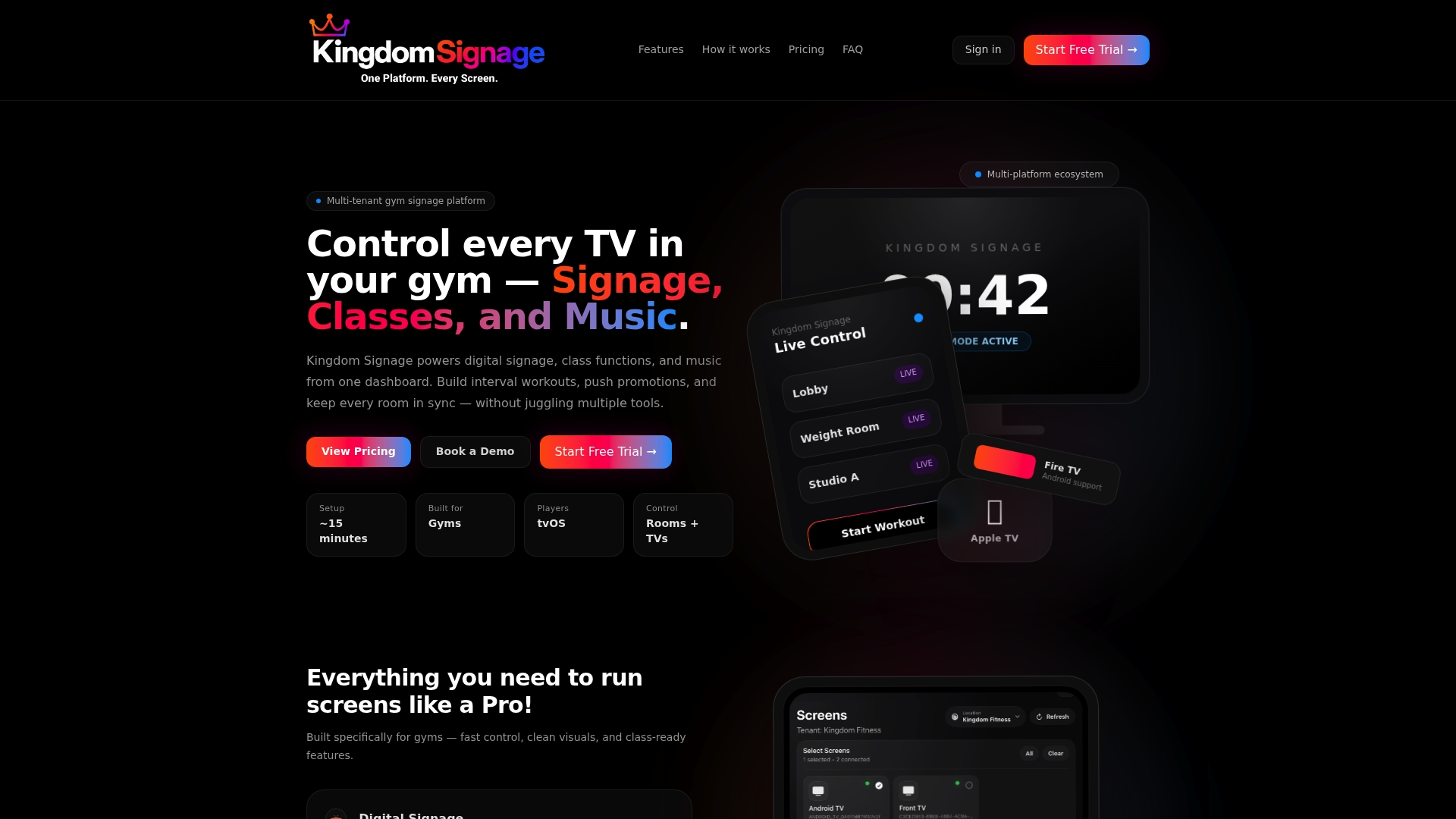
See how it fits your floor at Kingdom Signage.
Our perspective
Most gyms do not have a video problem. They have a coordination problem. The content exists: a promo, a warm-up clip, an interval timer, a playlist. What fails is getting the right piece onto the right screens at the right moment, and doing it again tomorrow with different staff.
That is why we built Kingdom Signage around one dashboard instead of one more device. When TVs, class timers, announcements and room music live in separate tools, someone has to be the glue, and that person is usually an instructor with a class waiting. When they share one control layer, a class transition is a single action.
We also believe small studios deserve the same control as large chains. Working with the screens you already own, rather than asking you to replace them, is how we keep that practical. And because a subscription is priced per location, a boutique studio and a franchise group can each start where they are.
The goal is simple: members see the right thing, instructors stay focused on the class, and managers stop walking from TV to TV.
Kingdom
FAQ
Can I play the same video on multiple TVs without special hardware?
Yes, if every TV is assigned to one dashboard or player group that starts them from the same playlist. Avoid USB sticks and casting for permanent setups, since each device starts on its own timing. Keep the screens on wired Ethernet where you can.
Why is one TV always a little behind the others?
The usual causes are Wi-Fi buffering, a longer or older HDMI path, a splitter or receiver, and different picture processing settings on the TV. Put the screens on the same connection type and match their motion and audio settings. Then retest.
How do I sync screens across different rooms?
Treat each room as its own zone and sync the screens inside it. Then tie class content to a cue that the instructor starts, so the video, timer and music begin together even when a class starts late. Rooms do not need to run in lockstep with each other.
How do I keep content the same across locations but still allow local updates?
Keep one shared library for brand content and give each location its own schedule and announcements. Corporate pushes the campaign; each site controls its hours, classes and messages.
Sources
- Content Not Syncing Between Screens, EverPass Help Center
- HDMI KVM IP Extender Set 4K/60Hz quick installation guide, Assmann
- How to Build a Scalable Digital Signage Solution, ViewSonic