
A QR code on a gym screen works when it does one job, sits on screen long enough to scan, and opens a mobile page that matches what the member wants right then. Use a dynamic code, make it large and high-contrast, put a one-line instruction beside it, and test it from the spot where members actually stand. The rest of this guide covers what to link, how big to make the code, how to get it onto a TV, and how to keep it working across rooms and locations.
TL;DR
- Give every screen code one action: book a class, start a free trial, watch a form video, join a challenge or leave a review.
- Use dynamic codes so you can change the destination without touching the screen content again, and so you can see scan counts.
- Size matters: modules of at least 4×4 screen pixels, a visible time of at least 10 seconds, and a short instruction beside the code.
- Test on at least one iPhone and one Android phone, from the real viewing distance, before the code goes live in every room.
- Manage codes in the same place as your screen content, so a schedule change updates the code and the slide together.
Table of Contents
- What QR codes on gym screens help members do
- QR code ideas that fit gym screens
- How large and how long a QR code should appear
- How to put a QR code on a gym TV or signage system
- Test before you roll out to every room
- Measure scans and keep destinations current
- Common mistakes to avoid
- Our perspective
- Run your gym screens and codes from one dashboard
- FAQ
- Sources
What QR codes on gym screens help members do
A TV is something members look at while they wait, warm up or cool down. A QR code turns that glance into an action on the phone that is already in their hand. That is the whole value: a screen shows one thing at a time, and the code lets each member take the next step on their own device.
The actions that make sense on a gym screen are the ones a member would take in the moment:
- Book a class. Members see the next session on the lobby screen and book before they walk away.
- Watch a form video. A code next to a rack or cable station opens a short demonstration.
- Join a challenge. A code on the promo slide opens the signup page.
- Start a trial or refer a friend. Guests and members in the lobby can act on an offer immediately.
- Leave a review. A code on the exit screen catches members when the workout is fresh.
- Connect to guest Wi-Fi or the community. A code near reception saves staff from repeating the same instructions.
Some studios also use a rotating check-in code. For example, one studio platform's guide describes a dynamic check-in code that refreshes every hour and is shown on a screen near the entrance or training area. Whether that fits depends on your booking or access software, so confirm what your system supports before building a check-in slide.
QR code ideas that fit gym screens
Lists of gym QR ideas are easy to find. The useful question is which ones belong on a screen rather than on a printed sticker. Screens are best for content that changes: schedules, offers, challenges. Stickers are best for things fixed to a place, like a machine.
One gym QR guide lists equipment form videos, class schedules at entrances, locker-room nutrition and recovery information, a member community link at reception and challenge signups. Another use-case roundup adds feedback, app downloads, attendance tracking, hygiene verification and guest Wi-Fi. Here is how those map to the screens you already have.
| Screen location | Best QR destination | Instruction line example |
|---|---|---|
| Front desk or lobby | Free trial form, membership signup, referral page | Scan to start your free trial |
| Studio door | Booking page for the next class | Scan to book your spot in tonight's class |
| Cardio or strength floor | Form video for the nearest equipment | Scan to watch the setup in 60 seconds |
| Locker room | Recovery tips, app download, community link | Scan to get the app |
| Exit or juice bar | Review form, merchandise or smoothie offer | Scan to tell us how it went |
The common thread is matching the code to the member's intent at that spot. OpenQR's placement advice pairs booking with the studio door, signup with reception, equipment guidance with machines, Wi-Fi with the lobby and feedback with the exit. Separate placements get separate codes so each one opens the relevant page, which QRtrackr also recommends for the window, front desk, machines, studio and locker room.
Class schedules and booking
This is the strongest use for most gyms, because the screen already shows the schedule. Link the code to booking, not to a static timetable. One guide notes that a prompt like "Scan to see tomorrow's classes and book your spot" outperforms a plain schedule prompt, and recommends placing codes at the studio door, reception and locker rooms. If you want layout ideas for the schedule itself, see our class schedule display examples and our piece on how gym screens support class enrollment drives.
Equipment form videos
One source calls form videos the highest-return QR use case, with short clips for each strength machine and cable tower. A separate guide suggests 60 to 90 seconds on a video host, opening with the machine name and one safety rule, then setup, two or three cues and a common mistake. Put the code on a sticker at the machine, and use a gym screen to rotate a "machine of the week" slide that points to the same video.
Promotions and offers
A promo slide without a next step is a poster. Add a code and it becomes a signup form. Keep the offer on the slide short and let the landing page carry the detail. Our guides on how membership offers display digitally and class promotions on gym TVs show how to build those slides.
How large and how long a QR code should appear
A code that looks fine on your laptop can fail across a lobby. Three things decide whether it scans: pixel size, physical size and time on screen.
Pixel size. A screen display guide says each QR module should be at least 4×4 screen pixels. A Version 5 code with 37 modules therefore needs at least 148×148 pixels. On a 1080p TV that is rarely a problem, but it matters if you shrink the code to fit a crowded zone of a multi-zone layout.
Physical size and distance. One practical rule, described by PageLoot, is that the code should be at least one-tenth of the scanning distance, and general signage codes should not drop below roughly 2×2 inches. That means a member standing 10 feet (120 inches) away needs a code about 12 inches wide on the screen. A gym-specific sizing list suggests 1.5 to 2 inches for an equipment how-to, 3 to 4 inches for a class schedule, 1.25 to 1.5 inches for referrals and 2 inches for reviews, which are printed-sticker sizes and a good minimum for small screens close to the member.
If you want a quick screen-based rule, one display guide recommends that the code takes up at least 15 to 20 percent of the visible display area.
Time on screen. The same display guide says a code on a TV should stay visible for at least 10 seconds. For lobby loops, another guide recommends 15 to 20 seconds, and 30 seconds or more where people approach from the side. It also suggests a dedicated "scan" frame in a five-slide loop that holds only the call to action, the code and a short URL.

These figures are a starting point. Your own room, screen brightness and viewing angle decide the final numbers, so use the test below.
Contrast, quiet zone and the instruction line
- Use dark modules on a light background. Avoid placing the code over a photo or video.
- Leave a clear border of about four modules around the code, as PageLoot recommends.
- Add one line beside the code that says what happens on scan. OpenQR advises a one-line instruction such as "Scan to book your next class" rather than an unexplained code.
- Keep a short readable URL under the code for members who prefer to type.
How to put a QR code on a gym TV or signage system
The mechanics are simple, and one display guide lays out the same sequence.
- Pick a mobile-friendly destination. The page must load fast on cellular data and show one clear action. A booking page that needs a desktop browser defeats the purpose.
- Create a dynamic code. The code points to a redirect that you can change later. QR Code Handbook explains that this is the usual recommendation for signage, since a static code would force you to upload a new image every time the destination changes.
- Export it as SVG or a large PNG. Use SVG if your system accepts it, or a PNG at least 1000 pixels wide, so it stays sharp when scaled.
- Place it on a slide. Build a clean slide with a headline, the instruction line and the code, on a plain background.
- Publish to the screens. Push the slide to the right TVs and rooms, whether through a signage dashboard, a presentation or a browser in full screen.
- Test, then monitor. See the next sections.
If you are still planning the wider setup, our guide on setting up gym digital signage that works covers screens, zones and content in order. For front-of-house screens, the front desk signage essentials cover what a code should sit next to.
Screen position is part of the design too. A code only scans if members can stand, face it and hold a phone steady, which is a layout question as much as a content one. Interior design work on fitness and wellness space design shows how large commercial spaces plan sightlines and zones, and the same thinking helps you decide which wall gets the scan slide.
Test before you roll out to every room
Testing takes ten minutes per room and prevents the most common failure: a code that scans on the desk and not from the treadmill.
A QR testing guide recommends checking across devices, operating systems and form factors, and checking scan distance, size, contrast, the error-correction level and the quiet zone. In practice:
- Stand where a member would stand: at the door, at the bench, on the cardio row.
- Scan with at least one iPhone and one Android phone, as PageLoot suggests, at the real display size and resolution.
- Try it with the room lights on and with studio lighting dimmed, since glare and dark rooms change results.
- Open the destination on cellular data, not gym Wi-Fi, to see what a new member sees.
- Repeat after any change of screen, brightness or layout.
Glare from windows is the usual culprit in lobbies. If a code fails, enlarge it first, then increase contrast, then lengthen its time on screen.
Measure scans and keep destinations current
A code you cannot measure is a code you cannot improve. Dynamic codes record each scan with details such as device type, operating system, browser, country, language and time, according to one tracking guide. The same guide says the destination can be changed in the dashboard without reprinting, and updates go live within seconds.
For a gym, a few simple habits turn that data into decisions:
- One code per placement. If the lobby, studio door and locker room each have their own code, you can see which spot actually drives action.
- Compare by time of day. Scans from the 6 p.m. class rush tell you something different from midmorning scans.
- Retire what does not work. If a code gets a handful of scans in a month, change the instruction line or the placement before you change the offer.
- Check destinations weekly. A code that opens an expired promotion or a full class is worse than no code. Set a recurring reminder.
This is where keeping codes and content in one place pays off. If a challenge ends on Sunday, the slide and the destination should end together. Our real-time content updates guide explains how to run that routine, and the real-time offer display guide covers offers specifically.
Common mistakes to avoid
- Too many codes on one slide. Two codes split attention and halve the scans. One slide, one action.
- A code with no instruction. Members will not scan something they cannot explain to themselves.
- A code that disappears in three seconds. Give it the full time on screen recommended above.
- A destination built for desktop. Check the page on a phone first.
- Forgetting the multi-location case. If you run several sites, each should have its own code and destination, so a schedule for one club never shows up at another. Our multi-location digital posters playbook covers the content side of this.
Our perspective
We built Kingdom Signage around a simple observation: gym teams do not lack ideas for what to show on a screen, they lack a single place to manage it all. A QR code is a good example. The code itself takes a minute to make. The hard part is putting it on the right TV in the right room, at the right time, and changing it when the class, the offer or the challenge changes.
That is why we think QR codes belong inside the same dashboard as your schedules, announcements, workout timers and room music, not in a separate tool. When one place controls what each screen shows, a new class slide, its booking code and the playlist for that room can go live together, across rooms and across locations.
Our platform is designed to work with the screens you already have, so adding a scan slide does not mean replacing hardware. We think that is the right way to approach it: start with one code at the studio door, see what members do, then extend it room by room.
Kingdom
Run your gym screens and codes from one dashboard
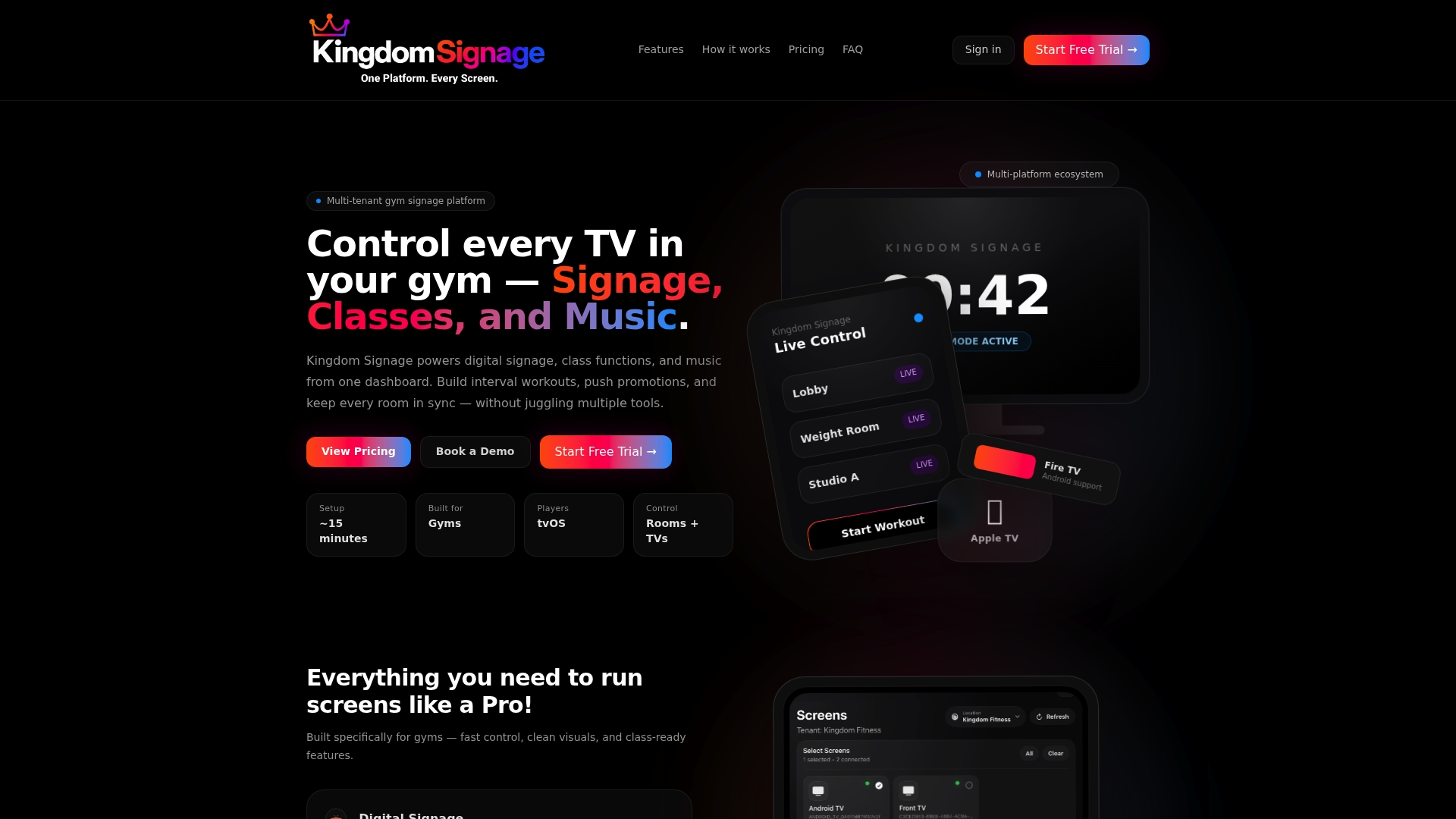
Kingdom Signage gives gyms and fitness studios unified control of digital signage, TV screens, class schedules, workout timers with demo video support, room-based music and real-time announcements. You can manage multiple rooms or locations from a single dashboard, and it integrates with existing screens. That makes it simple to publish a booking slide with a code to the right rooms and update it when the schedule changes.
See how it works for your studio at Kingdom Signage.
FAQ
Where should the QR code go on a gym TV?
Put it on a dedicated slide or in a clear corner zone with a plain background, large enough to scan from where members stand. Choose the placement by intent: booking at the studio door, signup at reception, review at the exit. Avoid placing it over moving video.
Should I use a static or a dynamic QR code on gym screens?
Dynamic is the usual choice for signage. It lets you change the destination without replacing the image on your screens, and it records scans so you can see which placements work. A static code is fixed to one destination, so every change means a new image.
How long should the code stay on screen?
At least 10 seconds on a TV, according to one screen display guide. For lobby loops where people walk up from the side, aim for 30 seconds or more, as QR Code Handbook recommends.
What should the code link to?
Link to one specific action on a mobile-friendly page: a booking page for the next class, a free-trial form, a form video or a review form. Linking straight to booking tends to work better than linking to a general schedule.
Can members scan a code from across the room?
Only if it is big enough for the distance. A common rule is a code width of at least one-tenth of the scanning distance. Test it at the real viewing spot with both iPhone and Android before you publish.
Sources
- Octiv & Vitality Studio Guide
- QR Codes for Gyms & Fitness Studios: Member Engagement
- QR Codes for Gyms: 8 Use Cases
- QR Codes for Gyms & Fitness Studios: Placement and Sizes
- QR Codes for Gyms & Fitness Studios: Sign-ups, Schedules
- QR Codes for Gyms & Fitness Studios: Guide 2026
- Dynamic QR Codes for Gyms
- QR Codes for Screen Display: TVs, Monitors, and Projectors
- Gym QR Codes: Equipment Guides, Classes and Referrals
- Scan QR Codes on Displays & Screens
- QR Code Display for Screens and Digital Signage
- QR Codes on Digital Screens and Displays
- Test QR Codes: How to Get Started
- How to Track QR Code Scans
- Synergy Fitness & Spa project