
For most home and computer setups, a small external A/B or multi-input hardware switcher solves the problem cleanly. For a laptop or desktop, built-in Windows or macOS controls (or a lightweight menu-bar utility) handle output and input switching without extra gear. For studios and gyms running several rooms, a balanced multi-channel switcher or a centralized AV platform like Kingdom Signage trades a little setup time for far less daily hassle; see our event sound system guide for practical setup tips that can help with troubleshooting and configuring PA/multi-source environments.
TL;DR:
- Passive A/B boxes suit casual source swaps, but switching during playback can cause pops or silence; buffered models mute transitions and preserve signal level.
- Professional setups should match channel count and balanced connections, then use isolation and per channel trims to reduce hum and prevent volume jumps.
- Computer switching needs no extra hardware for one source and destination, but macOS may reroute Bluetooth audio; a menu bar utility can lock the input.
- A matrix suits fixed routing within one room, while gyms coordinating scheduled audio, announcements, and volume across rooms need centralized control and scheduling.
Table of Contents
- Hardware switcher types and how to pick one
- OS and utility methods to switch audio inputs and outputs quickly
- Matrix and multi-room switchers, plus orchestration options
- DIY switch circuits and safe wiring practices
- Practical checklist to diagnose hums, phase problems, and switching glitches
- Recommended choices by audience segment
- How a unified AV platform removes switching complexity for gyms
- FAQ
- Sources
Hardware switcher types and how to pick one
The simplest option is a mechanical A/B box: a passive switch that routes one of two sources to a single output with no power and no electronics in the signal path. These work fine for casual use, like swapping between a turntable and a streaming box feeding the same speakers, but cheap mechanical switches can introduce audible pops or momentary silence when you flip them mid-playback.
Buffered or active switchers solve that problem. They use op-amps or relays with muting circuits to eliminate clicks and preserve signal level and tone, which matters if you are switching sources while something is actively playing, such as in a live room or broadcast setup.
For professional work, balanced XLR multi-channel switchers add features that passive boxes lack. The Radial SW4 is a four-channel balanced A/B switcher with individual trim controls for level matching, link switches that let you flip two channels together for stereo sources, a mix bus, and transformer isolation to cut hum between connected gear.
When picking a switcher, consider:
- Channel count: match the switcher to how many sources you actually need routed, not just two.
- Balanced versus unbalanced: mixing the two without adapters or matching transformers risks noise and signal loss.
- Isolation and ground lift: look for a model with transformer isolation if you are connecting gear with different power sources.
- Trim controls: separate level adjustment per channel prevents a jarring volume jump when you switch.
Wiring matters as much as the switcher itself. Unbalanced connections (RCA, quarter-inch TS) are more prone to hum over longer cable runs, while balanced connections (XLR, TRS) reject noise better. Signal matching between sources and destinations is worth checking before you wire anything, since mixing balanced and unbalanced gear without the right cabling or adapters can degrade the signal.
Pro Tip: Run a test tone through each input at the same volume before relying on a switcher live, so you catch level mismatches before an audience does.
OS and utility methods to switch audio inputs and outputs quickly
If your switching happens entirely on one computer, between headphones, speakers, or a conference mic, the operating system usually handles it without added hardware.
On Windows 11, the fastest route is:
- Click the speaker icon on the taskbar.
- Select the arrow next to the volume slider to see connected playback devices.
- Choose the device you want, or go to Settings > System > Sound to set a permanent default output.
Apple devices behave differently: audio often routes automatically between devices signed into the same Apple Account, such as AirPods reconnecting the moment they're in range. For manual control, open Control Center or the Now Playing screen and tap the AirPlay icon to pick your destination.
That automatic behavior is convenient until it isn't. A connected Bluetooth device can hijack playback mid-call, which is why professionals who need a input to stay put often rely on a dedicated tool. One small macOS menu-bar utility lists active input and output devices and can lock a chosen input so neither apps nor the OS can override it during a session.
One active audio input, locked against automatic switching, removes an entire category of mid-call surprises.
Software alone is enough when you are moving between one source and one destination on a single machine. Once you need to mix multiple live sources simultaneously, hardware becomes the better call, since software switching adds a layer of latency that a physical switcher avoids entirely.
Matrix and multi-room switchers, plus orchestration options
Once you have more than two sources and more than one destination, a simple A/B box stops being enough. A matrix switcher routes any input to any output, or several outputs at once, which is the backbone of most studio and multi-room installs.
Professional units like the Kramer VP-727A-BA, an 8x2 balanced stereo switcher, add the features that separate consumer gear from install-grade equipment:
- Preview and program outputs: cue a source on headphones before it goes to the main feed.
- Audio-follow-video (AFV): audio switches automatically whenever the paired video source changes.
- Separate level controls per channel: avoid a jarring volume jump between sources.
- Fade-to-mute transitions: switch without a pop or dead air.
- RS-232/RS-485 control: integrate the switcher into a larger automated system.
Control options scale with the install. A front panel works for a single studio engineer making manual calls. Contact closures or RS-232/RS-485 suit integrators building a fixed automation sequence. A networked API is what makes scheduling and remote management possible across multiple rooms or locations at once, which is where a hardware matrix starts competing with a managed platform rather than a simple switcher.
Two example setups illustrate the range. A studio engineer switching between two sets of stereo monitors needs little more than a balanced switcher with level trim and a mute-on-switch feature. A gym running scheduled music and announcements across several rooms needs routing, scheduling, and ducking working together, which is a lot to ask of a standalone matrix box without a control layer on top.
That's the dividing line: choose a hardware matrix when your routing needs are fixed and local to one room, and choose a managed orchestration platform when you are coordinating concurrent audio streams across multiple spaces with changing schedules.
DIY switch circuits and safe wiring practices
Building your own switcher is realistic for simple A/B jobs. A mechanical rotary or toggle switch wired between two sources and one output works for low-stakes use, like choosing between two line-level devices feeding a home amp.
Relay-based circuits add a layer of reliability. A latching relay holds its state until triggered again, useful for a switch you set once and leave. A momentary relay only switches while triggered, better suited to a push-and-hold control. Either approach removes mechanical wear from the signal path itself.
The tradeoff with any DIY switch is the pop or click that happens when you break and remake a connection carrying signal. A muting circuit, which briefly silences the output during the switch, or a simple buffer stage, solves this at the cost of a bit more complexity on the breadboard.
A few safety practices keep a DIY build from becoming a liability:
- Use connectors rated for the signal type (RCA, TS, or XLR) rather than bare wire splices.
- Shield cable runs to cut noise pickup, especially near power cables.
- Avoid creating a second ground path between two already-grounded devices, which causes a ground loop.
- Fuse or isolate anything touching line voltage; keep that circuitry physically separate from the audio path.
Pro Tip: If you hear a faint hum that changes pitch when you touch a metal chassis, you're likely looking at a ground loop, not a bad cable.
Practical checklist to diagnose hums, phase problems, and switching glitches
Most switching problems fall into a handful of repeatable categories, and working through them in order saves time.
- Check for ground loops first. A persistent hum or buzz that disappears when you unplug one device's ground usually points here. An isolation transformer or ground lift switch breaks the extra ground path without disconnecting the signal.
- Test for phase cancellation. If combining two sources produces a thin, hollow sound, flip a phase-invert switch on one channel; correct polarity makes speaker cones move together instead of against each other.
- Match levels before switching live. Set trims on each input, test at low volume first, and adjust so no source jumps noticeably louder or softer than the others when you switch.
- Rule out software and drivers. An outdated or buggy audio driver can cause dropouts or delayed switching. Update or roll back the driver, confirm the correct default device is selected, and use a locking utility if the OS keeps reverting your choice.
A locked input eliminates one of the most common sources of mid-session switching failures: the OS silently reassigning the active device.
Recommended choices by audience segment
A hobbyist swapping between a couple of home sources is well served by a low-cost passive or small active box and tidy cable routing. Computer users and content creators usually get further with OS controls plus a small utility, adding a proper audio interface only once multiple mics enter the picture. Studio and gig technicians need a balanced multi-channel switcher with preview/program and isolation built in. Gym operators juggling several rooms are usually better off centralizing control through a dashboard instead of stacking hardware.

How a unified AV platform removes switching complexity for gyms
Running several rooms means multiple sets of switches, schedules, and volume levels to manage by hand, and that complexity multiplies with every additional location. A centralized dashboard brings music, class audio, and announcements together in one place.
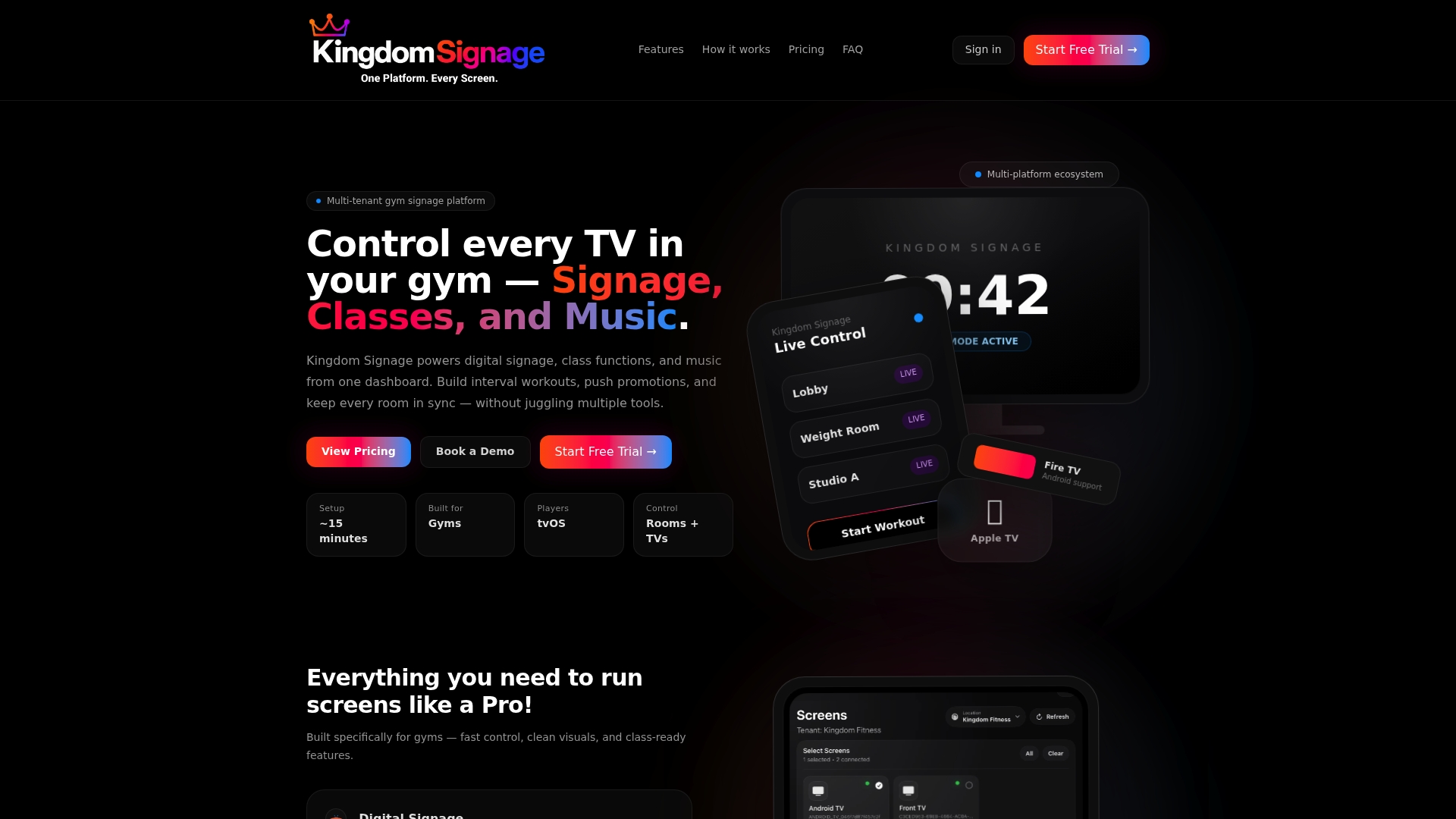
For gym operators specifically, this looks like:
- Scheduling workout class audio and promotional content from a single screen instead of per-room controllers.
- Applying one ducking preset for announcements across multiple rooms rather than adjusting each zone manually.
- Managing playlists and multi-room music from the same dashboard that controls your TV signage.
If you manage audio and signage across more than one room, a Kingdom Signage demo can help you see whether centralized control fits your setup better than another round of hardware.
FAQ
How do I change my audio output device?
On Windows 11, click the speaker icon on the taskbar, select the arrow next to the volume slider, and choose a device from the list, or set a permanent default under Settings > System > Sound. On Apple devices, open Control Center or the Now Playing screen and tap the AirPlay icon to pick a destination.
Why is sound still coming from my speakers instead of my headphones?
This usually means the OS has not switched its active output device, often because a Bluetooth or wired device didn't register as connected. Check the device list in your sound settings and select headphones manually, or use a locking utility if the OS keeps reverting the choice.
What is an audio switcher?
An audio switcher is a hardware or software tool that routes one of several audio sources to one or more outputs. Simple versions are mechanical A/B boxes, while professional versions like the Radial SW4 add balanced inputs, level trims, and isolation to prevent noise.
How do I switch my iPhone audio to a speaker?
Open Control Center and tap the AirPlay icon shown on the audio card, then select the speaker you want from the list of available destinations. Apple devices also route automatically to a connected device signed into the same Apple Account, so check that the right device is selected if routing seems stuck.
When should I choose hardware over a software switcher?
Software switching works well for moving between one source and one destination on a single machine, such as switching outputs on a laptop. Once you need to mix multiple live sources at once, a hardware mixer or interface avoids the added latency that comes with routing everything through software first.
Sources
- Solutions
- Support
- FOUR CHANNEL BALANCED A/B SWITCHER
- Based on file VP103BOOK.DOC. as template (Normal.dot)
- denseymour/audio-switcher