
An Apple TV can run gym signage: plug it into a TV, lock it to one signage app, load image or video content, and let it loop. The hard part is not the first screen. It is keeping five screens, three studios and a class schedule in step once the gym grows. This guide covers the full Apple TV setup, where each step tends to go wrong, and how to run it so a front desk team can actually maintain it.
TL;DR
- An Apple TV needs an HDMI display, an HDMI cable, internet over Wi-Fi or Ethernet, and an Apple Account. For 4K HDR you also need a high-speed HDMI cable and a TV that supports it.
- It plays image slideshows and video reliably. It has no web browser, so web-based slide decks and online dashboards will not display the way they do on a laptop.
- One Apple TV drives one screen. Every extra room means another box, another setup and another place to update.
- Class timers, demo videos, room music and announcements are a scheduling problem, not just a playback problem. That is where a single dashboard pays off.
- Plan on a checklist: hardware, network, app, kiosk lock, content, schedule, and a weekly update routine.
Table of Contents
- Can an Apple TV be digital signage in a gym?
- What you need before you start
- Step-by-step Apple TV signage setup
- What changes when you add rooms and locations
- What an Apple TV setup costs
- Our perspective
- Try it on your gym's screens
- Setup checklist
- FAQ
- Sources
Can an Apple TV be digital signage in a gym?
Yes, with limits you should know before you buy boxes. Jamf, a company that makes Apple device management software, describes Apple TV as a viable and cost-effective signage option when you use image-based slideshows. The same post notes the Apple TV has no Safari browser, so YouTube pages and online presentations from Google Slides, PowerPoint 365 or Canva are not an option on the device itself.
For a gym, that tells you what the box is good at:
- Looping promotions: membership offers, personal training packages, new class launches, event posters.
- Wayfinding and house rules: locker room signs, equipment etiquette, opening hours.
- Static class lists: a posted timetable that changes rarely.
And where it is less natural:
- Live class timers that change every few minutes and need a demo video beside the countdown.
- Music tied to the room that is on screen, so that a studio's playlist and its visuals change together.
- Same-day announcements such as a cancelled class or a substitute instructor.
Those are the jobs gym operators care about most, and they ask for a system built around fitness workflows rather than a general-purpose player. More on that in the multi-room section.
What you need before you start
Apple's setup guide for Apple TV 4K and Apple TV HD lists the basics: your own internet connection, a TV or display with HDMI, an HDMI cable, and an Apple Account. For 4K HDR, it calls for an HDMI 2.0-or-later cable and a TV that supports 4K, HDR, or both.
Apple's Apple TV 4K user guide adds that the Ultra High Speed HDMI cable for 4K HDR is sold separately and that you need broadband over Wi-Fi or Ethernet.
Turn that into a gym shopping list:
| Item | Why it matters in a gym |
|---|---|
| Apple TV (HD or 4K) | One per screen. Check the model Apple currently sells on its site, because storage and ports differ by generation. |
| HDMI cable | Included cable quality varies, and Apple's 4K box ships without one. Buy the right grade for 4K. |
| Display with HDMI | Commercial or consumer, as long as it has a free HDMI input. |
| Ethernet cable and port | Wired is steadier than Wi-Fi in a room full of phones, heart-rate straps and wireless mics. |
| Apple Account | Needed to download apps. Use one gym-owned account, not a staff member's personal one. |
| Mount or shelf | Boxes behind a wall-mounted TV need a bracket or a velcro-style hold so they do not get unplugged by cleaners. |
Apple's technical specifications for the Apple TV 4K list the newest model with 128GB of storage, an A19 chip, HDMI 2.1, Gigabit Ethernet and Wi-Fi 7. The box includes the Apple TV, a Siri Remote and a power cord. Look at Apple's current store page for the price of the model you choose, since it changes with each generation and with retailers.
Step-by-step Apple TV signage setup
Step 1: Connect and power the box
Plug the HDMI cable into the TV and the Apple TV, connect Ethernet if you have a wall port, then power on. Follow the on-screen prompts and sign in with the gym's Apple Account, as Apple's setup guide describes.
Where it goes wrong: the TV's HDMI-CEC feature can switch the TV input or turn the screen off on its own. Check the TV settings so the screen stays on and the input does not change.
Step 2: Fix the sleep and display settings
A signage screen should never go to a screensaver you did not choose. In the Apple TV settings, set the screensaver and sleep timing so the box stays awake during opening hours. Set the resolution to match the TV. A 1080p TV with a 4K output setting can show scaling artifacts on small text.
Where it goes wrong: the default screensaver is designed for a living room, and members will notice it when a screen in the free-weight area shows a landscape photo instead of your offer.
Step 3: Install a signage app
Open the App Store on the Apple TV, search for a signage app, and install it. You can find simple apps that let you build slides directly with the remote. That works for one screen with a handful of slides. It becomes slow when several people need to update content, or when the same message has to appear on screens in different rooms.
Where it goes wrong: typing text with a Siri Remote is painful, and anything you build on the device lives on that one device. Staff leave, and nobody remembers which box holds which version of the poster.

Step 4: Lock the box to one app
Businesses that run many Apple TVs commonly use device management (MDM, software that configures devices centrally) to run a box in a kiosk-style mode, where it opens one app and stays there. Jamf covers this approach in its Apple TV deployment write-up. It usually means supervising the device, which is an extra layer of administration and typically a paid management tool.
For a single boutique studio, this may be more tooling than the job deserves. If a member, a child or a cleaner picks up the remote, an unlocked box can leave the signage app and land on the home screen.
Where it goes wrong: hide the remote. Stash it in the office, and treat the lack of a lock as a risk with a physical solution until you have a managed setup.

Step 5: Add content that Apple TV can play
Because the box has no browser, plan your content as:
- Images (JPEG or PNG) sized to the screen, usually 1920 by 1080 for landscape.
- Video files (MP4/H.264 is the broadly safe choice) of a length that loops cleanly.
- Portrait versions if a screen is mounted vertically, which needs rotation handled at the app or the display, not by the Apple TV.
Our guide to setting up an image slideshow on a TV walks through six ways to do it, and it helps you decide how many slides a gym screen can hold before members stop reading it. A good working rule is six to eight slides at ten to fifteen seconds each, so the whole loop is under two minutes and members at the water fountain see at least one new message.
Step 6: Schedule what plays when
Decide the day-parts before you build slides. A typical gym day looks like this:
- 5 a.m. to 9 a.m.: class schedule and personal training offers, aimed at the early crowd.
- 9 a.m. to 4 p.m.: membership promotions and off-peak classes, for people who work flexible hours.
- 4 p.m. to 8 p.m.: peak-hour etiquette reminders, equipment rules and community events.
- Class start times: the studio screen switches from promos to the timer and exercise demo.
A basic signage app can loop one playlist. Switching by time of day or by class asks for scheduling features, and you should confirm any app has them before you commit boxes to it.
Step 7: Test, mount and document
Test the loop for a full day, including the moment the power cycles. Write down which box belongs to which screen, where the Apple Account details are held, and who updates what. Without that page, the system depends on whoever installed it.
For the full planning side, including where screens go and what content belongs on each, see our guide on how to set up gym digital signage that works.
What changes when you add rooms and locations
One Apple TV drives one screen. That is simple at the start and expensive in attention later. At three rooms you have three boxes, three slideshows, three places to remember to edit when a price changes. At three locations, you also have different class schedules, different staff and different local offers.
The four problems gym teams raise most often:
- Updates drift. The front desk screen shows this month's promotion, the studio screen shows last month's.
- Audio is separate. Apple TV outputs sound through the TV or a connected speaker, but the music that belongs to a room is a different system with its own playlists. Matching the visuals to the sound by hand is a daily chore.
- Class timing is manual. A countdown timer with a demo video for the next exercise needs a tool made for workouts, not a slideshow.
- Announcements need to be instant. A cancelled 6 p.m. spin class should be on every relevant screen within minutes, not after someone walks around with a remote.
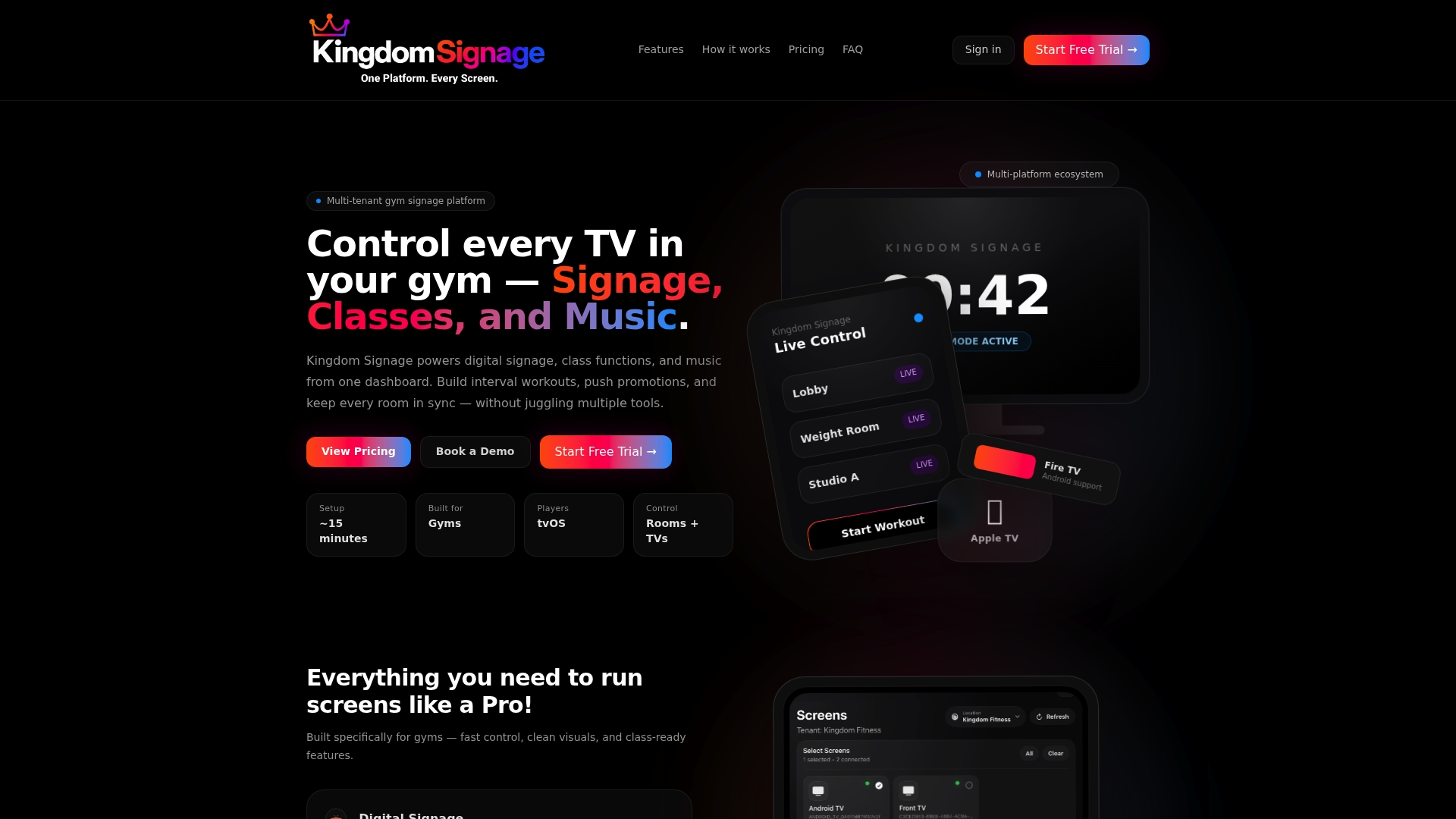
This is the point where operators move from a player-by-player setup to one dashboard. We built Kingdom Signage for exactly this: unified control of TVs, workout timers with demo video support, room-based music and real-time announcements, across rooms and across locations, from one place. It works with the screens you already own, so you are not replacing hardware to get there.
If you are also comparing other kinds of players, our guides on Fire TV signage, Android TV signage and Roku signage cover the same questions for each platform.
What an Apple TV setup costs
There are three cost lines:
- Hardware per screen: the Apple TV, an HDMI cable, a mount, and an Ethernet run if the wall port is not already there. Apple lists the current model and price on its Apple TV 4K page.
- Software: a signage app, which may be free for basic use or subscription-based for scheduling, multi-screen control and support.
- Management time: the cost people forget. If updating five screens takes 20 minutes each week, that is over 80 hours a year of someone's attention.
When you add it up, per-screen hardware is rarely the largest figure. Time and consistency are. A per-location subscription that removes the manual round is often cheaper than the labor it replaces.
Our perspective
Most gyms start with a single TV and a box, and that is fine. The trouble begins when the gym has a studio, a cardio floor, a front desk and a second site, and each has its own screen to maintain by hand.
What we see missing in general-purpose signage is the gym's own workflow: a class starts, the timer runs, the demo video plays, the right music is on in that room, and when the class ends the screen goes back to promotions. We designed Kingdom Signage around that sequence, so one dashboard handles the TVs, the timers, the room music and the announcements.
It integrates with the screens a gym already has and scales across unlimited locations, so the owner is not buying new hardware or juggling separate tools for visuals and audio. That is the path we recommend to any operator who expects the gym to grow past a handful of screens.
Kingdom
Try it on your gym's screens
If you manage a studio or a gym and want one dashboard for your TVs, class timers, room music and announcements, Kingdom Signage is built for it. It is a subscription priced per location, with a free trial or demo to start. You can see how it works at kingdomsignage.com.
Pair it with strong front-of-house content: our guide to front desk signage essentials shows the three messages worth putting on the screen members see first.
Setup checklist
Use this before you call the install finished:
- Apple Account created under a gym email address, with the login stored in a shared password manager.
- Ethernet used wherever a wall port exists, with a fixed Wi-Fi network for the rest.
- TV set to stay on, with HDMI-CEC behavior checked.
- Apple TV sleep and screensaver set for opening hours.
- Content sized to the screen, with portrait versions prepared where needed.
- Day-part schedule written down before slides are built.
- Remote stored out of reach, or the box locked to the signage app.
- A named person and a weekly time slot for updates.
- Any consumer streaming service shown in a public space checked against its terms first.
FAQ
Do I need an Apple Account to set up an Apple TV for signage?
Yes. Apple's guide says an Apple Account is required to download apps and use services. Create one for the business rather than using a personal account, so access does not leave when a staff member does.
Can an Apple TV play web pages or Canva designs directly?
Not through a browser, because the Apple TV does not include one. Export your Canva or slide designs as images or video files and load them through a signage app, as Jamf notes in its Apple TV deployment guidance.
Is Wi-Fi or Ethernet better for a gym signage screen?
Ethernet is the steadier choice where a wall port is available, and the 4K model supports Gigabit Ethernet according to Apple's specifications. Wi-Fi works for screens where cabling is impractical, but gyms are crowded with wireless devices, so wired is worth the effort for video loops.
Can one Apple TV show different content on several screens?
No. Each Apple TV connects to one display. For several rooms you need one box per screen or a system that manages all your screens centrally, which is how we approach it at Kingdom Signage.
Sources
- Set up your Apple TV 4K or Apple TV HD - Apple Support
- Set up Apple TV 4K - Apple TV 4K User Guide
- Apple TV 4K - Technical Specifications - Apple
- Apple TV Deployment in Schools: Enhancing Digital Classrooms - Jamf