
Syncing group fitness rooms comes down to three things: tempo-matched audio, a visual metronome on every screen, and one centralized schedule pushing both. Get those right and your instructors stop fighting the clock. Here are three templates you can load today:
- HIIT Sync — burpees and squats timed to 140–160 BPM with pulsing countdown overlays
- Tempo Strength — steady-rep lifting blocks at 100–120 BPM with rep-counter visuals
- Cycling Cadence — RPM-mapped intervals at 120–145 BPM with a rotating cadence wheel
Kingdomsignage is the recommended platform for deploying all three: one dashboard, every room, no extra hardware juggling.
Research note: A 2025 Journal on Multimodal User Interfaces study found that music tempo aligned to a group's average movement improved both synchronization and training motivation — the clearest published evidence that tempo-matching is worth the setup effort.
Table of Contents
- What do good group fitness room sync examples actually look like?
- How do you technically sync audio and visuals across multiple rooms?
- How should signage visuals work as a metronome?
- What safety rules apply when running synchronized classes?
- How do you roll out a multi-room sync system step by step?
- How do you measure whether your sync setup is actually working?
- How does Kingdomsignage handle this setup end to end?
- Key Takeaways
- The part most operators skip
- Kingdomsignage makes multi-room sync manageable
- Useful sources
What do good group fitness room sync examples actually look like?
Four copy-paste templates follow. Each includes exercises, BPM range, visual cue behavior, and instructor script bullets.
Template A: HIIT sync
Purpose: High-intensity intervals where every participant hits the floor at the same beat.
Exercises: Burpee Sync, Sync Squats, Group Plank Holds
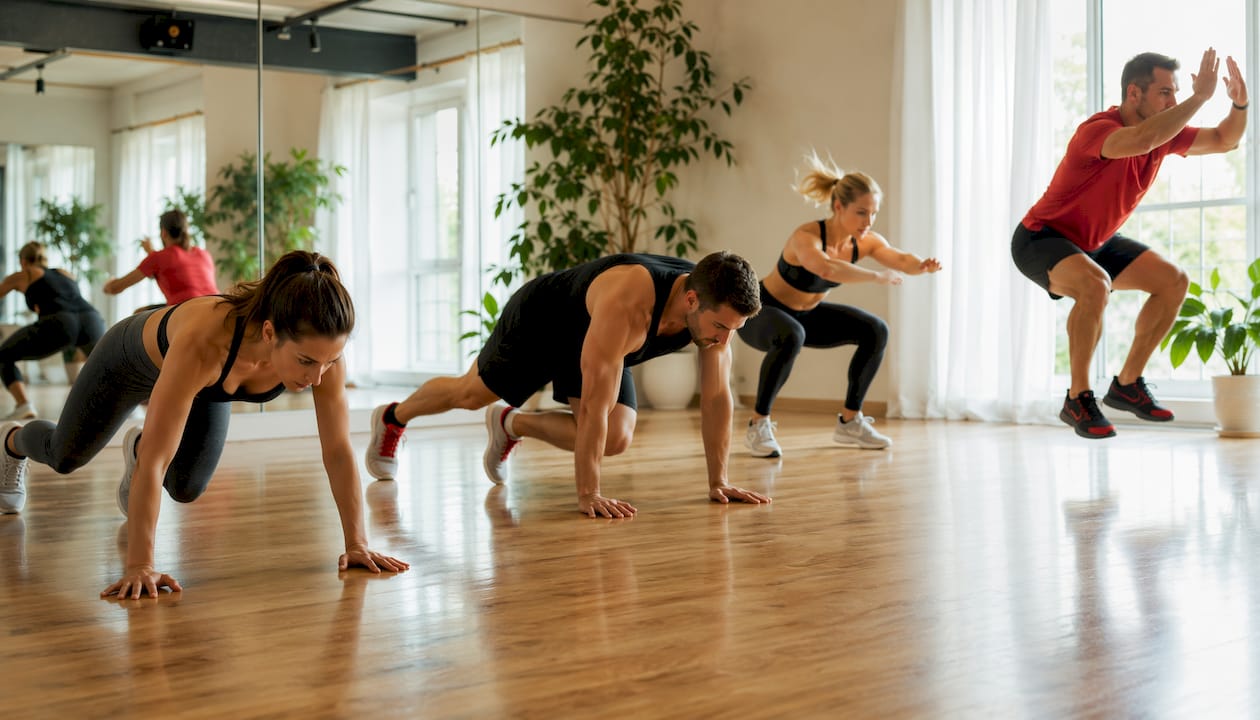
BPM range: 140–160 BPM
Visual cues: Pulsing red border on every beat during work intervals; solid green overlay during rest; 3–2–1 countdown card before each round.
Instructor script:
- "On the next pulse, we go — watch the screen."
- "Burpees, match the flash — down on the dark, up on the light."
- "Ten seconds — screen goes yellow, get ready."
- "Rest — green screen, shake it out."
- "Next round in five — watch for the countdown."
- "Form check — if your hips are dropping, step back and hold a plank."
Template B: Tempo strength
Purpose: Controlled-rep strength blocks where the screen acts as a rep counter so instructors can watch form instead of counting aloud.
BPM range: 100–120 BPM
Rep cadence: 2 seconds down, 1 second pause, 2 seconds up (matches a 60 BPM eccentric cue at half-tempo).
Visual cues: Large rep counter centered on screen; color shifts from white (working) to blue (rest) to orange (last three reps of set).
Instructor script:
- "Screen counts your reps — trust it, focus on your form."
- "Slow on the way down — match the counter."
- "Orange means three left — finish strong."
Template C: Cycling cadence
Purpose: Structured intervals where RPM targets map directly to BPM so riders can match the music without mental math.
BPM-to-RPM mapping: 120 BPM = 60 RPM, 140 BPM = 70 RPM, 160 BPM = 80 RPM (double-time pedaling = BPM ÷ 2).
Visual cues: Rotating cadence wheel on screen; target RPM displayed large; interval timer in the corner.
Instructor script:
- "Cadence wheel is your guide — match the spin."
- "Resistance up, RPM stays at 70 — watch the wheel."
- "Sprint interval — wheel speeds up, chase it."
Template D: Circuit flow (multi-station)
Purpose: Small groups rotate through stations on a shared countdown so no instructor has to shout over music.
Station timing: 40 seconds work, 20 seconds transition. Music segments change at each rotation.
Visual cues: Full-screen countdown timer; station name card appears at the 5-second mark before each transition; color pulse signals "move now."
Instructor script:
- "When the screen flashes, rotate clockwise."
- "Station name is on the screen — no guessing."
- "Last station — screen goes white, bring it in."
Quick-apply settings for all templates:
- Work BPM ranges: HIIT 140–160, Strength 100–120, Cycling 120–160, Circuit 120–140
- Countdown default: 3-second pre-interval card
- Color palette: emerald (go), red (stop/rest), orange (warning/last reps), white (neutral)
- Volume balance typically favors music during exercise and instructor mic during safety breaks, with adjustments made for clarity
Pro Tip: Map song structure to class intensity — use a verse for steady-state work and a chorus for peak effort. Participants feel the shift before the instructor says a word.
How do you technically sync audio and visuals across multiple rooms?
Three architectures cover most studio setups. Pick based on your network reliability and room count.
Single-server streaming (central playlist + multicast): One media server pushes the same audio and video stream to all rooms simultaneously. Latency is consistent but depends entirely on network stability. Best for studios with a managed wired LAN and fewer than eight rooms.
Distributed players with NTP/PTP timecode triggers: Each room runs its own player, but all players sync their clocks to a Network Time Protocol or Precision Time Protocol server. Playlists start at a scheduled timestamp, so even a brief network hiccup does not break sync. This is the most resilient architecture for larger facilities.
Cached offline playback: Players pre-download playlists and run locally. Offline caching is the practical safety net when Wi-Fi is intermittent — the "READY FOR CLASS" indicator confirms the cache is loaded before the session starts.
Network requirements:
- Dedicated VLAN for AV traffic, separate from member Wi-Fi
- QoS rules prioritizing AV packets over general data
- Wired connections (Cat6 minimum) for all primary players; Wi-Fi only as fallback
- Minimum 10 Mbps per room for HD video signage; 2 Mbps for audio-only streams
Latency targets:
| Latency range | Status | Implication |
|---|---|---|
| ≤20 ms | Target | Imperceptible; instructor timing is clean |
| 20–100 ms | Acceptable | Slight offset; monitor and adjust |
| >100 ms | Problem | Audible drift; participants lose sync |
Pro Tip: Validate sync with a smartphone: record two rooms simultaneously, then align the waveforms in a free editor like Audacity. A clap test works too — clap once on camera in both rooms and measure the gap on the timeline. Run this before every new deployment and after any network change. See gym digital signage setup for hardware placement guidance.
How should signage visuals work as a metronome?
The screen is not decoration. Treat it as a timing instrument.
Visual template specs:
- Font size for rep counters and timers should be large enough for clear visibility from the back of the room
- High contrast: white or emerald text on deep black background
- Layout zones: countdown timer top-center, rep counter bottom-left, status bar bottom-right
- Keep at least 40% of the screen clear — cluttered screens lose participants at the back of the room
Cue states to build:
- Countdown: 3–2–1 card, full-screen, high-contrast
- Go overlay: solid emerald flash for 0.5 seconds at interval start
- Pause/rest overlay: solid red with "REST" text
- Next-exercise card: exercise name + icon, appears 5 seconds before transition
- Per-rep flash: border pulses on each rep count, synced to BPM
Combining a large pulsing ring with short text cues handles participants with different sightlines. Someone in the back row catches the ring; someone up front reads the text. The combined audio-visual approach reduces perceived workload compared to audio-only cues.
Pro Tip: Set the pulsing border to fire at half or quarter-beat (every 2 or 4 beats) rather than every beat. A screen flashing 140 times per minute is distracting. A slow pulse at 35 times per minute reinforces tempo without pulling eyes away from the movement.
What safety rules apply when running synchronized classes?
Technology does not watch your members — instructors do. NASM guidance is clear: trainers must monitor kinetic-chain checkpoints and maintain form standards even when using synchronized routines.
Core safety checkpoints:
- Watch for hip drop during burpees and plank holds at synchronized intensity peaks
- Call form breaks before the screen does — the visual metronome cannot see fatigue
- Build a recovery prompt into every template at the 20-minute mark
- Never let audio/video lag above 100 ms run uncorrected during a live class
Instructor script for safety breaks:
- "Screen is pausing — everyone stop, hands on knees."
- "Check your neighbor's form before we restart."
- "If anything feels off, step to the side — the class keeps going."
Red flags that stop synchronized movement immediately:
- Visible form failure in more than two participants
- Dizziness or distress reported by any member
- Equipment failure at any station
- Audio or video lag exceeding the acceptable threshold
Every system needs a quick-override control: one button that pauses or switches a single room to safety mode without interrupting other rooms. Build that into your setup before go-live.
How do you roll out a multi-room sync system step by step?
Phased timeline:
- Planning (1–2 weeks): Audit rooms, map network, select templates, order hardware.
- Pilot (1–2 weeks): Two rooms with different acoustics, three test classes, collect sync logs.
- Rollout (2–6 weeks): Expand room by room; train instructors on override controls.
- Iteration (ongoing): Monthly review of KPIs and BPM adjustments.
Budget brackets (ballpark):
- Basic (2–4 rooms, existing network): $1,500–$4,000 for media players and screens
- Mid-range (network upgrades + managed switches + pro players): $5,000–$12,000
- Premium (redundant players, pro audio, acoustic treatment): $15,000+
Pre-go-live checklist:
| Item | Status |
|---|---|
| Hardware inventory complete | ☐ |
| Network VLAN and QoS configured | ☐ |
| NTP/PTP sync verified across all players | ☐ |
| Local cache loaded and "ready" confirmed | ☐ |
| Signage templates loaded and previewed | ☐ |
| Instructor rehearsals completed | ☐ |
| Pilot evaluation scheduled | ☐ |
For the pilot, pick two rooms with different acoustic profiles — one hard-floor, one carpeted. Run three classes, pull sync logs after each, and get written instructor feedback before expanding. The multi-room display manager's guide covers scheduling architecture in more detail.
How do you measure whether your sync setup is actually working?
KPIs to track:
- Class start punctuality should be monitored to ensure sessions begin close to their scheduled times
- Average attendance trend (week-over-week)
- Session completion rate (members who stay for the full class)
- Instructor-reported sync incidents per week
- Member NPS scores tied specifically to class experience
Simple A/B test plan:
- Week 1: run the same class with visual metronome + tempo-matched music.
- Week 2: run the same class with music only, no visual cues.
- Compare attendance, completion rate, and post-class survey scores.
- The tempo-matching research suggests results may vary by group — pilot both modes before committing to one.
Data collection:
- Short three-question post-class survey (timing, energy, would you return?)
- Automated session logs from signage players (start time, drift events, overrides used)
- Instructor incident reports filed within 24 hours of each class
What to iterate on: BPM adjustments first (±5 BPM can change the feel of a class significantly), then visual pulse intensity, then volume balance, then room acoustics if logs show persistent drift in one space.
How does Kingdomsignage handle this setup end to end?
Here is the exact workflow inside Kingdomsignage for deploying a synced class:
- Create a playlist in the dashboard; tag each track with BPM metadata.
- Attach a signage template (HIIT, Strength, Cycling, or Circuit) to the playlist.
- Assign rooms from the room list — select all rooms running the class simultaneously.
- Enable offline caching per room so playback survives a Wi-Fi drop.
- Set the scheduled start time and confirm NTP sync is active for all players.
- Preview in the dashboard before go-live; check latency readout per room.
Sample settings to copy:
- HIIT Sync: 150 BPM, template "HIIT-Pulse-v1," rooms: Studio A + Studio B, cache: ON, fallback audio: "hiit-fallback-150bpm.mp3"
- Tempo Strength: 110 BPM, template "Strength-Counter-v1," rooms: Weight Room, cache: ON
- Cycling Cadence: 140 BPM, template "Cadence-Wheel-v1," rooms: Spin Studio, cache: ON
Troubleshooting:
- Playback drifts mid-class: Check player CPU load and network packet loss; re-sync by stopping playback, issuing a 3-count verbal countdown, and restarting from the cached cue point.
- One room falls behind: Use the per-room override in the dashboard to pause that room, resync the clock, and restart without touching other rooms.
- Audio dropout: Confirm the fallback audio file is cached locally; if not, the player will buffer from the network and lag.
The centralized dashboard is where Kingdomsignage earns its keep during live classes. One screen shows every room's playback status, latency, and override state — so the ops team can fix a problem in Studio C without walking in and interrupting the class.
Key Takeaways
Syncing group fitness rooms works best when tempo-matched music, a visual metronome, and centralized scheduling operate together from a single platform.
| Point | Details |
|---|---|
| Tempo-match first | Aligning music BPM to movement tempo improves synchronization and motivation, per 2025 research. |
| Target ≤20 ms latency | Anything over 100 ms creates audible drift; use NTP/PTP sync and wired connections to stay under. |
| Pilot two rooms first | Test different acoustics across three classes before rolling out to the full facility. |
| Safety stays with instructors | NASM guidance requires trainers to monitor form at every intensity peak — the screen cannot do that. |
| Kingdomsignage centralizes control | One dashboard manages playlists, signage templates, offline caching, and per-room overrides across all rooms. |
The part most operators skip
The templates and the tech are the easy part. What actually breaks multi-room sync in practice is instructor buy-in and intermittent Wi-Fi — two problems no amount of hardware solves on its own.
Instructors who do not rehearse with the visual metronome will talk over it, ignore it, or worse, fight it mid-class. The override controls matter just as much as the sync architecture. A system that lets one instructor pause their room without disrupting three others is not a nice feature — it is what makes the whole thing survivable on a busy Saturday morning. Local caching is the same story: studios that skip it because "the Wi-Fi is usually fine" are the ones calling support during a packed spin class.
The studios that get the most out of fitness class synchronization are the ones that treat the pilot seriously. Two rooms, three classes, written feedback. That is not bureaucracy — it is the difference between a system your instructors trust and one they route around.
Kingdomsignage makes multi-room sync manageable
Running synchronized classes across multiple rooms used to mean a patchwork of separate apps, manual playlist handoffs, and a lot of crossed fingers. Kingdomsignage replaces that with a single dashboard that controls every screen, every speaker zone, and every class schedule in your facility.
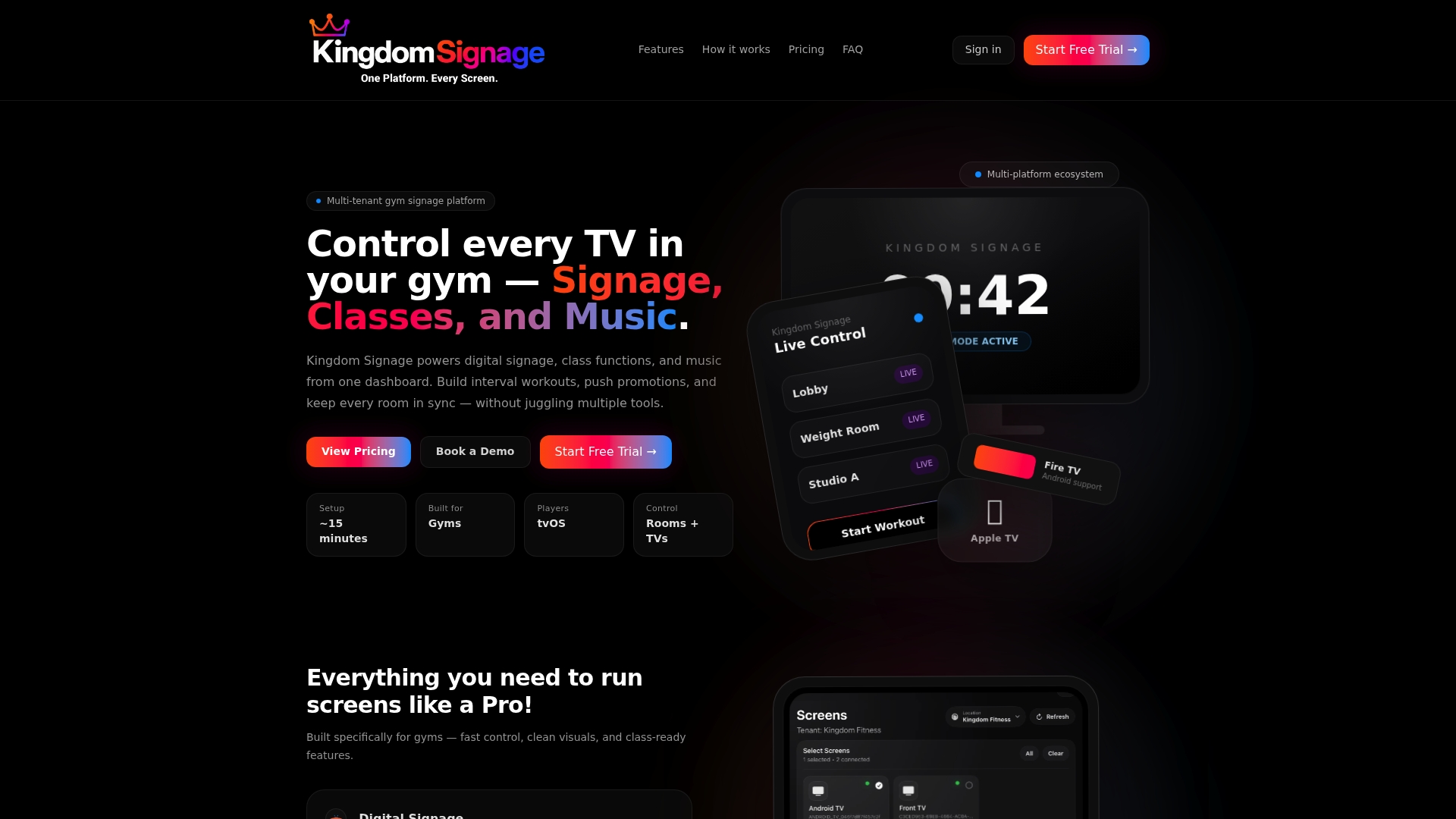
Key capabilities relevant to the setups above:
- Centralized playlist scheduling with BPM metadata tagging
- Pre-built signage templates for HIIT, strength, cycling, and circuit formats
- Offline caching with per-room readiness indicators
- Per-room override controls that do not interrupt other rooms
- Real-time latency monitoring across all connected players
- Multi-location management for franchise operators
If you manage more than two rooms or run back-to-back classes on a tight schedule, the time saved on coordination alone justifies the subscription. Start a free trial or book a demo to see the dashboard live with your room layout.
Useful sources
- Effects of music tempo on multi-participant exercise — Journal on Multimodal User Interfaces (2025): primary research on tempo-matching and group synchronization
- NASM: The Small-Group Circuit Workout — NASM guidance on trainer responsibilities and kinetic-chain safety
- Synchronize Music With Class Design — IDEA Health & Fitness Association: practical BPM-to-class-segment mapping
- SYNC Go App FAQs — offline caching steps and readiness indicators
- Best group exercises at home — exercise reference for sync template building blocks
- How to Set Up Gym Digital Signage That Works — Kingdomsignage: hardware placement and template setup
- How Multi-Room Gym Displays Work: A Manager's Guide — Kingdomsignage: multi-room scheduling architecture
- How to Create a Synchronized Workout Class Atmosphere — Kingdomsignage: combining music and visuals for class atmosphere