
You can add live weather to any digital sign in minutes using an embedded widget, your signage platform's built-in weather app, a feed or API with custom templates, or branded static graphics. Which one you pick depends on scale and technical comfort, not preference.
- Embed widget — fastest, good for one or two screens, weakest on branding.
- Platform weather app — best for multi-location gyms and studios; per-screen location detection built in.
- API-driven custom templates — best when brand control or advanced data (alerts, hourly forecasts) matters.
- Static graphics — offline-safe backup, zero live data, updated manually.
Two things to lock down before you touch any of them: set an update interval that balances timely updates with data usage, typically around a quarter to half an hour so you don't flood the API, and always have an offline fallback slide ready in case the feed drops mid class.
Key Takeaways
The fastest reliable way to add weather to signage is matching your method (widget, platform app, API, or static graphic) to your scale, then locking in a 15 to 30 minute cache interval and an offline fallback before going live.
| Point | Details |
|---|---|
| Match method to scale | Use widgets for one or two screens, platform apps or API templates once you're managing multiple rooms or locations. |
| Cache before you deploy | Set a 15 to 30 minute refresh cycle through a shared cache, not per-player polling, to avoid API rate limits. |
| Plan for failure | Keep a cached static slide ready so a dropped feed never leaves a screen blank. |
| Check licensing tiers | Confirm your weather API or widget license covers commercial, multi-location use before scaling up. |
| Kingdomsignage for gyms | Kingdomsignage assigns weather to playlists with per-player location detection and cached fallback, built for multi-room and multi-location gym deployments. |
Table of Contents
- How to Add Weather to Signage With an Embedded Widget
- Does Your Signage Platform Have a Built-In Weather App?
- When Should You Build a Custom API-Driven Weather Template?
- What Makes a Weather Display Actually Readable On-Screen
- How Often Should Weather Data Refresh on Signage?
- Quick Implementation Checklist for Adding Weather to a Screen
- Why Weather Belongs on Every Gym Screen
- Do You Need a License to Show Weather Data on a Commercial Screen?
- Will Live Weather Slow Down Your Signage Players?
- How Do You Keep External Weather Feeds From Becoming a Security Risk?
- What Actually Matters When You Add Weather to Signage
- How Kingdom Signage Handles Weather Across Every Room
- Key Developer Docs and Examples for Weather Signage
- Sources
How to Add Weather to Signage With an Embedded Widget
An embedded widget is the fastest path if you manage one screen or a handful of them and don't need per-location automation. Most providers, including Weatherwidget, let you configure a widget on their site and hand you a snippet you paste into any signage dashboard that accepts web pages or iframe assets.
- Generate the widget on the provider's site, setting your city, units (°F or °C), and language.
- Copy the embed code.
- Paste it into a "web page" or "HTML" asset type in your signage software.
- Set the asset's display duration and drop it into the right playlist slot.
The trade-off is real: widgets look generic unless the provider offers color and font controls, and most stop updating the moment your screen loses internet, since there's no local cache behind them. Before you walk away, confirm the embed URL uses HTTPS (mixed content gets silently blocked on some players), check that the widget container resizes to fit your screen instead of getting cropped, and preview it live to confirm the city, font size, and contrast actually read from across a gym floor.
Pro Tip: Preview the widget on the actual player hardware, not just a laptop browser. Some embedded signage browsers render fonts smaller than desktop Chrome, and text that looks fine on your screen can be unreadable from the treadmills.
Does Your Signage Platform Have a Built-In Weather App?
If you're running screens across more than one room or one location, a native weather app inside your signage platform beats a widget every time. The setup flow is nearly identical across most platforms: add the weather app or asset, configure the location (manually per screen or via auto-detection), pick a template and styling option, then assign it to a playlist.
- Per-screen location accuracy means your front desk display and your second location across town both show correct local conditions without you touching a thing after setup.
- Scheduling and updates get managed centrally instead of screen by screen.
- Templates are typically pre-built for common aspect ratios like 16:9 and 9:16, so you're not fighting layout on portrait lobby screens.
Before committing to a platform's weather feature, check three things: how much you can actually customize (icons, colors, fonts), what update interval options exist, and whether it handles timezones correctly if you operate across regions. Assigning the app to a playlist usually takes one drag-and-drop action once the asset exists, similar to how you'd assign a class schedule display to a specific room's rotation.
Pro Tip: Test auto-detected location on a new screen before it goes live. IP-based detection occasionally guesses the wrong city, especially on VPNs or shared corporate networks.
When Should You Build a Custom API-Driven Weather Template?
Build a custom template when a widget or built-in app can't give you the data fields or brand control you need. APIs like OpenWeatherMap expose current conditions, hourly and daily forecasts, UV index, and severe weather alerts, far more than a basic embedded widget typically surfaces.
The pipeline looks like this in practice:
- Your server or a small serverless function calls the API on a schedule.
- That layer caches the response and normalizes it into your template's data format.
- A templating engine or HTML/CSS asset renders the styled display.
- Your signage player pulls the finished asset, not the raw API.
That intermediary layer matters because it lets you cache data with a short TTL instead of every player hitting the API independently.
| Consideration | Recommendation |
|---|---|
| Cache interval | 15 to 30 minutes |
| API key handling | Store server-side, never in client-facing code |
| Data fields to pull | Current temp, short forecast, alerts |
| Trigger logic | Swap creative when temperature crosses a threshold |
This route pays off when you want a promo creative to swap automatically once it drops below 40°F, something no off-the-shelf widget will do for you.
What Makes a Weather Display Actually Readable On-Screen
Legibility beats cleverness. Show current temperature and a short forecast, use large sans-serif fonts, high contrast backgrounds, and simple icons that read clearly from 20 feet away. Cramming in a 7-day forecast on a gym floor screen just creates noise nobody stops to read.
Match the display to your brand rather than accepting a default widget skin. A transparent background with your gym's color palette makes weather content look like it belongs on the screen instead of looking bolted on.
- Full-screen 16:9 layouts work well for lobby TVs during off-peak hours.
- Portrait 9:16 screens suit a compact weather card stacked above class schedules.
- Sidebar or footer strips keep weather present without competing with the main content zone, an approach covered in more depth in gym TV display zone planning.
Pairing weather with a relevant promotion is one of the simplest wins available: trigger a "hot coffee, cold day" or "post workout smoothie" creative automatically when temperatures drop, an approach worth studying alongside real-time offer display tactics.
Pro Tip: Keep weather text to two lines max: current temperature and one short forecast phrase. Anything longer gets skipped by anyone walking past.
How Often Should Weather Data Refresh on Signage?
Refresh weather data every 15 to 30 minutes. Weather conditions don't change fast enough to justify anything tighter, and pulling more frequently just burns through API rate limits without improving what viewers see.
The bigger mistake is letting every individual player poll the API on its own schedule. Ten screens each calling the API independently multiplies your request volume for no benefit. Route all requests through one server-side cache or a staggered pull schedule per region instead.
- Set a single cache layer per region, refreshed on a 15 to 30 minute cycle.
- Have every player pull from that cache, not the live API.
- Keep a cached static slide or local fallback graphic ready in case the feed times out.
- Simulate a network failure in testing to confirm the fallback actually triggers instead of leaving a blank screen.
- Preview the display across every aspect ratio you run before pushing it live everywhere.
Fields worth caching beyond temperature include humidity, wind speed, and severe alerts, since enterprise-grade feeds bundle these in without extra API calls.
Quick Implementation Checklist for Adding Weather to a Screen
- Pick your method: widget for speed, platform app for scale, API for custom branding, static graphics as backup.
- Gather what you need: screen IDs, aspect ratios per screen, an API key if going custom, brand assets, and target playlist slot durations.
- Add the asset or app, set the location (manual or auto-detect), apply your styling, and assign it to the playlist.
- Test on the actual player, confirm HTTPS isn't blocked, verify the iframe isn't stripped by your player's browser, and monitor for a day before trusting it unattended.
Why Weather Belongs on Every Gym Screen
Weather is one of the few content types people glance at reflexively, and that recurring attention carries over to whatever content sits next to it in the rotation. For a multi-room gym, the real cost isn't finding a weather app. It's managing location accuracy and caching across every screen without a full-time technician. Platforms that automate per-player location and templating remove that overhead entirely. When evaluating any platform, judge it on automation, per-player location handling, and template flexibility, not just whether it "has weather."
Do You Need a License to Show Weather Data on a Commercial Screen?
Most consumer weather APIs and widgets restrict commercial use under their terms of service, so read the license tier before deploying anything on a gym floor. OpenWeatherMap, for example, offers free tiers meant for development and low-volume personal use, with paid tiers required once you exceed certain call volumes or use the data commercially across multiple locations. A gym running weather on five screens across three locations easily crosses that threshold, and running a free-tier key past its intended use risks your key getting throttled or revoked without warning.
Attribution requirements are another detail people skip. Some providers require a visible logo or "Powered by" credit on any commercial display using their data; others waive it on paid tiers. Check the specific provider's terms rather than assuming free equals unrestricted.
Widget embeds carry their own fine print. A free widget snippet is often licensed for personal or small business use with the provider's branding intact; stripping that branding or rehosting the widget elsewhere can violate the terms even if the visual result looks identical.
If your gym operates in multiple states or countries, don't assume one provider's terms apply uniformly. Some weather data providers geofence certain features or restrict redistribution rights by region. The safest approach for any commercial deployment: pick a provider with an explicit commercial or business tier, read what "commercial use" actually means in their agreement, and keep a record of which license tier you're on for each screen you deploy. It's a five-minute check that avoids a much bigger headache if a provider audits usage later.
Will Live Weather Slow Down Your Signage Players?
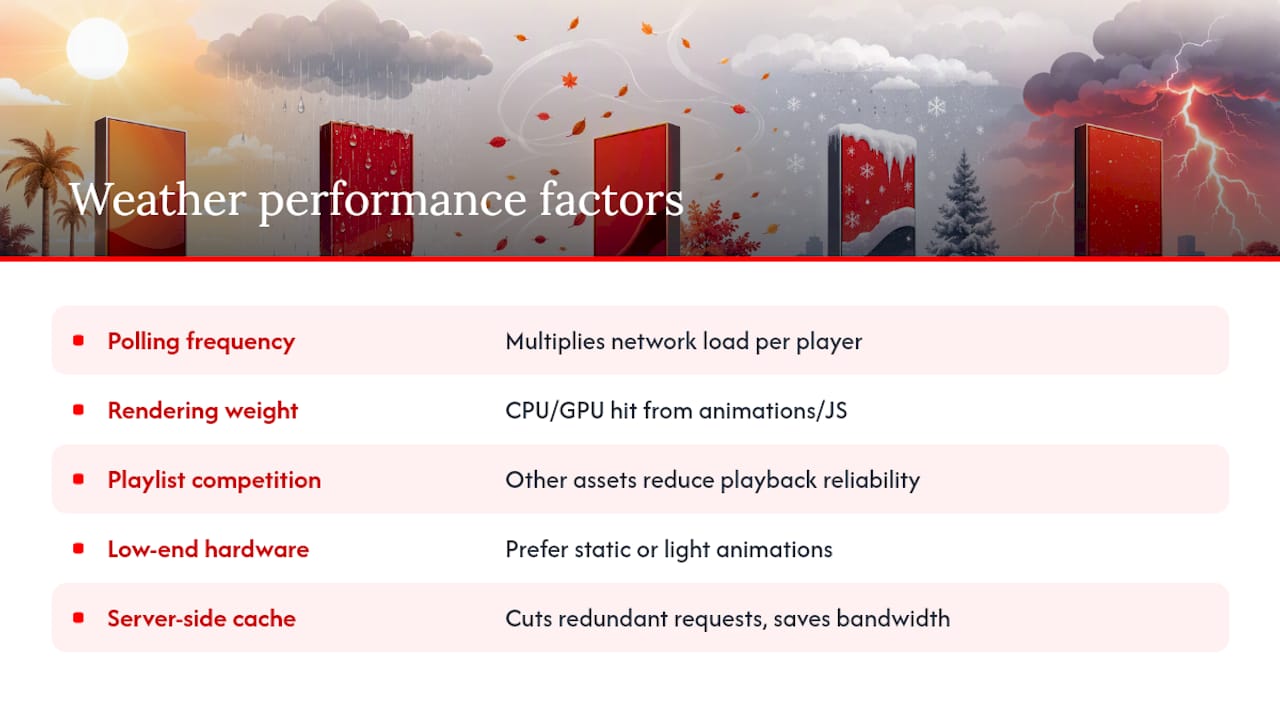
A weather widget or API call adds minimal load to modern signage hardware, but "minimal" assumes you've set it up correctly. The actual performance cost comes from three places: how often the player fetches new data, how heavy the rendering is, and how many other assets are competing for the same player's resources in that playlist.
Low-end signage players, the kind built into budget smart TVs or older Android sticks, can struggle if a weather widget uses animated backgrounds, video loops, or heavy JavaScript rendering. A static or lightly animated template renders far more reliably on that hardware than a widget built for desktop browsers. If you're running older player hardware across multiple rooms, test the exact weather asset on your weakest device before rolling it out everywhere, not just your newest screen.
Network load matters more than CPU load in most gym deployments. If every player independently polls a weather API every few minutes, you're multiplying bandwidth use across your location's network, which competes with music streaming, class video playback, and any other live content running simultaneously. This is the practical reason server-side caching matters beyond just avoiding rate limits: it also keeps your local network from getting saturated by redundant weather requests.
For gyms running dedicated signage players (rather than converted smart TVs), hardware requirements for weather content are trivial: any player capable of rendering a modern web page handles a weather widget without issue. The real hardware question isn't "can it show weather," it's "how many total assets, videos, and live feeds is this player juggling in one playlist," since weather is rarely the heaviest thing on the screen.
How Do You Keep External Weather Feeds From Becoming a Security Risk?
Any external API or feed you pull into your signage system is a door into your network, so treat the API key and the connection with the same care you'd give a payment integration. Store API keys server-side, never embedded directly in client-facing HTML or JavaScript that a player renders, since anyone inspecting page source could lift an exposed key and run up usage on your account.
Use HTTPS for every widget embed and API call without exception. A mixed-content connection, where your signage dashboard loads over HTTPS but the weather feed loads over plain HTTP, gets blocked by many modern players and creates an opening for a man-in-the-middle attack on unsecured networks, which matters if your gym's signage runs on the same Wi-Fi as member devices.
Rotate API keys periodically and immediately if you ever suspect one has been exposed, especially if a developer who had access leaves your team or a vendor relationship ends. Limit key permissions to read-only weather data access where the provider allows it; there's no reason a weather API key needs broader account permissions than fetching forecast data.
If you're using a third-party widget rather than a direct API call, understand that you're trusting that provider's infrastructure and update cadence. A compromised or poorly maintained widget script could theoretically be altered to serve something other than weather data. Stick to established, widely used providers rather than obscure widget scripts pulled from unfamiliar sites, and periodically check that the embed code you're running still matches what you originally deployed.
What Actually Matters When You Add Weather to Signage
Most guides treat weather as a solved problem: paste a widget, done. That's true for one screen. It falls apart the moment you're running six rooms across two gym locations, because the conventional advice skips the part that actually eats your time: per-screen location configuration and caching discipline.
The overrated concern is visual design. Yes, brand-matched colors help, but a plain, legible weather card beats a beautifully styled one that's wrong for half your locations because nobody set the per-screen location correctly. Get the operational layer right first: server-side caching, per-player location detection, and a fallback slide for when the feed drops.
What conventional advice underweights is automation at scale. A widget that takes five minutes to set up on one screen takes hours once you're maintaining it across a dozen screens manually. That's the real argument for platform-level integration over piecing together widgets screen by screen; it's not about features, it's about what happens on a Tuesday when three screens need their location corrected and you have twenty other things to do that day.
Prioritize the boring stuff first: caching interval, fallback content, and location accuracy. The design polish can wait.
How Kingdom Signage Handles Weather Across Every Room
Kingdomsignage is built around the exact operational gap most weather setups ignore: managing screens across multiple rooms and locations without babysitting each one. Weather content assigns to a playlist the same way class schedules and promotional slides do, with per-player location detection so your cardio room in one location and your studio across town both show accurate conditions without manual per-screen setup.
That same dashboard handles the caching and fallback concerns covered earlier: content keeps playing from cached assets if a feed interruption hits, so a screen never goes blank mid class. Template styling lets you match weather displays to your gym's color palette instead of settling for a generic widget skin, and everything, weather included, gets scheduled from one place rather than juggled across separate tools for TVs, music, and class timers.
If you're running more than one screen or one location and you're tired of reconfiguring widgets room by room, request a walkthrough of Kingdomsignage and see how weather, schedules, and promotions run from a single dashboard.
Key Developer Docs and Examples for Weather Signage
- piSignage weather examples (GitHub) — starter code for signage-weather integrations.
- Weatherwidget — embeddable widget generator for fast deployment.
- WeatherWidget examples on CodePen — preview widget styling and responsiveness before deploying.