
A gym screen layout design workflow is the structured process of planning, scheduling, and automating digital content across multiple gym displays to maximize member engagement and operational consistency. Done right, it transforms a collection of screens into a coordinated communication system. The workflow covers everything from choosing a content management system (CMS) like BrightSign to mapping physical zones, building playlists, and setting role-based permissions. Gym managers who master this process report fewer manual errors, stronger member retention, and smoother class transitions without juggling multiple tools.
What are the core components of a gym screen layout design workflow?
A functional gym screen layout design workflow rests on three CMS building blocks: playlists, stations, and permissions. Playlists structure what plays when, stations group screens by physical location such as the front desk or training floor, and permissions define who can edit or publish content. Without all three working together, your screens will show the wrong content at the wrong time to the wrong audience.
Playlists, stations, and permissions explained
Playlists are the scheduling engine. You assign specific content to specific time slots, and the CMS handles the rest automatically. Stations are the physical anchor points. Each station maps to a real location in your gym, so the front desk station shows membership promotions while the cardio floor station shows high-energy workout clips. Permissions prevent staff from accidentally publishing off-brand content. An admin controls the master template, managers adjust zone-level content, and staff can only view or trigger pre-approved assets.
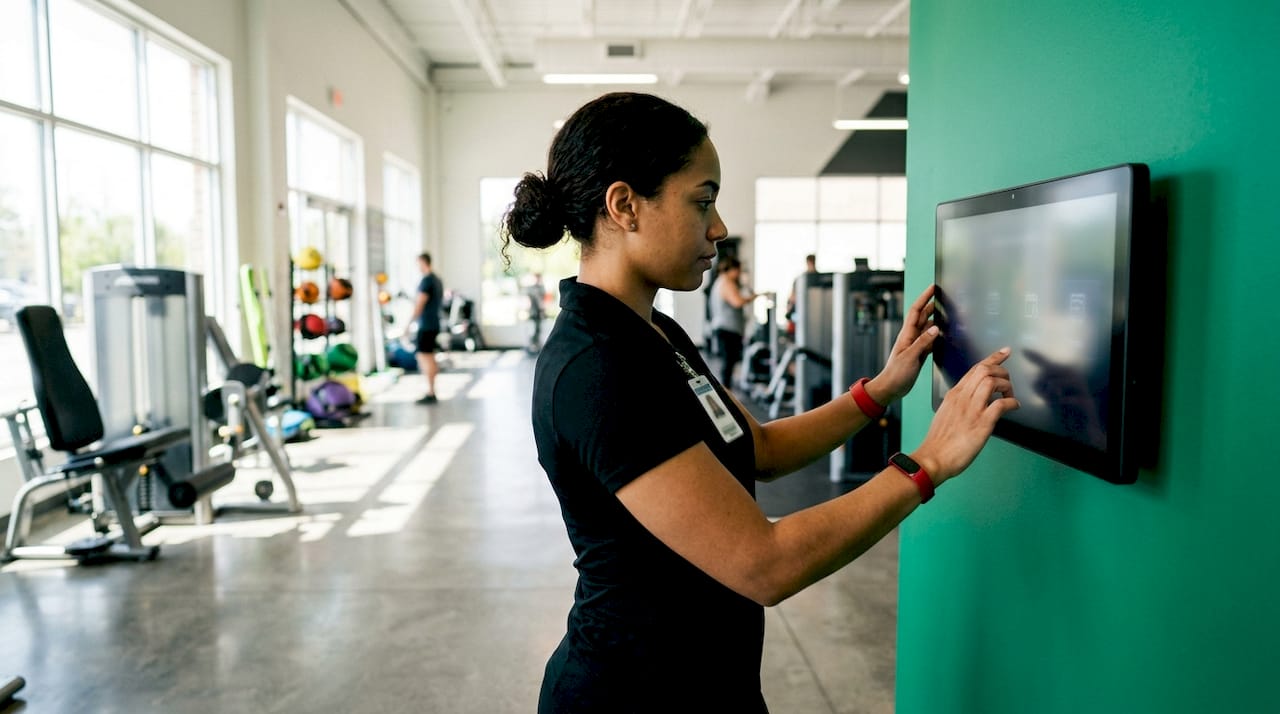
Hardware: built-in SoC vs. external media players
| Feature | Built-In SoC Players | External Media Players (e.g., BrightSign) |
|---|---|---|
| Setup complexity | Low | Moderate |
| Processing power | Limited | High |
| Remote management | Basic | Advanced diagnostics and updates |
| Durability for gym use | Consumer-grade | Commercial-grade |
| Best for | Small single-room gyms | Multi-room or multi-location facilities |
Commercial gym screens need to run 18–24 hours per day, compared to consumer TVs designed for 4–6 hours daily. That gap in runtime expectation is why hardware selection matters before you write a single playlist. Brightness also matters. Gym lighting creates significant glare, so screens rated at 500–700 nits perform far better than standard consumer displays in that environment.
Pro Tip: When selecting screens for your cardio floor, choose portrait orientation for narrow column placements and landscape for wide wall mounts. Orientation affects how members read content mid-workout, so match it to the physical space before finalizing your layout.
Content zoning ties the physical gym to the digital layer. Different zones require tailored content strategies: retail zones near the entrance benefit from promotional messaging, training floors need motivational or instructional content, and studio entrances work best with class countdown timers. Getting this right at the hardware stage saves significant rework later.
How do you plan gym screen content around schedules and zones?
Content planning for a gym display setup works best when it mirrors the gym's daily operational rhythm. A pre-class window calls for class reminders and warm-up tips. During class, screens shift to instructor-led content or synchronized workout visuals. Post-class, the focus moves to recovery tips, upcoming class promotions, or membership upsells. Each phase requires a distinct playlist, and those playlists need to be built before your first screen goes live.
Here is a practical content planning sequence for gym managers:
- Map your operational schedule. List every recurring event: opening, peak morning traffic, class blocks, lunch rush, evening peak, and closing. Each block becomes a playlist trigger.
- Assign content types to each zone. Front desk screens show promotions and check-in reminders. Training floor screens show workout tips and motivational content. Studio entrances show class schedules and countdowns.
- Build zone-specific playlists. Keep each playlist to 8–12 items maximum. Longer playlists dilute message impact and reduce how often members see your most important content.
- Set role-based permissions. Assign admin rights to one or two people. Give managers zone-level edit access. Restrict staff to view-only or trigger-only functions to protect content integrity.
- Schedule a refresh cadence. Weekly or bi-weekly playlist reviews prevent stale content and message fatigue. Treat it like a standing meeting, not an optional task.
Aligning playlists with physical gym zones reduces the cognitive load on members. When the screen near the squat rack shows strength training tips instead of spa promotions, members trust the screens and pay attention to them. That trust directly improves engagement metrics.
Pro Tip: Build a content calendar in a shared tool like Google Sheets or Notion alongside your CMS. The calendar gives your team a bird's-eye view of what runs when, making it far easier to spot gaps or conflicts before they go live on screen.
A centralized CMS dashboard also lets you sync content across multiple locations from one interface. For gym chains or franchises, this is the difference between consistent brand messaging and a patchwork of outdated promotions across sites.
What is the step-by-step process to design and implement gym screen layouts?
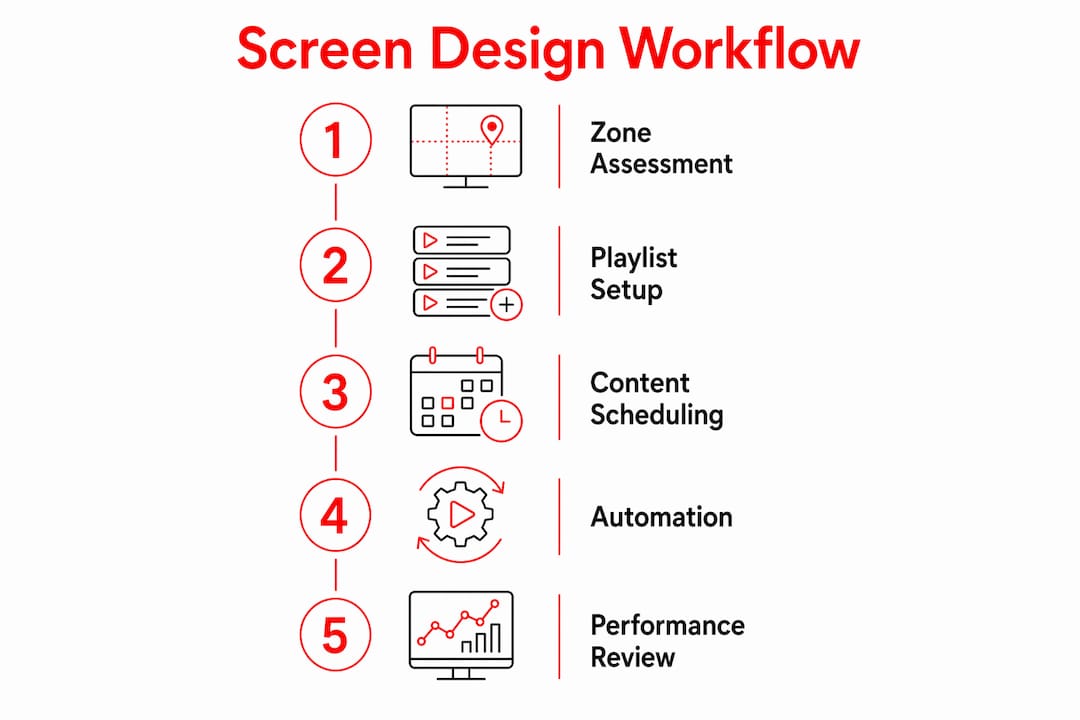
A repeatable implementation process separates gyms that get results from those that spend months troubleshooting. Follow these six steps to move from blank screens to a fully operational workout interface workflow.
- Assess gym zones and screen placement. Walk the floor and identify high-traffic areas, dwell points, and sight lines. Testing layouts in 2D and 3D during planning helps validate screen placement before you mount anything. A 2D floor plan confirms capacity and circulation; a 3D render clarifies sight lines and stakeholder buy-in.
- Select hardware and CMS software. Match your hardware to the runtime and brightness demands of your environment. Choose a CMS that supports remote management, especially if you operate more than one location.
- Build playlists and assign stations. Create one playlist per zone per time block. Assign each playlist to the correct station in your CMS. Label stations clearly so any team member can identify them without a manual.
- Set permissions and security controls. Lock down publish rights to prevent unauthorized content. Use role-based access so your front desk staff cannot accidentally overwrite the training floor playlist.
- Test playback synchronization and automation. Run a full-day simulation before going live. Check that content transitions fire at the correct times, audio levels match the zone, and no screens show error states.
- Schedule regular content updates and system maintenance. Build a monthly maintenance check into your operations calendar. Verify that media players are running current firmware, playlists are refreshed, and no screens have gone offline.
| Workflow Stage | Key Action | Common Pitfall |
|---|---|---|
| Zone assessment | Map screens to traffic flow | Ignoring peak-hour sight lines |
| Hardware selection | Match brightness to gym lighting | Using consumer TVs for 18+ hour runtime |
| Playlist build | One playlist per zone per time block | Overloading playlists with 20+ items |
| Permissions setup | Restrict publish rights by role | Giving all staff admin access |
| Testing | Full-day simulation before launch | Testing only during off-peak hours |
| Maintenance | Monthly firmware and content review | Skipping updates until a screen fails |
Clear traffic lanes and separation of entry and exit paths also inform where screens belong. A screen placed at a bottleneck creates distraction, not engagement. Physical flow planning and digital layout planning must happen together, not in separate silos.
How does automation improve gym screen workflows and member experience?
Automation is where a good gym screen workflow becomes a great one. Manual content switching creates timing drift, where screens show the wrong content because a staff member forgot to trigger the next playlist. Automation eliminates that problem entirely.
The Everyone Active gym network demonstrates this clearly. BrightSign players managed by Gymstream automate lighting, audio, and video across gym screens, coordinating the full pre-class, during-class, and post-class experience without manual intervention. The result is a consistent member experience regardless of which staff member is on shift.
Key automation benefits for gym screen workflows include:
- Pre-class cues fire automatically. Countdown timers, instructor introductions, and warm-up content appear on screen at the scheduled time without anyone pressing a button.
- Class transitions happen without gaps. When a class ends, the system shifts to post-class content and then to the next class preview on a pre-set schedule.
- Remote diagnostics reduce downtime. BrightSign's remote management platform monitors player health across hundreds of locations, flagging issues before members notice them.
- Multi-room synchronization stays tight. Audio and visuals across different studio spaces stay in sync, which matters when members move between rooms during a session.
"Unified control of in-studio digital experiences maintains consistent timing and reduces manual errors versus independent screen playback." — BrightSign and Gymstream, Everyone Active deployment
Automation also supports virtual class integration, where on-demand fitness content needs to sync with in-room lighting and audio. Without automation, that coordination requires a dedicated AV technician. With it, a single scheduled workflow handles everything.
Key takeaways
An effective gym screen layout design workflow requires aligned CMS architecture, zone-specific content planning, commercial-grade hardware, and automated scheduling to deliver consistent member experiences at scale.
| Point | Details |
|---|---|
| CMS structure drives everything | Build playlists, stations, and permissions before placing a single screen. |
| Hardware must match gym demands | Choose commercial screens rated for 18–24 hour runtime and 500–700 nit brightness. |
| Zone content to physical spaces | Match screen content to member location to increase attention and reduce confusion. |
| Automate to eliminate timing drift | Use media players like BrightSign to trigger content transitions without manual input. |
| Refresh playlists on a set schedule | Weekly or bi-weekly content reviews prevent stale messaging and maintain member engagement. |
What i've learned about gym screen workflows after working with dozens of facilities
Most gym managers underestimate how much the physical layout should drive the digital one. They build playlists first and figure out screen placement second. That sequence produces screens showing the wrong content in the wrong location, and members simply stop looking at them.
The facilities that get the best results treat their CMS zones as a direct mirror of their physical floor plan. Every station in the software corresponds to a named physical zone. When a new staff member joins, they can look at the CMS and immediately understand which screen is which. That clarity prevents the permissions creep that kills content quality over time.
The other mistake I see constantly is treating content refresh as optional. Stale screens are invisible screens. Members stop registering content they have seen 40 times. A bi-weekly review cycle sounds like overhead, but it takes less than 30 minutes when your playlists are well-organized and your permissions are locked down properly.
On hardware, the brightness question comes up in almost every conversation. Gyms are bright environments. A screen that looks vivid in a showroom looks washed out under fluorescent lighting next to a mirror wall. Spec your screens for the actual environment, not the demo room.
The automation piece is where I see the biggest gap between what gyms have and what they could have. Most facilities are still manually switching content between classes. That is a solvable problem, and solving it frees up staff time while delivering a more consistent experience to members. The music and screen workflow integration alone can change how a class feels from the moment a member walks in.
— Kingdom
How Kingdomsignage simplifies your gym screen workflow
Managing gym screens across multiple rooms and zones should not require multiple tools, manual switching, or a dedicated AV technician on every shift. Kingdomsignage brings TV control, workout class content, and music into a single dashboard built specifically for gym environments.
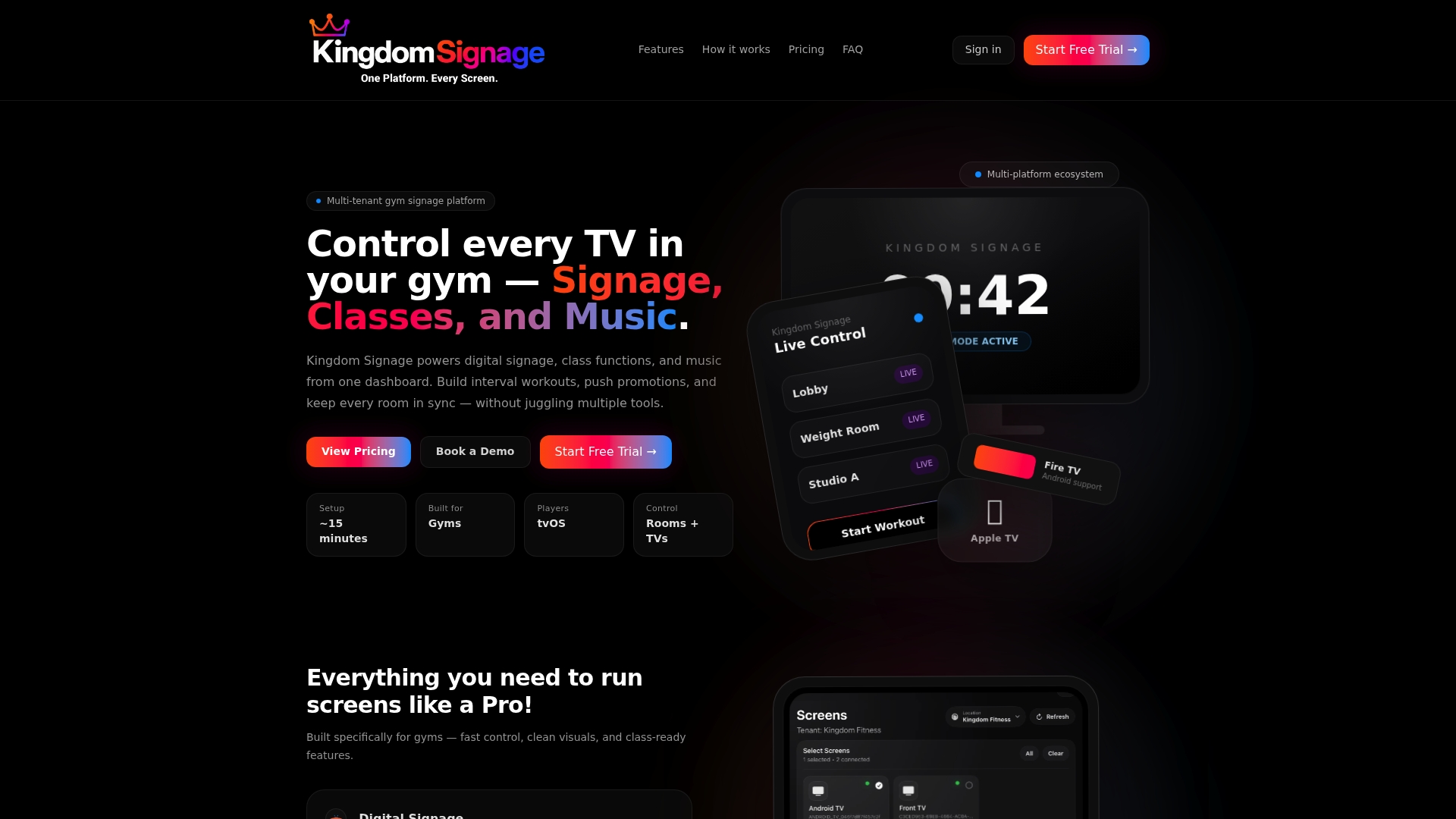
Gym managers using Kingdomsignage can schedule content by zone, sync audio and visuals across rooms, and push real-time updates without leaving the platform. The system handles class transitions automatically, so your screens always show the right content at the right time. Whether you manage one location or a multi-site network, Kingdomsignage gives you the centralized gym screen control your operation needs to run without friction and keep members engaged every session.
FAQ
What is a gym screen layout design workflow?
A gym screen layout design workflow is the process of planning, scheduling, and automating digital content across gym displays using a CMS, physical zone mapping, and role-based permissions. It connects hardware, software, and operational schedules into one coordinated system.
How do playlists and stations work in a gym CMS?
Playlists define what content plays and when, while stations represent physical screen locations like the front desk or training floor. Assigning the right playlist to the right station ensures members see relevant content based on where they are in the gym.
What hardware specs do gym screens need?
Commercial gym screens should support 18–24 hours of daily runtime and reach 500–700 nits of brightness to stay visible under gym lighting. Consumer TVs are not built for this demand and will fail faster in a gym environment.
How does automation reduce errors in gym screen workflows?
Automation triggers content transitions, lighting changes, and audio cues on a pre-set schedule, removing the need for manual switching between class phases. Platforms like BrightSign and Gymstream have demonstrated zero player failures after deployment at scale in facilities like Everyone Active.
How often should gym screen playlists be refreshed?
A weekly or bi-weekly review cycle prevents content fatigue and keeps messaging current. Stale playlists cause members to stop engaging with screens, which undermines the value of your entire digital signage investment.